Note
Access to this page requires authorization. You can try signing in or changing directories.
Access to this page requires authorization. You can try changing directories.
Azure DevOps Services | Azure DevOps Server | Azure DevOps Server 2022
Use bulk modify to update many work items at once without opening each one individually. From the web portal, you can:
- Update field values across selected items
- Reassign work to a team member
- Move items to a sprint or iteration
- Add or remove tags
- Change the work item type or move items to another project
Available options depend on your access level and permissions.
Tip
To add work items in bulk, or to set different values per item, use CSV import instead. The web portal bulk edit applies the same value to all selected items.
Tip
You can use AI to help with this task later in this article, or see Enable AI assistance with Azure DevOps MCP Server to get started.
Prerequisites
| Category | Requirements |
|---|---|
| Permissions | To view, follow, and edit work items: - View work items in this node (Allow) - Edit work items in this node (Allow) By default, the Contributors group has these permissions. For more information, see Set work tracking permissions. To add new tags: - Project-level Create tag definition permission (Allow) By default, the Contributors group has this permission. |
| Access levels | - Project member To add new tags or follow pull requests: At least Basic To view or follow work items: At least Stakeholder To send emails with work items: Must be a member of the Contributors group |
Note
- Assign Stakeholder access to members who want to review progress and discuss work items but don't contribute to code. They can view work items, backlogs, boards, and dashboards.
- By default, Contributors and Stakeholders in public projects can add new and existing tags. In private projects, only Contributors can add new tags. To change tag creation permissions, set the Create tag definition permission at the project level. For more information, see Change project-level permissions.
Note
- Assign Stakeholder access to members who want to review progress and discuss work items but don't contribute to code. They can view work items, backlogs, boards, and dashboards.
Supported tasks
Contributors can complete all the following tasks. Members with Stakeholder access are limited to multi-select, bulk edit, change type, email, and copy as HTML/copy to clipboard. For more information, see Get started as a Stakeholder.
Area
Task
Multi-select work items
Link work items
Bulk edit/update/delete
Copy, clone, change type, move, or send email
Note
- Hidden work item types: Some bulk actions aren't available for hidden type category work items. This category includes test cases, shared steps, shared parameters, code review requests and responses, and feedback requests and responses.
- Copy vs. Clone (single item only): Both actions apply to one work item at a time, from a query results list or the Actions menu on the work item form. Use Copy work item to copy an item and change its type. Use Clone to create an identical copy of the same type.
- Move work items permission: To move items to another project, be a member of the Project Administrators group or have explicit Move work items permission.
Select work items for bulk edit
Select multiple work items from query results, the backlog, or sprint backlogs. The process for selecting multiple work items works the same way across all three. To build a targeted list, see Define a work item query.
From the backlog context menu, you can:
- Change priority with Change position
- Move items to a sprint with Move to iteration
- Assign items to a team member
- Map items to a feature
The available menu options differ between the backlog and query results, as shown in the following section.
Backlog menu

Query results multi-select menu

Select multiple items and open the context menu
Use the following keyboard shortcuts to select work items:
- Sequential items: Select the first item, hold Shift, and select the last item in the range.
- Nonsequential items: Hold Ctrl and select each item individually.
To open the context menu, select  or
or  , and then choose an option.
The following example moves several nonsequential items to the current sprint using the context menu.

Tip
You can also drag selected items to a new position in the backlog or onto a sprint in the Planning pane. To use the Planning pane, enable it from the view options menu. To create a query from the current backlog for further bulk updates in Excel, use the Create Query feature.
Reassign work items
Select the work items you want to reassign.
Open the context menu on any selected item by selecting
, and then select Assign to or Move to iteration.
Select a team member (Assign to) or a sprint (Move to iteration), and then confirm.
For more information about the Assign To and Iteration Path fields, see Workflow and board fields and Query by area or iteration path.
Edit field values in bulk
Select the work items you want to update, and then choose Edit from the context menu.
In the Edit work items dialog, select a field, enter or select the new value, and optionally add a description for audit purposes. Repeat for each field to update. For a full list of available fields, see the Work item field index.
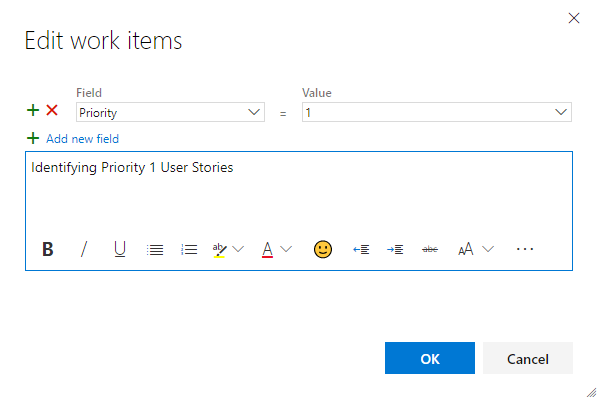
Select Save changes.

Note
When you bulk modify work items from the backlog, the changes save automatically. When you work from query results, items shown in bold have unsaved local changes - select Save items to commit them.
Move work items to a sprint
From any product, sprint, or portfolio backlog, drag a multiselected list of work items onto a sprint in the Planning pane to update their iteration path. Users with Stakeholder access can't use this action.
Open the Planning pane by selecting the
 view options icon and choosing Planning. You can set In Progress items to On or Off.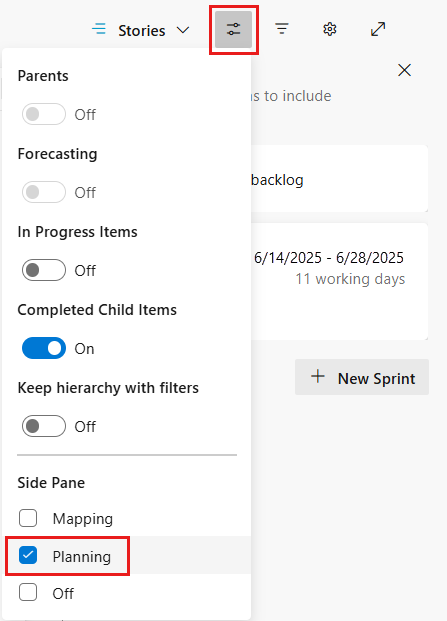
Your team's sprints appear in the pane. If no sprints are listed, add sprints or select existing ones for your team. For more information, see Manage sprint timelines.
Drag the selected items from the Backlog onto the target sprint.

This action updates the Iteration Path of the selected items and any of their child tasks to the sprint you chose.
Modify rich-text fields in bulk
Rich-text fields accept HTML syntax for formatting. They include Description, Acceptance Criteria, Repro Steps, and other fields listed in Example queries for select fields.
To bulk update rich-text fields, use one of the following options:
- Direct entry: In the bulk edit dialog, select the field and enter your text with HTML syntax in the Value field.
- Work item template: Create a template with the formatted text, and then apply it to selected work items. For more information, see Use work item templates and Sample work item templates — Add guidance in a rich-text field.
Modify tags in bulk
Select the work items you want to tag.
Open the context menu, select Edit, and then in the Edit work items dialog, select Tags (Add) or Tags (Remove).
Enter or select the tags to add or remove, and then select Save changes.

Note
To add new tags, you need the Create tag definition permission at the project level. By default, the Contributors group has this permission.
Migrate or change a large number of work items
For large-scale or organizational moves, use the Work item batch operations REST API.
You can't move work items to a different organization or collection. To migrate work item data, export and then import it by using Excel or CSV import.
Add multiple values to a field
If you use a custom control that supports multiple values, use Excel to bulk edit that field. The web portal supports selecting only a single value per field and doesn't support bulk editing multi-value fields.
Use AI to bulk modify work items
If you configure the Azure DevOps MCP Server, you can describe bulk changes in natural language instead of selecting and editing items manually.
| Task | Example prompt |
|---|---|
| Reassign items | Reassign all active user stories in Sprint 12 from <Jamal> to <Raisa> in project <Contoso> |
| Change priority | Set priority to 1 for all bugs tagged "regression" in project <Contoso> |
| Add tags in bulk | Add tag "security-review" to all active work items in area path <Contoso\\Auth> |
| Move items to a sprint | Move all uncommitted user stories from Sprint 5 to Sprint 6 in project <Contoso> |
| Close completed items | Close all resolved bugs in <Contoso> that have been resolved for more than 14 days |
| Bulk update area paths | Move all work items in area path <Contoso\\OldTeam> to <Contoso\\NewTeam> |
| Remove stale tags | Remove tag "sprint-goal" from all work items in completed sprints in project <Contoso> |
| Set story points | Set story points to 3 for all user stories in <Contoso> that are sized as Small and have no story points |
| Bulk assign to iteration | Assign all unparented tasks in <Contoso\\Backend> to the current sprint |
| Update multiple fields | For all active bugs in area path <Contoso\\Frontend>, set priority to 2 and add tag "frontend-triage" |
Note
If you're using Visual Studio Code, agent mode is especially helpful for complex bulk operations.