Note
Access to this page requires authorization. You can try signing in or changing directories.
Access to this page requires authorization. You can try changing directories.
Azure Enclave provides built-in observability features to support secure, scalable, and centralized monitoring of mission-critical environments. These capabilities help Community Managers and Enclave Owners enforce compliance, investigate anomalies, and ensure operational health across isolated workloads.
The following are enabled by default for Azure Enclave resources:
- Log Analytics Workspace is deployed into the Community Managed Resource Group by default
- (Optional) Log Analytics Workspace is deployed into the enclave Managed Resource Group
- Storage Account is deployed into Enclave Managed Resource Group
- Virtual Network Flow Logs for each enclave are enabled, pointed to the enclave Storage Account, and forwarded to Community and/or Enclave Log Analytics workspace
- Diagnostic Settings are enabled on resources deployed into both Community and Enclave managed Resource Groups
Centralized and isolated observability
Observability in Azure Enclave is built on a dual-tier logging model that supports both centralized and enclave-isolated diagnostic logging using Azure Monitor, Log Analytics, and Storage Accounts.
Community-level observability
Every Community created in Azure Enclave includes a centralized Log Analytics workspace. This workspace is designed to:
- Aggregate diagnostics and metrics from all enclaves within the community.
- Provide a single pane of glass for monitoring and querying diagnostics and flow logs.
- Support cross-enclave analytics, alerting, and compliance tracking.
When the community is created, the workspace is automatically created. The workspace can be selected as the diagnostic destination by enclave or workload owners during deployment or update operations. Public access is disabled for the Community Log-A workspace, but it isn't network-isolated by default. To configure public access or network isolation, consider adding private link security.
Note
Diagnostic settings from enclave resources (such as workloads, public IPs, or Application Gateways) can be configured to send logs to the centralized workspace to support unified monitoring.
Enclave-level observability
In addition to the Community workspace, each Enclave is provisioned with an isolated Log Analytics workspace scoped specifically to that enclave. This workspace is optimized for enclave-level logging use cases and includes the following characteristics:
- Default storage of Virtual Network flow logs, which are enabled automatically for every enclave.
- Optional diagnostic settings for enclave-scoped resources, such as internal workloads and networking components.
- Designed to meet isolation or regulatory requirements that prevent cross-enclave log aggregation.
Administrators can choose to keep enclave diagnostics private by sending logs only to this isolated workspace.
Configurable logging destinations
Azure Enclave supports flexible logging configurations that allow resource owners to choose between:
| Logging Destination | Purpose | Default Use |
|---|---|---|
| Community Log Analytics workspace | Enables centralized monitoring and cross-enclave analytics | Optional |
| Enclave Log Analytics workspace | Maintains enclave-level isolation and data sovereignty | Default for virtual network Flow Logs |
You can configure diagnostic settings through the Azure portal, CLI, or Bicep/ARM templates during or after deployment.
Important
Virtual Network Flow Logs are always sent to the enclave-specific workspace by default to ensure network-level visibility is preserved, even in isolated environments.
Common observability scenarios
| Scenario | Logging Strategy |
|---|---|
| Cross-enclave health dashboard | Send diagnostics from all enclaves to the centralized Community Log Analytics workspace |
| Regulated enclave with strict data controls | Keep diagnostics within the enclave-specific Log Analytics workspace |
| Long-term retention for audit purposes | Send logs to a Storage Account with policy-controlled retention settings |
| Network investigation or threat hunting | Use the enclave workspace to analyze default virtual network flow logs |
Configure Network Watcher resource groups
To avoid potential issues with virtual network flow log creation, set up the NetworkWatcherRG resource group manually in advance and assign the Mission Enclave app the Owner role on that resource group, or verify that setup and role assignment happened automatically before creating your first enclave in the subscription.
To mitigate this potential issue, for each subscription, manually create the NetworkWatcher resource group called NetworkWatcherRG in new subscriptions, and then grant the Mission Enclave Azure Enclave App Owner on the NetworkWatcherRG:
Select the
NetworkWatcherRGresource group, selectAccess control (IAM), then selectAddandAdd role assignment.
Select
Privileged administrator roles, selectowner, then selectNext.
Select
Select members, typeMission Enclavein the search and select theMission Enclaveapp, selectSelect, thenNext.
If your subscription requires a condition, select
Allow user to assign all roles except privileged administrator roles Owner, UAA, RBAC (Recommended), then selectReview + assign.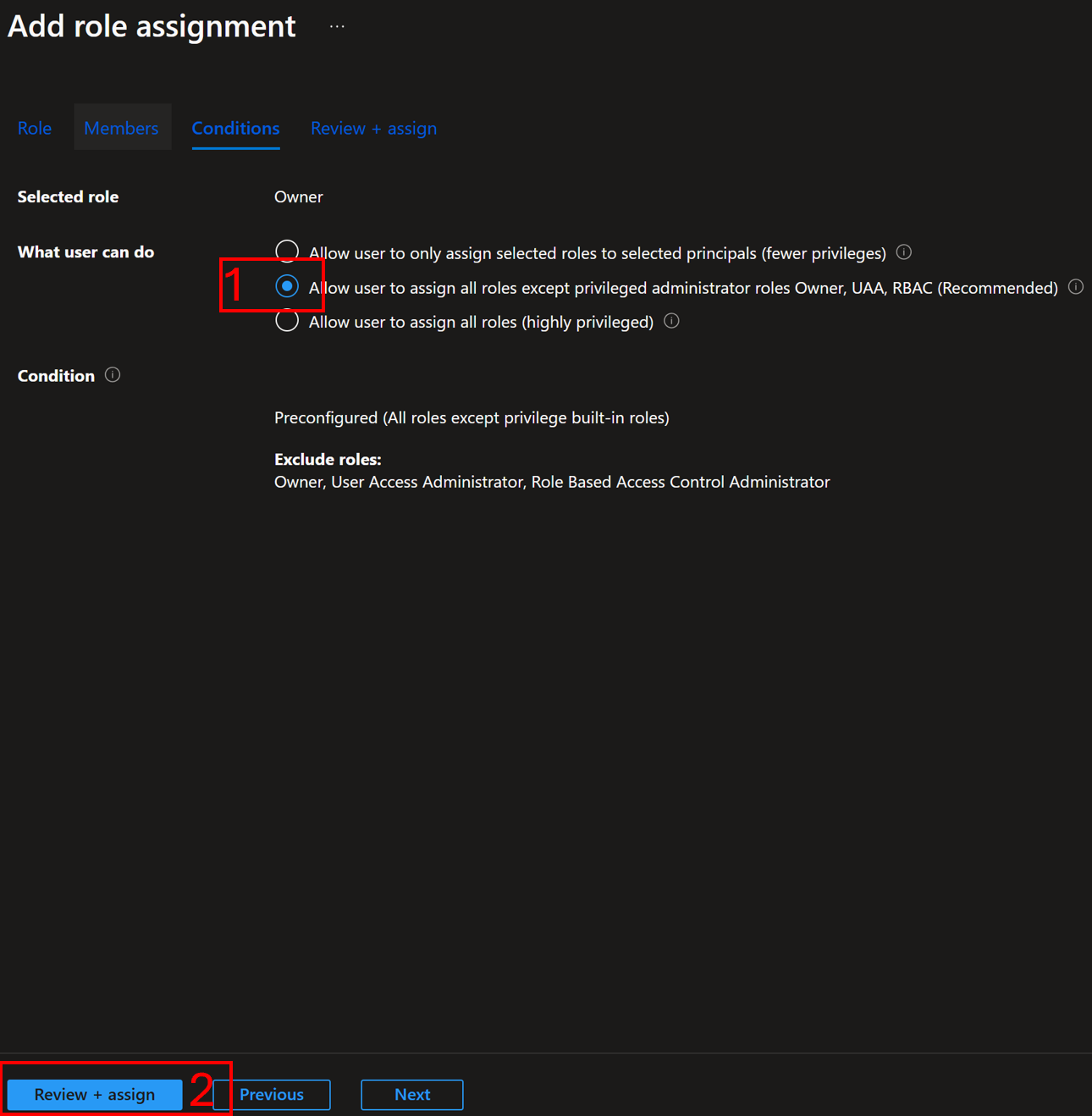
Once the update is complete, you can start deploying Azure Enclave resources.
When a community or enclave is created, Azure Enclave attempts the following steps:
- Check if the
NetworkWatcherRGexists. If not, attempt to create that resource group. - Check if the
Mission EnclaveApp has a permanentOwnerassignment onNetworkWatcherRG. If not, attempt to assign theMission EnclaveApp as a permanentOwnerassignment onNetworkWatcherRG. Even if an inheritedOwnerpermission exists, a permanentOwnerassignment creation is attempted. - If any step fails, enclave deployments might fail when attempting to create virtual network flow logs.