Note
Access to this page requires authorization. You can try signing in or changing directories.
Access to this page requires authorization. You can try changing directories.
In this guide, you learn about data sources supported in each Azure Managed Grafana plan and learn how to add, manage, and remove these data sources.
Prerequisites
- An Azure Managed Grafana workspace.
- Required Grafana role: Grafana Editor.
Supported Grafana data sources
By design, you can configure Grafana with multiple data sources. A data source is an externalized storage backend that holds telemetry information.
Grafana built-in core data sources
Azure Managed Grafana supports many popular core data sources. The following table lists the core data sources available by service tier.
| Data sources | Essential (deprecated; existing instances only) | Standard |
|---|---|---|
| Alertmanager | - | ✔ |
| AWS CloudWatch | - | ✔ |
| Azure Data Explorer | - | ✔ |
| Azure Monitor | ✔ | ✔ |
| Elasticsearch | - | ✔ |
| GitHub | - | ✔ |
| Google Cloud Monitoring | - | ✔ |
| Graphite | - | ✔ |
| InfluxDB | - | ✔ |
| Jaeger | - | ✔ |
| JSON API | - | ✔ |
| Loki | - | ✔ |
| Microsoft SQL Server | - | ✔ |
| MySQL | - | ✔ |
| OpenTSDB | - | ✔ |
| Parca | - | ✔ |
| PostgreSQL | - | ✔ |
| Prometheus | ✔ | ✔ |
| Pyroscope | - | ✔ |
| Tempo | - | ✔ |
| TestData | ✔ | ✔ |
| Zipkin | - | ✔ |
Grafana Enterprise data sources
Within the Standard service tier, users who subscribe to the Grafana Enterprise option can also access the following data sources.
- AppDynamics
- Azure DevOps
- Databricks
- Datadog
- Dynatrace
- GitLab
- Honeycomb
- Jira
- Looker
- MongoDB
- New Relic
- Oracle Database
- Salesforce
- SAP HANA®
- ServiceNow
- Snowflake
- Splunk
- Splunk Infrastructure monitoring (SignalFx)
- Sqlyze Datasource
- Sumo Logic
- Wavefront
Other data sources
Customers with a Standard tier plan can access additional data sources from the Plugin management (preview) feature.
For more information about data sources, see Data sources on the Grafana Labs website.
Add a data source
To add a data source to Azure Managed Grafana, follow these steps.
Your workspace includes Core Grafana plugins by default. If you want to use another type of data source, first install its plugin by following the instructions in Add a plugin.
Add the data source to your workspace.
- Open your Azure Managed Grafana workspace in the Azure portal and go to Overview > Endpoint to open the Grafana UI.
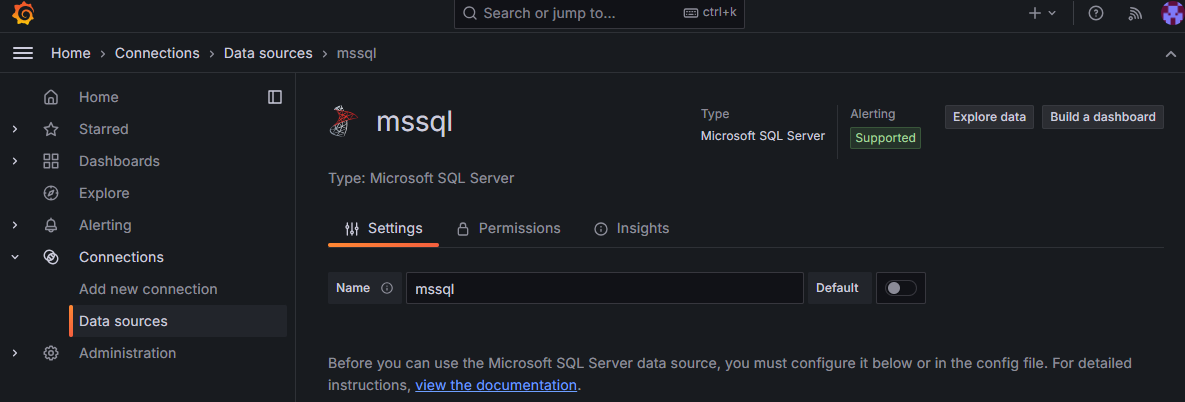
- In the Grafana UI, open the menu on the left and select Connections > Data sources > Add new data source.
- Select a data source from the list, fill out the required fields, and select Save & test to update the data source configuration and test it.
Tip
If you can't connect to a data source, you might need to modify access permissions to allow access from your Azure Managed Grafana workspace.
Configure a data source
The following sections show how to configure some of the most popular data sources in Azure Managed Grafana: Azure Monitor and Azure Data Explorer. You can use a similar process to configure other types of data sources. For more information about a specific data source, see Grafana's documentation.
Azure Monitor
The Azure Monitor data source is automatically added to all new Azure Managed Grafana resources. To review or modify its configuration, follow the steps in the Grafana portal of your Azure Managed Grafana workspace or use the Azure CLI.
Open the menu on the left and select Connections > Data sources.

Azure Monitor appears as a built-in data source for your Azure Managed Grafana workspace. Select Azure Monitor.
In the Settings tab, authenticate through Managed Identity and select your subscription from the dropdown list, or alternatively enter your App Registration details. When you select Managed identity, the authentication and authorization are through the system-assigned or the user-assigned managed identity you configured in your Azure Managed Grafana workspace. By using a managed identity, you can assign permissions for your Azure Managed Grafana workspace to access Azure Monitor data without manually managing service principals in Microsoft Entra ID.
Azure Data Explorer
To learn how to configure Azure Data Explorer, see Configure Azure Data Explorer.
Remove a data source
This section describes the steps for removing a data source.
Caution
If you remove a data source that's used in a dashboard, the dashboard can't collect the corresponding data. The removal triggers an error or results in no data shown in the panel.
Remove a data source in the Azure portal:
- Open your Azure Managed Grafana workspace in the Azure portal.
- Select Overview from the left menu, and then open the Endpoint URL.
- In the Grafana portal, go to Connections > Your connections.
- Select the data source you want to remove and select Delete.