Note
Access to this page requires authorization. You can try signing in or changing directories.
Access to this page requires authorization. You can try changing directories.
This article provides step-by-step instructions to perform a major version upgrade of an Azure Database for PostgreSQL flexible server instance.
Note
The major version upgrade action is irreversible. Make sure that you perform a point in time restore (PITR) of the production server that you want to upgrade. Test the upgrade in that restored, nonproduction instance before you upgrade the production environment.
Steps to upgrade to a higher major version
Using the Azure portal:
Select the Azure Database for PostgreSQL flexible server that you want to upgrade.
From the resource menu, select Overview.

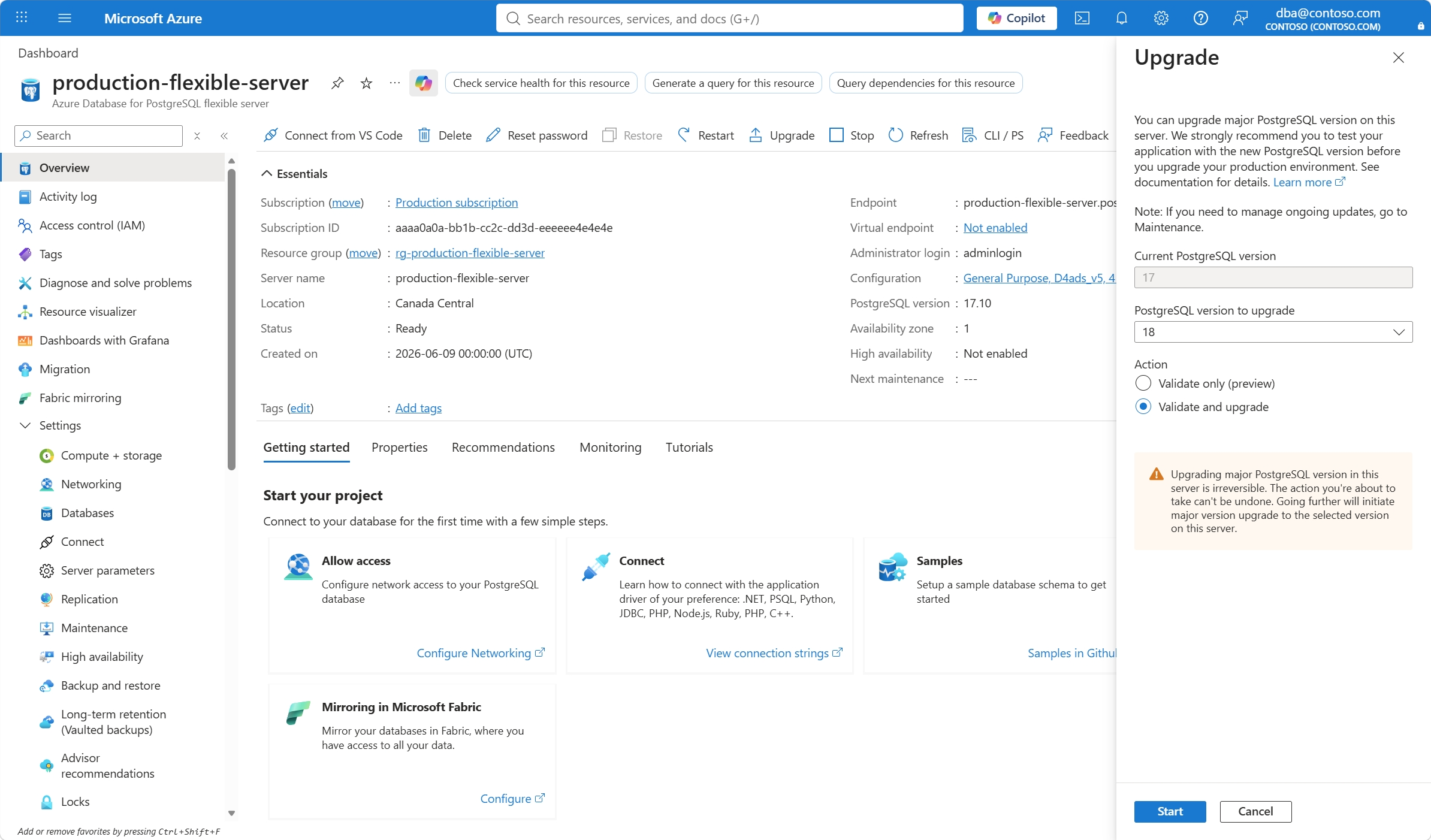
The server status must be Ready for the Upgrade button to be enabled.

Select Upgrade.

The Upgrade pane provides some recommendations.

Expand PostgreSQL version to upgrade, and select the major version to which you want to upgrade.

For Action, select Validate and upgrade to run the validation rules and, if they all pass, it immediately upgrades the server to the selected target version. It warns you about the consequences of initiating the upgrade.

Select Start.
During upgrade, wait for the process to complete. You can resume accessing the server when the server is back online.

When the upgrade finishes, you select the Go to resource button to validate your upgrade.

The name of the server remains unchanged.

The version of PostgreSQL is upgraded to the major version you selected as target. The minor version corresponds to the most recent minor version supported by Azure Database for PostgreSQL flexible server at the time of the upgrade.


