Note
Access to this page requires authorization. You can try signing in or changing directories.
Access to this page requires authorization. You can try changing directories.
When you enable public access, set up firewall rules that allow connections from specific IP addresses or from any Azure service.
Using the Azure portal:
Select your Azure Database for PostgreSQL flexible server.
In the resource menu, under the Settings section, select Networking.
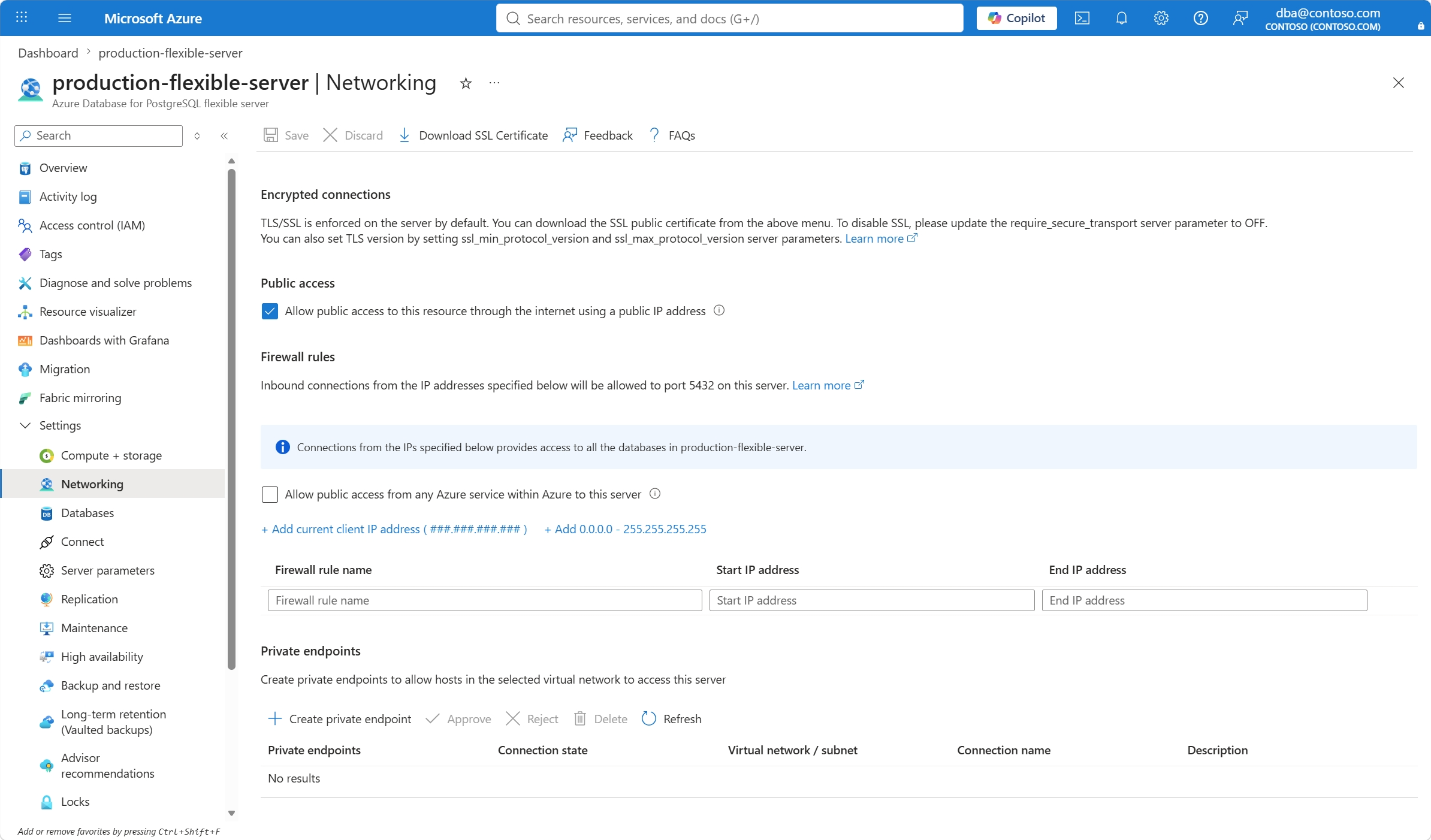
To create a firewall rule that allows connections from the public IP address of the client machine you're using to connect to the portal, select Add current client IP address (###.###.###.###).

Add a new firewall rule to the grid. The portal automatically generates the Firewall rule name, but you can change it to any valid name you prefer. Set the Start IP address and End IP address to the public IP address from which you're connected to the Azure portal.

To create a firewall rule that allows connections from any public IP address, select Add 0.0.0.0 / 255.255.255.255.

To create a firewall rule that allows connections from any IP address allocated to any Azure service or asset, select Allow public access from any Azure service within Azure to this server.

Important
Allow public access from any Azure service within Azure to this server creates a firewall rule whose start and end IP addresses are set to
0.0.0.0. The presence of this rule configures the firewall to allow connections from IP addresses allocated to any Azure service or asset, including connections from the subscriptions of other customers.Select Save.

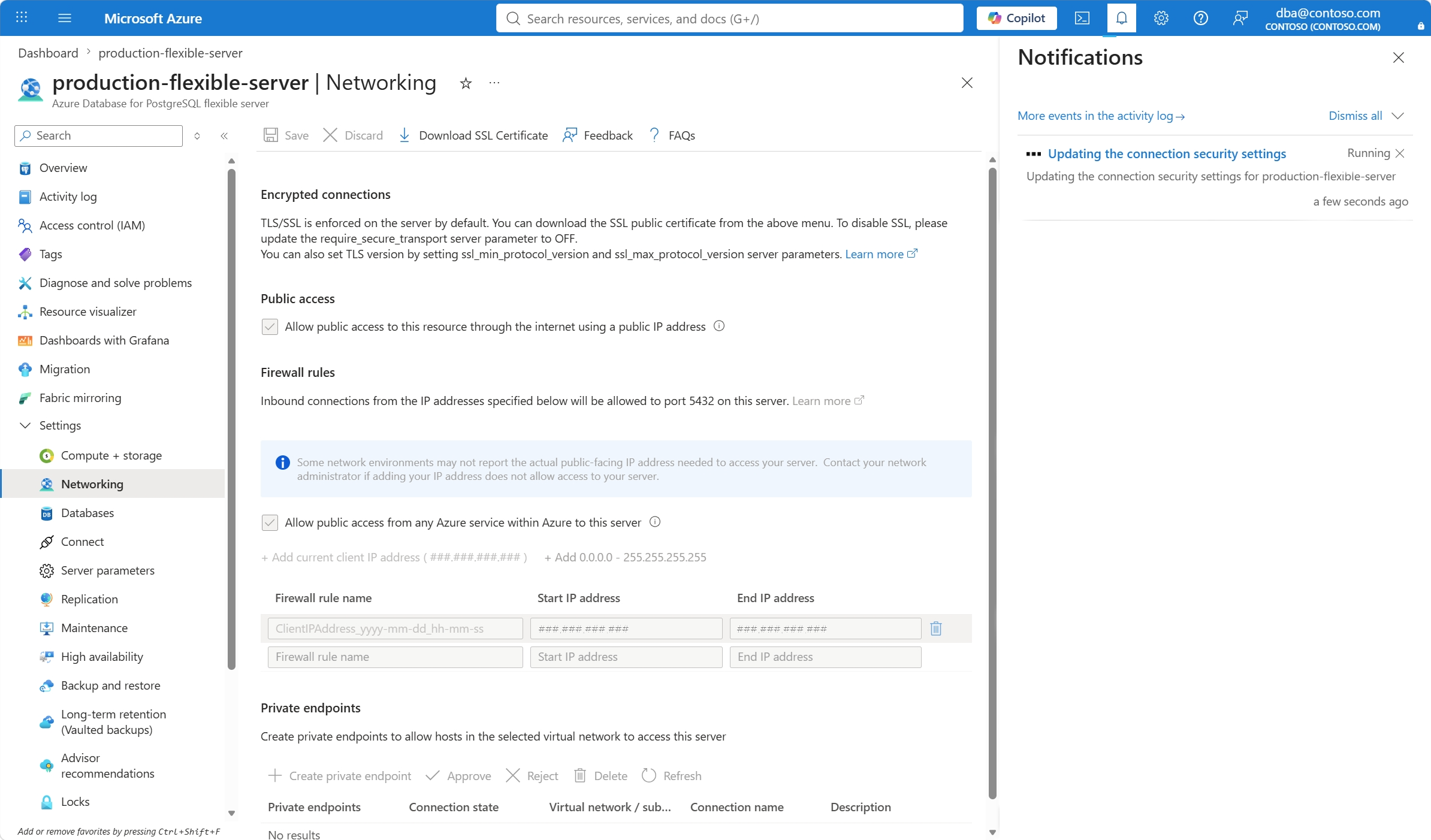
A notification informs you that the changes are being applied.
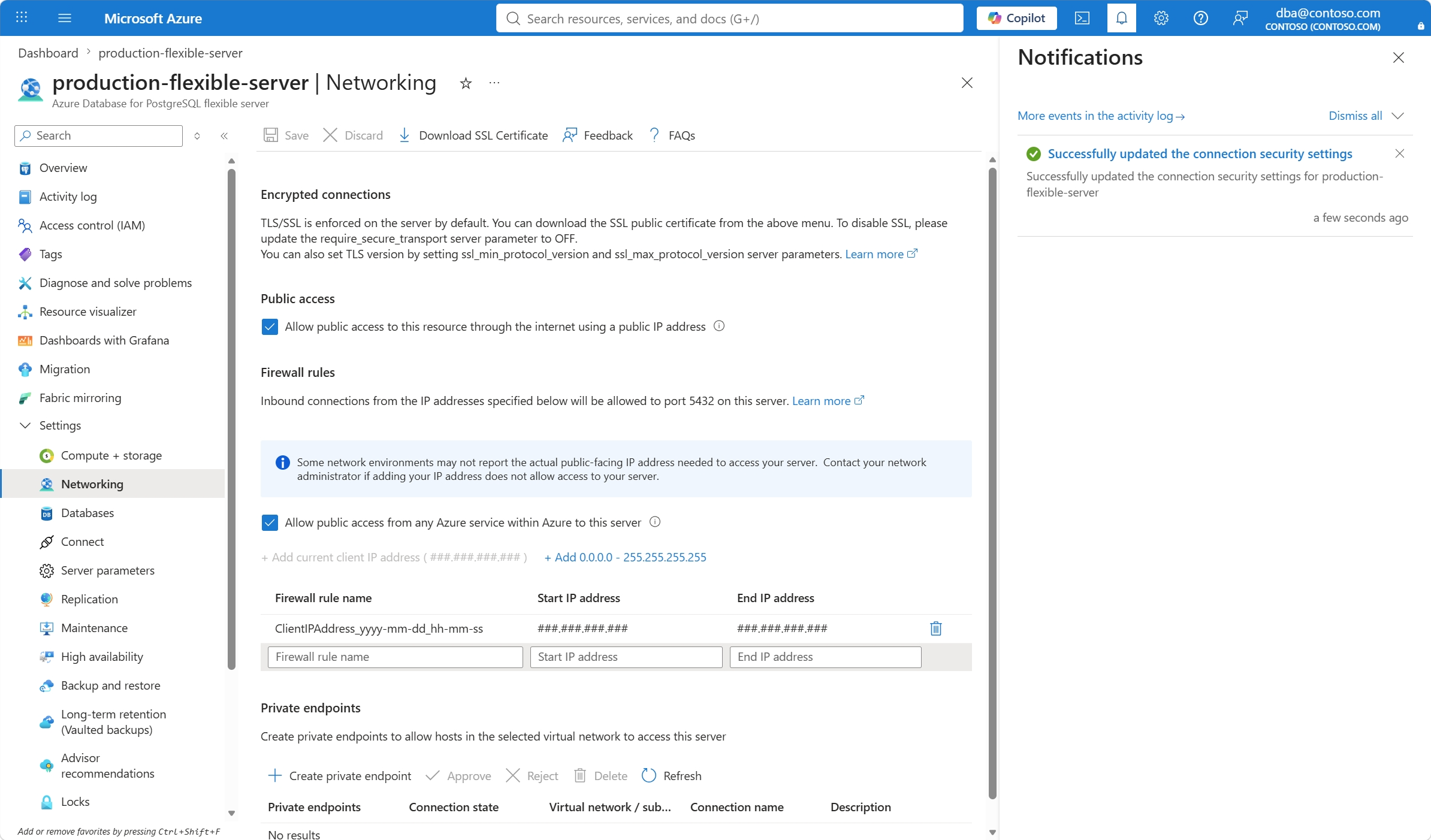
When the process completes, a notification informs you that the changes were applied.