Note
Access to this page requires authorization. You can try signing in or changing directories.
Access to this page requires authorization. You can try changing directories.
You can create scheduled jobs to run at specific times or intervals using the Microsoft Sentinel extension for Visual Studio Code. Jobs allow you to automate data processing tasks to summarize, transform, or analyze data in the Microsoft Sentinel data lake and federated tables. Jobs are also used to process data and write results to custom tables in the lake tier or analytics tier.
The following sections explain how to create, schedule, edit, and manage notebook jobs, including configuring job schedules, viewing job details and run history, and monitoring jobs in the Microsoft Defender portal.
Required permissions for notebook jobs
Microsoft Entra ID roles provide broad access across all workspaces in the data lake. To create and schedule jobs, read tables across all workspaces, write to the analytics and lake tiers, you must have one of the supported Microsoft Entra ID roles. For more information on roles and permissions, see Roles and permissions in Microsoft Sentinel.
To create new custom tables in the analytics tier, the data lake managed identity must be assigned the Log Analytics Contributor role in the Log Analytics workspace.
To assign the role, follow the steps below:
- In the Azure portal, navigate to the Log Analytics workspace that you want to assign the role to.
- Select Access control (IAM) in the left navigation pane.
- Select Add role assignment.
- In the Role table, select Log Analytics Contributor, then select Next
- Select Managed identity, then select Select members.
- Your data lake managed identity is a system assigned managed identity named
msg-resources-<guid>. Select the managed identity, then select Select. - Select Review and assign.
For more information on assigning roles to managed identities, see Assign Azure roles using the Azure portal.
Create and schedule a job
Before you create or schedule a job, make sure you have one of the supported Microsoft Entra ID roles. If the job creates custom tables in the analytics tier, assign the data lake managed identity the Log Analytics Contributor role first. For more information, see Required permissions for notebook jobs.
You can create a job in one of three ways:
In the notebook editor, select Create schedule Job from the toolbar.
In the Explorer pane, right-click the notebook file and select Microsoft Sentinel, then select Create schedule Job.

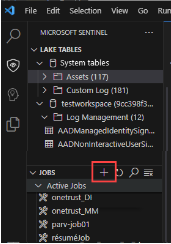
From the list of jobs, select the + icon to create a new job.
Select Use existing notebook to select an existing notebook file, or select Create new notebook to create a new notebook file for the job.

On the Job configuration page, in the Job details section enter a name and description for the job.
Select the spark pool size to run the job according to your jobs compute needs.
To run a job manually without a schedule, select On demand in the Schedule section, then select Submit to save the job configuration and publish the job.
To specify a schedule for the job, select Scheduled in the Schedule section.
Select a Repeat frequency for the job. You can choose from By the minute, Hourly, Weekly, Daily, or Monthly.
Additional schedule options, such as day of the week, time of day, or day of the month, are displayed depending on the frequency you select.
Select a Start on time for the schedule to start running.
Select an End on time for the schedule to stop running. If you don't want to set an end time for the schedule, select Set job to run indefinitely. Dates and times are in the user's timezone.
Select Submit to save the job configuration and publish the job.

To view your jobs, select the Microsoft Sentinel
 icon in the left toolbar. Jobs are displayed on the Jobs panel.
Select a job to see the job details.
You can run the job immediately by selecting Run now, disable and enable the job schedule, or delete the job.

View the job history in the Run history tab.
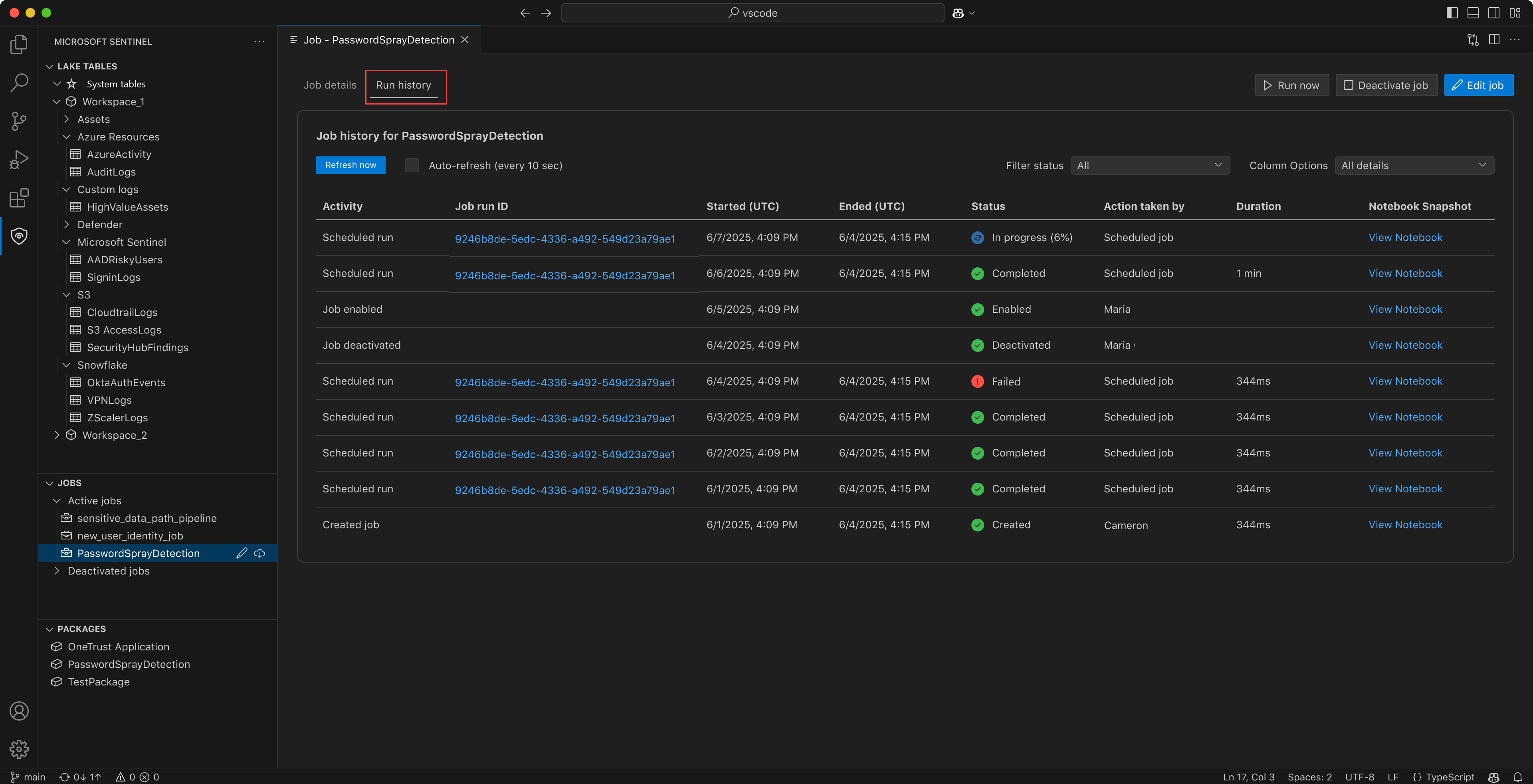
Select an activity to see more details.


Create and manage parameterized notebook jobs
Notebook jobs can use parameters defined in the notebook. Parameters help you reuse the same notebook job with different input values without editing the notebook code each time. For example, you might run the same analysis for different users, entities, time ranges, or other investigation inputs.
Parameterized notebook jobs support three levels of values:
- Notebook values: Default parameter values defined in the notebook.
- Job configuration values: Values saved with the notebook job and used for scheduled runs.
- Runtime values: Values provided when you run the job manually. Runtime values apply only to that job run.
Create a parameterized notebook job
When you create a notebook job from a notebook that contains parameters, the Microsoft Sentinel extension reads the parameters from the notebook and displays them in the job configuration.
To create a parameterized notebook job:
In the notebook, create a code cell near the top of the notebook that contains the parameter defaults. Open the cell menu and select Mark Cell as Parameters.
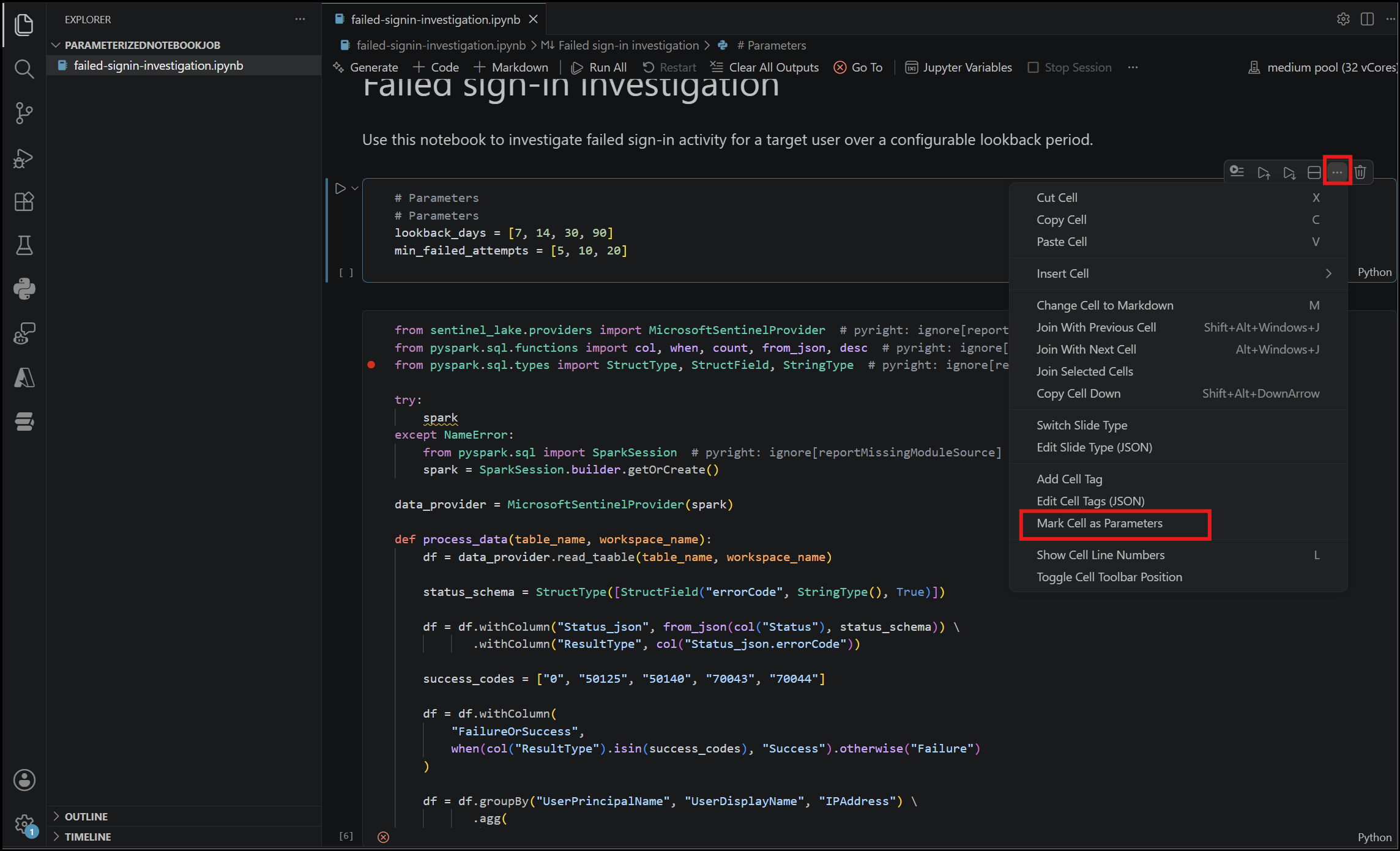
Define the parameters in the cell. For example:
# Parameters
lookback_days = [7, 14, 30, 90]
min_failed_attempts = [5, 10, 20]
In the Explorer pane, right-click the notebook file, select Microsoft Sentinel, and then select Create Scheduled Job.

In the job editor, expand Default parameters, and then select Refresh parameters to load the latest parameter definitions from the notebook.

Review or update the default parameter values, and then submit the job.


You can keep the notebook default values or change the values before you submit the job. Values that you change are saved with the job configuration and used for future scheduled runs.
If a parameter value doesn't match the expected type, the extension shows an inline validation error and prevents you from submitting the job until the error is fixed.
Add parameters to an existing notebook job
To add parameters to an existing notebook job, download the latest notebook, update the notebook locally to define the parameters, and then edit the job. When you upload or refresh the updated notebook in the job configuration, the parameters are available for the job.
After the parameters are available, you can update their values and submit the job again. Updated parameter values are saved with the job configuration and used for future scheduled runs.
Refresh parameters from the notebook
If the notebook is updated after the job is created, refresh the job parameters to sync the job configuration with the latest notebook parameters.
Refreshing parameters:
- Adds new parameters that were added to the notebook.
- Removes parameters that were removed from the notebook.
- Preserves existing job configuration values that you changed.
Refreshing parameters doesn't overwrite parameter values that were already edited in the job configuration.
Reset parameter values
You can reset parameter values to the defaults defined in the notebook.
Use reset for an individual parameter to restore only that value. Use Reset all to restore all parameter values to the notebook defaults. When you reset all parameter values, confirm the reset before the values are restored.
Run with custom runtime parameter values
When you select Run now for a parameterized notebook job, the Microsoft Sentinel extension opens a runtime parameters dialog. The dialog is prepopulated with the parameter values saved in the job configuration.

You can keep the saved values or change them for the current run. Runtime parameter changes apply only to that job run and don't update the saved job configuration or future scheduled runs.
Use runtime parameters when you want to reuse the same job for different inputs, such as running the same risk analysis for a different user.
View job run history
After you run a parameterized notebook job, view the job status and run history the same way you view other notebook job runs. In the Run history tab, select a run to see more details.
Jobs with no parameters
If the selected notebook doesn't define parameters, the job configuration shows an empty parameter state. To add parameters, update the notebook to include parameter definitions, save the notebook, and upload or refresh the job configuration.
Edit a submitted job
Submitting a job creates a job definition that includes the notebook file, the job configuration, and the schedule. The job definition is uploaded from your VS Code editor and stored in the Microsoft Sentinel data lake. Once submitted, the job is no longer connected to the notebook file on your local file system. If you want to edit the code in the notebook job, you must download the job definition, edit the notebook file, and then resubmit the job.
To edit a submitted job follow the steps below:
In the Jobs section, select the job you want to edit.
Select the Download cloud icon to download the job definition to your local file system. In the jobs details editor, you can see the job configuration. You can also select Download latest notebook.

Edit the downloaded
ipynbworkbook file to make your changes.Return to the Job details tab and select Edit job.
Edit the job name, description, cluster configuration, and schedule. Changing the job name creates a new job definition when you submit the job.
Select Submit to upload the updated notebook file and job configuration.
A confirmation is displayed when the job is successfully submitted.


View jobs in the Microsoft Defender portal
In addition to viewing jobs in VS Code, you can also view your notebook jobs in the Defender portal. To view your jobs in the Defender portal, Select Microsoft Sentinel > Data lake exploration > Jobs .
The Jobs page shows a list of jobs and their types. Select a notebook job to view its details. You can enable and disable the job's schedule but you can't edit a notebook job in the Defender portal.
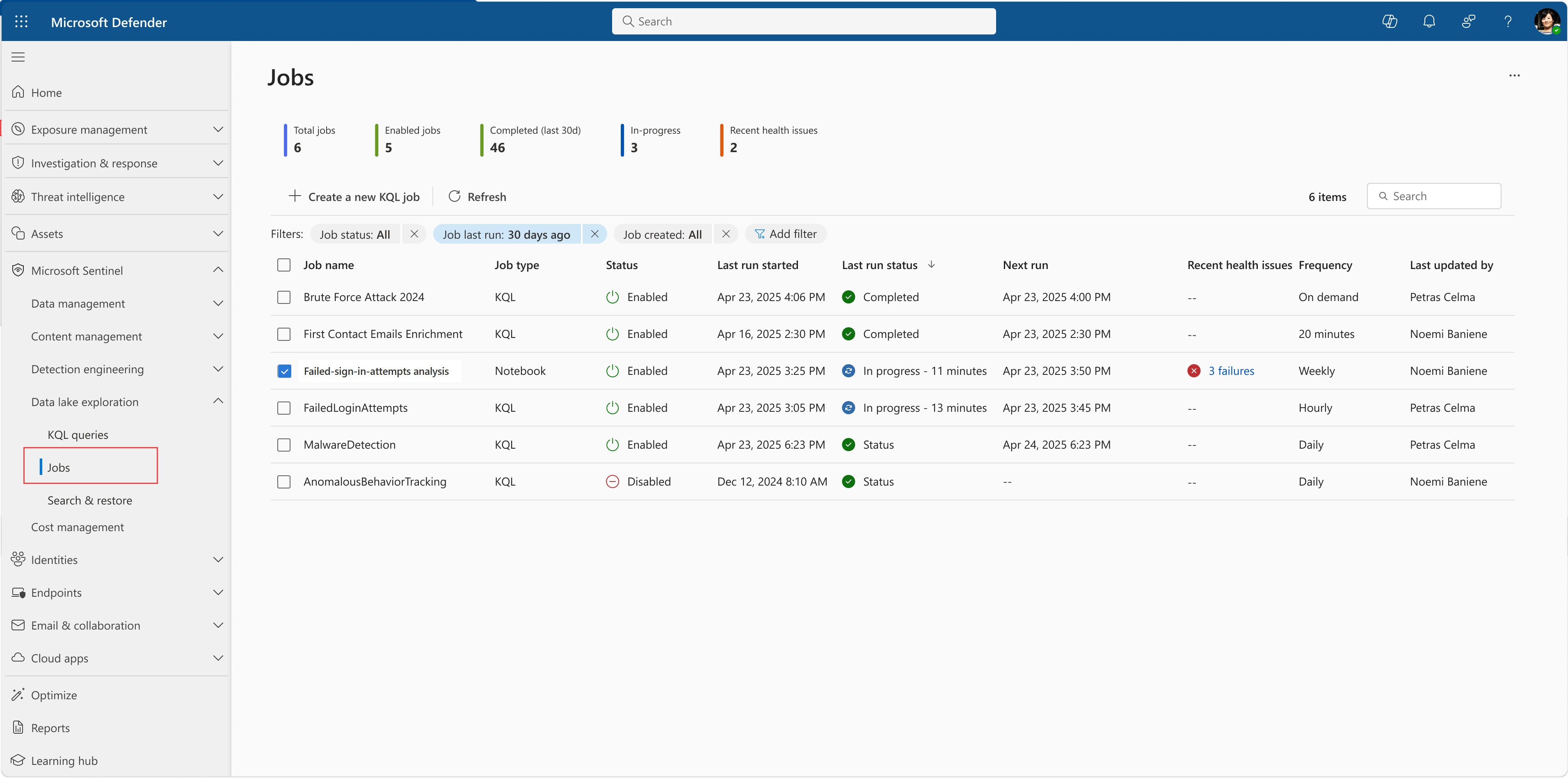
Select a job to view the job details.
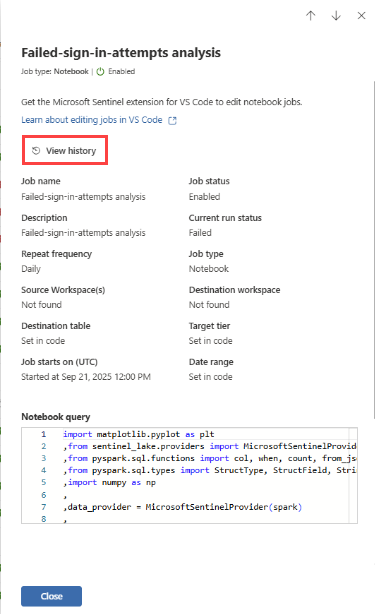
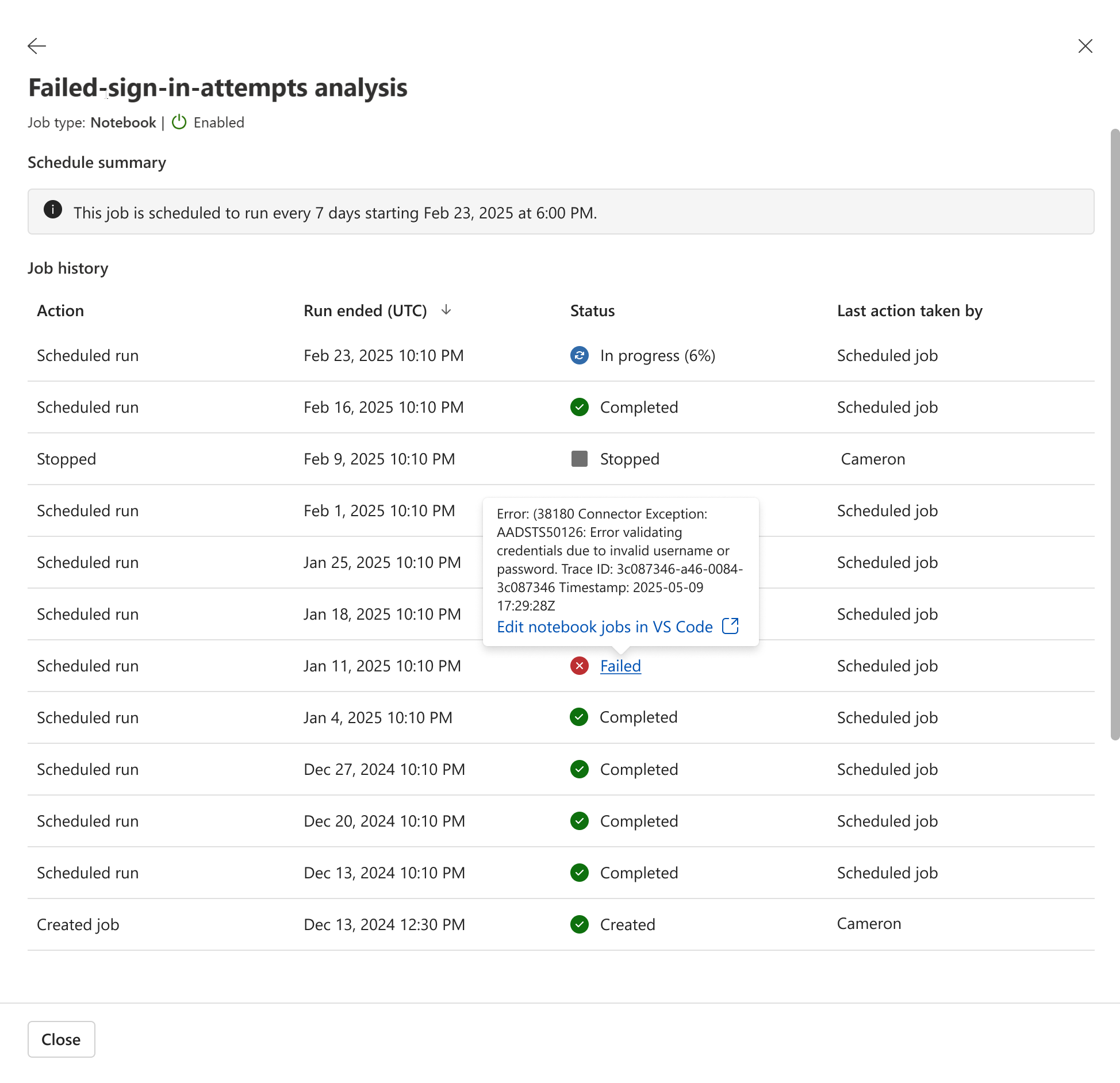
Select View history to see the history of job runs.
Service parameters and limits
The following sections summarize column naming rules and service limits for notebook jobs in the Microsoft Sentinel data lake.
Column name requirements for the save_as method
The save_as method writes notebook output to a destination table in the Microsoft Sentinel data lake. The following column-naming rules apply when you use this method.
Column names must start with a letter.
The following standard columns aren't supported for export. The ingestion process overwrites these columns in the destination tier:
- TenantId
- _TimeReceived
- Type
- SourceSystem
- _ResourceId
- _SubscriptionId
- _ItemId
- _BilledSize
- _IsBillable
- _WorkspaceId
TimeGeneratedis overwritten if it's older than two days. To preserve the original event time, write the source timestamp to a separate column.
For a list of service limits for the Microsoft Sentinel data lake, see Microsoft Sentinel data lake service limits.
Troubleshooting
For troubleshooting notebook jobs and data lake operations, see Troubleshoot notebooks on the Microsoft Sentinel data lake.