Note
Access to this page requires authorization. You can try signing in or changing directories.
Access to this page requires authorization. You can try changing directories.
Monitor the health of supported Microsoft Sentinel resources and audit their integrity. Turn on auditing and health monitoring in Microsoft Sentinel's Settings page. Get insights on health drifts, such as the latest failure events or changes from success to failure states. Track unauthorized actions, and use this information to create notifications and other automated actions.
The SentinelHealth data table stores health data. The SentinelAudit data table stores audit information. To use these tables, first turn on auditing and health monitoring for your workspace. This article shows you how.
To implement the health and audit feature using API (Bicep/AZURE RESOURCE MANAGER (ARM)/REST), review the Diagnostic Settings operations. To configure the retention time for your audit and health events, see Manage data retention in a Log Analytics workspace.
Prerequisites
- Before you start, learn more about health monitoring and auditing in Microsoft Sentinel. For more information, see Auditing and health monitoring in Microsoft Sentinel.
Turn on auditing and health monitoring for your workspace
To get started, enable auditing and health monitoring from the Microsoft Sentinel settings.
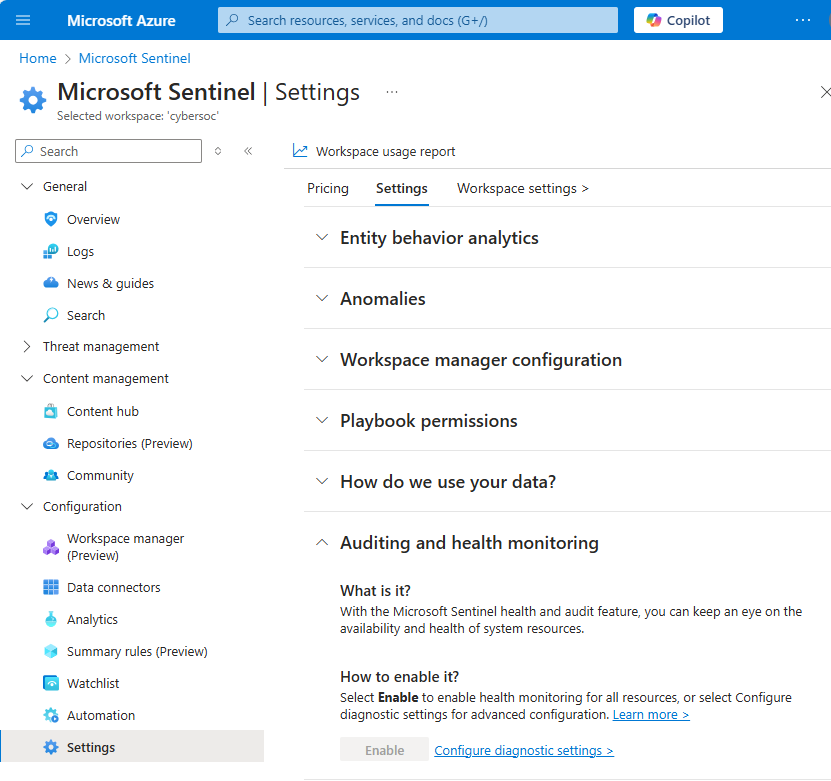
For Microsoft Sentinel in the Azure portal, under Configuration, select Settings > Settings.
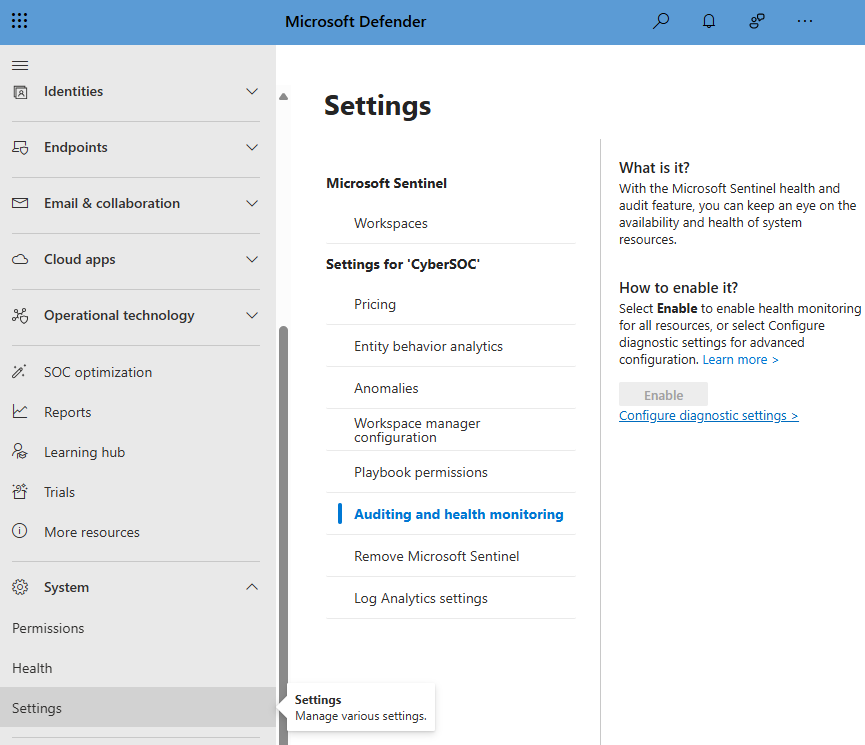
For Microsoft Sentinel in the Defender portal, under System, select Settings > Microsoft Sentinel.Select Auditing and health monitoring.
Select Enable to enable auditing and health monitoring across all resource types and to send the auditing and monitoring data to your Microsoft Sentinel workspace (and nowhere else).
Or, select the Configure diagnostic settings link to enable health monitoring only for the data collector and/or automation resources, or to configure advanced options, like more places to send the data.
If you selected Enable, the button grays out and shows Enabling..., then Enabled. Auditing and health monitoring is now turned on. The system adds the right diagnostic settings for you. To view or edit them, select the Configure diagnostic settings link.
If you selected Configure diagnostic settings, then in the Diagnostic settings screen, select + Add diagnostic setting.
(If you're editing an existing setting, select it from the list of diagnostic settings.)
In the Diagnostic setting name field, enter a meaningful name for your setting.
In the Logs column, select the appropriate Categories for the resource types you want to monitor, for example Data Collection - Connectors. Select allLogs if you want to monitor analytics rules.
Under Destination details, select Send to Log Analytics workspace, and select your Subscription and Log Analytics workspace from the dropdown menus.

If you require, you might select other destinations to which to send your data, in addition to the Log Analytics workspace.
Select Save on the top banner to save your new setting.
The SentinelHealth and SentinelAudit data tables are created at the first event generated for the selected resources.
Verify that the tables are receiving data
Run Kusto Query Language (KQL) queries in the Azure portal or the Defender portal to make sure you're getting health and auditing data.
For Microsoft Sentinel in the Azure portal, under General, select Logs.
For Microsoft Sentinel in the Defender portal, under Investigation & response, select Hunting > Advanced hunting.Run a query on the SentinelHealth table to retrieve recent health records and confirm that data is flowing. For example:
_SentinelHealth()
 | take 20
Run a query on the SentinelAudit table to retrieve recent audit events, such as changes to analytics rules. For example:
_SentinelAudit()
 | take 20
Supported data tables and resource types
After you turn on the feature, the SentinelHealth and SentinelAudit data tables are created. The tables appear when the first event occurs for the selected resources.
Health monitoring supports these resource types:
- Analytics rules
- Data connectors
- Automation rules
- Playbooks (Azure Logic Apps workflows)
Note
When monitoring playbook health, make sure to collect Azure Logic Apps diagnostic events from your playbooks to get the full picture of your playbook activity. For more information, see Monitor the health of your automation rules and playbooks.
Only the analytics rule resource type is currently supported for auditing.