Note
Access to this page requires authorization. You can try signing in or changing directories.
Access to this page requires authorization. You can try changing directories.
The Service Bus Geo-Replication feature is one of the options to insulate Azure Service Bus applications against outages and disasters, providing replication of both metadata (entities, configuration, properties) and data (message data and message property / state changes). You can enable Geo-Replication on new and existing namespaces.
The Geo-Replication feature continuously replicates the metadata and data of a namespace from a primary region to one or more secondary regions. It replicates:
- Queues, topics, subscriptions, and filters.
- Data that resides in the entities.
- All state changes and property changes executed against the messages within a namespace.
- Namespace configuration.
This feature allows you to promote any secondary region to primary, at any time. Promoting a secondary repoints the namespace to the selected secondary region, and switches the roles between the primary and secondary region.

Note
- This feature is available for the Premium tier of Azure Service Bus.
- Currently only a single secondary region is supported.
Important
- You can't use this feature in combination with the Azure Service Bus Geo-Disaster Recovery feature.
- The following features aren't currently available yet. The product team is continuously working on bringing more features and will update this list with the latest status.
- Large messages aren't supported yet.
- Geo-Replication on partitioned namespaces is still in public preview.
- Currently, when you perform a failover, the timer for entities that have auto-delete on idle enabled is reset and starts over. A future release fixes this behavior.
- When you enable Event Grid integration on a namespace that uses Geo-Replication, note the following:
- Event Grid replicates to the geo-paired location, not the secondary region set up for geo-replication.
- Promotion of a secondary region for Service Bus doesn't initiate a failover of Event Grid. Consequently, after promotion, Service Bus is now running in the new primary region, but Event Grid is still running in the initial primary region.
- If you remove the initial primary region from the Geo-Replication configuration, this action breaks the Event Grid integration.
Comparison with Geo-Disaster Recovery
Azure Service Bus offers two features for geographic resilience: Geo-Replication and Geo-Disaster Recovery. The key difference is that Geo-Replication replicates both metadata and data (messages, message states, property changes), while Geo-Disaster Recovery replicates metadata only. For most disaster recovery scenarios, Geo-Replication is the recommended choice. For a detailed comparison, see Reliability in Azure Service Bus - Resilience to region-wide failures.
Scenarios
You can use the Geo-Replication feature to implement different scenarios, as described in this article. For guidance on when to trigger a promotion, see Recommended scenarios to trigger promotion.
Disaster recovery
The primary and secondary regions continuously synchronize data and metadata. If your primary region experiences a degradation of service, you can promote a secondary region as the primary. This promotion keeps workloads running without interruption in the newly promoted region. Such a promotion might be necessary because of degradation of Service Bus or other services within your workload, particularly if you aim to run the various components together. Depending on the severity and impacted services, the promotion can be planned or forced. In case of planned promotion, the process replicates in-flight messages before finalizing the promotion. Forced promotion immediately executes the promotion.
Region migration
You might want to migrate your Service Bus workloads to run in a different region. For example, when Azure adds a new region that is geographically closer to your location, users, or other services. Alternatively, you might want to migrate when the regions where most of your workloads run is shifted. The Geo-Replication feature also provides a good solution in these cases. In this case, you set up Geo-Replication on your existing namespace with the desired new region as secondary region and wait for the synchronization to complete. When synchronization finishes, you start a planned promotion, which replicates any in-flight messages. When the promotion finishes, you can optionally remove the old region, which is now the secondary region, and continue running your workloads in the desired region.
Planned maintenance
During planned maintenance activities in the primary region, you can promote the secondary region to maintain high availability for mission-critical applications. This approach allows you to perform maintenance without impacting your workloads.
Basic concepts
The Geo-Replication feature implements metadata and data replication in a primary-secondary replication model. At a given time, there's a single primary region that serves both producers and consumers. Secondary regions can be in one of two states:
- Active secondary: A secondary region that's part of the replication configuration and is actively being replicated to. Active secondaries are part of quorum for synchronous replication. For more information, see the Ready state in Management.
- Idle secondary: A secondary region that's being set up or resynchronizing after a promotion. Idle secondaries aren't part of quorum and don't affect acknowledgments in synchronous mode. For more information, see the InBuild state in Management.
Secondary regions act as hot stand-by regions, meaning that you can't interact with these secondary regions. However, they run in the same configuration as the primary region, which allows for fast promotion. Your workloads can immediately continue running after promotion.
Some of the key aspects of the Geo-Replication feature are:
- Service Bus services perform fully managed replication of metadata, message data, and message state and property changes across regions adhering to the replication consistency configured at the namespace.
- Single namespace hostname. Upon successful configuration of a Geo-Replication enabled namespace, use the namespace hostname in your client application. The hostname behaves agnostic of the configured primary and secondary regions, and always points to the primary region.
- When you initiate a promotion, the hostname points to the region selected to be the new primary region. The old primary becomes a secondary region.
- You can't read or write on the secondary regions.
- No changes to data plane SDKs or client applications are required to use Geo-Replication.
- Synchronous and asynchronous replication modes, further described here.
- Customer-managed promotion from primary to secondary region, providing full ownership and visibility for outage resolution. Replication lag metrics are available, which you can use to monitor replication status and automate promotion.
- You can add or remove secondary regions.
- When the replication lag reaches the configured maximum, publisher requests are throttled.
Replication modes
There are two replication modes: synchronous and asynchronous. It's important to understand the differences between the two modes.
Asynchronous replication
When you use asynchronous replication, the primary commits all requests and then sends an acknowledgment to the client. Replication to the secondary regions happens asynchronously. You can configure the maximum acceptable amount of lag time. The lag time is the service side offset between the latest action on the primary and the secondary regions. The service continuously replicates the data and metadata, ensuring the lag remains as small as possible. If the lag for an active secondary grows beyond the user configured maximum replication lag, the primary starts throttling incoming requests.
Synchronous replication
When you use synchronous replication, the system commits all requests to both the primary and secondary locations before it sends an acknowledgment to the client. Your application, therefore, publishes at the rate it takes to commit to all regions. This process also means that your application depends on the availability of both regions. If the secondary region lags or is unavailable, the primary doesn't acknowledge or commit messages and throttles incoming requests.
Replication mode comparison
With synchronous replication:
- Latency is longer because of the distributed commit operations.
- Availability depends on the availability of two regions.
On the other hand, synchronous replication provides the greatest assurance that your data is safe. If you use synchronous replication, the commit operation commits in all of the regions you configured for Geo-Replication, providing the best data assurance.
With asynchronous replication:
- Latency is minimally impacted.
- The loss of a secondary region doesn't immediately impact availability. However, availability gets impacted once the configured maximum replication lag is reached.
As such, it doesn't have the absolute guarantee that all regions have the data before the commit like synchronous replication does, and data loss or duplication might occur when forced promotion is used. However, as you're no longer immediately impacted when a single region lags or is unavailable, application availability improves, in addition to having a lower latency.
| Capability | Synchronous replication | Asynchronous replication |
|---|---|---|
| Latency | Longer because of distributed commit operations | Minimally impacted |
| Availability | Depends on availability of secondary regions | Loss of a secondary region doesn't immediately impact availability |
| Data consistency | Data always committed in both regions before acknowledgment | Data committed in primary only before acknowledgment |
| RPO (Recovery Point Objective) | RPO 0, no data loss on promotion | RPO within configured lag, possible data loss on forced promotion |
You can change the replication mode after configuring Geo-Replication. You can switch from synchronous to asynchronous or from asynchronous to synchronous. If you switch from asynchronous to synchronous, your secondary is configured as synchronous after lag reaches zero. If you're running with a continual lag for any reason, you might need to pause your publishers so that lag reaches zero and your mode can switch to synchronous. The reasons to enable synchronous replication instead of asynchronous replication are tied to the importance of the data, specific business needs, or compliance reasons, rather than availability of your application.
Note
If a secondary region lags or becomes unavailable, the application can no longer replicate to this region and starts throttling once the replication lag is reached. To continue using the namespace in the primary location, remove the afflicted secondary region. If you remove all secondary regions, the namespace continues without Geo-Replication enabled. You can add additional secondary regions at any time. Top-level entities, which are queues and topics, are replicated synchronously, regardless of the replication mode you configure. However, topic subscriptions follow the selected replication mode. Therefore, it's crucial to take them into account when deciding on the appropriate replication mode.
Secondary region selection
The Geo-Replication feature depends on replicating published messages from the primary to the secondary regions. If the secondary region is on another continent, this choice affects replication lag from the primary to the secondary region. If you use Geo-Replication for availability, choose secondary regions that are at least on the same continent where possible. For more information about the latency caused by geographic distance, see Azure network round-trip latency statistics.
Geo-Replication management
The Geo-Replication feature enables you to configure a secondary region for replicating metadata and data. You can perform the following management tasks:
- Configure Geo-Replication. You can configure secondary regions on any new or existing namespace in a region by enabling the Geo-Replication feature.
- Configure the replication consistency. Set synchronous and asynchronous replication when you configure Geo-Replication. You can also switch this setting later.
- Trigger promotion. All promotions are customer initiated.
- Remove a secondary. You can remove a secondary region. The data in the secondary region is deleted.
Setup
Using the Azure portal
The following section provides an overview to set up the Geo-Replication feature on a new namespace through the Azure portal.
- Create a new premium-tier namespace.
- Check the Enable Geo-replication checkbox under the Geo-Replication section.
- Select Add secondary region, and choose a region.
- Either check the Synchronous replication checkbox, or specify a value for the Async Replication - Max Replication lag value in minutes.

Using a template
To create a namespace with the Geo-Replication feature enabled, add the geoDataReplication properties section.
@description('Name of the Service Bus namespace')
param serviceBusName string

@description('Primary location for the namespace')
param primaryLocation string

@description('Secondary location for geo-replication')
param secondaryLocation string

@description('Maximum replication lag in seconds for async replication')
param maxReplicationLagInSeconds int

resource serviceBusNamespace 'Microsoft.ServiceBus/namespaces@2025-05-01-preview' = {
  name: serviceBusName
  location: primaryLocation
  sku: {
    name: 'Premium'
    tier: 'Premium'
    capacity: 1
  }
  properties: {
    geoDataReplication: {
      maxReplicationLagDurationInSeconds: maxReplicationLagInSeconds
      locations: [
        {
          locationName: primaryLocation
          roleType: 'Primary'
        }
        {
          locationName: secondaryLocation
          roleType: 'Secondary'
        }
      ]
    }
  }
}
Management
After you create a namespace with the Geo-Replication feature enabled, you can manage the feature from the Geo-Replication blade.
The secondary region can be in one of the following states:
| State | Description |
|---|---|
| InBuild | The secondary region is being set up and initial synchronization is in progress, or the region is resynchronizing after a forced promotion. Secondary regions in the InBuild state aren't part of quorum. |
| Ready | The secondary region is part of the replication configuration and is actively being replicated to. |
| Deleting | The secondary region is being removed from the replication configuration. |
Switch replication mode
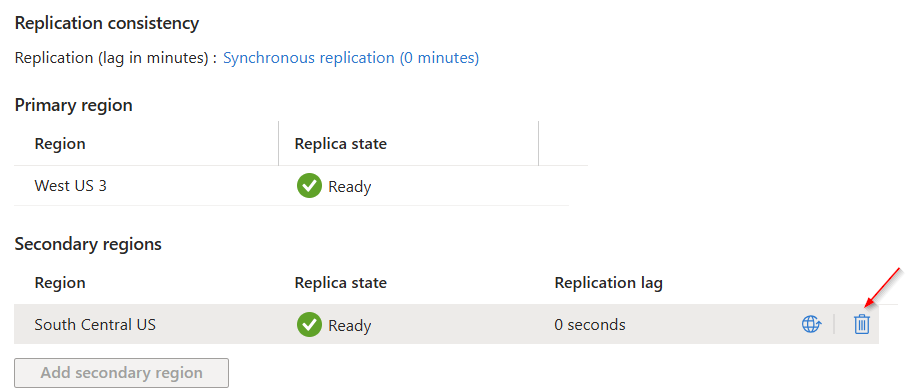
To switch between replication modes or update the maximum replication lag, select the link under Replication consistency. Select the check box to enable or disable synchronous replication, or update the value in the text box to change the asynchronous maximum replication lag.

Delete secondary region
To remove a secondary region, select Delete, and follow the instructions in the pop-up blade. While the deletion is in progress, the region shows the Deleting state.
Promotion flow
A customer manually triggers a promotion (either explicitly through a command or through client owned business logic that triggers the command). Azure never triggers a promotion. This approach gives the customer full ownership and visibility for outage resolution on Azure's backbone.
Two types of promotion exist:
- Planned promotion: The service waits to catch up the replication lag before initiating the promotion. The namespace is placed in read-only mode during this time, rejecting new messages and consumer operations until promotion completes.
- Forced promotion: The service immediately initiates the promotion without waiting for replication to catch up.
You can do a forced promotion at any time after a planned promotion initiates, putting you in control to expedite the promotion when a planned promotion takes longer than desired. However, switching to forced promotion carries the same data loss risks as initiating a forced promotion directly.
Important
When using Forced promotion, the service might lose any data or metadata that isn't replicated. Additionally, as specific state changes aren't replicated yet, this action might also result in duplicate messages being received, such as when a Complete or Defer state change wasn't replicated.
After a forced promotion, the old primary (now secondary) still contains unreplicated data. This data is lost when the old primary resynchronizes as the new secondary.
Warning
After performing a forced promotion, the old primary region might contain unreplicated data and state inconsistencies. To ensure data integrity and avoid potential issues with your application, the current best practice is to delete the old primary region and recreate it rather than allowing it to resynchronize as a secondary.
Recommended steps after forced promotion:
- Complete the forced promotion to establish the new primary region.
- Delete the old primary region from the Geo-Replication configuration.
- Add a new secondary region to restore geo-redundancy.
Following these steps helps ensure your namespace operates with consistent data across all regions.
After the promotion initiates:
The hostname updates to point to the secondary region, which can take several minutes.
Note
You can check the current primary region by initiating a ping command: ping your-namespace-fully-qualified-name
Clients automatically reconnect to the secondary region.
If forced promotion was used, the new secondary region enters the InBuild state while it resynchronizes, then transitions to Ready.

You can automate promotion either with monitoring systems or with custom-built monitoring solutions. However, such automation takes extra planning and work, which is out of the scope of this article.
Using the Azure portal
In the portal, select the Promote icon, and follow the instructions in the pop-up pane to delete the region.

Using Azure CLI
Run the Azure CLI command to start the promotion.
az servicebus namespace failover --namespace-name <your-namespace-name> --resource-group <your-resource-group> --primary-location <new-primary-location>
Monitoring data replication
You can monitor the progress of the replication job by checking the replication lag metrics. For a complete list of available metrics, see Service Bus metrics.
Two replication lag metrics are available, both reported per entity (the EntityName dimension):
- ReplicationLagDuration – the replication lag in seconds, that is, how far behind the secondary region is from the primary. This metric is the recommended metric for monitoring your recovery point objective (RPO) and for configuring alerts. When the lag reaches the configured maximum, the primary throttles incoming requests.
- ReplicationLagCount – the number of pending replication operations by which the secondary region is behind the primary. Use it as a relative indicator of replication backlog: a sustained increase means the secondary is falling behind. This value reflects internal replication-log operations, not a count of unreplicated messages.
View replication lag in the Azure portal
To monitor replication lag in the Azure portal:
- Go to your Service Bus namespace in the Azure portal.
- Select Metrics under the Monitoring section.
- Select the ReplicationLagDuration metric from the dropdown.
- The chart displays the replication lag between primary and secondary regions in seconds.
You can also set up alerts on this metric to be notified when lag exceeds a threshold.
View replication lag in Log Analytics
To use Log Analytics for querying and historical analysis:
- Enable Metrics logs in your Service Bus namespace as described in Monitor Azure Service Bus.
- After you enable Metrics logs, you need to produce and consume data from the namespace for a few minutes before you start to see the logs.
- To view Metrics logs, go to the Monitoring section of Service Bus and select the Logs blade. You can use the following query to find the replication lag (in seconds) between the primary and secondary regions.
AzureMetrics
| where TimeGenerated > ago(1h)
| where MetricName == "ReplicationLagDuration"
Considerations
Keep the following considerations in mind when using this feature:
- In your promotion planning, consider the time factor. For example, if you lose connectivity for longer than 15 to 20 minutes, you might decide to initiate the promotion.
- You should rehearse promoting a complex distributed infrastructure at least once.
Pricing
The Premium tier for Service Bus is priced per Messaging Unit. With the Geo-Replication feature, each replica runs on the same number of MUs as configured on the primary, and you're charged for the total MUs across all replicas. Additionally, there's a charge based on the data replicated to secondary replicas. The data transfer rate is determined by the zone where the primary region is located at the time of replication. For current pricing details, including data transfer rates, see the Service Bus pricing page.
You can calculate the total cost as follows:
(number of replicas x MUs configured on primary x hours x hourly rate per MU) + (GBs replicated x data transfer rate per GB)
For example, if you have 2 MUs configured on the primary namespace with 10 GB of data replicated:
(2 replicas x 2 MUs x hours x hourly rate) + (10 GB x data transfer rate)
Recommended scenarios to trigger promotion
While you can trigger a promotion at any time, here are some recommended scenarios where promoting a secondary to primary is advisable. For more details on each scenario, see Scenarios.
- Regional outage: If there's a regional outage affecting the primary region, promote the secondary region to ensure business continuity and minimize downtime.
- Performance degradation: If the primary region is experiencing performance problems that impact the availability or reliability of your namespace, promoting the secondary region can help mitigate these problems.
- Planned maintenance: During scheduled maintenance activities in the primary region, promoting the secondary region helps maintain high availability.
- Disaster recovery testing: Periodically test your failover mechanisms to ensure your business continuity plan is effective and your applications can seamlessly switch to the secondary region when needed.
Migration
To migrate from Geo-Disaster Recovery to Geo-Replication, first break the pairing on your primary namespace.

After you break the pairing, follow the setup to enable Geo-Replication.
Private endpoints
This section provides additional considerations when using Geo-Replication with namespaces that use private endpoints. For general information on using private endpoints with Service Bus, see Integrate Azure Service Bus with Azure Private Link.
When you implement Geo-Replication for a Service Bus namespace that uses private endpoints, create private endpoints for both the primary and secondary regions. Configure these endpoints against virtual networks that host both primary and secondary instances of your application. For example, if you have two virtual networks, VNET-1 and VNET-2, you need to create two private endpoints on the Service Bus namespace, using subnets from VNET-1 and VNET-2 respectively. Set up the virtual networks with cross-region peering, so that clients can communicate with either of the private endpoints. Finally, manage the DNS so all clients get the DNS information that points the namespace endpoint (namespacename.servicebus.windows.net) to the IP address of the private endpoint in the current primary region.
Important
When promoting a secondary region for Service Bus, update the DNS entry to point to the corresponding endpoint. If you manage your DNS on-premises to point to the private endpoint for a given namespace, you need to update your on-premises DNS server when you perform a failover.
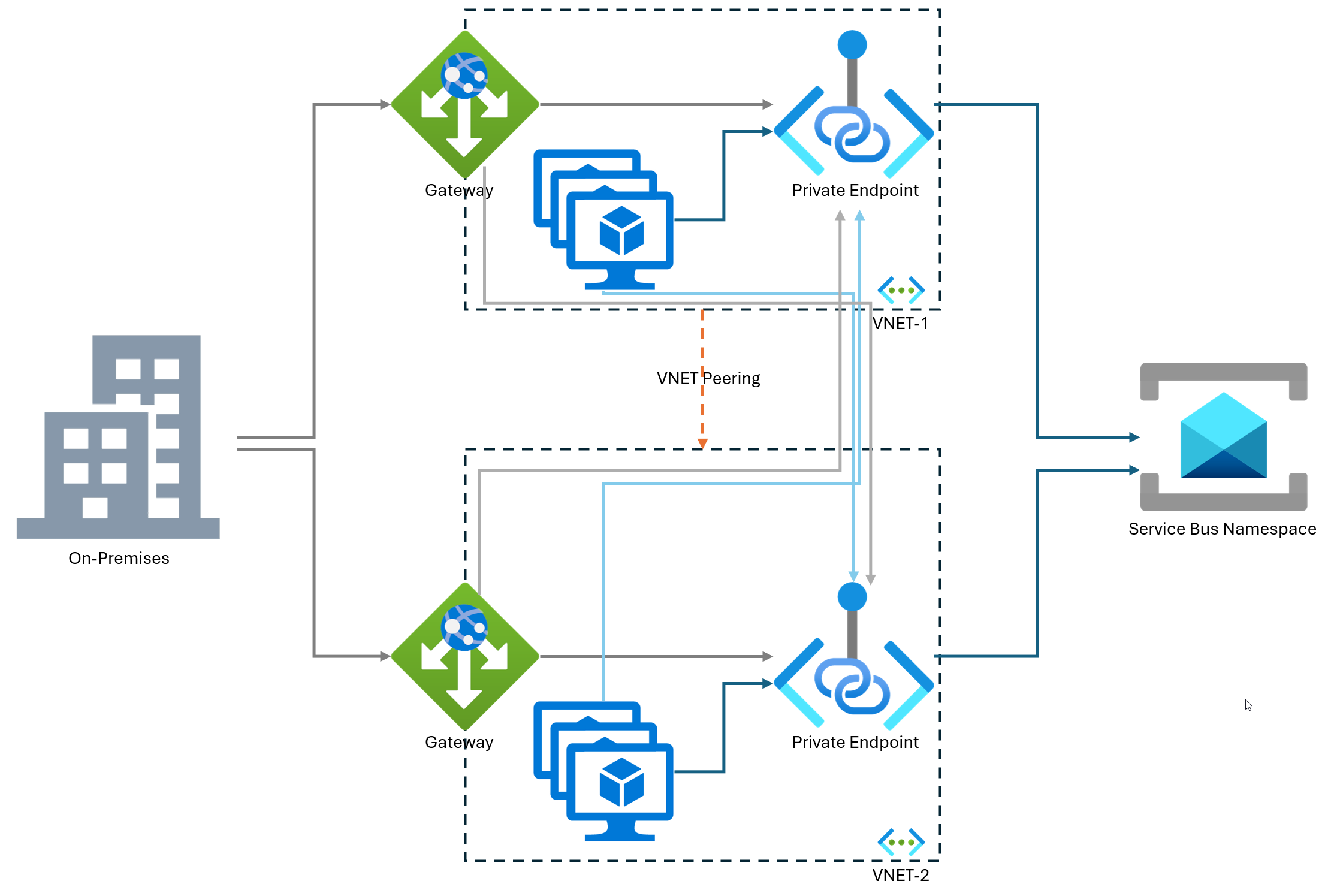
The advantage of this approach is that failover can occur independently at the application layer or on the Service Bus namespace:
- Application-only failover: In this scenario, the application moves from VNET-1 to VNET-2. Since private endpoints are configured on both VNET-1 and VNET-2 for both primary and secondary namespaces, the application continues to function seamlessly.
- Service Bus namespace-only failover: Similarly, if the failover occurs only at the Service Bus namespace level, the application remains operational because private endpoints are configured on both virtual networks.
By following these guidelines, you can ensure robust and reliable failover mechanisms for your Service Bus namespaces that use private endpoints.
Next steps
To learn more about Service Bus messaging, see the following articles: