Note
Access to this page requires authorization. You can try signing in or changing directories.
Access to this page requires authorization. You can try changing directories.
You can set up email notifications that send you updates on threat analytics reports. These notifications alert security administrators and analysts when new threat analytics reports are published or existing reports are updated in Microsoft Defender XDR. This article walks you through creating a notification rule, choosing which report types or tags to track, and adding recipients.
Set up email notifications for report updates
To set up email notifications for threat analytics reports, perform the following steps:
In the navigation pane of the Microsoft Defender portal, select Settings > Microsoft Defender XDR. Under General, select Email notifications.
In the Threat analytics tab, select + Create a notification rule. A flyout appears.
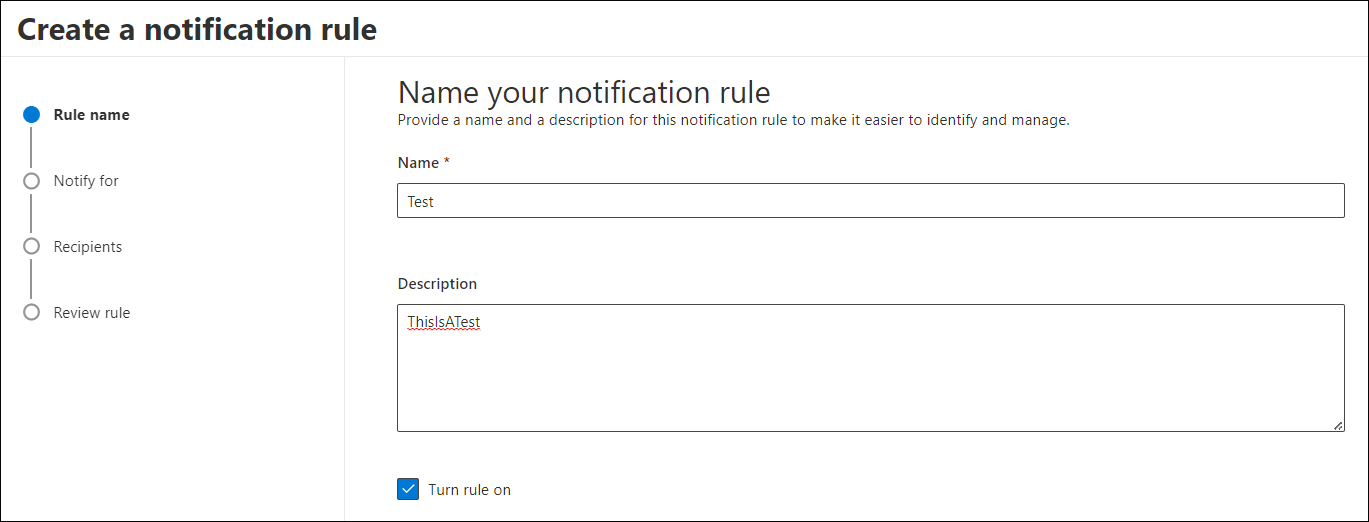
Follow the steps listed in the flyout. First, give your new rule a name. The description field is optional, but a name is required. You can toggle the rule on or off using the checkbox under the description field.
Note
The name and description fields for a new notification rule only accept English letters and numbers. Punctuations like spaces, dashes, underscores, aren't supported.
Choose the reports you want to be notified about. You can choose to be updated about all newly published or updated reports or only those reports of a certain type or with a specific tag.

Add at least one recipient to receive the notification emails. You can also use this screen to send a test email to check the notification settings.

Review your new rule. Select Edit at the end of each subsection to change any of the settings. Once your review is complete, select Create rule.

Select Done to complete the process and close the flyout.

Your new rule now appears in the list of Threat analytics email notifications.
Next steps
Tip
Do you want to learn more? Engage with the Microsoft Security community in our Tech Community: Microsoft Defender XDR Tech Community.