Note
Access to this page requires authorization. You can try signing in or changing directories.
Access to this page requires authorization. You can try changing directories.
Track your product inventory by using a warehouse record in Dynamics 365 Field Service. After you create a warehouse record, add your product inventory to it. Learn more in Overview of inventory, purchasing, and returns.
Create a warehouse record
In Field Service, select the Inventory area.
Under Inventory, select Warehouses.
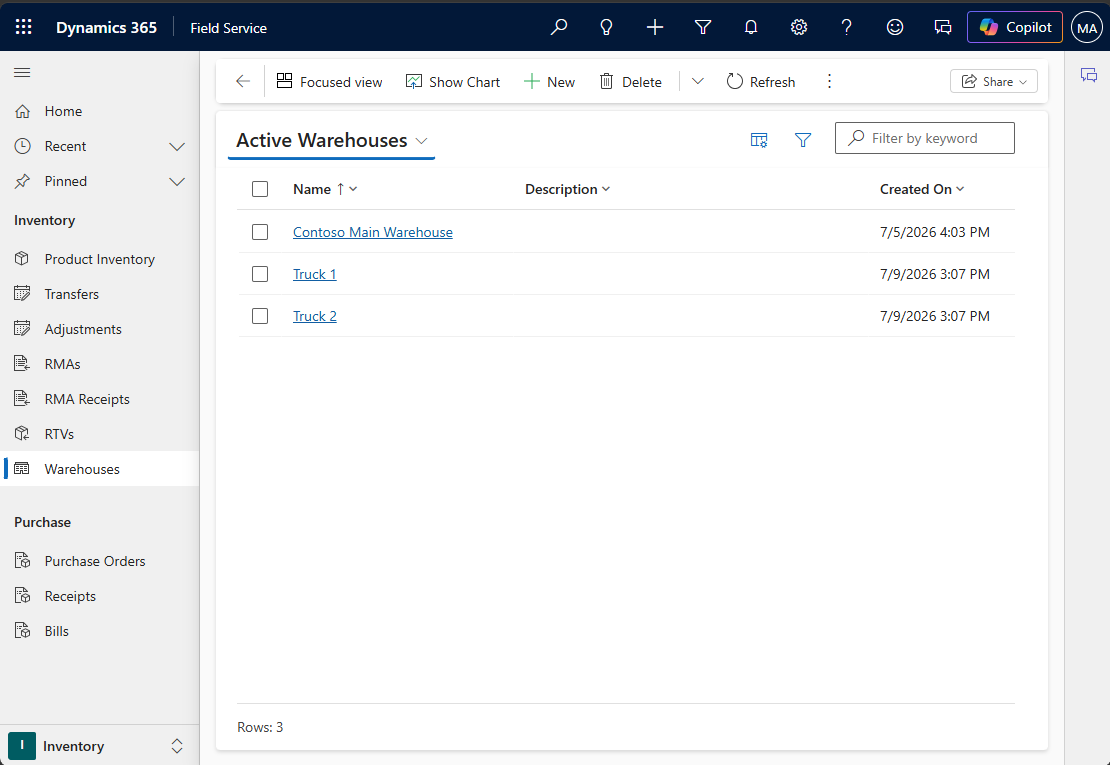
Select New, enter a name for the warehouse, and assign an owner.
Select Save to create the record.
Add product inventory to a warehouse record
The system automatically adjusts product inventory in a warehouse record through inventory adjustment records.
You can also manually add product inventory to a warehouse record. However, you can't modify the quantity values.
In a warehouse record, on the Related tab, select Product Inventory.
Select New Product Inventory.
Fill in the Product and Unit fields.
(Optional) Fill in the Bin and Row fields to specify where the product resides in the warehouse.
Select Save & Close.