Note
Access to this page requires authorization. You can try signing in or changing directories.
Access to this page requires authorization. You can try changing directories.
Use booking statuses to represent each stage of your business process in Dynamics 365 Field Service. Booking statuses appear in alphabetical order and are grouped by parent status on the schedule board. To change the display order, rename the status.
In Field Service, change to the Resources area.
Under Booking Settings, select Booking Statuses.
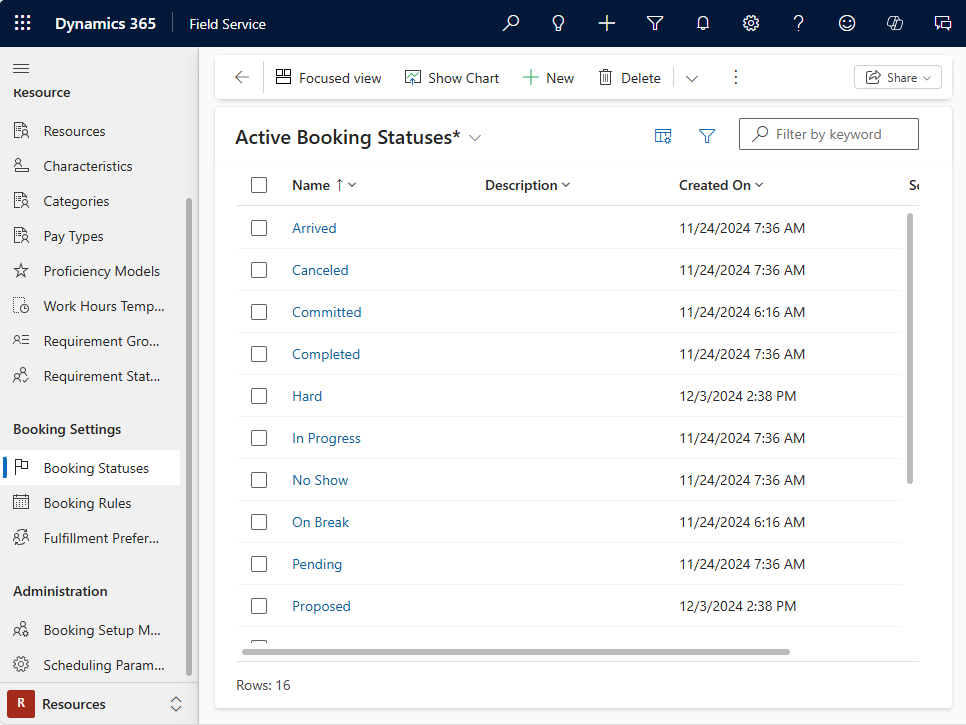
Select New on the Active Booking Statuses view.
Enter a name.
Select the Common tab and choose a custom Status Color value to display on the schedule board.
Select the Field Service tab and map the new status to a parent status in the Field Service Status field.
Select Save & Close.
Set default statuses for scheduled and canceled bookings
To set default statuses for scheduled and canceled bookings, follow these steps to complete the configuration.
Go to Resources > Administration > Booking Setup Metadata Wizard.
Select msdyn_workorder and configure the default settings.
Select Save & Close.