Note
Access to this page requires authorization. You can try signing in or changing directories.
Access to this page requires authorization. You can try changing directories.
This article shows you how to monitor your pipeline runs. Whether you need to check how things are going or troubleshoot something specific, you can track progress, spot issues early, and keep workflows running smoothly. Monitoring helps you catch problems early and keep your workflows on track.
Monitor pipeline runs
To monitor your pipeline runs, hover over your pipeline in your workspace. The More options (...) button appears to the right of your pipeline name.

Select More options (...) to display the list of options. Then select View run history. This action opens a fly-out on the right side of your screen with all your recent runs and run statuses.

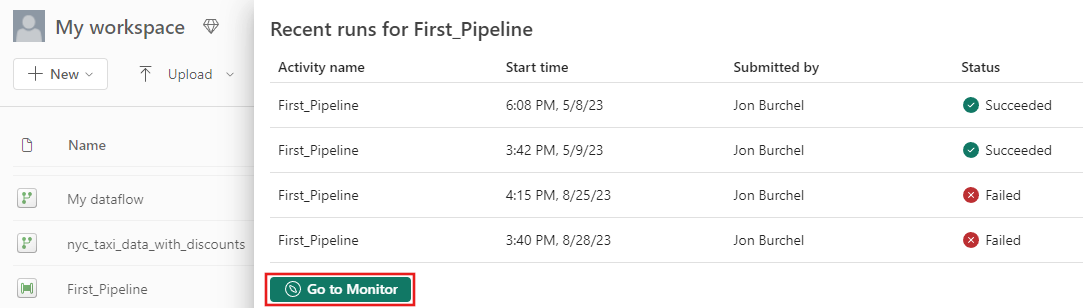
Select Go to monitor from the prior screenshot to view more details and filter results. Use the filter to find specific pipeline runs based on several criteria.

Select one of your pipeline runs to view detailed information. You can view what your pipeline looks like and view more properties like Run ID or errors if your pipeline run failed.

If you have more than 2,000 activity runs in your pipelines, select Load more to see more results in the same monitoring page.


Use Filter to filter by activity status, or Column options to change which columns appear in the monitoring view.


You can also search for an activity name, activity type, or activity run ID with the Filter by keyword box.


To export your monitoring data, select Export to CSV.

To find more information on your pipeline run Input and Output, select the input or output links to the right of the relevant row under Activity runs.
Select Update pipeline to make changes to your pipeline from this screen. This action takes you back to the pipeline canvas.
Select Rerun to rerun your pipeline. Choose to rerun the entire pipeline, or to rerun only from the failed activity.

To view performance details, select an activity from the list of Activity runs. The performance details pane opens.

Find more details under Duration breakdown and Advanced.

Gantt view
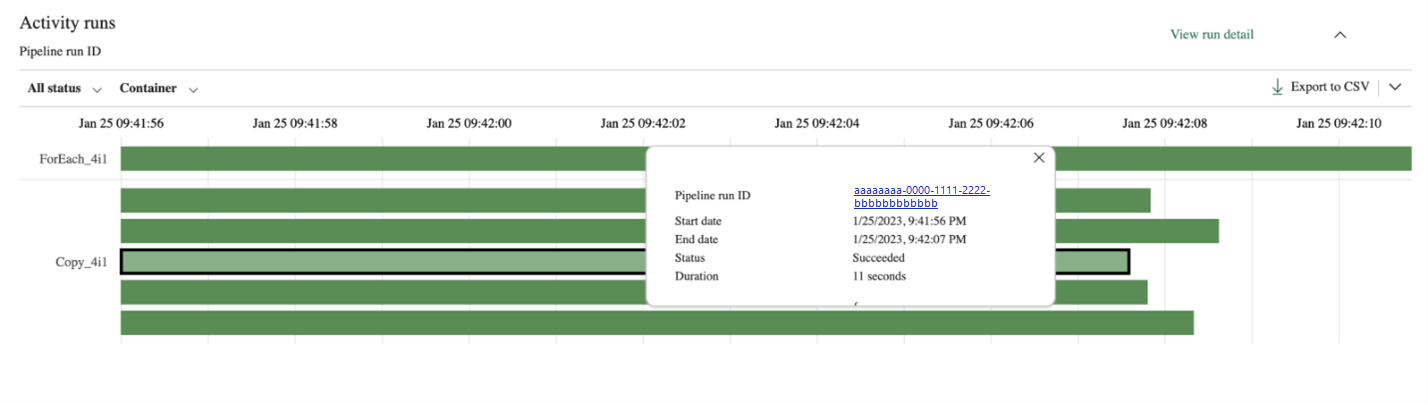
The Gantt view provides a clear, visual way to track pipeline runs over time. Each run appears as a bar, grouped by pipeline name, and the length of the bar shows how long the run took. Use this view to spot patterns, compare durations, and identify delays, overlaps, or anomalies at a glance.

The length of the bar represents the duration of the pipeline run. You can select the bar to view more details.

Workspace monitoring for pipelines
Workspace monitoring provides log-level visibility for all items in a workspace, including pipelines.
To enable workspace monitoring, go to Workspace settings in your Fabric workspace and select Monitoring.
Add a monitoring eventhouse and turn on Log workspace activity. Fabric creates a Kusto Query Language (KQL) database inside the eventhouse within your workspace for storing logs.

Go to the KQL database that Fabric created. You can find it through the Monitoring database link in the monitoring settings, or directly in your workspace.

Within the KQL database, the ItemJobEventLogs table captures pipeline-level events that occur in your workspace (also called L1 monitoring). Logs include pipeline name, run status, timestamps, and system diagnostics.
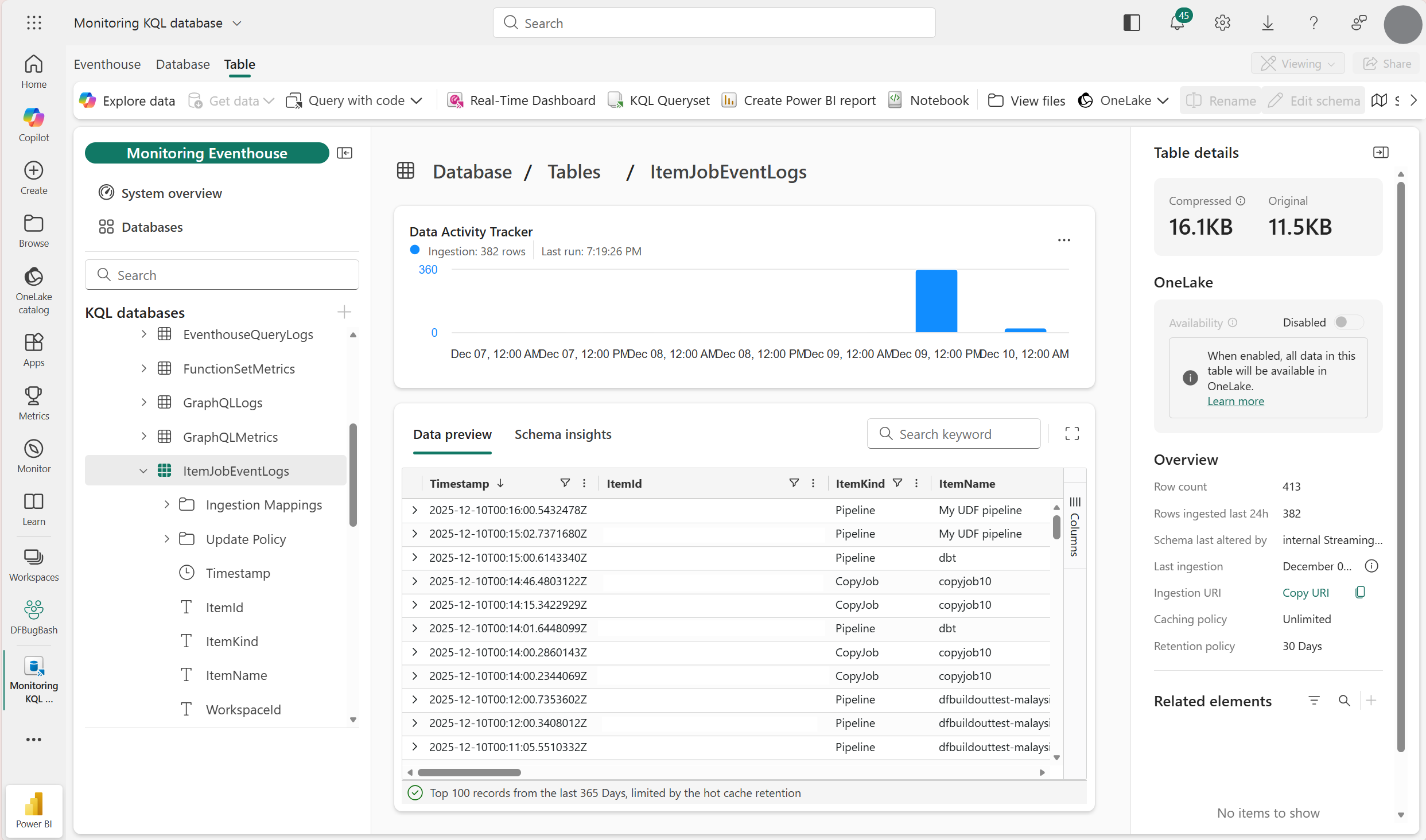
Use KQL queries in the monitoring eventhouse to analyze:
- Success and failure trends
- Performance metrics
- Error details for troubleshooting
Monitor capacity utilization
Fabric capacity administrators can use the Microsoft Fabric Capacity Metrics app to view capacity resources. This app shows how much CPU utilization, processing time, and memory pipelines, dataflows, and other items consume in capacity-enabled workspaces. Use it to identify overload causes, peak demand times, and the most resource-intensive items.