Note
Access to this page requires authorization. You can try signing in or changing directories.
Access to this page requires authorization. You can try changing directories.
In this tutorial step, you add edge types to your graph model. Edges define the relationships between nodes, such as Customer purchases Order or Employee sells Order.
Important
For canonical edge-mapping requirements, including origin and target key compatibility and data type alignment, see Choose edge types.
Adventure Works edge mappings
In the Adventure Works data model, create edges to define the relationships between the nodes. These edges capture key business relationships – such as which employees sold which orders, which customers made purchases, and which vendors supply which products. When you add the edges, you can query across these relationships to answer questions like "What products did a specific customer buy?" or "Which vendors supply touring bikes?"
The following table shows the edge mappings to use in your graph:
| Edge label | Source table | Origin node / Origin key | Target node / Target key |
|---|---|---|---|
sells |
adventureworks_orders | Employee / EmployeeID_FK |
Order / SalesOrderDetailID_K |
purchases |
adventureworks_orders | Customer / CustomerID_FK |
Order / SalesOrderDetailID_K |
contains |
adventureworks_orders | Order / SalesOrderDetailID_K |
Product / ProductID_FK |
isOfType |
adventureworks_products | Product / ProductID_K |
ProductSubcategory / SubcategoryID_FK |
belongsTo |
adventureworks_productsubcategories | ProductSubcategory / SubcategoryID_K |
ProductCategory / CategoryID_FK |
produces |
adventureworks_vendorproduct | Vendor / VendorID_FK |
Product / ProductID_FK |
Add edge types to the graph
To add edges to your graph, follow these steps:
In the top ribbon, select Add edge to create a relationship between nodes.
In Create an edge, configure the edge by referencing the Adventure Works edge mappings table for the appropriate values:
- Enter the Edge label to describe the relationship.
- Select the Source table.
- Select the Origin node and its associated Origin key column.
- Select the Target node and its associated Target key column.

For example, for the first edge, use these values:
- Edge label:
sells - Source table: adventureworks_orders
- Origin node:
Employee - Origin key:
EmployeeID_FK - Target node:
Order - Target key:
SalesOrderDetailID_K
Important
If you configured node types with compound keys (IDs consisting of multiple columns), you also need to select the corresponding compound key columns here.
Select Create to add the edge to your graph.
Repeat the steps in this section for all remaining edge types listed in the Adventure Works edge mappings table.

Tip
Properties are not added to nodes or edge types automatically. You can add properties when the data describes the relationship itself—for example, quantity or price on a contains edge. Edge properties are most useful when you write GQL queries that filter, aggregate, or return relationship-level data. For this tutorial, you don't need to add edge properties. For more information, see Add properties to edge types.
You see all six edge types represented in your graph.
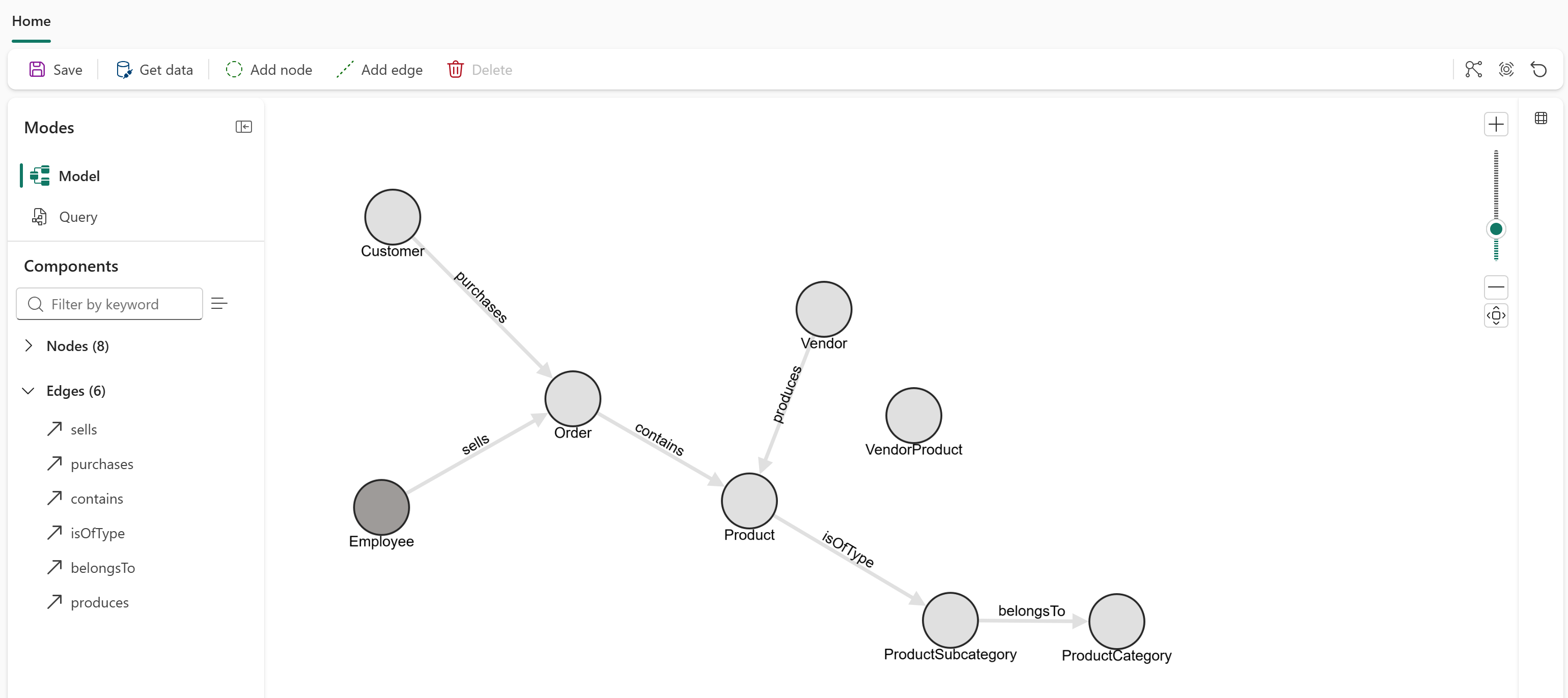
Load the graph
After adding all node types and edge types, select Save in the top ribbon to load the graph. This operation verifies the graph model, loads data from OneLake, constructs the graph, and makes it ready for querying. This process might take some time, depending on the size of your data. When the graph loads successfully, you see a banner indicating Data load completed.

Important
Currently, you need to reload the graph (by selecting Save) anytime you change the model or the underlying data.
Now you have all the node types and edge types defined for your graph. These node types and edge types form the schema of your graph model. Your graph is ready for querying once you ingest data to form the nodes and edges.