Note
Access to this page requires authorization. You can try signing in or changing directories.
Access to this page requires authorization. You can try changing directories.
Object-level security (OLS) enables model authors to secure specific tables or columns from report viewers. For example, a column that includes personal data can be restricted so that only certain viewers can see and interact with it. In addition, you can also restrict object names and metadata. This added layer of security prevents users without the appropriate access levels from discovering business-critical or sensitive personal information like employee or financial records. For viewers that don’t have the required permission, it's as if the secured tables or columns don't exist.
Create a report that uses OLS
Like row-level security (RLS), OLS is also defined within model roles. You can create OLS definitions using Tabular Model Definition Language (TMDL) view or external tools such as Tabular Editor.
Configure object-level security by using TMDL view
TMDL view enables you to define OLS rules directly within your semantic model by using TMDL scripts, so you don't need external tools.
Open TMDL view in your authoring environment.
Create a new TMDL script tab and write a
createOrReplacescript that defines a role with the appropriatemetadataPermissionfor the table or column you want to secure.- None: OLS is enforced and the table or column is hidden from that role.
- Read: The table or column is visible to that role.
To secure the entire table:
createOrReplace

    role CategoriesOLS
        modelPermission: read

        tablePermission Customers
            metadataPermission: none
To secure a specific column:
createOrReplace

    role CategoriesOLS
        modelPermission: read

        tablePermission Customers
            columnPermission Address
                metadataPermission: none
Use the Preview button before applying to review the changes that are made to the semantic model.
Select the Apply button to execute the TMDL script and apply the role definition to the semantic model.
Publish your semantic model to the Power BI service.
In the Power BI service, select the More options (...) menu for the semantic model. Select the Security page and assign members or groups to their appropriate roles.
Configure object-level security using tabular editor
In Power BI Desktop, create the model and roles that define your OLS rules.
On the External tools ribbon, select Tabular Editor. If you don’t see the Tabular Editor button, install the program. When open, Tabular Editor automatically connects to your model.

In the Model view, select the dropdown menu under Roles. The roles you created in step 1 appear.
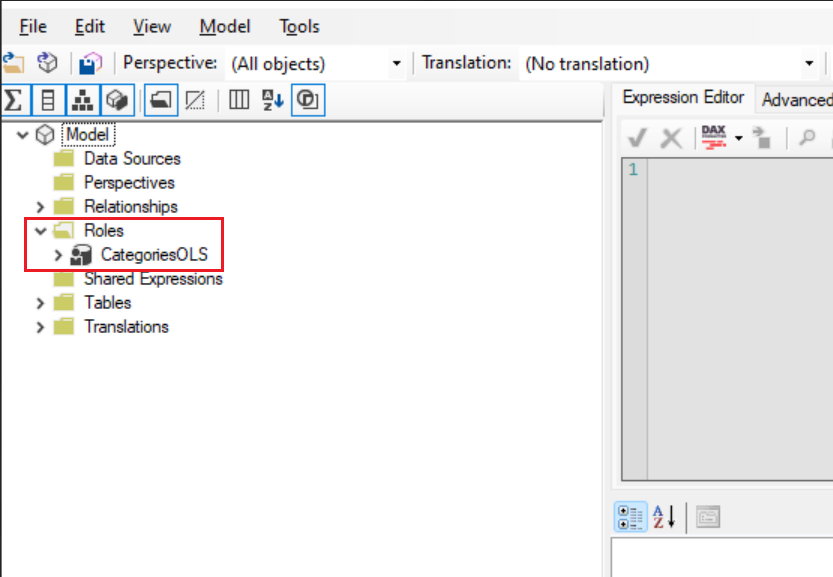
Select the role you want to enable an OLS definition for, and expand the Table Permissions.

Set the permissions for the table or column to None or Read.
None: OLS is enforced and the table or column is hidden from that role. Read: The table or column is visible to that role.
Set categories under Table Permissions to None.

After you define OLS for the roles, save your changes.

In Power BI Desktop, publish your semantic model to the Power BI service.
In the Power BI service, navigate to the Security page by selecting the More options (...) menu for the semantic model and assign members or groups to their appropriate roles.

The OLS rules are now defined. Users without the required permission receive a message that the field can't be found for all report visuals using that field.

Considerations and limitations
OLS only applies to Viewers in a workspace. Workspace members assigned Admin, Member, or Contributor roles have Edit permission for the semantic model and, therefore, OLS doesn’t apply to them. Read more about roles in workspaces.
Semantic models with OLS configured for one or more table or column objects aren't supported with these Power BI features:
- Quick insights visualizations
- Smart narrative visualizations
- Excel Data Types gallery