Note
Access to this page requires authorization. You can try signing in or changing directories.
Access to this page requires authorization. You can try changing directories.
Microsoft is introducing a new offering with Anthropic AI models as part of Microsoft Online Services, delivering enterprise-grade commitments and safeguards to ensure secure and responsible use of Anthropic models within your organization.
To enable this change, Anthropic has onboarded as a Microsoft subprocessor. This change simplifies the experience and strengthens compliance and security under Microsoft's enterprise framework. The Microsoft Customer Copyright Commitment (CCC) applies to Anthropic models used within products covered by the CCC, including Microsoft 365 Copilot and Copilot Studio.
As a subprocessor, Anthropic operates with Microsoft oversight through contractual safeguards and appropriate technical and organizational measures. Unless models are labeled "Preview models with Data Retention," the Microsoft Product Terms and Microsoft Data Protection Addendum (DPA) apply to use of Anthropic models through Microsoft's enterprise Online Services. Such use is also covered under our Enterprise Data Protection.
For more information about subprocessor data access, see Microsoft Data Access Management. To see a list of Microsoft subprocessors, see Service Trust Portal.
Microsoft enables Anthropic models on by default for most customers in commercial cloud (excluding EU/EFTA and UK). This update gives users in your organization the ability to use multiple AI models in their Microsoft offerings, such as in Microsoft 365 Copilot, Researcher, Copilot Studio, Power Platform, and Copilot in Microsoft 365 apps. This affirms Microsoft's commitment to offering choice between leading AI models while maintaining enterprise-grade security and compliance.
Important
- Anthropic models deployed in Microsoft offerings such as Microsoft 365 Copilot, Researcher, Copilot Studio, Power Platform, and Copilot in Microsoft 365 apps are currently excluded from the EU Data Boundary, and when applicable, in-country processing commitments. Customers within the EU Data Boundary and customers in the UK have Anthropic models disabled by default.
- For information about the availability of Anthropic models in U.S. government clouds (GCC, GCC High, DoD) and other sovereign clouds, see Opt-in regions and exclusions.
Note
From time to time, some newly available and advanced models from Anthropic may still be made available with separate controls that allow Microsoft tenant admins to opt in to use preview models under Anthropic's separate commercial terms and data processing agreement. For example, different terms apply to Anthropic Preview models with Data Retention, and these models must always be separately enabled even where other Anthropic models are on by default. For more information, see Preview AI models in Microsoft Online Services.
Anthropic Preview models with Data Retention
Some Anthropic models are subject to retention and storage of Customer Data by Anthropic ("Preview models with Data Retention"). For these models, Anthropic acts as an independent data processor, not a Microsoft subprocessor. Preview models with Data Retention are made available for use from within some Microsoft Online Services but subject to Anthropic's Commercial Terms of Service and Anthropic's Data Protection Addendum. Your organization's use of Anthropic Preview models with Data Retention is optional. Preview models with Data Retention have additional controls in the Microsoft 365 admin center and remain default-off for all scenarios, including in regions when different Anthropic models are on by default in commercial cloud and for which Anthropic is a Microsoft subprocessor.
Manage Anthropic's Claude model settings in the Microsoft 365 admin center
Microsoft is making Anthropic models available by default in certain regions. In Microsoft 365 Copilot (web, desktop, and mobile), UI indicators show when Claude models are in use. In Copilot Studio, creators must select the model during agent creation. In capabilities such as Edit with Copilot in Microsoft 365 apps or Researcher, users can select Claude.
Opt-in regions and exclusions
In some regions, Anthropic's models aren't available by default. For these regions, the AI providers operating as Microsoft subprocessors setting for Anthropic models appears but the default is set to No users. These regions include the European Union (EU), the European Free Trade Association (EFTA), and the United Kingdom (UK).
Note
On April 3, 2026, Microsoft introduced a new Microsoft 365 admin center setting Copilot in M365 apps with Anthropic models in EU/EFTA and UK to enable Anthropic as the default model for Copilot in Microsoft 365 apps. For more information, see Copilot in Microsoft 365 apps with Anthropic models.
Starting on July 15, 2026, a new setting will begin rolling out in the Microsoft 365 admin center that allows non-federal customers in Government Community Cloud (GCC) to use Anthropic models. For more information, see the Enable the use of Anthropic models for non-federal customers in GCC section later in this article.
Anthropic models aren't available for federal customers in GCC or for any customers in GCC High and Department of Defense (DoD) environments. They're also not available in other sovereign clouds. The option to use Anthropic models doesn't appear in the Microsoft 365 admin center for these government and sovereign cloud customers.
Opt-in to use Anthropic's models
If your organization is in a region that has Anthropic as a subprocessor set to Off by default, you can choose to opt in so Anthropic's models are available for your organization. You must be a member of the AI Administrator or Global Administrator role to perform this task. For more information, see About administrator roles in the Microsoft 365 admin center.
Go to the Microsoft 365 admin center and select Copilot > Settings > View all.
Select AI providers operating as Microsoft subprocessors.
On the AI providers operating as Microsoft subprocessors page, under Available subprocessors for your organization, select Anthropic, and Save.
Under Choose who can access Anthropic models for Copilot and generative AI experiences, select your users or groups and Save.


Note
You can restrict user access to AI provider subprocessors by assigning permissions to specific users or Microsoft Entra ID security groups in the Microsoft 365 admin center. These assignments are applied at the provider level and enforced across Microsoft 365 Copilot and Copilot Studio experiences. When access is limited by user or group membership, only the assigned users can use Copilot features or agents that rely on that AI provider. Review existing user or group assignments and update policies or configurations as needed. For more information on user and security group access, see Assign AI provider access to users and groups. For more information on creating security groups, see Create a security group.
If your organization is in the European Union (EU), the European Free Trade Association (EFTA), or the United Kingdom and you previously opted in to use Anthropic models under Anthropic's separate commercial terms and data processing agreement, you need to opt in again. The toggle is set to Off by default.
Some features are only available when Anthropic models are enabled. If you turn off Anthropic as a subprocessor, certain features may no longer be accessible.
Opt-in to allow use of Preview models, including Preview models with Data Retention
Preview models are the latest models that are available for exploration and testing but aren't recommended for production use. Review the limitations of preview models before enabling use of Anthropic Preview models with Data Retention for your tenant.
Anthropic Preview models with Data Retention are advanced models (such as Claude Fable 5 and Claude Mythos 5) that require data retention by Anthropic. This means data is stored by Anthropic and not subject to your Microsoft Customer Agreement including commitments in the Product Terms and DPA. Anthropic Preview models with Data Retention are default-off for your tenant, even if Anthropic is enabled as a subprocessor. No users will have access to these models until the tenant admin explicitly opts in to enable use of Preview models with Data Retention. Use of Anthropic Preview models with Data Retention is subject to acceptance of Anthropic's Commercial Terms of Service and Anthropic's Data Protection Addendum. The tenant admin must also choose which users (all or specific users or groups) can access and use these models.
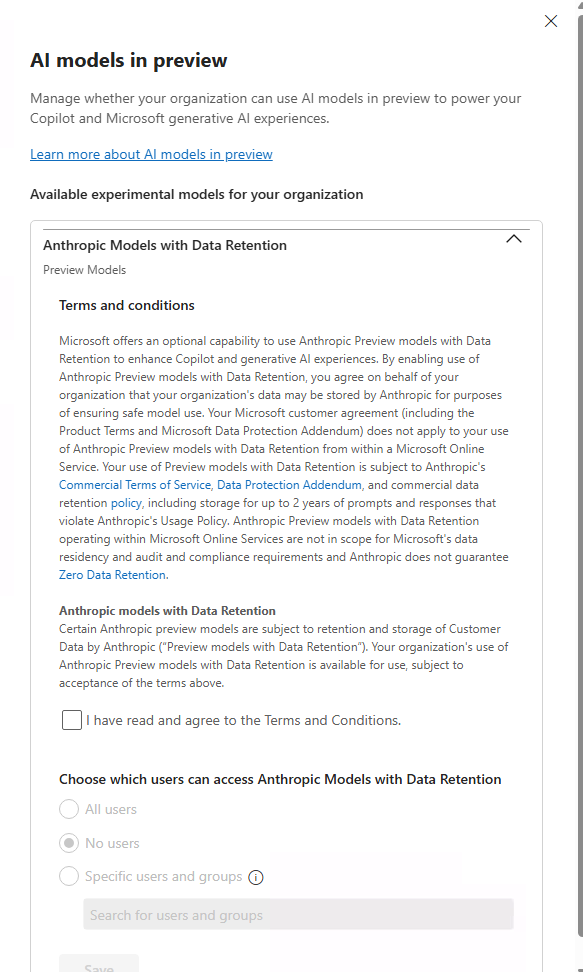
When users within your organization are granted access to Preview models with Data Retention, users will also be able to identify in the product experience that these models require data retention by Anthropic.
When you enable use of Anthropic Preview models with Data Retention, Anthropic retains data as explained in Anthropic's commercial data retention policy: Data retention for Mythos-class models This means that Anthropic (not Microsoft) stores most inputs and outputs for up to 30 days before deleting them. If Anthropic's trust and safety classifiers identify potential violations of Anthropic's Usage Policy, Anthropic may retain content (inputs and outputs) for up to two years and trust and safety classification scores for up to seven years. Anthropic doesn't use retained data for model training without your express permission. For more information, see API and data retention - Claude API Docs.
Additional controls for Copilot Studio and Power Platform in the Power Platform Admin Center
Once enabled in the Microsoft 365 admin center, additional admin controls are available in the Microsoft Power Platform admin center (PPAC) to allow Anthropic to be used in Copilot Studio and Power Platform. For more information, see Allow external large language models (LLMs) for generative responses.
Disable connection to Anthropic's models
If your organization is in a region that has Anthropic as a subprocessor set to On by default, you can opt-out to restrict Anthropic models in the Microsoft 365 admin center. You must be a member of the AI Administrator or Global Administrator role to perform this task. For more information, see About administrator roles in the Microsoft 365 admin center.
- Go to the Microsoft 365 admin center and select Copilot > Settings.
- On the User access page, select AI providers operating as Microsoft subprocessors.
- On the AI providers operating as Microsoft subprocessors page, under Available subprocessors for your organization, select Disable Anthropic as a Microsoft subprocessor.
Once you disable Anthropic as an AI subprocessor, users won't have the option to use Anthropic's AI models. You can choose to enable Anthropic models at a later date if desired.
Enable the use of Anthropic models for non-federal customers in GCC
Note
The information in this section applies only to non-federal customers in Government Community Cloud (GCC). It doesn’t apply to federal customers in GCC or to all customers in GCC High and Department of Defense (DoD) environments.
Starting on July 15, 2026, a new setting will begin rolling out in the Microsoft 365 admin center that allows non-federal customers in GCC to use Anthropic models. This capability is optional and the setting is disabled by default.
This setting allows non-federal GCC customers to use Anthropic-powered AI features in supported workflows, subject to specific technical, contractual, and compliance boundaries.
Important
When enabled, these Anthropic AI models process Customer Data outside Microsoft’s FedRAMP-authorized U.S. Government cloud. You should evaluate whether enabling this setting is consistent with your organization’s data handling requirements.
You must be a member of the AI Administrator or Global Administrator role to perform this task. For more information, see About administrator roles in the Microsoft 365 admin center.
To enable the use of Anthropic models:
- Go to the Microsoft 365 admin center and select Copilot > Settings > View all.
- Select AI providers operating as Microsoft subprocessors.
- On the AI providers operating as Microsoft subprocessors page, under Available subprocessors for your organization, select Anthropic.
- Review the information in the Terms and conditions section, and if they’re acceptable, select the I acknowledge and agree to the above terms checkbox.
- Under Choose which users can access Anthropic models, select All users, or specify users and groups, and then select Save.
To disable the use of Anthropic models, select No users.