Note
Access to this page requires authorization. You can try signing in or changing directories.
Access to this page requires authorization. You can try changing directories.
In Copilot Studio, knowledge sources work together with generative answers. When you add knowledge sources, agents can use enterprise data from Power Platform, Dynamics 365 data, websites, and external systems. Knowledge sources allow your agents to provide relevant information and insights for your customers.
Published agents that contain knowledge use the configured knowledge sources to ground the published agent. You can incorporate knowledge at the agent level, in the Knowledge page, or at the topic level, with a generative answers node in an agent topic.
You can incorporate knowledge sources into agents during their initial creation, add them after the agent is created, or add them to a generative answers topic node.
Supported knowledge sources
| Name | Source | Description | Number of inputs supported in generative answers | Authentication |
|---|---|---|---|---|
| Public website | External | Searches the query input on Bing, only returns results from provided websites | Generative mode: 25 websites Classic mode: Four public URLs (for example, microsoft.com) |
None |
| Documents | Internal | Searches documents uploaded to Dataverse, returns results from the document contents | Generative mode: All documents Classic mode: Limited by the Dataverse file storage allocation |
None |
| SharePoint | Internal | Connects to a SharePoint URL, uses GraphSearch to return results | Generative mode: 25 URLs Classic mode: Four URLs per generative answers topic node |
Agent user's Microsoft Entra ID authentication |
| Dataverse | Internal | Connects to the configured Dataverse environment and uses a retrieval-augmented generative technique in Dataverse to return results | Generative mode: Unlimited Classic mode: Two Dataverse knowledge sources (and up to 15 tables per knowledge source) |
Agent user's Microsoft Entra ID authentication |
| Enterprise data using connectors | Internal | Connects to connectors where your organization data is indexed by Microsoft Search | Generative mode: Unlimited Classic mode: Two per custom agent |
Agent user's Microsoft Entra ID authentication |
Note
Agent user authentication for knowledge sources means that when a specific user asks a question of the agent, the agent only surfaces content that the specific user can access.
Knowledge sources in generative answers nodes currently don't support Bing Custom Search, Azure OpenAI, or Custom Data. Instead, from the generative answers node properties, use the Classic data option for Bing Custom Search, Azure OpenAI, or Custom Data sources.
For websites, you need to confirm which website(s) your organization owns that Bing will search through Copilot Studio.
You can perform language-agnostic querying across all supported file types and languages.
If you're using unstructured data, such as individual SharePoint files and folders, OneDrive files and folders, or connectors, there are different limits and limations. For more information, go to Limits and limitations.
Currently, citations returned from a knowledge source can't be used as inputs to other tools or actions.
Source authentication
If you're using SharePoint, Dataverse, or enterprise data with Microsoft Copilot connectors, you need to incorporate authentication. For more information, see Configure user authentication in Copilot Studio. For individual generative answers nodes, see Authentication.
In addition, you might need to account for URL considerations that require extra authentication for your sources.
Knowledge search in classic and generative modes
How the system searches knowledge sources depends on which orchestration mode the agent uses: classic or generative.
Classic orchestration
When you configure an agent to use classic orchestration, the following conditions apply:
In the Conversational boosting system topic, the number of knowledge sources the agent can search is limited. It depends on the type of knowledge source. Your agent can search any combination of knowledge sources, up to the maximum number indicated for each type in the following table:
Type of knowledge source Limit Azure OpenAI Service connection 5 Bing Custom Search Custom Configuration IDs 2 Custom data sources 3 Dataverse knowledge sources 2 sources with up to 15 tables each SharePoint URLs 4 Uploaded files Unlimited Website URLs 4 You can also embed a generative answers node in a topic, so that a search is performed for specific intents, and not only as a fallback. The preceding knowledge source limits apply.
Classic orchestration supports custom data sources, in addition to the other knowledge sources.
Generative orchestration
When you configure an agent to use generative orchestration, the following conditions apply:
Generative orchestration filters knowledge sources by using an internal GPT model when there are more than 25 different knowledge sources. Learn more in Authoring descriptions.
Note
Files uploaded to the agent aren't part of the 25 knowledge source search limit.
Generative orchestration doesn't support custom data or Bing Custom Search as knowledge sources. To use those knowledge sources, you must embed them inside a generative answers node in a topic.
Knowledge source agent settings
Your agent's Generative AI settings page contains important settings that affect how your agent uses knowledge sources.
Allow ungrounded responses
The Allow ungrounded responses setting in the Knowledge section of your agent's Generative AI settings manages whether your agent can generate responses using only the model's general knowledge. This setting requires that the agent has generative orchestration turned on.

When you turn on the Allow ungrounded responses setting, your agent can respond by using the model's general knowledge, even when it doesn't use any knowledge sources or tools.
When you turn off this setting, the agent blocks any response generated in a turn where it didn't use a knowledge source or tool. This condition means the response is blocked if the agent answers a question from conversation history or general knowledge without calling a knowledge source or tool. In that case, the fallback topic triggers.
For example, consider the following conversation:
User: "What is the return policy for online orders?"
Agent: "Our return policy allows returns within 30 days of purchase (for all items, including sale items)." (Retrieved from a knowledge source)
User: "Does that apply to sale items too?"
Agent: (Blocked)
In this scenario, the agent might decide it already has enough context from previous turns to answer the follow-up question, without needing to call another tool or knowledge source, so the response is blocked.
Note
Turning the Allow ungrounded responses setting off doesn't guarantee that the agent never uses general knowledge. The agent's underlying model might still incorporate general knowledge when it combines this knowledge with information it retrieves from knowledge sources or tools. This setting only blocks responses where the agent didn't use any knowledge source or tool at all in that turn.
Use information from the web
You can find the Use information from the web setting on the agent's Generative AI settings page. You can also find the Web Search setting in the Knowledge section of the agent's Overview page. This setting lets your agent access broad, real-time, and up-to-date information beyond what is available in predefined or enterprise-specific knowledge bases. This setting requires that the agent has generative orchestration turned on.
When you turn on the Use information from the web/Web Search setting, it triggers when a user's question might benefit from information on the web. It searches all public websites indexed by Bing. This type of search happens in parallel with any searches of public websites you added as knowledge sources. Results from Use information from the web/Web Search are interleaved with results from your configured public website knowledge sources.
Note
Use information from the web/Web Search uses Grounding with Bing Search to return information from the web.
Moderation
The content moderation settings enable your agent to provide more answers. However, the increase in answers might affect the allowance of harmful content from the agent.
You can configure the content moderation settings in the following areas:
- The setting in the Generative AI settings page sets the moderation at the agent level.
- The setting in the generative answers node sets the moderation at the topic level.
- The setting in the prompt tool sets the moderation at the prompt level.
At runtime, the setting at the topic level takes precedence. If you don't set content moderation at the topic level, it defaults to the Generative AI settings configuration.
To override agent or topic content moderation for prompt tools, configure the Completion setting of the prompt tool to send a specific response.
To adjust the content moderation settings at the agent level, change your agent's Generative AI option to Generative.
Select the desired moderation level for your agent.
The moderation levels range from Lowest to Highest. The lowest level generates the most answers, but they might contain harmful content. The highest level of content moderation generates fewer answers, and applies a stricter filter to restrict harmful content. The default moderation level is High.
Select Save.
To adjust the content moderation settings at the topic level, change the setting in your generative answers node.
To adjust the content moderation settings for the prompt tool, change the setting in the prompt builder.
Tenant graph grounding with semantic search
The Tenant graph grounding with semantic search setting on your agent's Generative AI settings page determines whether your agent uses semantic search to improve search results. This setting requires that the agent has generative orchestration turned on.
By default, all users with the Microsoft 365 Copilot licenses use tenant graph grounding semantic search. However, if not all end users have Microsoft 365 Copilot licenses, turn on this setting to leverage semantic index for those users to improve quality. This feature comes at an extra cost. Learn more in Copilot Credits billing rates.
This feature requires the agent to share a tenant with a Microsoft 365 Copilot license. It also requires that a semantic index is configured for use. To use a semantic index, the Microsoft 365 Copilot license must be assigned to at least one user in the enterprise.
Important
The Tenant graph grounding with semantic search feature requires that the agent's user authentication is set to Authenticate with Microsoft. If authentication is set to any other method than Authenticate with Microsoft, you can't change the setting.
When you turn on the feature and the maker has a Microsoft 365 license in the same tenant, the agent supports SharePoint and connectors containing files up to 200 MB.
Note
For agents grounded in SharePoint knowledge sources, Tenant graph grounding with semantic search provides better knowledge retrieval and response quality. This feature uses cutting-edge internal retrieval tools that allow the agent to obtain a greater volume of context, with greater precision. However, due to the increased system complexity, certain users and queries might experience a small increase in latency.
If you don't have a Microsoft 365 Copilot license in the same tenant as your agent, or you experience lower response quality, turn off the feature.
The agent maker doesn't need to have a Microsoft 365 Copilot license to create an agent with a semantic index.
SharePoint and Microsoft Copilot connectors support files up to 512 MB if they have PDF, PPTX, or DOCX extensions. Learn more about supported file types in Supported content types.
The Tenant graph grounding with semantic search feature is a separate feature from the Dataverse search feature. Learn more about how Dataverse search works in Frequently asked questions about Dataverse search.
Agent overview knowledge source settings
The following settings on the agent's Overview page affect how your agent uses knowledge sources.
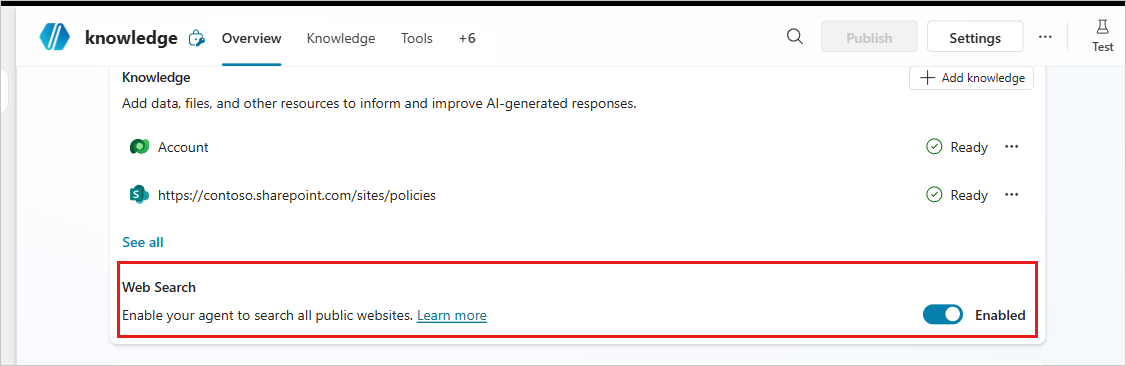
Web Search
The Web Search setting in the Knowledge section of the agent's Overview page. The Use information from the web setting in the Generative AI settings page also controls this setting. When you turn on this setting, it triggers when a user's question might benefit from information on the web. It searches all public websites indexed by Bing. This type of search happens in parallel with any searches of public websites you added as knowledge sources. Results from Web Search are interleaved with results from your configured public website knowledge sources.
Official sources
When you add knowledge sources to your agent, you might not always control how the information evolves over time, or you might not fully trust this information. It's important to let your users know that they should consider answers with caution, and they should verify them when appropriate.
However, you might know that a specific knowledge source goes through a strict verification process and is highly trusted. In that case, you can mark it as an official source. The agent can then use it directly, without verification.
To mark a knowledge source as official, on the Knowledge page, select the three dots (⋮) for the knowledge source, select Official source, and select Yes.
Note
- When generative orchestration is on, this feature isn't compatible. If you want your agent to use official knowledge sources and mark them as such, turn off generative orchestration.
- When an agent uses authoritative knowledge sources, the response starts with a distinctive indication.
Add and manage knowledge for generative answers
Generative answers allow your agent to find and present information from multiple sources, internal or external, without having to create specific topics. Use generative answers as primary information sources or as a fallback source when authored topics can't answer a user's query. As a result, you can quickly create and deploy a functional agent. Makers don't need to manually author multiple topics, which might not address all customer questions.
By default, when you create an agent, Copilot Studio automatically creates the Conversational boosting system topic. This topic contains a generative answers node, which you can use to begin utilizing knowledge sources immediately. All knowledge sources that you add at the agent level are added to the generative answers node in the Conversational boosting system topic.
For prerequisites and information on limitations, see Generative answers.
For information on analytic metrics on a per knowledge source basis, see:
- Generated answer rate and quality for conversational agents.
- Knowledge source use for autonomous agents.
- Drill down on a theme for knowledge source metrics in the context of themes.