Note
Access to this page requires authorization. You can try signing in or changing directories.
Access to this page requires authorization. You can try changing directories.
Appropriate roles: Microsoft AI Cloud Partner Program partner admin | Admin agent
This article describes the Technical Support & Consultation benefits that partners can access in Partner Center. The benefits vary depending on the benefits offer that the partner purchased.
This article is for members of the Microsoft AI Cloud Partner Program who need to know how to:
- Activate their technical benefits.
- View their access ID and contract ID.
- Determine which technical benefit supports which products and versions.
- Start the process to create a technical support incident ticket by using Microsoft AI Cloud Partner Program benefits.
Technical support benefits and supported products
Technical support provides troubleshooting for a specific problem or an error message, or for functionality that isn't working as expected.
Partner Center offers two types of technical support benefits:
- Partner Cloud Support is for cloud products only.
- Partner On-premises Support is for recent on-premises products in Mainstream support only.
Important
The Microsoft AI Cloud Partner Program Benefits | Technical Support & Consultation pane displays the number of remaining incidents and the activate-by date (end date). Use this feature to track support incident use and the benefits expiry date.
On-premises, Azure, and Dynamics products require a support plan. Activate partner support benefits to get the access ID and contract ID.
If you use up your incidents, you can buy more Microsoft AI Cloud Partner Program offers. Each partner can purchase one offer per enrollment period and can't buy multiple instances of the same offer. For example, a partner could purchase SPD, Partner Success Core, and Partner Success Expanded. For a higher level of technical support, see Partner Premier support plans.
As part of Microsoft AI Cloud Partner Program membership, partners are eligible for the following technical support plans:
| Technical support | SPD for services and training partners | Partner Launch Benefits | Partner Success Core Benefits | Partner Success Expanded Benefits |
|---|---|---|---|---|
| Partner Cloud Support Use for cloud products only. |
50 incidents | - | Two incidents | Five incidents |
| Partner On-premises Support Use for recent on-premises products only. |
20 incidents | - | - | - |
For all benefits, see the Microsoft AI Cloud Partner Program Benefits Guide.
View and activate your technical support benefits
Activate technical benefits before using them. Your Partner Center account must have the Microsoft AI Cloud Partner Program Partner admin or Global admin role. After activation, any user in the Microsoft AI Cloud Partner Program tenant can view the shared access ID and contract ID. Users use these IDs to link their accounts to the support plan in the relevant portals. This action is required only once for each account. For example, after linking an account in Azure, you don't need to link it again in the Dynamics portals.
View or activate your technical support benefits
Sign in to Partner Center with your associated account and select Benefits. You must have an account associated with the Microsoft AI Cloud Partner Program.
Select Technical support & consultation. The Benefits | Technical support & consultation pane appears with your organization's active membership offers.

If you don't have active membership offers, you see the message "Looks like you don't have any benefits yet."
If your company has active membership offers but you can't see them, you might be signed in with the wrong account.
To check your account, select the Account icon in the upper-right corner and select Sign-in with another account (if necessary).
To activate the benefit, select the Benefit Name link, and then select Activate. After a minute or two, Access ID and Contract ID appear.

If Activate appears dimmed, your account doesn't have the Microsoft AI Cloud Partner Program Partner Admin security role.
To find a user who has the required permissions to activate your benefits, go to User Management and filter by Microsoft AI Cloud Partner Program partner admin.
The access ID and contract ID appear to all users after successful activation.
Every user must use the same access ID and contract ID. If a user lacks access to the partner tenant, you can distribute these IDs through email.
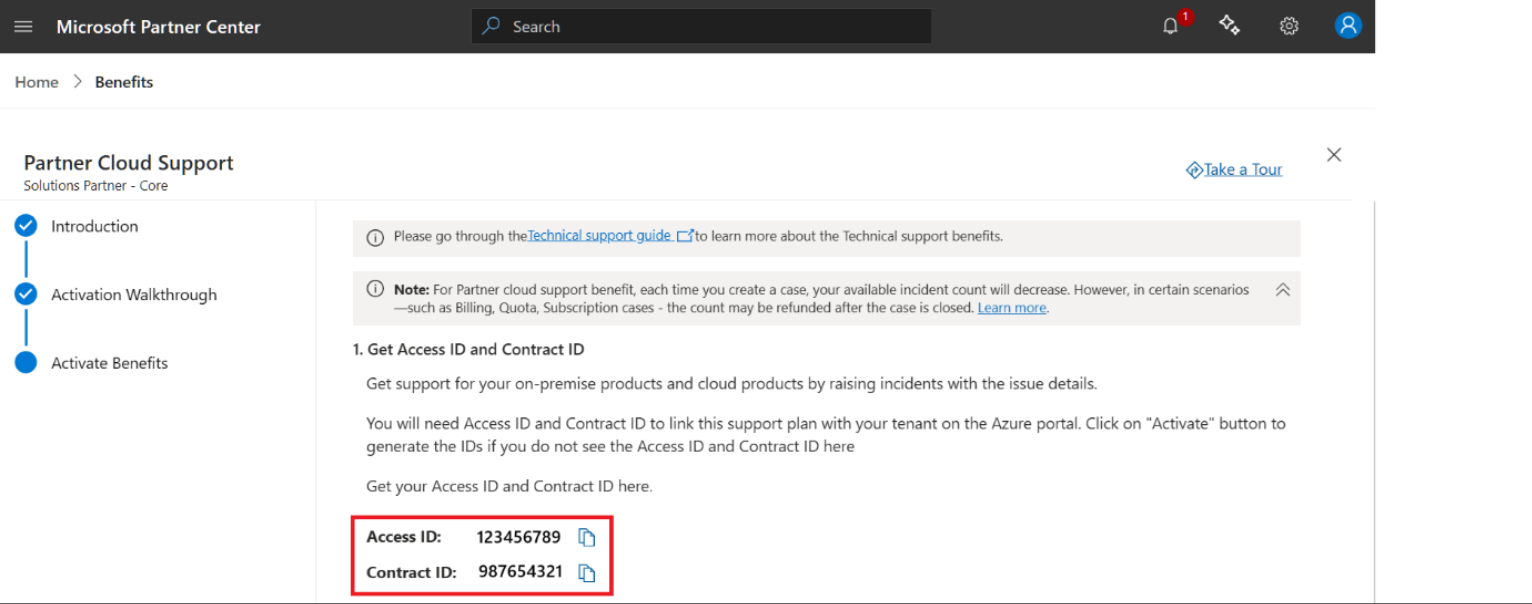
When users access a technical benefit for the first time, they enter the access ID and contract ID once. They only need to enter new IDs if the benefits are renewed with a different access ID and contract ID. If Partner Cloud Support is linked in the Dynamics portal, the same account can use it in Azure and other support portals without re-entering the IDs.
- To use your access ID and contract ID, see the following sections for Partner Cloud Support and Partner On-premises Support.
Partner Cloud Support
Important
The Microsoft AI Cloud Partner Program Benefits | Technical Support & Consultation pane displays the number of remaining incidents and the activate-by date (end date). Use this feature to track support incident use and the benefits expiry date.
The Azure portal New support request workflow, when Support plan is selected, displays requests available and the expires date.
The Partner Cloud Support benefit can help SPD, Partner Success Core, and Expanded partners with technical support requests for cloud products. This benefit doesn't apply to on-premises products.
You need the access ID and contract ID only when first using the benefit for Azure, Dynamics 365, or other supported cloud products. Microsoft 365 is excluded because its admin centre doesn't allow support plans to be linked using access ID and contract ID.
You can't select a limited support plan after it expires, or after you use all available support incidents.
Granular delegated administrative privileges
Cloud Solution Provider (CSP) partners can manage their customer workloads (such as Microsoft 365 and Dynamics 365) and open service requests by having an active granular delegated administrative privileges (GDAP) relationship with the necessary permissions.
For Azure, only the CSP Direct-Bill or Indirect Provider that provides the subscription can create technical support requests by using their existing role-base access control.
Microsoft 365 and related products
The Microsoft 365 admin centre doesn't allow support plans to be linked using access ID and contract ID. Therefore, you can't use the Partner Cloud Support benefit to create support requests.
Dynamics products
For Dynamics Power Platform products:
Select Help + Support > New support request. If the Partner Cloud Support benefit is available, select the support plan.
Add a new contract by using the access ID and contract ID as part of creating a support request.

Only valid support plans appear. If a previously added support plan doesn't appear, either your benefit expired or you have no support incidents remaining. To learn more, see Get help and support in Power Platform.
For Dynamics Finance and Operations products:
If the Partner Cloud Support benefit is available, select the support plan.
To add a new contract by using the access ID and contract ID, select Manage support plans > Add contract.

Enter values in Access ID and Password/Contract ID.

Select the Support tile and then select Submitted to Microsoft. Select Submit an incident.
Only valid support plans appear. If a previously displayed support plan is hidden, either your benefit expired or you have no support incidents remaining. To learn more, see Manage support experiences for Finance and Operations apps.
Azure
Partner Cloud Support (previously known as Signature Cloud Support) is available only as part of the Microsoft AI Cloud Partner Program benefits package for partners who attain SPD or purchase Partner Success benefits. All partners, either CSP or non-CSP, must activate their Microsoft AI Cloud Partner Program benefits package via Partner Center. Then they can view the Access ID and Contract ID required to use the benefits. They can also purchase paid partner support.
For Azure, the current experience is different for CSP and non-CSP partners (including Indirect Resellers):
- The CSP experience is for Direct-Bill and Indirect Providers only. They own the technical support relationship with the customer.
- Indirect Resellers make contact via their Indirect Provider to create a support request for a customer.
- Non-CSP partners can use Partner Cloud Support for their own Azure tenant.
Learn more about types of CSP partner relationships.
Azure CSP experience
CSPs start their process in Partner Center because they use GDAP for the customer and then proceed to the Azure experience.
Users with the Admin agent role can select Customers, and then select a specific customer. Select Service Requests > New request > Microsoft Azure.
Azure experience
To use the Azure Create a support request workflow and access your Partner Cloud Support benefit, you might need to enter your support plan manually one time for each user account.
You can skip this step if you added your support plan in another support portal. You perform this action only one time by using the same access ID and contract ID for the first request that you make with each account. Every user uses the same access ID and contract ID.
For Azure:
Select Help + Support > Support Plans > Link support benefits to add a support plan.

Enter the access ID and contract ID to add Partner Cloud Support to your list of support plans.
Select Help + Support > Create a support request. Select the Technical issue type. The Partner Cloud Support (formerly Signature Cloud Support) benefit is available later to select as a support plan.
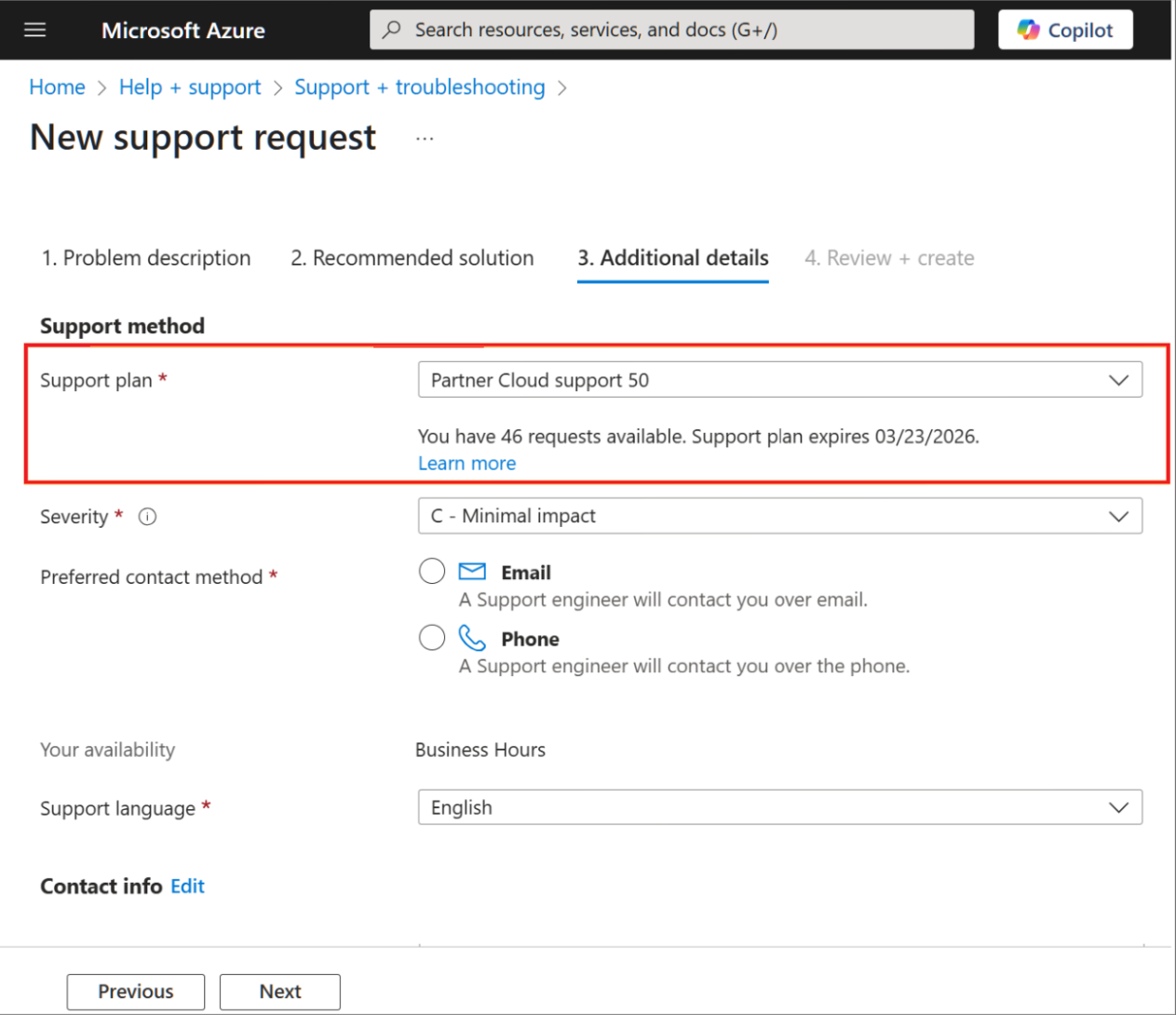
Review the valid support plans that appear. If a previously added support plan doesn't appear, it might be because:
- Your benefit expired.
- You have no support incidents remaining.
- You're using product support incidents that aren't valid for Azure.
To learn more, see Create a support request.
Azure portal error: This Access ID is already associated to an account
You might see the following error message, "This Access ID is already associated to an account." Contact your Technical Account Manager to obtain a new access ID in one of the following scenarios:
If your support contract is already linked to this account: It's unnecessary to link it again. You can ignore this message, and you can bypass the Link support benefits step in Azure.
To generate a support incident, select New Support request. Your support plan is an option for selection.
If you add a previous support contract that's expired or has no support incidents remaining: You need to purchase a new support plan to get benefits. If you try to reassociate the expired or empty plan, you might see the error message.
Partner on-premises support
Important
- The Microsoft AI Cloud Partner Program Benefits | Technical Support & Consultation pane displays the number of remaining incidents and the activate-by date (end date). Use this feature to track support incident use and the benefits expiry date.
Partners can use the Partner On-premises Support benefit (formerly Microsoft Product Support) for technical support requests only for recent versions of on-premises products. Recent versions of on-premises products include only the current product (N) and the previous product version (N-1). Product versions are supported only if they're within Mainstream support, which is usually five years from the release date. For nonsupported products and versions, use the relevant paid support option, or purchase a partner support plan.
Partners must have the access ID and contract ID the first time they use the benefit per user account. Share a single access ID and contract ID with all of your users. The benefits are associated with your user account until they expire or there are no support incidents remaining. Any user account, either Microsoft Entra ID or Microsoft account, can use technical support for on-premises products if they have the access ID and contract ID.
Create a Partner On-premises Support request
Follow these steps to link your support plan, if required, and to create support requests by using the Engage Center Support for Business portal.
Open an incognito or private window in the browser, and in the address bar, paste the following URL:
engagecenter.microsoft.com. The portal displays Support for Business.Verify that you're signed in by using the correct tenant account. You can use any Microsoft Entra ID work account or personal Microsoft account (required if you purchase Paid support).
Under How can we help you?, select the relevant product, problem type, problem subtype, and other options. For some products, such as Azure, you might be redirected to a different portal.
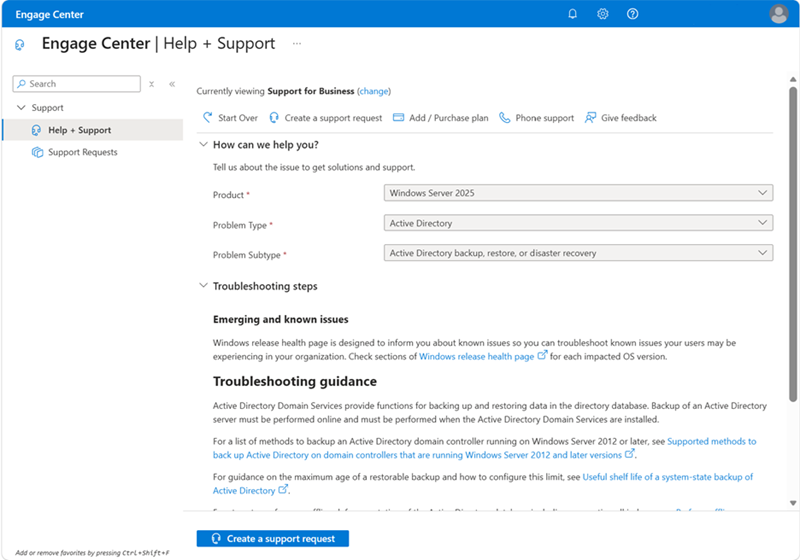
If Create a Support Request is greyed out and you see the error message "You don't have any available Support Entitlements, please see the options below for purchasing or adding", you need to add or purchase a support plan because your account has no support plans associated. See Add / Purchase Plan in the following section.
Your next action depends on if you previously added your support plan:
- Select Add / Purchase Plan to add or purchase a support plan.
- Select Add Contract ID, and enter access ID and contract ID that you copied from Partner Center to add a support plan.
If you already added your support plan, the access ID and contract ID are associated with your account. You don't need to add them again. The support plan appears under Available support plans.
Select Add / Purchase Plan to add or purchase a support plan. The first time you might see error "We were unable to find an eligible support plan associated with your account". Select Add Contract ID to display the dialog to enter Access ID and Contract ID and select Submit. A confirmation notification is briefly displayed in the top right of the screen. You might need to select the refresh icon to the right of Available support plans.

Select Create a Support Request to start the New Support Request workflow. On the Problem Description tab, enter your preferred support request title in the Summary field and select Next.

On the Additional details tab, enter Problem details and use File upload (if required).

Scroll down to select the Support plan. Select Partner On-premises support 20. Additional useful information is displayed, such as Start date, End date, and Incidents remaining.

Complete the remaining fields, Severity (always add text to justify A or B severity in the additional details section), Preferred contact method, Your availability, Contact information, and select Next.
On the Review + Create tab, check your information is correct before you select Submit to create the support request.
Purchase support by using Engage Center
Partners might need to purchase online support for on-premises products. Go to engagecenter.microsoft.com, select the product, and select Add / Purchase Plan. Switch from an Entra account to use Microsoft account (MSA) or personal account to purchase paid support. If required, sign in to Microsoft's tenant for Personal Users, select Add / Purchase Plan, and select your country to view available support plans.
Follow the steps 1 to 7 in the preceding section.
If you're using an Entra account, you see the note "You are currently signed in using a Microsoft Entra ID account. The purchase of Professional Support plans must be made using a Microsoft account (MSA) / personal account. Learn more."

Select your user account in the top right and switch to use a Microsoft account (MSA) or personal account to purchase paid support. If your MSA account is associated with a tenant, you can purchase support direct.
If your MSA account isn't associated with a tenant, the error message "You are currently logged in as a guested personal account, which may result in access issues on Engage Center" is displayed. Select the link "Sign in to Microsoft's tenant for Personal Users".

Select Add / Purchase Plan.
Select the Country and preferred support plan. The 5-pack option isn't available in all countries.

Find out how many partner support incidents remain
To check how many partner support incidents remain, use one of these options:
- Partner Center: View and activate your remaining support incidents and end date for both Partner Cloud Support and Partner On-premises Support. You need a Microsoft AI Cloud Partner Program tenant account.
- Azure portal: View remaining incidents and the end date for Partner Cloud Support only. You need an Azure tenant account, an activated and linked support contract, and permission to create Azure support requests.
- Engage center: View incidents remaining, start date, and end date in the Do you need to purchase or add more support plans section for the account you use to sign in.
Use Partner Center
Sign in to Partner Center with your Microsoft AI Cloud Partner Program partner tenant account. Select Benefits > Technical support & consultation to view your organization's active membership offers, quantity awarded, quantity that remains, status, and activate-by date.
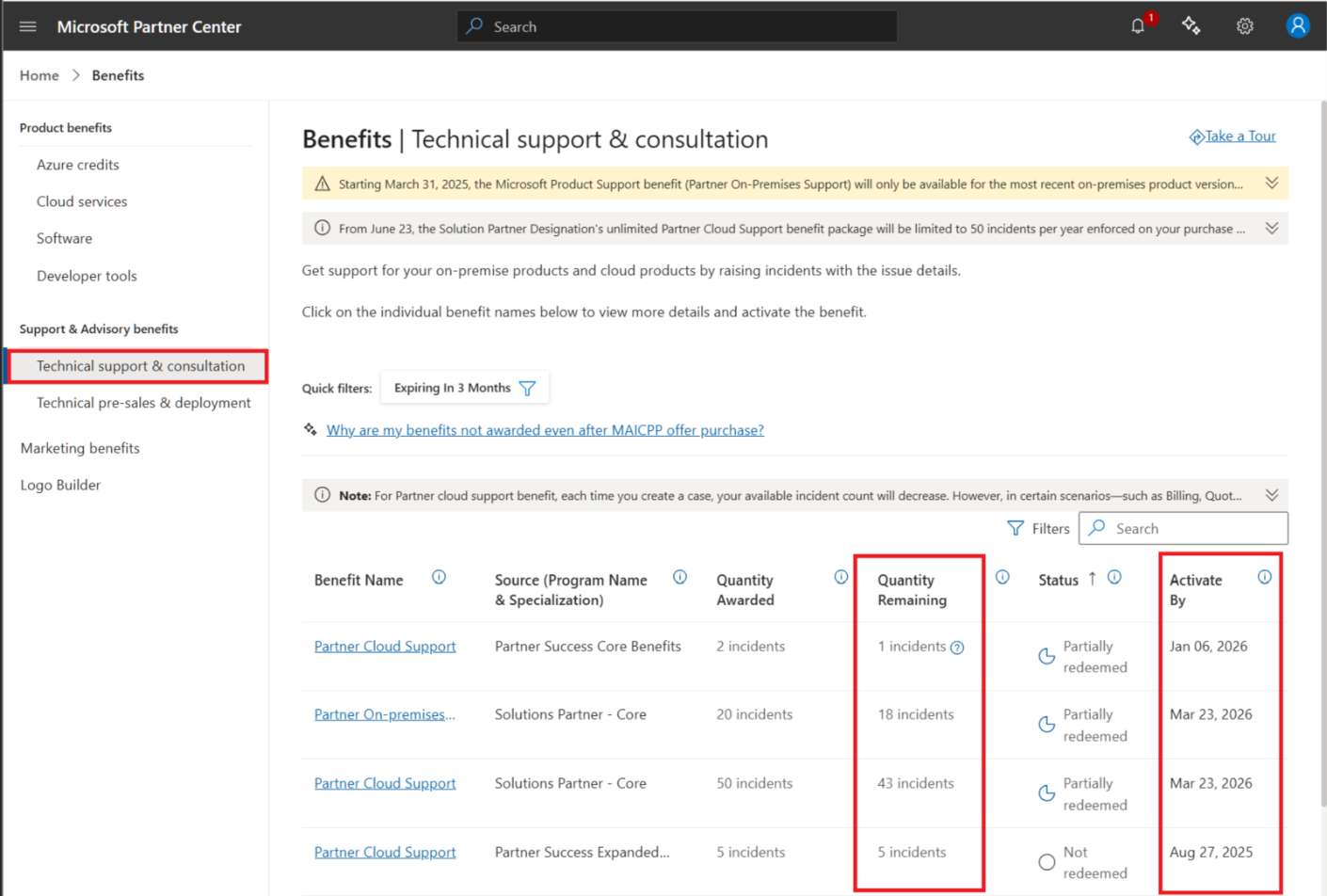
You can select the benefit name to activate your benefits or view the access ID and contract ID.
Use the Azure portal
During the Help + Support workflow, in Step 3: Additional details, after you select the support plan, the requests that are available and the support plan expiration date appear for Partner Cloud Support.
Submit technical consultation request for independent software vendors
Independent software vendor (ISV) technical consultation benefits are available only to partners enrolled in ISV Success.
To view your ISV technical consultation benefits in Partner Center:
Sign in to Partner Center and select Benefits.
Select Technical support & consultation.

To request your ISV technical consultation:
Select the technical consultation benefit name on the grid view. An example is an application architecture design session.
Activate the benefit. Select Activate to submit a consultation request to the team.

Partner Premier support plans
You can get paid support from Microsoft that includes technical support and a range of extra service options.
You can compare partner support plans or see the following articles for partner-specific plans:
- Premier Support for Partners is the top level of technical support from Microsoft.
- Advanced Support for Partners is for cloud products only.
- Unified for Partner (UfP) See Validate your support capabilities and prepare for the future of partner support. Microsoft’s next-generation partner support offering. UfP modernizes partner support with revenue based pricing aligned to Cloud Solution Provider (CSP) cloud business.
FAQs
Here are some frequently asked questions about the Technical Support and Consultation benefits of the Microsoft AI Cloud Partner Program.
General questions
How many Partner Cloud Support or Partner On-premises Support tickets do I get?
Refer to the benefits table to find the incident count associated with your membership offer.
How can a partner use Partner Cloud Support or Partner On-premises Support?
Any user with an account on the Microsoft AI Cloud Partner Program tenant can view the access ID and contract ID. Share these IDs, for example by email, with partner users who don't have an account in that tenant.
The user links the support plan to their account once per year per offer. For example, an SPD partner adds Partner Cloud Support and Partner On-premises Support benefits once per year per user account by using the access ID and contract ID. The user can use their account in the relevant product-support portal to create a service request by using the support plan. Only add the support plan once per account.
If a support portal doesn't accept an access ID and contract ID, the partner benefit can't be used. For example, the Microsoft 365 admin center doesn't support linking a support plan with these IDs, so partners can't use the benefit through the portal.
Cloud products require an active GDAP relationship with the necessary permissions and role-based access control to enable a user to open service requests.
Which requests deduct from my support incident count?
Creating a technical support request for Partner Cloud Support or Partner On-premises Support decreases your incident count. If the request is closed as a duplicate or a bug, the request is refunded. Partner Cloud Support requests for billing, quota, or subscription are deducted on creation and might be refunded on closure.
Requests handled by the Partner Center frontline team don't consume incidents from any support plans.
How do I manage or monitor my use of partner technical support?
Partners can view their remaining support requests in Partner Center, Technical Support & Consultation, or the Azure portal Help + Support workflow when they select a support plan.
Product-specific portals show support requests created by only a single account. For example, an Azure portal user can see all cases created with their Azure user account, but not the cases created by other Azure account users. Each product portal maintains its own list of support requests.
Can I get a list of all users' technical support requests for all products?
A view of all users' support requests for all products isn't available for professional-level technical support plans. Partner frontline or other support teams can't provide you with this information either.
Can I get a list of all support requests for my account?
If you use the same account for all product portals, Engage Center Support for business lists all your support requests. Only requests associated with your support plans are shown, excluding requests from other users. If you use your Partner Center account, it also shows your partner frontline requests, which are free and unlimited (they don't deduct from your available support incidents).
My support plan was available yesterday and isn't available today. What's the problem?
If a support plan is invalid, it isn't displayed:
- Partner support plans are unavailable if all incidents are used, expired, or incompatible with the selected product. Other users might have used the last incident.
- Partner Cloud Support is used only for cloud products.
- Partner On-premises Support is used only for recent on-premises products in Mainstream support.
What should I do if I run out of support incidents?
If a partner runs out of available incidents, they can create support tickets by using other available support plans.
Partners can purchase one of each Microsoft AI Cloud Partner Program offers per enrollment period. A partner can't purchase multiple instances of the same offer.
There are higher-level partner support plans like Advanced Support for Partners and Premier Support for Partners. For more information, see Partner support.
What is the Partner Cloud Support benefit?
Partner Cloud Support (previously known as Signature Cloud Support) provides partners with technical support for cloud products only.
What's the Partner On-premises Support benefit?
Partner On-premises Support, formerly Microsoft Product Support, provides partners with technical support for recent on-premises products, if they're within Mainstream support.
Can I purchase a partner offer to get on-premises support?
The only Microsoft AI Cloud Partner Program offer that includes on-premises support is the SPD offer.
For most countries/regions, the Engage Center Support for Business portal allows users who sign in with a Microsoft account to purchase pay-per-incident support online via credit card.