Note
Access to this page requires authorization. You can try signing in or changing directories.
Access to this page requires authorization. You can try changing directories.
Note
Before reading this article, read Overview of query evaluation and query folding in Power Query to better understand how folding works in Power Query.
Query folding indicators help you understand which steps fold and which steps don't.
When you use query folding indicators, it becomes clear when you make a change that breaks folding. This feature helps you resolve problems quickly, avoid performance problems, and gain better insight into your queries. In most cases, steps either fold or don't fold. But many cases exist where the outcome isn't obvious. These cases are discussed in Step diagnostics indicators (Dynamic, Opaque, and Unknown).
Note
The query folding indicators feature is available only for Power Query Online.
Interpreting query folding diagnostics
When you examine the query folding indicator next to a step, the most important thing to understand is that the diagnostic state isn't sequential. In other words, the indicator for that step describes whether the query as a whole, up to that point, folds or not. If you have an indicator that shows that the query doesn't fold followed by an indicator that shows it does fold, it means that your query up to that point does fold.
This interpretation works even with a simple query against a SQL source. For example, using the AdventureWorks sample database, connect to the Production.Product table and load data. Loading this sample through the Power Query navigator gives the following query:
let
  Source = Sql.Database("ServerName", "AdventureWorks"),
  Navigation = Source{[Schema = "Production", Item = "Product"]}[Data]
in
  Navigation
If you examine how this code shows up in query folding indicators, you note that the first step is inconclusive. But the second step does fold, which means that the query up to that point does fold.

In this example, the initial steps can't be confirmed to fold (is inconclusive), but the final step generated when you load data initially does fold. How the first steps (Source, and sometimes other Navigation steps) are handled depends on the connector. With SQL, for example, the step is handled as a catalog table value, which doesn't fold. However, as soon as you select data for that connector, it folds.
Conversely, this indication can also mean that your query folds up to a point and then stops folding. A not-folding indicator doesn't mean that nothing folds. Instead, it means that not everything folds. Generally, everything up to the last folding indicator folds, with more operations happening after.
Modifying the previous example, you can give a transform that never folds—Capitalize Each Word.
let
  Source = Sql.Database("ServerName", "AdventureWorks"),
  Navigation = Source{[Schema = "Production", Item = "Product"]}[Data],
  #"Capitalized each word" = Table.TransformColumns(Navigation, {{"Name", each Text.Proper(_), type text}})
in
  #"Capitalized each word"
In the query folding indicators, you have the same indicators as previously, except the final step doesn't fold. Everything up to this final step is performed on the data source, while the final step is performed locally.

Step diagnostics indicators
Query folding indicators use an underlying query plan, and require it to report information about the query. Currently, the query plan only supports tables, so some cases (lists, records, primitives) don't report as folding or not. Similarly, constant tables report as opaque.
| Indicator | Icon | Description |
|---|---|---|
| Folding | 
|
The folding indicator tells you that the data source evaluates the query up to this step. |
| Not folding | 
|
The not-folding indicator tells you that some part of the query up to this step is evaluated outside the data source. You can compare it with the last folding indicator, if there's one, to see if you can rearrange your query to be more performant. |
| Might fold | 
|
Might fold indicators are uncommon. They mean that a query "might" fold. They indicate either that folding or not folding is determined at runtime, when pulling results from the query, and that the query plan is dynamic. These indicators likely only appear with ODBC or OData connections. |
| Opaque | 
|
Opaque indicators tell you that the resulting query plan is inconclusive for some reason. It generally indicates that there's a true "constant" table, or that the indicators and query plan tool doesn't support that transform or connector. |
| Unknown | 
|
Unknown indicators represent an absence of a query plan, either due to an error or attempting to run the query plan evaluation on something other than a table (such as a record, list, or primitive). |
Example analysis
For an example analysis, start by connecting to the Production.Product table in Adventure Works (SQL). The initial load, similar to the initial example, looks like the following image.

When you add more steps that fold, you extend the green line on the right. This extension occurs because this step also folds.

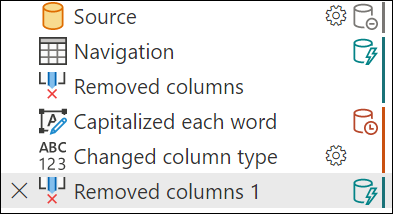
When you add a step that doesn't fold, you see a different indicator. For example, Capitalize each word never folds. The indicator changes, showing that as of this step, it stopped folding. As mentioned earlier, the previous steps still fold.

When you add more steps downstream that depend on Capitalize each step, they continue to not fold.

However, if you remove the column you applied the capitalization to so that the optimized query plan can fold again, you get a result like the following image. However, something like this is uncommon. This image illustrates how it's not just the order of steps, but the actual transformations that apply as well.