Note
Access to this page requires authorization. You can try signing in or changing directories.
Access to this page requires authorization. You can try changing directories.
Summary
This article lists common point-to-site connection problems that you might experience. It also discusses possible causes and solutions for these problems.
VPN client error: A certificate could not be found
Symptom
When you try to connect to an Azure virtual network by using the VPN client, you receive the following error message:
A certificate could not be found that can be used with this Extensible Authentication Protocol. (Error 798)
Cause
This problem occurs if the client certificate is missing from Certificates - Current User\Personal\Certificates.
Solution
To resolve this problem, follow these steps:
Open Certificate Manager: Select Start, type manage computer certificates, and then select manage computer certificates in the search result.
Make sure that the following certificates are in the correct location:
Certificate Location AzureClient.pfx Current User\Personal\Certificates AzureRoot.cer Local Computer\Trusted Root Certification Authorities Go to C:\Users<UserName>\AppData\Roaming\Microsoft\Network\Connections\Cm<GUID>, manually install the certificate (*.cer file) on the user and computer's store.
If you just updated or installed a new certificate, reboot the client machine to make sure the new certificate is used.
For more information about how to install the client certificate, see Generate and export certificates for point-to-site connections.
Note
When you import the client certificate, don't select the Enable strong private key protection option.
The network connection between your computer and the VPN server couldn't be established because the remote server isn't responding
Symptom
When you try to connect to an Azure virtual network gateway by using IKEv2 on Windows, you get the following error message:
The network connection between your computer and the VPN server could not be established because the remote server is not responding
Cause
This problem occurs if the version of Windows doesn't support IKE fragmentation.
Solution
Windows 10 and Server 2016 support IKEv2. However, to use IKEv2, you must install updates and set a registry key value locally. OS versions prior to Windows 10 aren't supported and can only use SSTP.
To prepare Windows 10 or Server 2016 for IKEv2:
Install the update.
OS version Date Number/Link Windows Server 2016
Windows 10 Version 1607January 17, 2018 KB4057142 Windows 10 Version 1703 January 17, 2018 KB4057144 Windows 10 Version 1709 March 22, 2018 KB4089848 Set the registry key value. Create or set
HKEY_LOCAL_MACHINE\SYSTEM\CurrentControlSet\Services\RasMan\ IKEv2\DisableCertReqPayloadREG_DWORD key in the registry to 1.
VPN client error: The message received was unexpected or badly formatted
Symptom
When you try to connect to an Azure virtual network by using the VPN client, you receive the following error message:
The message received was unexpected or badly formatted. (Error 0x80090326)
Cause
This problem occurs if one of the following conditions is true:
- You incorrectly set up user-defined routes (UDR) with the default route on the Gateway Subnet.
- You don't upload the root certificate public key into the Azure VPN gateway.
- The key is corrupted or expired.
Solution
To resolve this problem, follow these steps:
- Remove UDR on the Gateway Subnet. Make sure UDR forwards all traffic properly.
- Check the status of the root certificate in the Azure portal to see whether it's revoked. If it isn't revoked, try to delete the root certificate and reupload it. For more information, see Create certificates.
VPN client error: A certificate chain processed but terminated
Symptom
When you try to connect to an Azure virtual network by using the VPN client, you receive the following error message:
A certificate chain processed but terminated in a root certificate which is not trusted by the trust provider.
Solution
Make sure that the following certificates are in the correct location:
Certificate Location AzureClient.pfx Current User\Personal\Certificates Azuregateway-GUID.cloudapp.net Current User\Trusted Root Certification Authorities AzureGateway-GUID.cloudapp.net, AzureRoot.cer Local Computer\Trusted Root Certification Authorities If the certificates are already in the location, try to delete the certificates and reinstall them. The azuregateway-GUID.cloudapp.net certificate is in the VPN client configuration package that you downloaded from the Azure portal. You can use file archivers to extract the files from the package.
File download error: Target URI isn't specified
Symptom
You receive the following error message:
File download error. Target URI is not specified.
Cause
This problem occurs because of an incorrect gateway type.
Solution
The VPN gateway type must be VPN, and the VPN type must be RouteBased.
VPN client error: Azure VPN custom script failed
Symptom
When you try to connect to an Azure virtual network by using the VPN client, you receive the following error message:
Custom script (to update your routing table) failed. (Error 8007026f)
Cause
This problem occurs if you try to open the site-to-point VPN connection by using a shortcut.
Solution
Open the VPN package directly instead of opening it from the shortcut.
VPN profile is repeatedly deleted and recreated on Windows 11
Symptom
- The VPN connection disconnects during, or shortly after, an Intune synchronization.
- The VPN profile appears to be deleted and then reprovisioned, even though no configuration changes were made.
- You observe this behavior primarily on Windows 11 devices.
Cause
This issue occurs due to differences in how Intune and Windows handle the VPN profile XML:
- During an Intune sync, Intune compares the VPN profile assigned to the device with the profile currently present on the system.
- Windows doesn't store the original VPN profile XML exactly as it was provided to Intune. When queried, Windows regenerates the XML representation of the profile.
- The regenerated XML might differ in formatting, ordering, or normalization from the original XML uploaded to Intune.
- Although the effective VPN configuration is the same, these formatting differences can cause Intune to interpret the profile as changed.
- When Intune detects a difference, it deletes the existing VPN profile and provisions a new one, which causes the VPN connection to disconnect.
Solution
To prevent unnecessary deletion and recreation of the VPN profile, ensure that the XML profile used in Intune matches the format generated by Windows. The recommended approach is to extract the profile XML from a device where the VPN profile is already provisioned and working correctly.
Provision a VPN profile through Intune that includes all required settings.
On a Windows device with the correctly applied profile, open PowerShell and retrieve the list of provisioned VPN profiles:
$vpns = Get-CimInstance -Namespace root\cimv2\mdm\dmmap -ClassName MDM_VPNv2_01Identify the correct profile by reviewing the InstanceID value:
$vpns[0].InstanceIDExport the profile XML to a file:
[System.IO.File]::WriteAllText("VPN-Corrected.xml", $vpns[0].ProfileXML)Use the exported XML file as the VPN profile definition in Intune.
Using the XML generated by Windows helps ensure consistency between the profile stored on the device and the profile evaluated by Intune, reducing the likelihood of profile deletion and VPN disconnections during sync.
Can't install the VPN client
Cause
You need an extra certificate to trust the VPN gateway for your virtual network. The Azure portal includes this certificate in the VPN client configuration package that it generates.
Solution
Extract the VPN client configuration package, and find the .cer file. To install the certificate, follow these steps:
- Open mmc.exe.
- Add the Certificates snap-in.
- Select the Computer account for the local computer.
- Right-click the Trusted Root Certification Authorities node. Click All-Task > Import, and browse to the .cer file you extracted from the VPN client configuration package.
- Restart the computer.
- Try to install the VPN client.
Azure portal error: Failed to save the VPN gateway, and the data is invalid
Symptom
When you try to save the changes for the VPN gateway in the Azure portal, you receive the following error message:
Failed to save virtual network gateway <gateway name>. Data for certificate <certificate ID> is invalid.
Cause
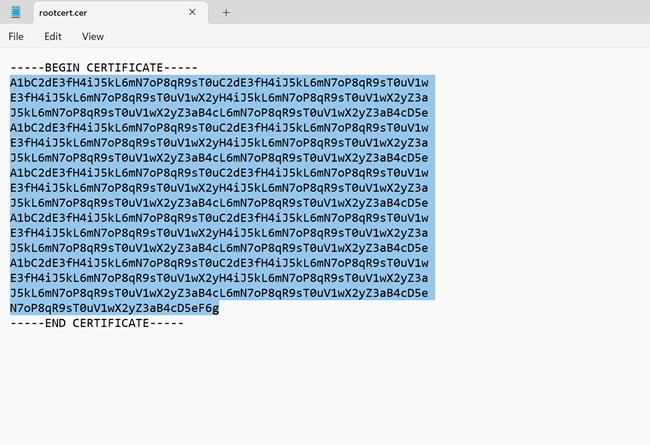
This problem might occur if the root certificate public key that you uploaded contains an invalid character, such as a space.
Solution
Make sure that the data in the certificate doesn't contain invalid characters, such as line breaks (carriage returns). The entire value should be one long line. The following example shows the area to copy within the certificate:
Azure portal error: Failed to save the VPN gateway, and the resource name is invalid
Symptom
When you try to save the changes for the VPN gateway in the Azure portal, you receive the following error message:
Failed to save virtual network gateway <gateway name>. Resource name <certificate name you try to upload> is invalid.
Cause
This problem occurs because the name of the certificate contains an invalid character, such as a space.
Azure portal error: VPN package file download error 503
Symptom
When you try to download the VPN client configuration package, you receive the following error message:
Failed to download the file. Error details: error 503. The server is busy.
Solution
This error can be caused by a temporary network problem. Try to download the VPN package again after a few minutes.
Azure VPN Gateway upgrade: All point-to-site clients can't connect
Cause
The certificate is more than 50 percent through its lifetime, so it's rolled over.
Solution
To resolve this problem, redownload and redeploy the point-to-site package on all clients.
Too many VPN clients connected at once
You reached the maximum number of connections. You can see the total number of connected clients in the Azure portal.
VPN client can't access network file shares
Symptom
The VPN client connects to the Azure virtual network. However, the client can't access network shares.
Cause
The SMB protocol is used for file share access. When you initiate the connection, the VPN client adds the session credentials, and the failure occurs. After the connection is established, the client uses the cache credentials for Kerberos authentication. This process initiates queries to the Key Distribution Center (a domain controller) to get a token. Because the client connects from the Internet, it might not be able to reach the domain controller. Therefore, the client can't fail over from Kerberos to NTLM.
The only time that the client is prompted for a credential is when it has a valid certificate (with SAN=UPN) issued by the domain to which it's joined. The client also must be physically connected to the domain network. In this case, the client tries to use the certificate and reaches out to the domain controller. Then the Key Distribution Center returns a "KDC_ERR_C_PRINCIPAL_UNKNOWN" error. The client is forced to fail over to NTLM.
Solution
To work around the problem, disable the caching of domain credentials from the following registry subkey:
HKEY_LOCAL_MACHINE\SYSTEM\CurrentControlSet\Control\Lsa\DisableDomainCreds - Set the value to 1
Can't find the point-to-site VPN connection in Windows after reinstalling the VPN client
Symptom
You remove the point-to-site VPN connection and then reinstall the VPN client. In this situation, the VPN connection isn't configured successfully. You don't see the VPN connection in the Network connections settings in Windows.
Solution
To resolve the problem, delete the old VPN client configuration files from C:\Users\UserName\AppData\Roaming\Microsoft\Network\Connections<VirtualNetworkId>, and then run the VPN client installer again.
Point-to-site VPN client can't resolve the FQDN of the resources in the local domain
Symptom
When the client connects to Azure by using point-to-site VPN connection, it can't resolve the FQDN of the resources in your local domain.
Cause
Point-to-site VPN client normally uses Azure DNS servers that are configured in the Azure virtual network. The Azure DNS servers take precedence over the local DNS servers that are configured in the client (unless the metric of the Ethernet interface is lower), so all DNS queries are sent to the Azure DNS servers. If the Azure DNS servers don't have the records for the local resources, the query fails.
Solution
To resolve the problem, make sure that the Azure DNS servers that used on the Azure virtual network can resolve the DNS records for local resources. To do this, you can use DNS Forwarders or Conditional forwarders. For more information, see Name resolution using your own DNS server.
The point-to-site VPN connection is established, but you still can't connect to Azure resources
Cause
This problem occurs if the VPN client doesn't get the routes from Azure VPN gateway.
Solution
To resolve this problem, reset Azure VPN gateway. To make sure that the new routes are used, download the Point-to-Site VPN clients again after virtual network peering is successfully configured.
Error: "The revocation function was unable to check revocation because the revocation server was offline. (Error 0x80092013)"
Causes
This error message occurs if the client can't access http://crl3.digicert.com/ssca-sha2-g1.crl and http://crl4.digicert.com/ssca-sha2-g1.crl. The revocation check requires access to these two sites. This problem typically happens on the client that has proxy server configured. In some environments, if the requests aren't going through the proxy server, the edge firewall denies them.
Solution
Check the proxy server settings. Make sure that the client can access http://crl3.digicert.com/ssca-sha2-g1.crl and http://crl4.digicert.com/ssca-sha2-g1.crl.
VPN client error: The connection was prevented because of a policy configured on your RAS/VPN server. (Error 812)
Cause
This error occurs if the RADIUS server that you used for authenticating VPN client has incorrect settings, or Azure Gateway can't reach the RADIUS server.
Solution
Make sure that RADIUS server is configured correctly. For more information, see Integrate RADIUS authentication with Azure Multi-Factor Authentication Server.
"Error 405" when you download root certificate from VPN Gateway
Cause
You didn't install the root certificate. Install the root certificate in the client's Trusted certificates store.
VPN client error: The remote connection was not made because the attempted VPN tunnels failed. (Error 800)
Cause
The NIC driver is outdated.
Solution
Update the NIC driver:
- Select Start, type Device Manager, and select it from the list of results. If you're prompted for an administrator password or confirmation, type the password or provide confirmation.
- In the Network adapters categories, find the NIC that you want to update.
- Double-click the device name, select Update driver, and select Search automatically for updated driver software.
- If Windows doesn't find a new driver, you can try looking for one on the device manufacturer's website and follow their instructions.
- Restart the computer and try the connection again.
VPN client error: Your authentication with Microsoft Entra expired
If you're using Microsoft Entra ID authentication, you might encounter one of the following errors:
Your authentication with Microsoft Entra is expired. You need to re-authenticate in Entra to acquire a new token. Authentication timeout can be tuned by your administrator.
or
Your authentication with Microsoft Entra has expired so you need to re-authenticate to acquire a new token. Please try connecting again. Authentication policies and timeout are configured by your administrator in Entra tenant.
Cause
The point-to-site connection is disconnected because the current refresh token has expired or becomes invalid. New access tokens can't be fetched for authenticating the user.
When an Azure VPN Client tries to establish connection with an Azure VPN gateway using Microsoft Entra ID authentication, an access token is required to authenticate the user. This token gets renewed approximately every hour. A valid access token can only be issued when the user has a valid refresh token. If the user doesn't have a valid refresh token, the connection gets disconnected.
Several reasons can cause the refresh token to expire or become invalid. Check User Entra sign-in logs for debugging. For more information, see Microsoft Entra sign-in logs.
Refresh token expires
- Refresh tokens expire after 90 days by default. After 90 days, users need to reconnect to get a new refresh token.
- Entra tenant admins can add conditional access policies for sign-in frequency that trigger periodic reauthentication every 'X' hours. (Refresh token expires in 'X' hours). By using custom conditional access policies, users must use an interactive sign-in every 'X' hours. For more information, see Refresh tokens in the Microsoft identity platform and Configure adaptive session lifetime policies.
- Refresh tokens expire after 90 days by default. After 90 days, users need to reconnect to get a new refresh token.
Refresh token becomes invalid
- The user is removed from tenant.
- The user's credentials change.
- Entra tenant admin revokes sessions.
- The device has become noncompliant (if it's a managed device).
- Other Entra policies configured by Entra admins that require users to periodically use interactive sign-in.
Solution
In these scenarios, users need to reconnect. This action triggers an interactive sign-in process in Microsoft Entra that issues a new refresh token and access token.
Azure VPN Client with Entra ID authentication doesn't prompt the user to reauthenticate every time it disconnects
Cause
An Azure VPN client connecting by using point-to-site with Entra ID authentication doesn't require interactive reauthentication when disconnected.
Set the recommended sign-in frequency (SIF) or refresh token expiry time for the best experience with the Azure VPN Client to a value greater than 2 hours, depending on what works best for you. This setting keeps you connected without needing to reauthenticate interactively.
Don't set the SIF to "every time," as it requires interactive reauthentication every hour and causes frequent disconnects.
When the sign-in cache is enabled (default), the token is stored in permanent storage. This storage allows reconnection without interactive reauthentication even after disconnection, as long as the refresh token is valid. This condition means the reconnection duration is within the SIF or refresh token expiry time.
Solution
To ensure the Azure VPN client prompts for reauthentication every time it disconnects, use the sign-in cache disabled option in the Azure VPN Client (version 4.0.0.0 and later). Modify the user profile (XML) setting cachesigninuser to false.
<azvpnprofile>
    <clientauth>
      <aad>
          <cachesigninuser>false</cachesigninuser>
      </aad>
    </clientauth>
</azvpnprofile>
When you disable the sign-in cache, the token is stored in in-memory storage and is valid for one connection (or session), regardless of its duration (from 30 minutes to 90 days). Once the connection is disconnected, the in-memory token is dropped. The duration of one connection depends on the refresh token expiry time or the SIF.
VPN client error: Dialing VPN connection <VPN Connection Name>, Status = VPN Platform didn't trigger connection
You might also see the following error in Event Viewer from RasClient: "The user <User> dialed a connection named <VPN Connection Name> which has failed. The error code returned on failure is 1460."
Cause
The Azure VPN Client doesn't have the Background apps app permission enabled in App Settings for Windows.
Solution
- In Windows, go to Settings > Privacy > Background apps.
- Toggle the Let apps run in the background to On.
Error: 'File download error Target URI is not specified'
Cause
This error occurs when you configure an incorrect gateway type.
Solution
Set the Azure VPN gateway type to VPN and the VPN type to RouteBased.
VPN package installer doesn't complete
Cause
Previous VPN client installations can cause this problem.
Solution
Delete the old VPN client configuration files from C:\Users\UserName\AppData\Roaming\Microsoft\Network\Connections<VirtualNetworkId> and run the VPN client installer again.
The VPN client hibernates or sleeps
Solution
Check the sleep and hibernate settings on the computer that the VPN client is running on.
I can't resolve records in Private DNS Zones using Private Resolver from point-to-site clients.
Symptom
When you use the Azure provided (168.63.129.16) DNS server on the virtual network, point-to-site clients can't resolve records in Private DNS Zones (including private endpoints).

Cause
Only the Azure platform can resolve the Azure DNS server IP address (168.63.129.16).
Solution
To resolve records from a Private DNS zone, follow these steps:
By configuring the Private resolver's inbound IP address as custom DNS servers on the virtual network, you can resolve records in the private DNS zone (including those created from Private Endpoints). The Private DNS zones must be associated with the virtual network that has the Private Resolver.

By default, the VPN gateway pushes DNS servers that you configure on a virtual network to point-to-site clients. When you configure the Private resolver inbound IP address as custom DNS servers on the virtual network, you automatically push these IP addresses to clients as the VPN DNS server. You can seamlessly resolve records from private DNS zones (including private endpoints).