Note
Access to this page requires authorization. You can try signing in or changing directories.
Access to this page requires authorization. You can try changing directories.
Microsoft Defender for Endpoint security policies help you manage security settings across your devices. In the multitenant management portal, go to Endpoints > Configuration management > Endpoint security policies to manage these settings across multiple tenants.
For more information, see Manage endpoint security policies in Microsoft Defender for Endpoint.
Prerequisites
You must have Microsoft Defender for Endpoint to use endpoint security policies in multitenant management.
Security administrators must have permissions in each tenant to access the endpoint security policies page in multitenant management.
The Endpoint security policies page is available only for users with the security administrator role in Microsoft Defender XDR. Other user roles, like Security Reader, don't provide access to the Endpoint security policies page.
When a user has permissions to view policies in the Microsoft Defender portal, the data shown depends on their Intune permissions. Intune role-based access control, if applied, controls which policies appear in the list.
We recommend that you assign the Intune built-in role "Endpoint Security Manager" to security administrators. This role helps align permissions between Intune and Microsoft Defender XDR.
Create a new or edit an existing security policy
You create endpoint security policies the same way in the multitenant portal as in the single tenant portal. For steps, see Create an endpoint security policy.
Differences include:
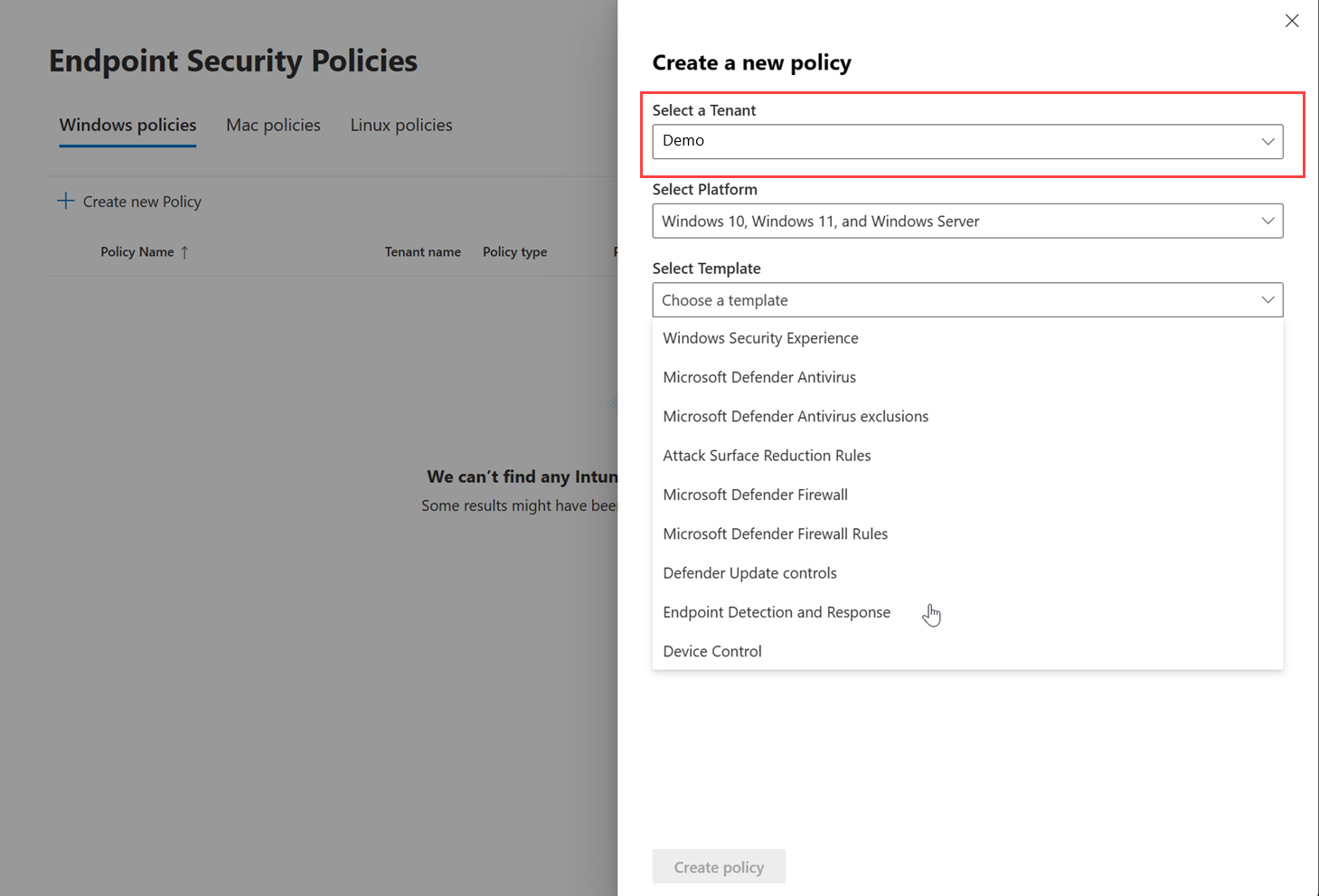
Before you start, select the tenant for which you want to create the policy. Each policy is created for a specific tenant, and you can only create policies for one tenant at a time.
For example:

To edit scope tags, go to the Microsoft Intune admin center. The Intune admin center doesn't yet support multitenant management, so you must edit scope tags in the single tenant portal.
Use the Search and Filter options to find a specific policy in the Endpoint security policies page. You can filter policies by tenant name, policy category, policy type, and targets.
Edit or delete a security policy by selecting the policy in the Endpoint security policies page, then selecting Edit or Delete. For example:

Verify endpoint security policy status
To verify that a policy was created, select it from the list and click the policy name. The policy page opens in a new tab. You can also open it through Edit > Open policy page.
The policy page shows the policy status, which devices it applies to, and the assigned groups.
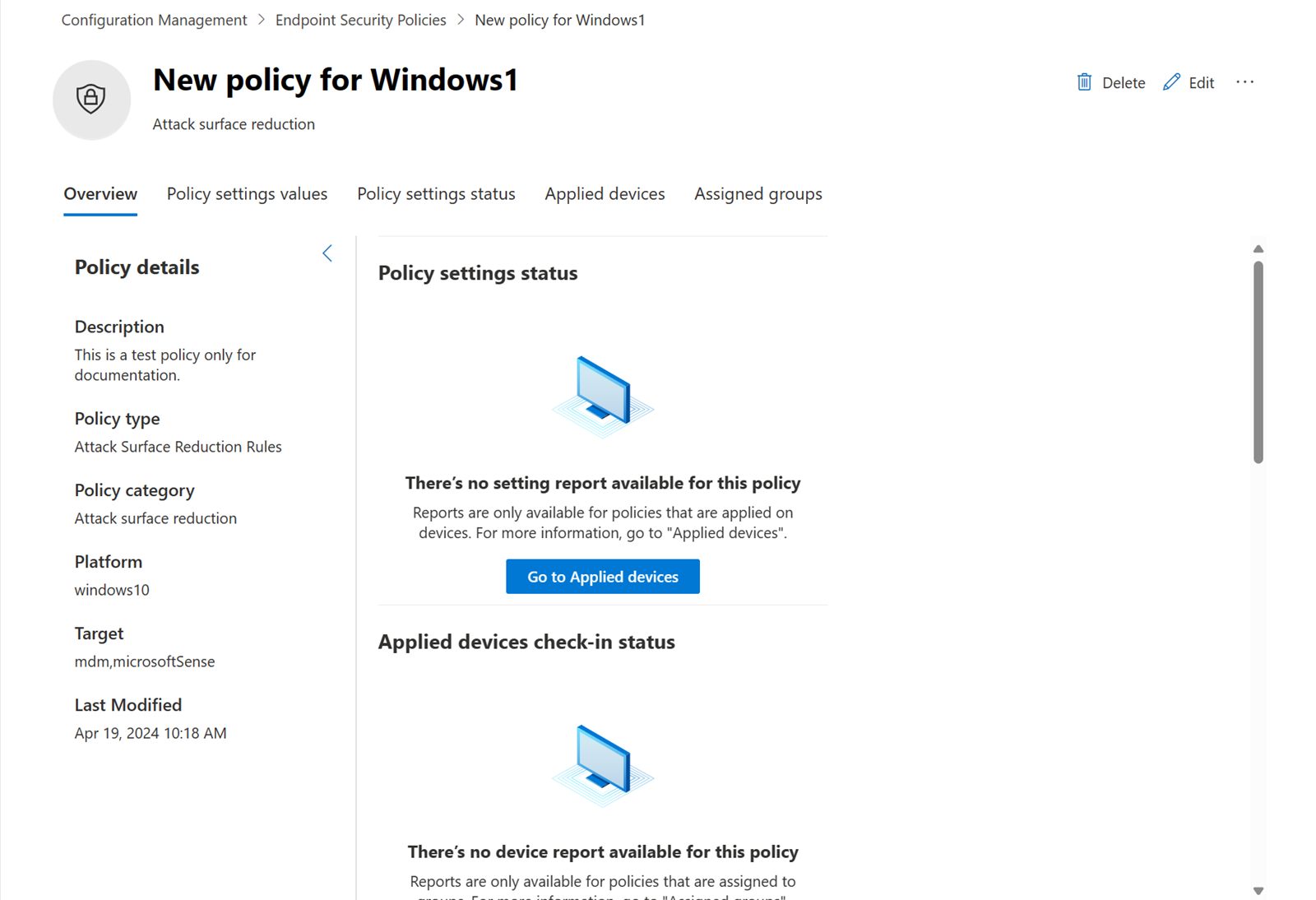
You can also view the policy in the Microsoft Intune admin center. To do so, select the More actions ellipsis (…) in the policy page, then select View in Intune.
View distributed policies
Policies distributed across tenants appear in a tree view. The original policy is the parent, and its copies are listed beneath it. For example:

The Last Distribution Status column shows the overall status of the distributed copies. The Tenants and Distribution profiles columns show which tenants received the policy. For more information, see Content distribution in multitenant management.
Tip
Do you want to learn more? Engage with the Microsoft Security community in our Tech Community: Microsoft Defender XDR Tech Community.