Nota
L'accesso a questa pagina richiede l'autorizzazione. È possibile provare ad accedere o modificare le directory.
L'accesso a questa pagina richiede l'autorizzazione. È possibile provare a modificare le directory.
Applies to:  Visual Studio
  Visual Studio for Mac
Note
This article applies to Visual Studio 2017. If you're looking for the latest Visual Studio documentation, see Visual Studio documentation. We recommend upgrading to the latest version of Visual Studio. Download it here
In this 10-minute introduction to the code editor in Visual Studio, we'll add code to a file to look at some of the ways that Visual Studio makes writing, navigating, and understanding code easier.
Tip
If you haven't already installed Visual Studio, go to the Visual Studio downloads page to install it for free.
This article assumes you're already familiar with a programming language. If you aren't, we suggest you look at one of the programming quickstarts first, such as create a web app with Python or C#, or create a console app with Visual Basic or C++.
Create a new code file
Start by creating a new file and adding some code to it.
Open Visual Studio.
From the File menu on the menu bar, choose New > File.
In the New File dialog box, under the General category, choose Visual C# Class, and then choose Open.
A new file opens in the editor with the skeleton of a C# class. (Notice that we don't have to create a full Visual Studio project to gain some of the benefits that the code editor offers; all you need is a code file!)

Use code snippets
Visual Studio provides useful code snippets that you can use to quickly and easily generate commonly used code blocks. Code snippets are available for different programming languages including C#, Visual Basic, and C++.
Let's add the C# void Main snippet to our file.
Place your cursor just above the final closing brace } in the file, and type the characters
svm. (svmstands forstatic void Main; the Main() method is the entry point for C# applications.)A pop-up dialog box appears with information about the
svmcode snippet.
Press Tab twice to insert the code snippet.
You'll see the
static void Main()method signature get added to the file.
The available code snippets vary for different programming languages. You can look at the available code snippets for your language by choosing Edit > IntelliSense > Insert Snippet, and then choosing your language's folder. For C#, the list looks like this:
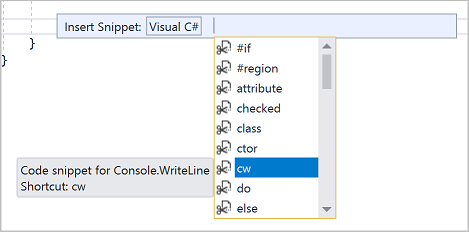
The list includes snippets for creating a class, a constructor, a for loop, an if or switch statement, and more.
Comment out code
The toolbar, which is the row of buttons under the menu bar in Visual Studio, can help make you more productive as you code. For example, you can toggle IntelliSense completion mode (IntelliSense is a coding aid that displays a list of matching methods, amongst other things), increase or decrease a line indent, or comment out code that you don't want to compile. In this section, we'll comment out some code.

Paste the following code into the
Main()method body.// _words is a string array that we'll sort alphabetically string[] _words = { "the", "quick", "brown", "fox", "jumps" }; string[] morewords = { "over", "the", "lazy", "dog" }; IEnumerable<string> query = from word in _words orderby word.Length select word;We're not using the
morewordsvariable, but we may use it later so we don't want to completely delete it. Instead, let's comment out those lines. Select the entire definition ofmorewordsto the closing semi-colon, and then choose the Comment out the selected lines button on the toolbar. If you prefer to use the keyboard, press Ctrl+K, Ctrl+C.
The C# comment characters
//are added to the beginning of each selected line to comment out the code.
Collapse code blocks
We don't want to see the empty constructor that was generated for Class1, so to unclutter our view of the code, let's collapse it. Choose the small gray box with the minus sign inside it in the margin of the first line of the constructor. Or, if you prefer to use the keyboard, place the cursor anywhere in the constructor code and press Ctrl+M, Ctrl+M.

The code block collapses to just the first line, followed by an ellipsis (...). To expand the code block again, click the same gray box that now has a plus sign in it, or press Ctrl+M, Ctrl+M again. This feature is called Outlining and is especially useful when you're collapsing long methods or entire classes.
View symbol definitions
The Visual Studio editor makes it easy to inspect the definition of a type, method, etc. One way is to navigate to the file that contains the definition, for example by choosing Go to Definition anywhere the symbol is referenced. An even quicker way that doesn't move your focus away from the file you're working in is to use Peek Definition. Let's peek at the definition of the string type.
Right-click on any occurrence of
stringand choose Peek Definition from the content menu. Or, press Alt+F12.A pop-up window appears with the definition of the
Stringclass. You can scroll within the pop-up window, or even peek at the definition of another type from the peeked code.
Close the peeked definition window by choosing the small box with an "x" at the top right of the pop-up window.
Use IntelliSense to complete words
IntelliSense is an invaluable resource when you're coding. It can show you information about available members of a type, or parameter details for different overloads of a method. You can also use IntelliSense to complete a word after you type enough characters to disambiguate it. Let's add a line of code to print out the ordered strings to the console window, which is the standard place for output from the program to go.
Below the
queryvariable, start typing the following code:foreach (string str in quYou'll see IntelliSense show you Quick Info about the
querysymbol.
To insert the rest of the word
queryby using IntelliSense's word completion functionality, press Tab.Finish off the code block to look like the following code. You can even practice using code snippets again by entering
cwand then pressing Tab twice to generate theConsole.WriteLinecode.foreach (string str in query) { Console.WriteLine(str); }
Refactor a name
Nobody gets code right the first time, and one of the things you might have to change is the name of a variable or method. Let's try out Visual Studio's refactor functionality to rename the _words variable to words.
Place your cursor over the definition of the
_wordsvariable, and choose Rename from the right-click or context menu, or press Ctrl+R, Ctrl+R.A pop-up Rename dialog box appears at the top right of the editor.
Enter the desired name words. Notice that the reference to
wordsin the query is also automatically renamed. Before you press Enter, select the Include comments checkbox in the Rename pop-up box.
Press Enter.
Both occurrences of
wordshave been renamed, as well as the reference towordsin the code comment.