Bilješka
Pristup ovoj stranici zahtijeva provjeru vjerodostojnosti. Možete pokušati da se prijavite ili promijenite direktorije.
Pristup ovoj stranici zahtijeva provjeru vjerodostojnosti. Možete pokušati promijeniti direktorije.
This article describes how to install a Key Management Service (KMS) plugin on a K3s cluster running on small form factor deployments of Azure Local to enable encryption at rest for Kubernetes secrets. This plugin is an optional, highly recommended component you can choose to install and enable on your K3s cluster.
Important
- The KMS plugin on K3s for small form factor deployments currently supports single-node cluster deployments only.
- The KMS plugin doesn't currently support OS upgrades. Don't enable it on a deployment where you plan to upgrade the OS. An OS upgrade renders the cluster inoperable, with no recovery path. To restore service, you must redeploy the cluster.
Important
This feature is currently in PREVIEW. See the Supplemental Terms of Use for Microsoft Azure Previews for legal terms that apply to Azure features that are in beta, preview, or otherwise not yet released into general availability.
What is the KMS plugin?
Configuring Kubernetes with a KMS provider lets the cluster API server encrypt sensitive resources at rest by calling out to a KMS plugin running on the node. The KMS plugin for small form factor deployments uses KMS v2, which wraps and unwraps data encryption keys by using envelope encryption.
Envelope encryption uses two layers of keys:
- At startup, the API server generates a DEK seed - a single secret value used to derive unique data encryption keys (DEKs) for each secret. The API server caches the DEK seed and derives per-secret DEKs locally, which are in turn used to encrypt secrets.
- The KMS plugin creates and manages a key encryption key (KEK) to encrypt (wrap) the DEK seed, using an underlying key management store.
The API server calls the KMS plugin once at startup to encrypt the DEK seed by using the KEK. It then stores the wrapped DEK seed alongside the encrypted data. When a secret is read, the API server calls the KMS plugin to unwrap the DEK seed by using the KEK, derives the appropriate DEK, and decrypts the secret. This approach means the KMS plugin never directly touches the secret data, and that calls to the KMS plugin are minimized - encryption of the DEK seed happens only once at startup and again on each KEK rotation.
When the KEK is rotated, the DEK seed is also rotated, the KMS plugin then encrypts the new DEK seed with the new KEK and re-encrypts all the secrets to ensure they are protected under the new key.
On Azure Local small form factor deployments, you can install the KMS Plugin for Edge Clusters as an optional Microsoft component on top of K3s. It uses a platform managed key (PMK) as the KEK, which is isolated in a separate component that uses hardware-backed (TPM) protection where available. If a TPM (physical or virtual) isn't available, process-based isolation is used instead. The plugin handles the key lifecycle - generation, storage, and rotation - so you don't need to bring or manage your own key management system. The plugin rotates the KEK every 30 days, and triggers re-encryption of all secrets to ensure they're protected under the new key.
Why use the Microsoft KMS Plugin for Edge Clusters on K3s on small form factor deployments?
Use the KMS plugin when one or more of the following apply:
- Encryption at rest for Kubernetes secrets: By default, Kubernetes secrets stored in the K3s embedded datastore are encoded, not encrypted. The KMS plugin encrypts these secrets by using envelope encryption backed by a platform-managed key, protecting high-value credentials at rest.
- No key management overhead: Because the key is platform-managed, you don't need to set up or operate your own key management system to get encryption at rest. The platform handles key generation, storage, and rotation.
- Compliance posture: Some compliance regimes require that Kubernetes secrets be encrypted with a key held in a dedicated key management system rather than in a local file. The KMS plugin with PMK satisfies that requirement without adding operational burden to your team.
Scope
- Single-node K3s only: The KMS plugin currently supports only single-node K3s configurations.
- Platform-managed key only: The platform manages the key used to encrypt secrets. Bring-your-own-key (BYOK) and customer-managed key (CMK) scenarios aren't supported for this configuration.
How the Microsoft KMS Plugin for Edge Clusters fits into the small form factor stack
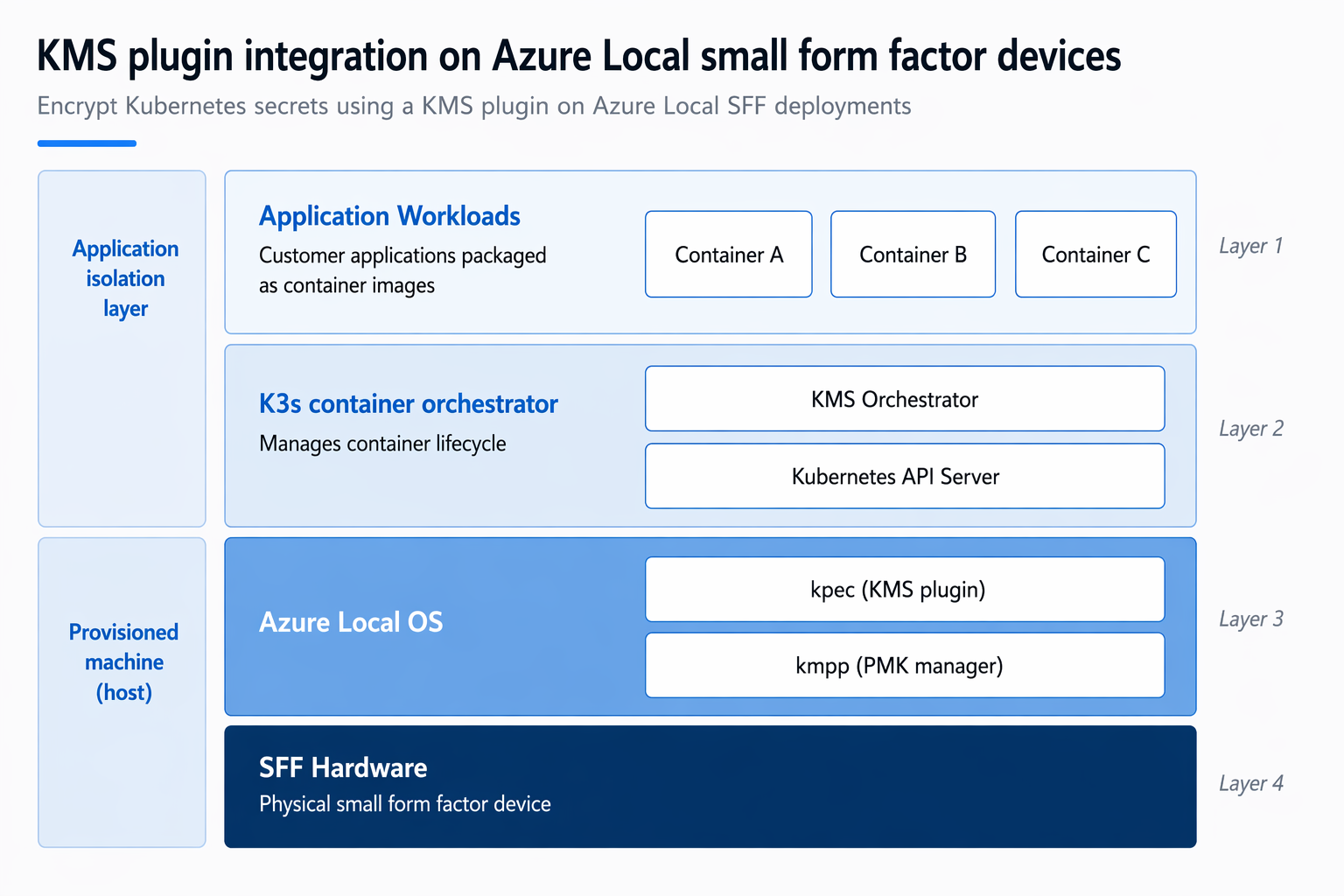
The KMS plugin (kpec) runs inside the K3s layer alongside the API server. It calls out to kmpp on the host OS, which performs envelope encryption by using the platform-managed key.
Prerequisites
Before installing the KMS plugin, you need:
- A single-node K3s cluster deployed on Azure Local small form factor. See Container orchestrators on small form factor deployments of Azure Local).
- SSH access to the small form factor host node. Follow the SSH steps in Connect a provisioned machine from the Azure portal.
Install the KMS plugin
Run all of the following commands on the small form factor host node via SSH. For SSH connection steps, see the prerequisites.
Verify KMS components on the host. The OS preinstalls the following KMS plugin components:
kpec(the KMS plugin) andkmpp(the key management platform provider that manages the platform managed key). Confirm they're running:sudo systemctl status kpec sudo systemctl status dbus-com.microsoft.kmppBoth services should be active. If not, resolve service issues before proceeding. See Troubleshooting for guidance.
Configure K3s to use the KMS plugin. Update the K3s API server configuration to enable encryption at rest. You need to edit two files.
Edit
/etc/rancher/k3s/config.yaml:sudo vi /etc/rancher/k3s/config.yamlAdd the following code:
kube-apiserver-arg:
  - "encryption-provider-config=/etc/rancher/k3s/encryption-config.yaml"
Edit
/etc/rancher/k3s/encryption-config.yaml:sudo vi /etc/rancher/k3s/encryption-config.yamlAdd the following code:
apiVersion: apiserver.config.k8s.io/v1
kind: EncryptionConfiguration
resources:
  - resources:
      - secrets
    providers:
      - kms:
          apiVersion: v2
          name: kpec-provider
          endpoint: unix:///run/kpec/kpec.socket
      - identity: {}
This configuration instructs the API server to use the KMS plugin for encrypting Kubernetes secrets.
Restart K3s. Apply the configuration changes:
sudo systemctl restart k3sInstall the KMS orchestrator. Install the KMS orchestrator Helm chart:
helm install kpec -n kpec-system \
  --create-namespace \
  oci://mcr.microsoft.com/microsoft.kdps/kpec/kpec-helm-chart \
  --version 0.10.0
This command deploys the KMS orchestrator required for managing encryption operations.
Verify the installation
After installation, verify that the KMS plugin is registered and healthy by checking the API server's readiness endpoint. Run the following command:
kubectl get --raw='/readyz?verbose' | grep 'kms-providers'
In the preceding output, look for kms-providers ok. This check confirms that the API server can communicate with the KMS plugin.
Note
After you install the KMS operator, it might take some time for the secrets to get encrypted. Wait a few minutes before running the verification steps.
Validate encryption behavior
Install kubectl and sqlite3 if they aren't installed already. For guidance on installing kubectl, see Install and Set Up kubectl on Linux.
First, confirm that secrets still work correctly after enabling the KMS plugin:
# Create a test secret
kubectl create secret generic test-secret --from-literal=test-key=test-value

# Confirm the secret can be read back through the API server
kubectl get secret test-secret
Note
kubectl get secret returns the decrypted value - the API server transparently decrypts secrets before returning them. This step confirms that the create and read path is working, not that encryption is happening.
To verify that the secret is actually encrypted at rest, query the raw record in K3s's embedded SQLite datastore:
# Read the raw secret record from the datastore and check for the KMS encryption prefix
sudo sqlite3 /var/lib/rancher/k3s/server/db/state.db "
.headers on
.mode line
SELECT
  name,
  id,
  length(value) AS value_bytes,
  CAST(value AS TEXT) AS raw_value
FROM kine
WHERE name = '/registry/secrets/default/test-secret'
  AND deleted = 0
ORDER BY id DESC
LIMIT 1;
"
You should see the secret's value stored as encrypted data in the datastore. If the raw_value field starts with the k8s:enc:kms:v2:kpec-provider: prefix, the KMS plugin encrypts secrets at rest.
# Clean up the test secret
kubectl delete secret test-secret
Kubernetes continues to operate normally, but secrets are now encrypted at rest automatically. You don't need to change how you, your deployments, or your applications interact with secrets.
Troubleshooting
Incorrect file paths or typos in the encryption configuration are the most common problems.
- Ensure the KMS socket path matches:
/run/kpec/kpec.socket. - Confirm all required services are running before restarting K3s.
If the kpec or kmpp service is inactive, restart them:
# Restart kmpp first, then kpec
sudo systemctl restart dbus-com.microsoft.kmpp.service
sudo systemctl restart kpec.service
If the restart fails, collect logs to identify the root cause:
sudo journalctl -u dbus-com.microsoft.kmpp.service -n 100 --no-pager
sudo journalctl -u kpec -n 100 --no-pager