Note
The Azure Developer CLI evaluation experience is currently in preview.
In this quickstart, you evaluate the hosted agent you deployed in Deploy your first hosted agent. You provide a test dataset, choose evaluators, run an evaluation against the deployed agent, and review the scores. Each step shows several ways to do the same task: the Azure Developer CLI (azd), the Microsoft Foundry portal, the Python SDK, or the JavaScript/TypeScript SDK.
Evaluation establishes a quality baseline for your agent and lets you set acceptance thresholds, such as a task adherence passing rate, before you release changes to users.
Prerequisites
Before you begin, you need:
A deployed, invokable hosted agent from Deploy your first hosted agent. For the Azure Developer CLI path, you also need the azd project directory you created in that quickstart.
The Foundry User role on the Foundry resource.
A chat-completion model deployment in the same Foundry project to use as the judge model that scores responses. You can reuse the model deployment your agent already uses, including the one from the previous quickstart, so you don't need a separate deployment.
Important
The Foundry RBAC roles were recently renamed. Foundry User, Foundry Owner, Foundry Account Owner, and Foundry Project Manager were previously named Azure AI User, Azure AI Owner, Azure AI Account Owner, and Azure AI Project Manager. You might still see the previous names in some places while the rename rolls out. The role IDs and core permissions are unchanged by the rename.
Each step offers several paths. Use whichever you prefer:
- Azure Developer CLI: The
azd ai agent extension (azure.ai.agents), version 0.1.40-preview or later, which provides the azd ai agent eval commands. This extension is included in the microsoft.foundry extension you installed in the previous quickstart. Verify the installed version with azd ext list, and run azd ext upgrade microsoft.foundry if needed. Sign in with azd auth login.
- Foundry portal: Access to the Foundry portal.
- Python SDK: Python 3.9 or later, and the Azure CLI signed in with
az login so that DefaultAzureCredential can authenticate. For installation, see Install the Azure CLI.
- JavaScript/TypeScript SDK: Node.js 20 LTS or later, and the Azure CLI signed in with
az login so that DefaultAzureCredential can authenticate.
Step 1: Confirm your deployed agent
Evaluation runs against a deployed, invokable agent. Confirm your agent is deployed and available before you set up the evaluation.
From your azd project directory, verify the agent is deployed and invokable:
azd ai agent show
Send a test prompt:
azd ai agent invoke "Write a haiku about deploying cloud applications."
You should see a response within a few seconds.
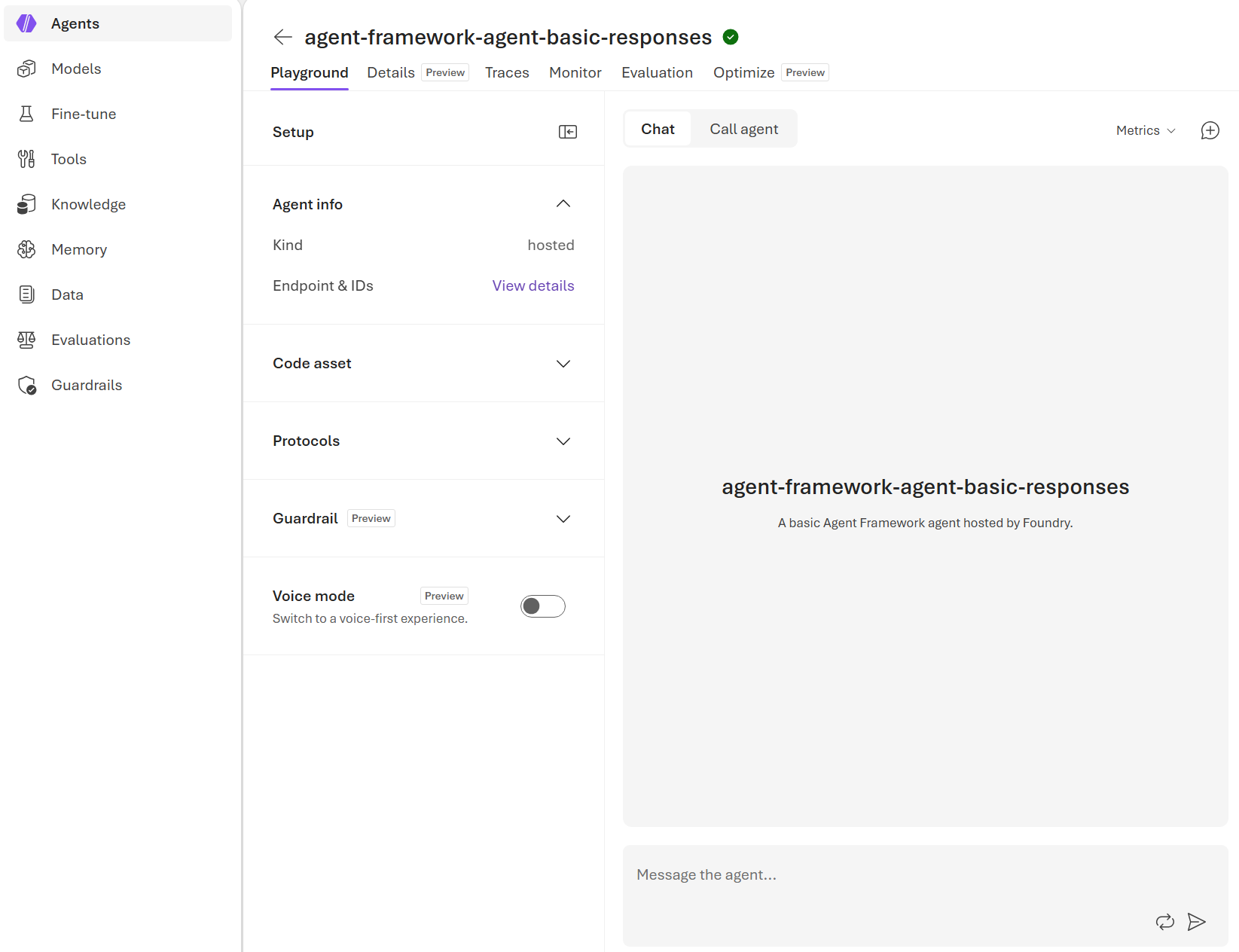
- Open the Foundry portal and go to your project.
- Select your agent, and then select the Playground tab.
- Send a test prompt, such as
Write a haiku about deploying cloud applications.
You should see a response within a few seconds.
Install the Foundry SDK:
pip install "azure-ai-projects>=2.0.0" azure-identity
Set two environment variables, and then create the project client. Set FOUNDRY_PROJECT_ENDPOINT to your project endpoint and FOUNDRY_MODEL_NAME to a chat-completion deployment to use as the judge model. The following code samples assume you run them in this context:
import os
from azure.identity import DefaultAzureCredential
from azure.ai.projects import AIProjectClient

endpoint = os.environ["FOUNDRY_PROJECT_ENDPOINT"]
model_deployment = os.environ["FOUNDRY_MODEL_NAME"]

credential = DefaultAzureCredential()
project_client = AIProjectClient(endpoint=endpoint, credential=credential)
client = project_client.get_openai_client()
Confirm your deployed agent is registered and available. Replace <your-agent-name> with your hosted agent's name:
agent = project_client.agents.get("<your-agent-name>")
print(f"Found agent: {agent.name}")
The call returns the agent if it exists, or raises an error if the name is wrong or the agent isn't deployed.
Install the Foundry SDK:
npm install @azure/ai-projects @azure/identity dotenv
Set two environment variables, and then create the project client. Set FOUNDRY_PROJECT_ENDPOINT to your project endpoint and FOUNDRY_MODEL_NAME to a chat-completion deployment to use as the judge model. The following code samples assume you run them in this context:
import { DefaultAzureCredential } from "@azure/identity";
import { AIProjectClient } from "@azure/ai-projects";
import "dotenv/config";

const endpoint = process.env["FOUNDRY_PROJECT_ENDPOINT"] || "";
const modelDeployment = process.env["FOUNDRY_MODEL_NAME"] || "";

const projectClient = new AIProjectClient(
  endpoint,
  new DefaultAzureCredential(),
);
const client = projectClient.getOpenAIClient();
Confirm your deployed agent is registered and available. Replace <your-agent-name> with your hosted agent's name:
const agent = await projectClient.agents.get("<your-agent-name>");
console.log(`Found agent: ${agent.name}`);
The call returns the agent if it exists, or raises an error if the name is wrong or the agent isn't deployed.
Reference: AIProjectClient class
Step 2: Set up built-in evaluators
Start with built-in evaluators to score your agent against a test dataset.
First, create a JSONL file of test queries for your agent. Each line is a JSON object with a query field. Save it inside your agent's source folder, as src/<your-agent-name>/tests/queries.jsonl:
{"query": "Write a haiku about deploying cloud applications."}
Then create an eval.yaml file in the same agent source folder, as src/<your-agent-name>/eval.yaml. It points to your dataset and lists the built-in evaluators to apply. The dataset.local_uri path is relative to this folder. Replace <your-agent-name> with your hosted agent's name and <your-chat-completion-deployment> with the judge model deployment:
name: agent-eval
agent:
  name: <your-agent-name>
  kind: hosted
dataset:
  local_uri: tests/queries.jsonl
evaluators:
  - builtin.intent_resolution
  - builtin.task_adherence
options:
  eval_model: <your-chat-completion-deployment>
max_samples: 15
The eval_model value is the judge model that scores responses; you can reuse the deployment your agent already uses.
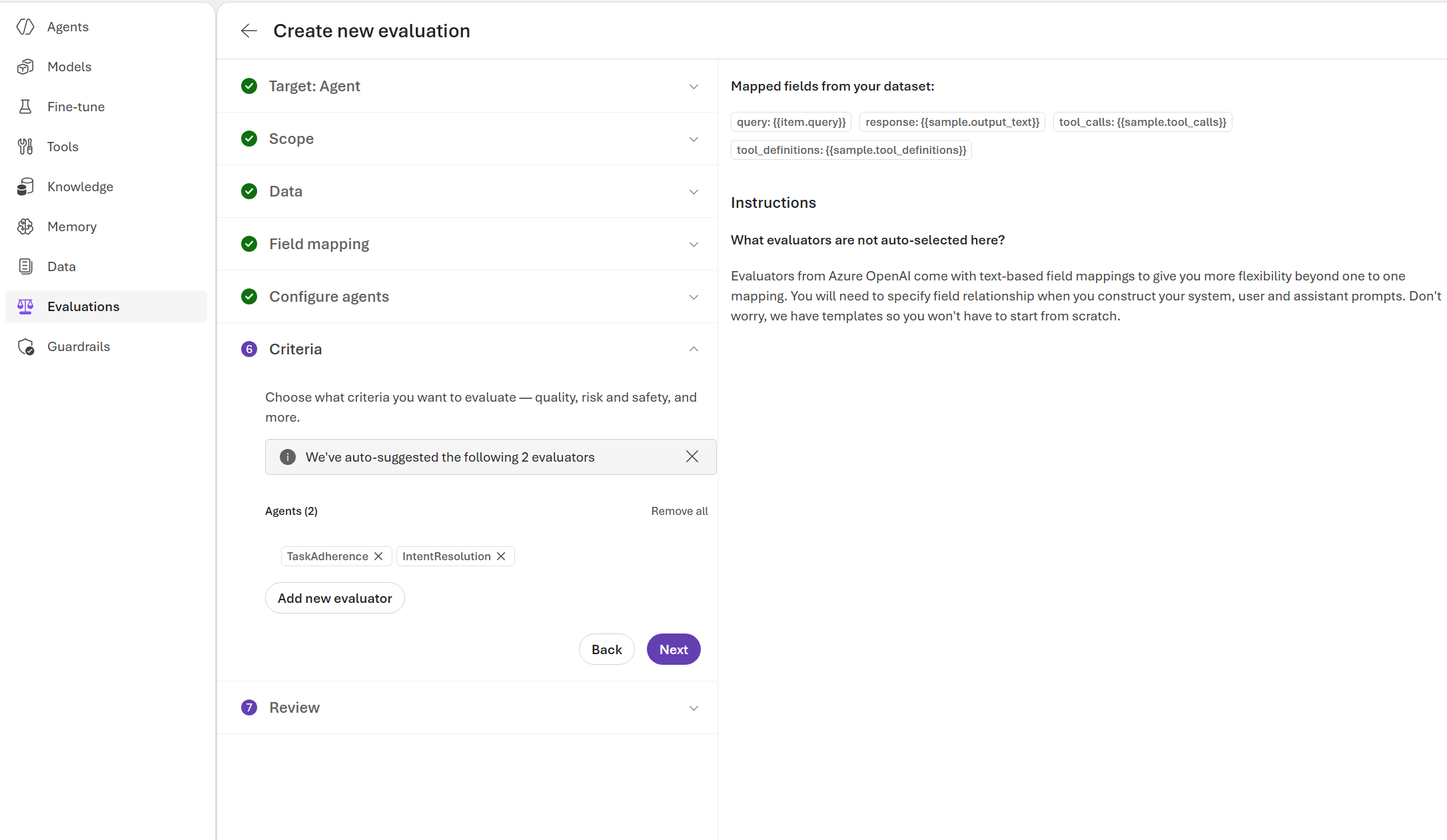
- In the Foundry portal, open your agent and select the Evaluation tab, then select Create.
- For Select evaluation target, select Agent.
- For Select evaluation scope, select Individual turns.
- For Select data source, select Existing dataset and choose a CSV or JSONL file of test queries from your project's data assets.
- If the Configure agents step appears, review the agent and accept the default user prompt,
{{item.query}}. Adjust it only if your agent expects a different input format.
- For Select testing criteria, select one or more agent evaluators, such as Task Adherence and Intent Resolution.
Keep the wizard open. You submit the evaluation in the next step.
First, create a JSONL file of test queries for your agent. Each line is a JSON object with a query field. Save it as queries.jsonl:
{"query": "Write a haiku about deploying cloud applications."}
Upload the file as a dataset in your project:
dataset = project_client.datasets.upload_file(
    name="agent-test-queries",
    version="1",
    file_path="./queries.jsonl",
)
Next, choose built-in evaluators and map their inputs. The data_mapping parameter tells each evaluator where to find the query and the agent response. AI-assisted evaluators need a judge model in initialization_parameters; the value must be a chat-completion deployment in your project.
from azure.ai.projects.models import TestingCriterionAzureAIEvaluator

testing_criteria = [
    TestingCriterionAzureAIEvaluator(
        type="azure_ai_evaluator",
        name="Intent Resolution",
        evaluator_name="builtin.intent_resolution",
        initialization_parameters={"model": model_deployment},
        data_mapping={
            "query": "{{item.query}}",
            "response": "{{sample.output_items}}",
        },
    ),
    TestingCriterionAzureAIEvaluator(
        type="azure_ai_evaluator",
        name="Task Adherence",
        evaluator_name="builtin.task_adherence",
        initialization_parameters={"model": model_deployment},
        data_mapping={
            "query": "{{item.query}}",
            "response": "{{sample.output_items}}",
        },
    ),
]
Create the evaluation. It defines the test data schema and testing criteria, and serves as a container for one or more runs:
from openai.types.eval_create_params import DataSourceConfigCustom

data_source_config = DataSourceConfigCustom(
    type="custom",
    item_schema={
        "type": "object",
        "properties": {"query": {"type": "string"}},
        "required": ["query"],
    },
    include_sample_schema=True,
)

evaluation = client.evals.create(
    name="Agent Quality Evaluation",
    data_source_config=data_source_config,
    testing_criteria=testing_criteria,
)
print(f"Evaluation created: {evaluation.id}")
First, create a JSONL file of test queries for your agent. Each line is a JSON object with a query field. Save it as queries.jsonl:
{"query": "Write a haiku about deploying cloud applications."}
Upload the file as a dataset in your project:
const dataset = await projectClient.datasets.uploadFile(
  "agent-test-queries",
  "1",
  "./queries.jsonl",
);
Next, choose built-in evaluators and map their inputs. The data_mapping parameter tells each evaluator where to find the query and the agent response. AI-assisted evaluators need a judge model in initialization_parameters; the value must be a chat-completion deployment in your project.
const testingCriteria = [
  {
    type: "azure_ai_evaluator",
    name: "Intent Resolution",
    evaluator_name: "builtin.intent_resolution",
    initialization_parameters: { model: modelDeployment },
    data_mapping: {
      query: "{{item.query}}",
      response: "{{sample.output_items}}",
    },
  },
  {
    type: "azure_ai_evaluator",
    name: "Task Adherence",
    evaluator_name: "builtin.task_adherence",
    initialization_parameters: { model: modelDeployment },
    data_mapping: {
      query: "{{item.query}}",
      response: "{{sample.output_items}}",
    },
  },
];
Create the evaluation. It defines the test data schema and testing criteria, and serves as a container for one or more runs:
const dataSourceConfig = {
  type: "custom",
  item_schema: {
    type: "object",
    properties: { query: { type: "string" } },
    required: ["query"],
  },
  include_sample_schema: true,
};

const evaluation = await client.evals.create({
  name: "Agent Quality Evaluation",
  data_source_config: dataSourceConfig,
  testing_criteria: testingCriteria,
});
console.log(`Evaluation created: ${evaluation.id}`);
Step 3: Run the evaluation
Run the suite against your deployed agent. The service sends each test query to the agent, captures the response, and scores it with your selected evaluators.
Note
Target-based evaluation invokes your hosted agent directly. It works with agents that use the responses or invocations protocol with synchronous, non-streaming execution. To evaluate agents that use the A2A or Activity protocol, or other execution patterns such as long-running or streaming, evaluate the traces your agent emits instead. See Trace evaluation.
Run the evaluation from the azd workspace root:
azd ai agent eval run --config eval.yaml
Note
azd ai agent eval run resolves the --config path relative to your agent's source folder under src/ (for example, src/<your-agent-name>/eval.yaml), not the current directory. Keep eval.yaml, and the dataset that its local_uri points to, inside that folder.
The command reads eval.yaml, sends each query to your agent, scores the responses, and prints a summary when it finishes:
Eval run started
   Eval: eval_b36748dede424e4ba3f8e6c99ca2cf27
   Run:  evalrun_5f72ef189ad24790a32128e6f230b131
   (✓) Done  Eval run

Results:    1 total, 1 passed, 0 failed, 0 errored

Per-criteria results:
  intent_resolution: 1 passed, 0 failed, 0 errored
  task_adherence: 1 passed, 0 failed, 0 errored
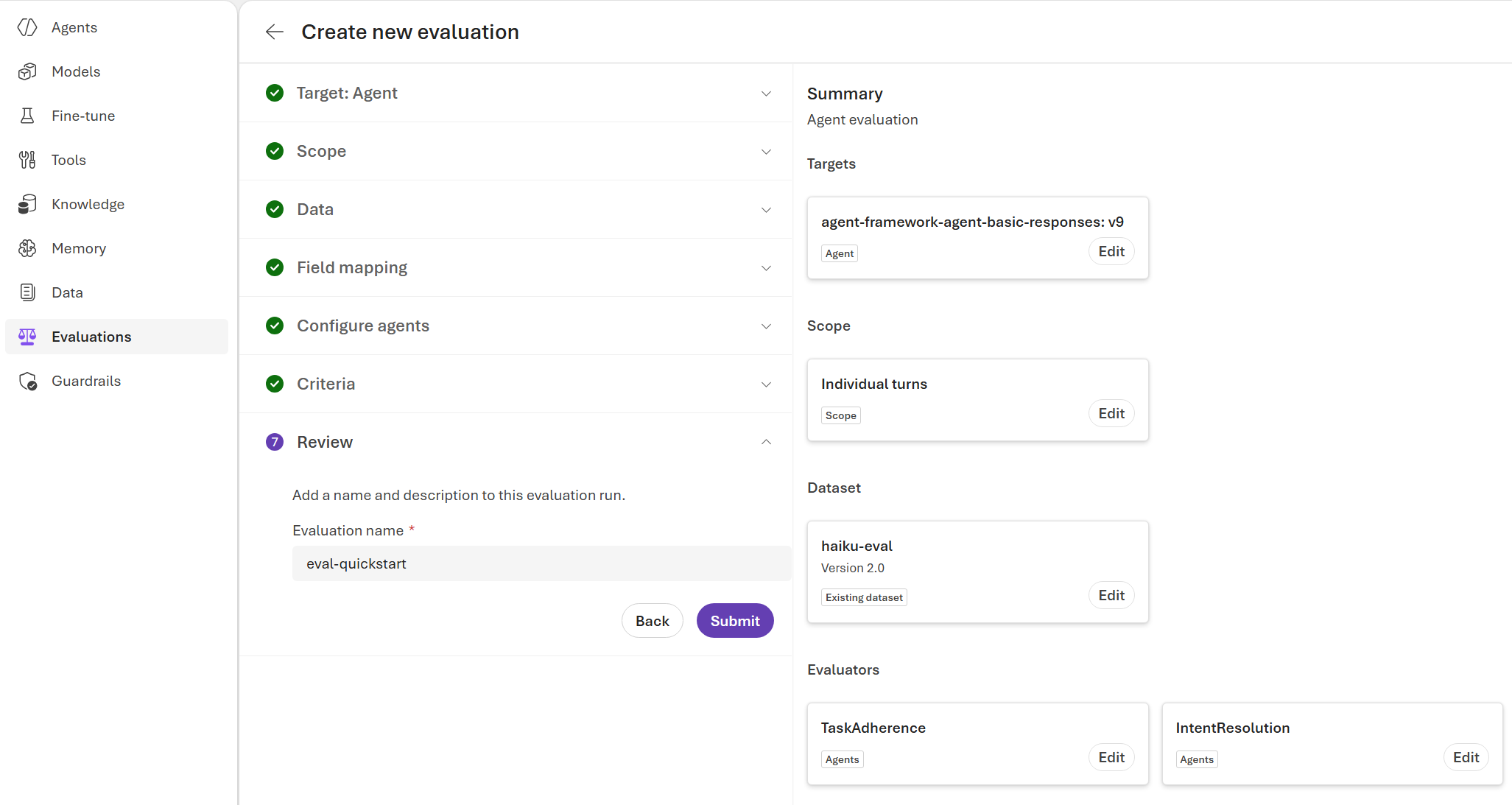
- On the Review and submit step, enter a name for the evaluation.
- Review the target, scope, data source, and selected evaluators.
- Select Submit to start the run.
Create a run that sends each test query to your agent and applies the evaluators. Replace <your-agent-name> with your hosted agent's name:
eval_run = client.evals.runs.create(
    eval_id=evaluation.id,
    name="Agent Evaluation Run",
    data_source={
        "type": "azure_ai_target_completions",
        "source": {"type": "file_id", "id": dataset.id},
        "input_messages": {
            "type": "template",
            "template": [
                {
                    "type": "message",
                    "role": "user",
                    "content": {"type": "input_text", "text": "{{item.query}}"},
                }
            ],
        },
        "target": {
            "type": "azure_ai_agent",
            "name": "<your-agent-name>",
            # "version": "1",  # Optional; omit to use the latest version
        },
    },
)

print(f"Evaluation run started: {eval_run.id}")
Create a run that sends each test query to your agent and applies the evaluators. Replace <your-agent-name> with your hosted agent's name:
const evalRun = await client.evals.runs.create(evaluation.id, {
  name: "Agent Evaluation Run",
  data_source: {
    type: "azure_ai_target_completions",
    source: { type: "file_id", id: dataset.id },
    input_messages: {
      type: "template",
      template: [
        {
          type: "message",
          role: "user",
          content: { type: "input_text", text: "{{item.query}}" },
        },
      ],
    },
    target: {
      type: "azure_ai_agent",
      name: "<your-agent-name>",
      // version: "1", // Optional; omit to use the latest version
    },
  },
});

console.log(`Evaluation run started: ${evalRun.id}`);
Step 4: Review the results
Evaluations typically complete in a few minutes, depending on the number of queries.
List recent evaluations:
azd ai agent eval list
    Eval ID                                Name        Status of last run  Runs
    -------                                ----        ------------------  ----
*   eval_b36748dede424e4ba3f8e6c99ca2cf27  agent-eval  Completed           1

* = active eval in current environment
Show the most recent evaluation and its runs:
azd ai agent eval show
Eval:   eval_b36748dede424e4ba3f8e6c99ca2cf27
Name:   agent-eval
Agent:  <your-agent-name>
Runs:   1

Recent runs:
  Run ID                                    Status     Passed  Failed  Created
  ------                                    ------     ------  ------  -------
  evalrun_5f72ef189ad24790a32128e6f230b131  Completed  1/1     0       2026-06-17 14:52 UTC
Use the results to confirm which agent version was evaluated and which evaluator scores were produced. To see per-evaluator details and a link to the report in the Foundry portal, run azd ai agent eval show <eval-id> --eval-run-id <run-id>.
- The details page shows the target, dataset, status, token usage, and an aggregate score for each evaluator.
- Select the run name to view row-level results: each query, the agent response, the evaluator score, and the score explanation.
Poll for completion, then print the status and the report URL that opens the results in the Foundry portal:
import time

while True:
    run = client.evals.runs.retrieve(run_id=eval_run.id, eval_id=evaluation.id)
    if run.status in ["completed", "failed"]:
        break
    time.sleep(5)

print(f"Status: {run.status}")
print(f"Report URL: {run.report_url}")
At the run level, you can see aggregated pass and fail counts for each evaluator:
print(run.result_counts)
for criteria in run.per_testing_criteria_results:
    print(criteria.testing_criteria, "passed:", criteria.passed, "failed:", criteria.failed)
ResultCounts(errored=0, failed=0, passed=1, total=1, skipped=0)
Intent Resolution passed: 1 failed: 0
Task Adherence passed: 1 failed: 0
For row-level detail, list the output items. Each result includes the evaluator name, pass or fail, and a score:
for item in client.evals.runs.output_items.list(run_id=eval_run.id, eval_id=evaluation.id):
    for result in item.results:
        print(item.id, result.name, "passed:", result.passed, "score:", result.score)
Poll for completion, and then print the status and the report URL that opens the results in the Foundry portal:
let run = evalRun;
while (!["completed", "failed"].includes(run.status)) {
  run = await client.evals.runs.retrieve(run.id, {
    eval_id: evaluation.id,
  });
  await new Promise((resolve) => setTimeout(resolve, 5000));
}

console.log(`Status: ${run.status}`);
console.log(`Report URL: ${run.report_url}`);
At the run level, you can see aggregated pass and fail counts for each evaluator:
console.log(JSON.stringify(run.result_counts));
for (const criteria of run.per_testing_criteria_results) {
  console.log(
    criteria.testing_criteria,
    "passed:",
    criteria.passed,
    "failed:",
    criteria.failed,
  );
}
{"errored":0,"failed":0,"passed":1,"total":1,"skipped":0}
Intent Resolution passed: 1 failed: 0
Task Adherence passed: 1 failed: 0
For row-level detail, list the output items. Each result includes the evaluator name, pass or fail, and a score:
for await (const item of client.evals.runs.outputItems.list(run.id, {
  eval_id: evaluation.id,
})) {
  for (const result of item.results) {
    console.log(item.id, result.name, "passed:", result.passed, "score:", result.score);
  }
}
Clean up resources
This quickstart registers a dataset, an evaluation, and run history in your Foundry project. These assets incur little or no ongoing cost.
To remove the hosted agent and the Azure resources you created, follow the cleanup steps in Deploy your first hosted agent.
Troubleshooting
| Issue |
Solution |
azd ai agent eval command not found |
Run azd ext list and verify the azd ai agent extension is 0.1.40-preview or later. Upgrade with azd ext upgrade microsoft.foundry. |
azd ai agent eval run fails to find the agent |
Confirm the agent is deployed and invokable with azd ai agent show. Redeploy with azd deploy if needed. |
ModuleNotFoundError for azure.ai.projects or azure.identity |
Install the SDK: pip install "azure-ai-projects>=2.0.0" azure-identity. |
AuthenticationError, DefaultAzureCredential, or Forbidden failure |
Sign in with az login (or azd auth login for the CLI path), and confirm you have the Foundry User role on the project. Dataset uploads also require write access to the project's storage. |
| Agent target not found |
Verify the agent name and version with project_client.agents.get("<your-agent-name>") or project_client.agents.list(). |
| Many errored rows or unexpectedly low scores |
Open the report URL and check whether rows failed with agent response or evaluator errors. Fix the underlying errors, then rerun the evaluation. |
| Eval model deployment not found |
Verify that the judge model deployment (FOUNDRY_MODEL_NAME for the SDK, or eval_model in eval.yaml) exists in your project under Build > Deployments. |
What you learned
In this quickstart, you:
- Created a test dataset and chose evaluators for your hosted agent.
- Ran an evaluation against the deployed agent.
- Reviewed aggregated and row-level results.
- Completed each task with the Azure Developer CLI, the Foundry portal, the Python SDK, or the JavaScript/TypeScript SDK.
Next steps
Continue improving your evaluation workflow:
Related content
