Bilješka
Pristup ovoj stranici zahtijeva provjeru vjerodostojnosti. Možete pokušati da se prijavite ili promijenite direktorije.
Pristup ovoj stranici zahtijeva provjeru vjerodostojnosti. Možete pokušati promijeniti direktorije.
In Azure IoT Operations, the connector for HTTP/REST enables access to data from REST endpoints exposed by HTTP services.
An asset in Azure IoT Operations is a logical entity that you create to represent a physical asset or device. An Azure IoT Operations asset can have custom properties, data points, streams, and events that describe its behavior and characteristics. An asset is associated with one or more devices. Azure IoT Operations stores asset definitions in the Azure Device Registry.
A device in Azure IoT Operations is a logical entity that defines the connections to physical assets or devices. Without a device, data can't flow from a physical device or asset to the MQTT broker. When you configure a device and asset, a connection is established to the physical asset or device and data point values, events, and streams arrive in Azure IoT Operations instance. A device has one or more inbound endpoints. Azure IoT Operations stores device definitions in the Azure Device Registry.
The following table summarizes the features the connector for HTTP/REST currently supports:
| Feature | Supported | Notes |
|---|---|---|
| Username/password authentication | Yes | Basic HTTP authentication |
| X.509 user certificates (mTLS) | Yes | Certificates for client authentication and authorization |
| Anonymous access | Yes | For testing purposes |
| Southbound certificate trust list | Yes | For secure TLS connections to the HTTP endpoint |
| OpenTelemetry integration | Yes | |
| Automatic retries | Yes | Reports failed status for nonretryable errors |
| WASM data transformation | Yes | Optionally transform incoming data |
| Schema generation | Yes | Registers inferred schema with the schema registry |
For each configured dataset, the connector for HTTP/REST:
- Performs a GET request to the address specified in the device endpoint and appends the dataset's data source from the asset.
- Generates a message schema for each dataset based on the data it receives, and registers it with the schema registry in Azure Device Registry.
- Forwards the data to the specified destination.
This article explains how to use the connector for HTTP/REST to perform tasks such as:
- Define the devices that connect HTTP sources to your Azure IoT Operations instance.
- Add assets, and define the data points to enable the data flow from the HTTP source to the MQTT broker or broker state store.
Prerequisites
- An instance of Azure IoT Operations deployed in a Kubernetes cluster. For more information, see Deploy Azure IoT Operations.
The Azure CLI installed on your development machine. Check Available Azure CLI extensions for the minimum required version to use the azure-iot-ops extension. Use
az --versionto check your version andaz upgradeto update if necessary. For more information, see Install the Azure CLI.The Azure IoT Operations extension for the Azure CLI. Use the following command to add the extension or update it to the latest version:
az extension add --upgrade --name azure-iot-ops
To sign in to the operations experience web UI, you need a Microsoft Entra ID account with at least contributor permissions for the resource group that contains your Kubernetes - Azure Arc instance. You can't sign in with a Microsoft account (MSA). For more information, see Troubleshoot access to the operations experience web UI.
Your IT administrator must configure the connector for HTTP/REST template for your Azure IoT Operations instance in the Azure portal.
You need any credentials required to access the HTTP source. If the HTTP source requires authentication, you need to create a Kubernetes secret that contains the username and password for the HTTP source.
HTTP/REST connector template instance
Before an OT user can create a device that uses the connector for HTTP/REST, an IT administrator must add an HTTP/REST connector template instance to your Azure IoT Operations instance. To learn more, see Create and manage connector template instances.
Configure a certificate trust list for the connector
Each connector has its own trust list: the set of certificates the connector uses to validate the TLS certificate that a southbound endpoint presents when the connector establishes a secure connection to it. Add a certificate to the trust list when the southbound endpoint uses a TLS certificate that's signed by a private or enterprise certificate authority (CA), or a self-signed certificate that the connector doesn't already trust. Client certificates that the connector presents to the southbound endpoint for mutual TLS are configured separately as part of the device's user authentication.
Note
For the connector for OPC UA, the trust list also handles OPC UA application-instance certificates. To learn more, see Understand the OPC UA certificates infrastructure.
You can add a certificate to a connector's trust list in two ways:
Operations experience. In the operations experience web UI, you can either upload a certificate file directly or pick an existing secret from Azure Key Vault. The operations experience adds the certificate to Azure Key Vault as a secret (if needed), creates the synced secret resource on the cluster, and wires it into the connector's trust list for you. To learn more, see Manage certificates for external communications.
Azure CLI. The Azure CLI flow assumes the certificate is already stored as a secret in Azure Key Vault. You use
az iot ops secretsync secret setto create a synced secret on the cluster that references the Key Vault secret, and thenaz iot ops connector template updateto add a reference to the synced secret in the connector template's trust list. To learn more, see Add and use certificates. To learn how to add a certificate to Azure Key Vault, see Add certificates as secrets to Azure Key Vault.
The operations experience and the Azure CLI flows partially overlap. The operations experience can both upload a new certificate to Azure Key Vault and sync it to the cluster in one experience. The Azure CLI flow assumes the certificate is already in Azure Key Vault and only handles the sync and trust-list wiring.
Create a device
To configure the connector for HTTP/REST, first create a device that defines the connection to the HTTP source. The device includes the URL of the HTTP source and any credentials you need to access the HTTP source:
In the operations experience web UI, select Devices in the left navigation pane. Then select Create new.
Enter a name for your device, such as
http-connector. To add the endpoint for the connector for HTTP/REST, select New on the Microsoft.Http tile.Add the details of the endpoint for the connector for HTTP/REST including any authentication credentials:
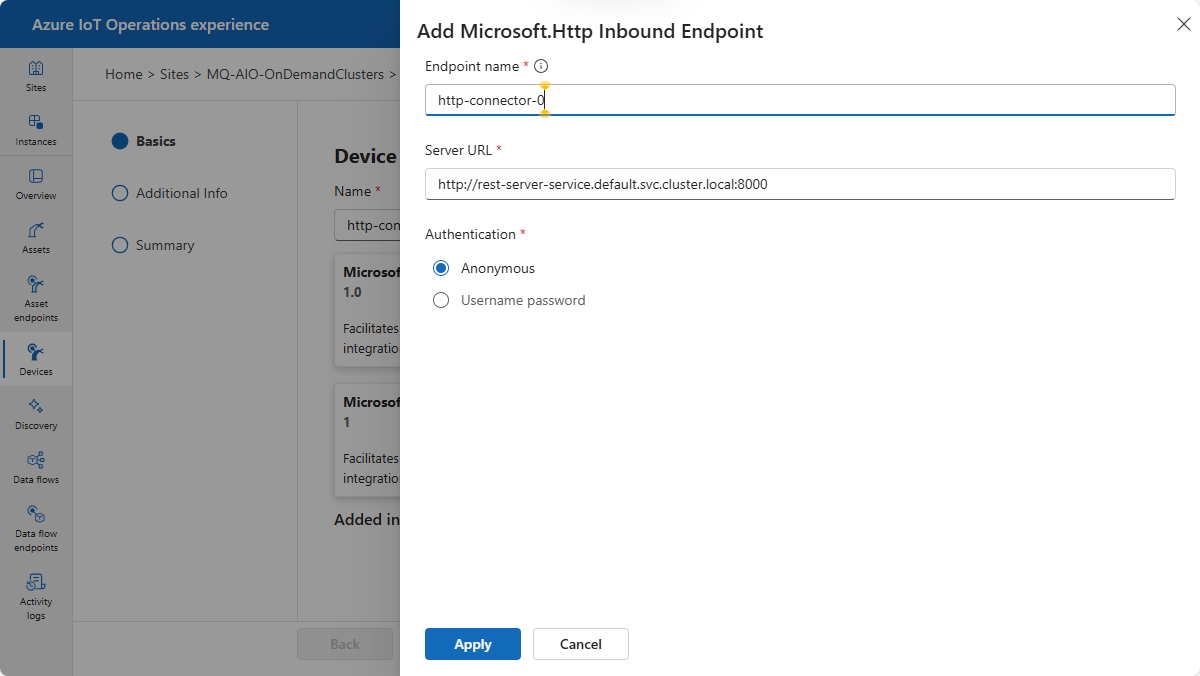
Select Apply to save the endpoint.
On the Device details page, select Next to continue.
On the Add custom property page, add any other properties you want to associate with the device. For example, you might add a property to indicate the manufacturer of the camera. Then select Next to continue.
On the Summary page, review the details of the device and select Create to create the asset.
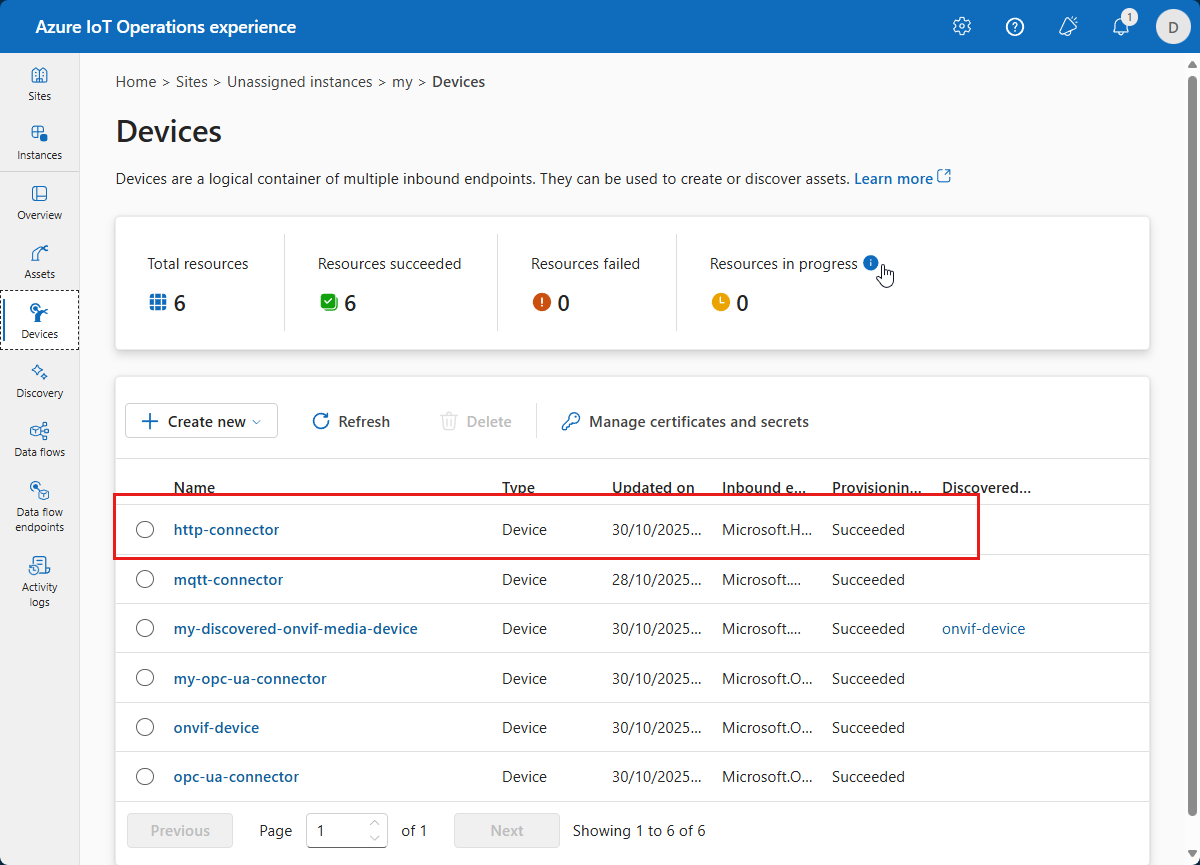
After the device is created, you can view it in the Devices list:
Configure a device to use a username and password
The previous example uses the Anonymous authentication mode. This mode doesn't require a username or password.
To use the Username password authentication mode, complete the following steps:
In the operations experience, when you add the inbound endpoint and choose the Username password authentication mode, select Add reference to add the secret references for the username and password. The operations experience offers two options:
- Create a new secret: uploads the value to Azure Key Vault and synchronizes it to the cluster as a synced secret.
- Add from Azure Key Vault: synchronizes an existing Key Vault secret to the cluster.
The operations experience saves both the username and password references in a single synced secret resource on the cluster, and you give that synced secret a name.
To learn more, see Add and use secrets.
Configure a device to use an X.509 certificate
In the operations experience, when you add the inbound endpoint and choose the X509 certificate authentication mode, select Add reference to add the secret reference for the client certificate and private key. The operations experience offers two options:
- Create a new secret: uploads the certificate and private key files to Azure Key Vault and synchronizes them to the cluster as a synced secret.
- Add from Azure Key Vault: synchronizes existing Key Vault secrets to the cluster.
The operations experience saves the certificate and key references in a single synced secret resource on the cluster, and you give that synced secret a name.
To learn more, see Sync a client certificate and private key for mutual TLS.
Create an asset
To define an asset that publishes data points from the HTTP endpoint, follow these steps:
In the operations experience web UI, select Assets in the left navigation pane. Then select Create asset.
Select the inbound endpoint for the connector for HTTP/REST that you created in the previous section.
Enter a name for your asset, such as
my-http-source.Add any custom properties you want to associate with the asset. For example, you might add a property to indicate the manufacturer of the camera. Select Next to continue.
A dataset defines where the connector sends the data it collects from a collection of data points. An HTTP/REST asset can have multiple datasets. To create a dataset:
Select Create dataset.
Enter the details for the dataset such as its name, data source, sampling interval, and destination. For HTTP/REST assets, the data source is the path on the REST endpoint. For HTTP/REST assets, the destination is either an MQTT topic or a broker state store key. For example:
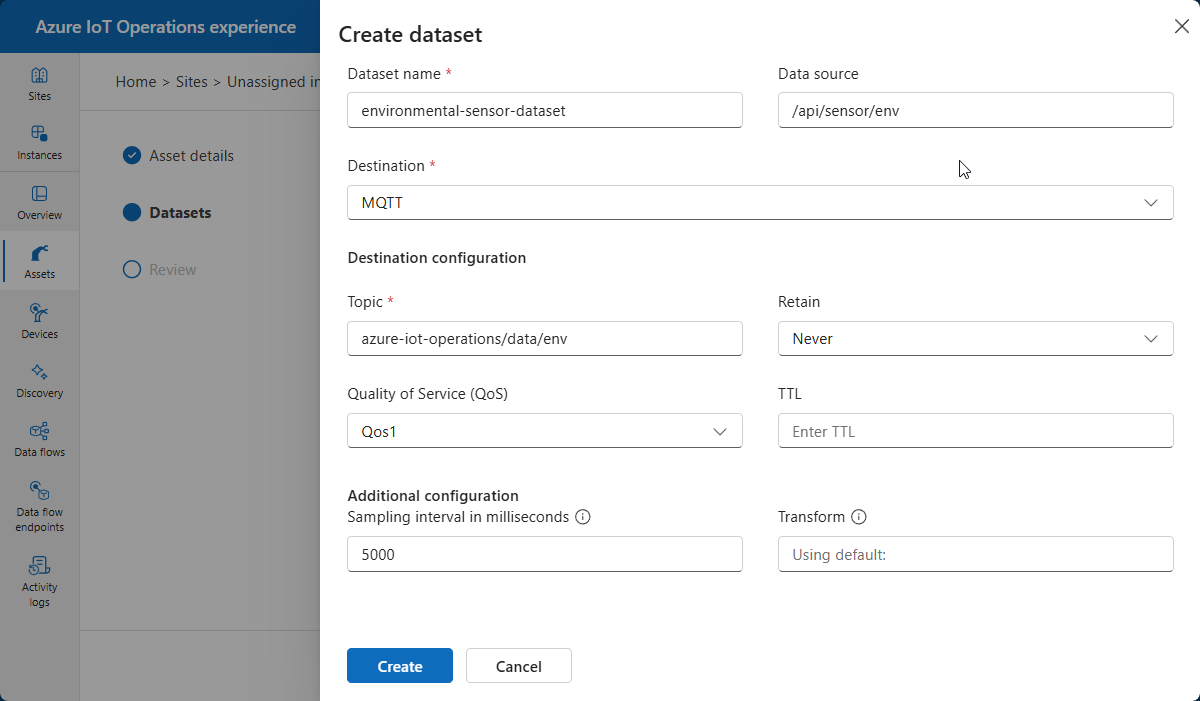
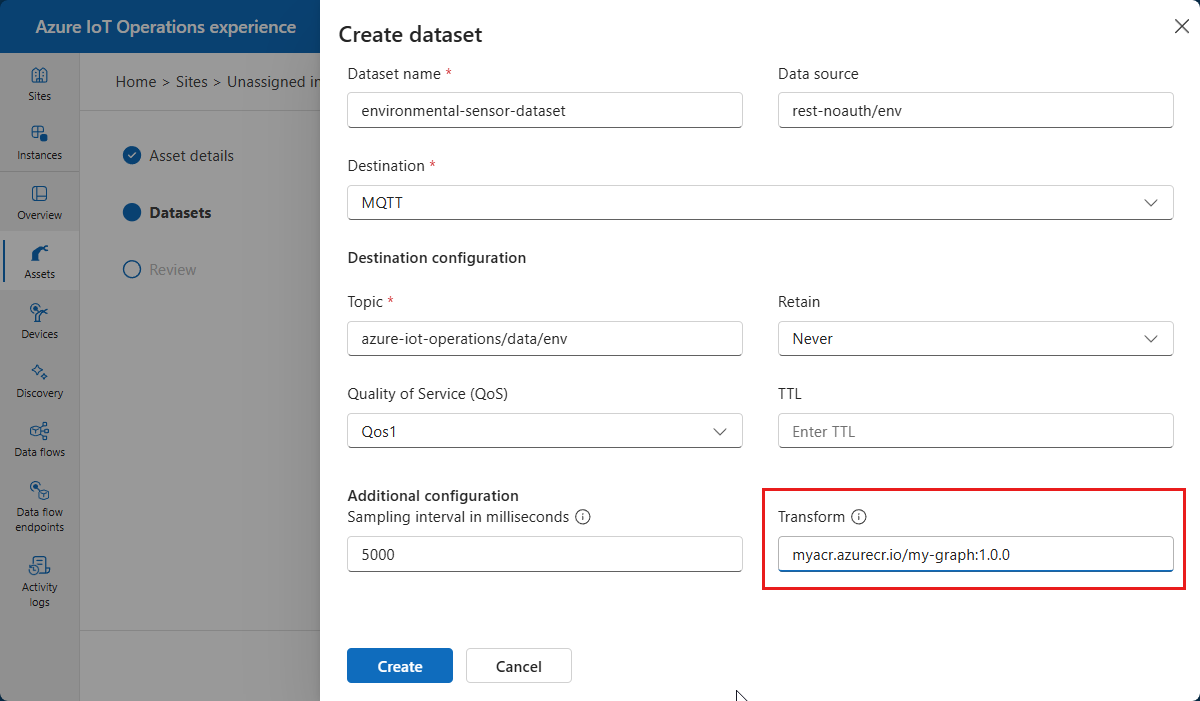
To transform the incoming data, add the URL of a WebAssembly (WASM) module in the Transform field. To learn more, see Transform incoming data.
Select Create and next to create the dataset.
Tip
Use the Manage default settings option to configure default dataset settings such as the sampling interval.
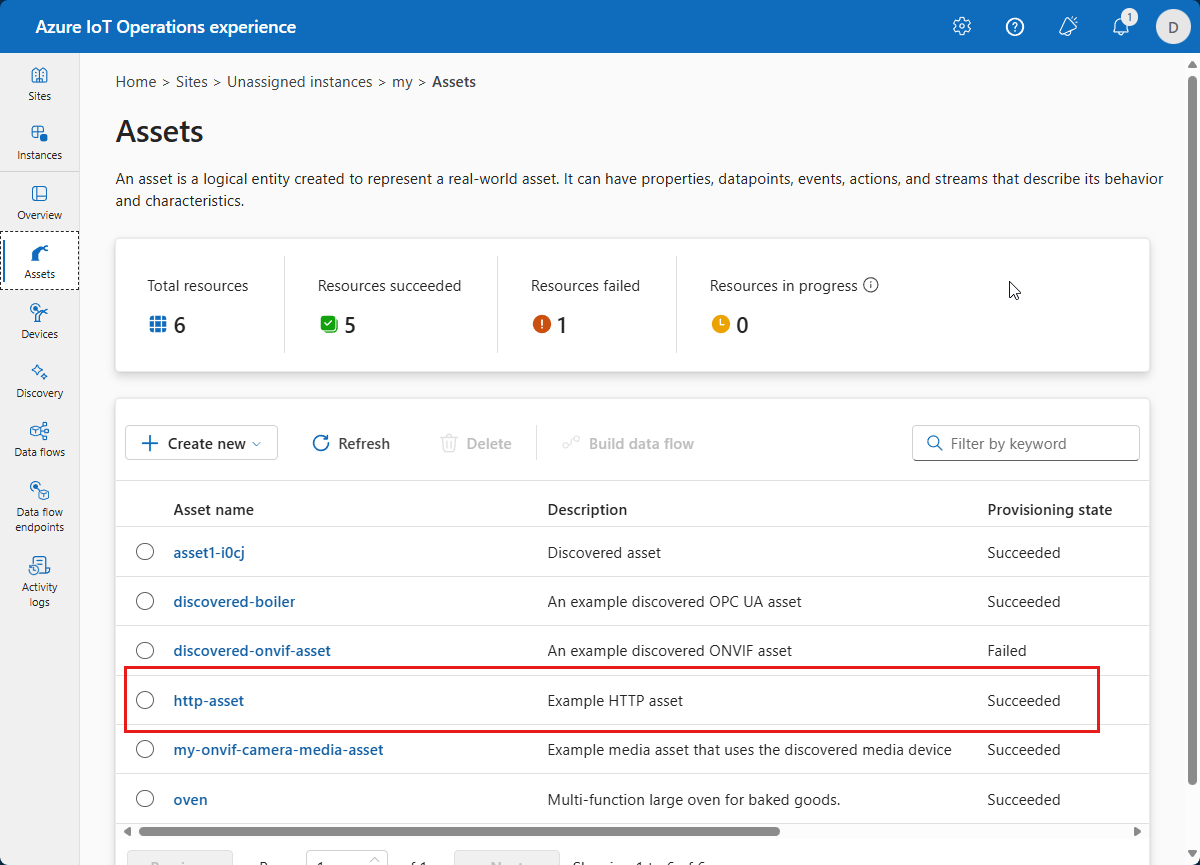
On the Review page, review the details of the asset and select Create to create the asset. After a few minutes, the asset is listed on the Assets page:
Transform incoming data
To transform the incoming data by using a WASM module and graph, complete the following steps:
Develop a WASM module to perform the custom transformation. For more information, see Develop WebAssembly (WASM) modules.
Configure your transformation graph. For more information, see Configure WebAssembly (WASM) graph definitions.
Deploy both the module and graph to your container registry. For more information, see Deploy WebAssembly (WASM) modules and graph definitions.
Set up authentication and connection details so Azure IoT Operations can access the container registry.
Configure your asset's dataset with the URL of the deployed WASM graph in the Transform field:
A data transformation in the connector only requires a single map operator, but WASM graphs are fully supported with the following restrictions:
- The graph must have a single
sourcenode and a singlesinknode. - The graph must consume and emit the
DataModel::Messagedatatype. - The graph must be stateless. Currently, this restriction means that accumulate operators aren't supported.