Bilješka
Pristup ovoj stranici zahtijeva provjeru vjerodostojnosti. Možete pokušati da se prijavite ili promijenite direktorije.
Pristup ovoj stranici zahtijeva provjeru vjerodostojnosti. Možete pokušati promijeniti direktorije.
In Azure IoT Operations, a connector template instance is a reusable configuration that lets the operations experience web UI expose a connector to OT users. Before an OT user can create a device that uses a built-in connector, such as the connectors for HTTP/REST, media, MQTT, ONVIF, or SSE, an IT administrator must add a connector template instance for that connector type.
This article shows you how to:
- Create a basic connector template instance for any built-in connector.
- Attach a persistent volume claim (PVC) to the media connector template so that the connector can save captured snapshots and video clips to storage.
- Reference secrets and trust bundles from a connector template instance for advanced authentication scenarios.
- Customize deployment parameters such as replica count and log level.
- List, view, update, and delete connector template instances.
Typically, an IT administrator creates and manages connector template instances. An OT administrator then uses the operations experience web UI to create devices and assets that reference those instances. For information about the OT tasks, see Manage assets, devices, and connectors using the operations experience web UI.
To create a template for a custom Akri connector that you build yourself, see Build and deploy custom Akri connectors.
Prerequisites
- An instance of Azure IoT Operations deployed in a Kubernetes cluster. For more information, see Deploy Azure IoT Operations.
The Azure CLI installed on your development machine. Check Available Azure CLI extensions for the minimum required version to use the azure-iot-ops extension. Use
az --versionto check your version andaz upgradeto update if necessary. For more information, see Install the Azure CLI.The Azure IoT Operations extension for the Azure CLI. Use the following command to add the extension or update it to the latest version:
az extension add --upgrade --name azure-iot-ops
To sign in to the operations experience web UI, you need a Microsoft Entra ID account with at least contributor permissions for the resource group that contains your Kubernetes - Azure Arc instance. You can't sign in with a Microsoft account (MSA). For more information, see Troubleshoot access to the operations experience web UI.
The Azure CLI examples in this article use environment variables so that you can set each value once and then copy and paste the commands as-is. If you're using the Azure IoT Operations Codespaces environment from the quickstart, these variables are already set for you and you can skip this step. Otherwise, set the following environment variables in your shell before you run the commands.
The following scripts set the most commonly used environment variables:
| Environment variable | Description |
|---|---|
SUBSCRIPTION_ID |
The ID of the subscription that contains your Azure IoT Operations instance. |
RESOURCE_GROUP |
The name of the resource group that contains your Azure IoT Operations instance. |
AIO_INSTANCE_NAME |
The name of your Azure IoT Operations instance. To list your instances, run az iot ops list -o table. |
CLUSTER_NAME |
The name of the Azure Arc-enabled Kubernetes cluster that hosts your instance. |
LOCATION |
The Azure region to use for new resources, for example eastus. |
SUBSCRIPTION_ID=<subscription-id>
RESOURCE_GROUP=<resource-group-name>
AIO_INSTANCE_NAME=<instance-name>
CLUSTER_NAME=<cluster-name>
LOCATION=<region>
You only need to set the variables that this article uses. This article might use additional environment variables for resource names that you choose. The article explains how to set them where they're introduced.
Create a basic connector template instance
To make a built-in connector available to OT users, create a connector template instance from the connector's metadata artifact.
When you create a connector template instance in the Azure portal, the connector metadata is pre-populated based on the type and version you select. The wizard guides you through the remaining configuration steps, such as adding secrets or storage if your connector requires them.
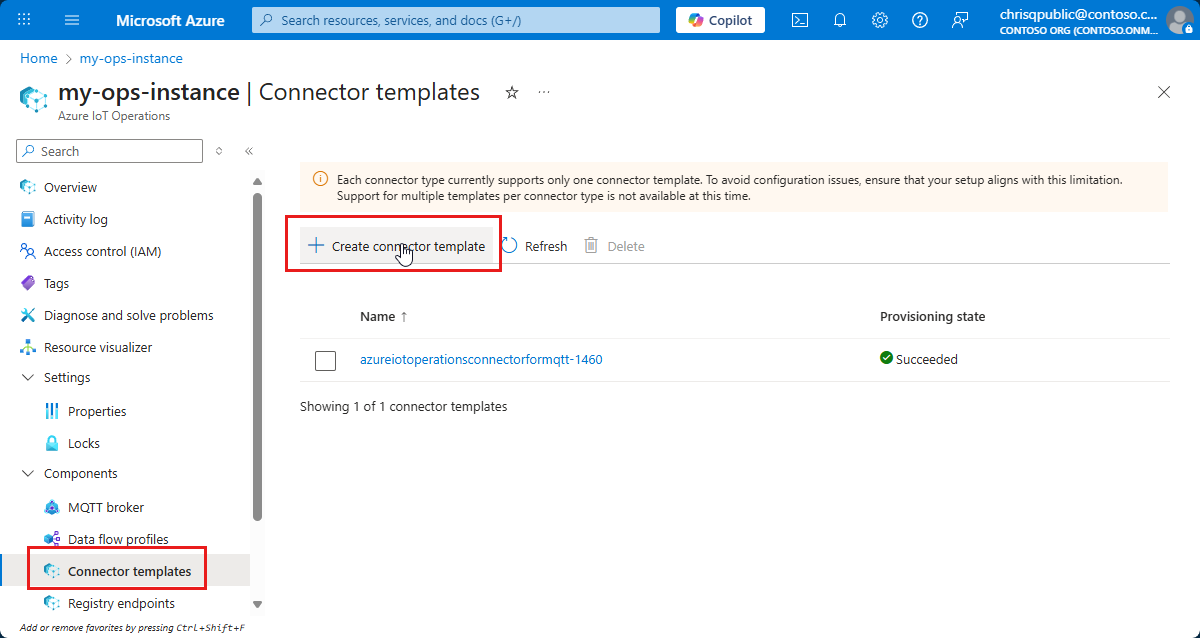
In the Azure portal, go to your Azure IoT Operations instance, select Connector templates, and then select Create connector template:
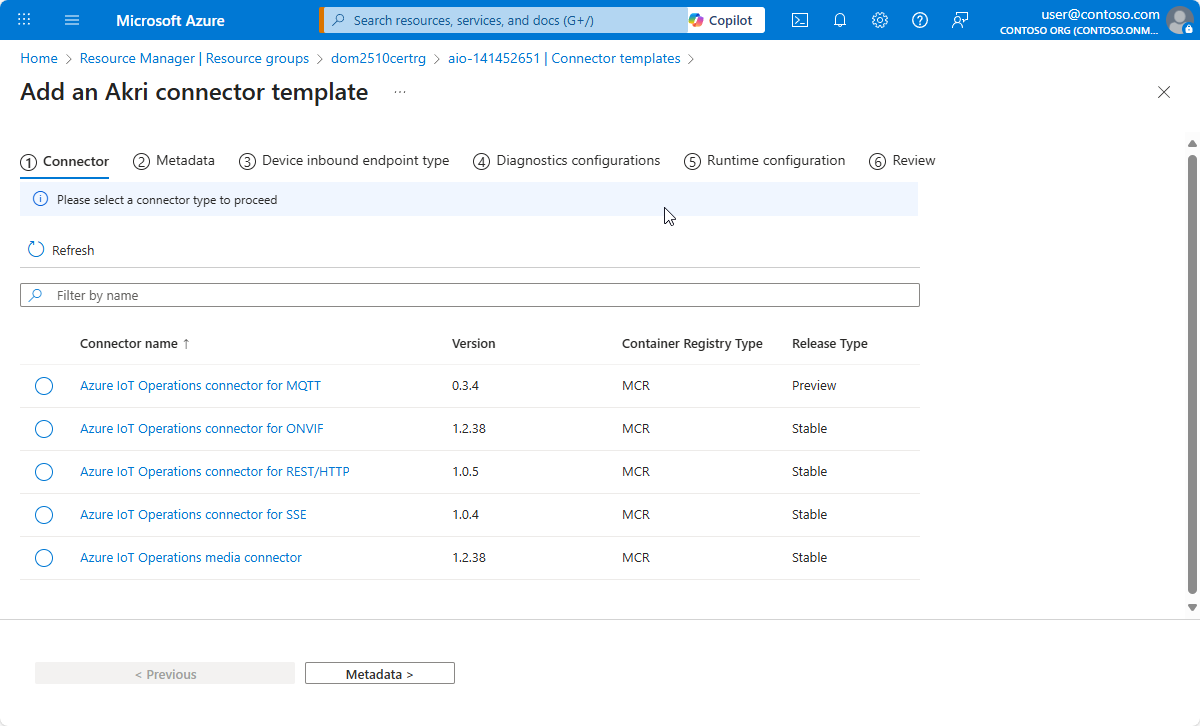
On the first page of the Add an Akri connector template wizard, select the type and version of connector template you want to add, such as ONVIF, Media, HTTP/REST, SSE, or MQTT. Then select Metadata.
On the Metadata page, accept the defaults, and then select Device inbound endpoint type.
On the Device inbound endpoint type page, accept the defaults, and then select Diagnostics configurations.
On the Diagnostics configurations page, accept the defaults, and then select Runtime configuration.
On the Runtime configuration page, accept the defaults, and then select Review.
To configure storage, secrets, or trust settings on the same page, see Configure a persistent volume claim for the media connector, Reference runtime secrets, and Reference trust settings later in this article.
On the Review page, review the details of the connector template instance, and then select Create.
An OT user can now use the operations experience web UI to create a device that uses an endpoint of the corresponding connector type.
Configure a persistent volume claim for the media connector
The media connector can publish snapshots to the MQTT broker and can also save snapshots and video clips to storage. To enable file-based output, the connector template instance must mount a persistent volume claim (PVC) that the connector pod can write to.
Azure IoT Operations uses Azure Container Storage enabled by Azure Arc (ACSA) to transfer captured data to cloud storage destinations such as Azure Blob Storage. To learn how to create a suitable PVC, see Cloud Ingest Edge Volumes configuration. The same PVC can be shared between pods.
Important
Install Azure Container Storage enabled by Azure Arc before you use it with the media connector template. The cloud ingest feature relies on workload identity federation, so your cluster must have secure settings enabled.
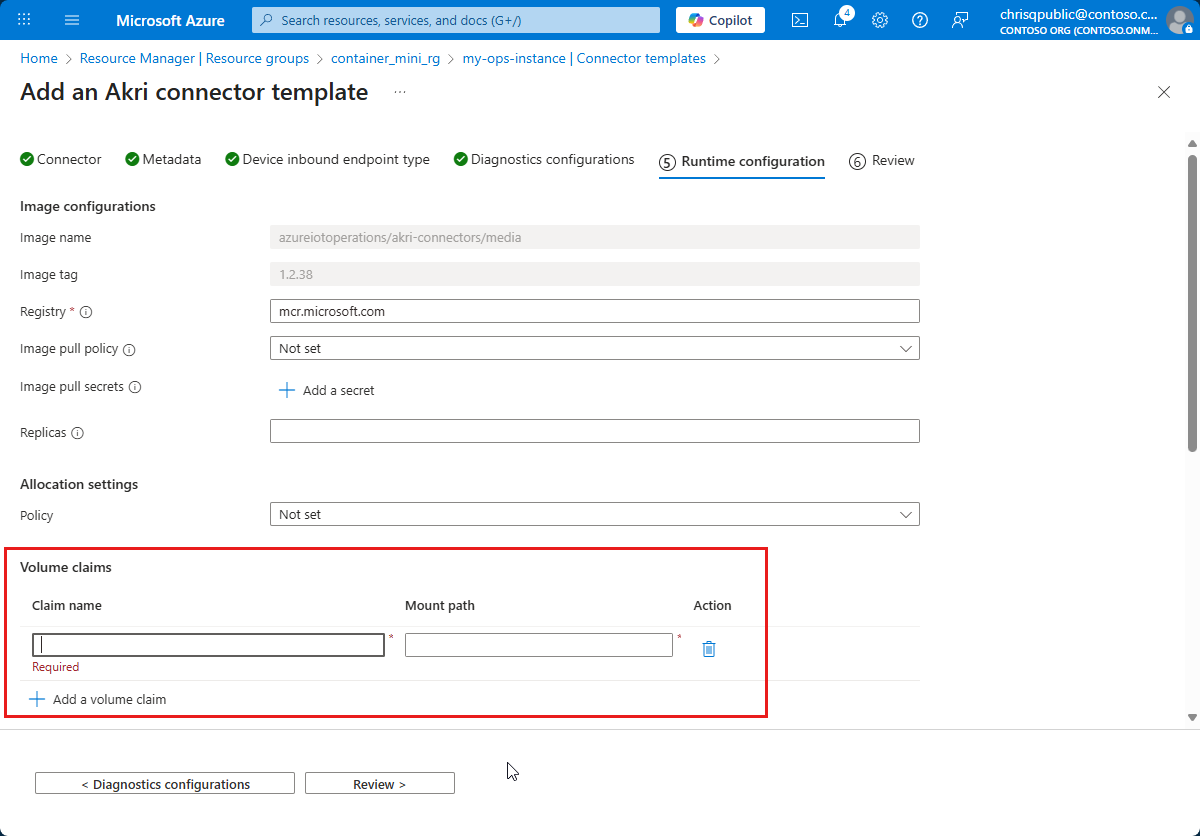
On the Runtime configuration page of the Add an Akri connector template wizard, select Add a volume claim, and then enter the name and mount path of the PVC you created previously:
Reference runtime secrets
Some connector configurations need secrets that are scoped to all device endpoints that use the connector template, rather than to an individual device. For example, the media connector references runtime secrets when it authenticates to a northbound RTSPS media server.
Before you reference a secret from a connector template, add the secret to Azure Key Vault and create a synced secret on the cluster. To learn more, see Manage secrets for your Azure IoT Operations deployment.
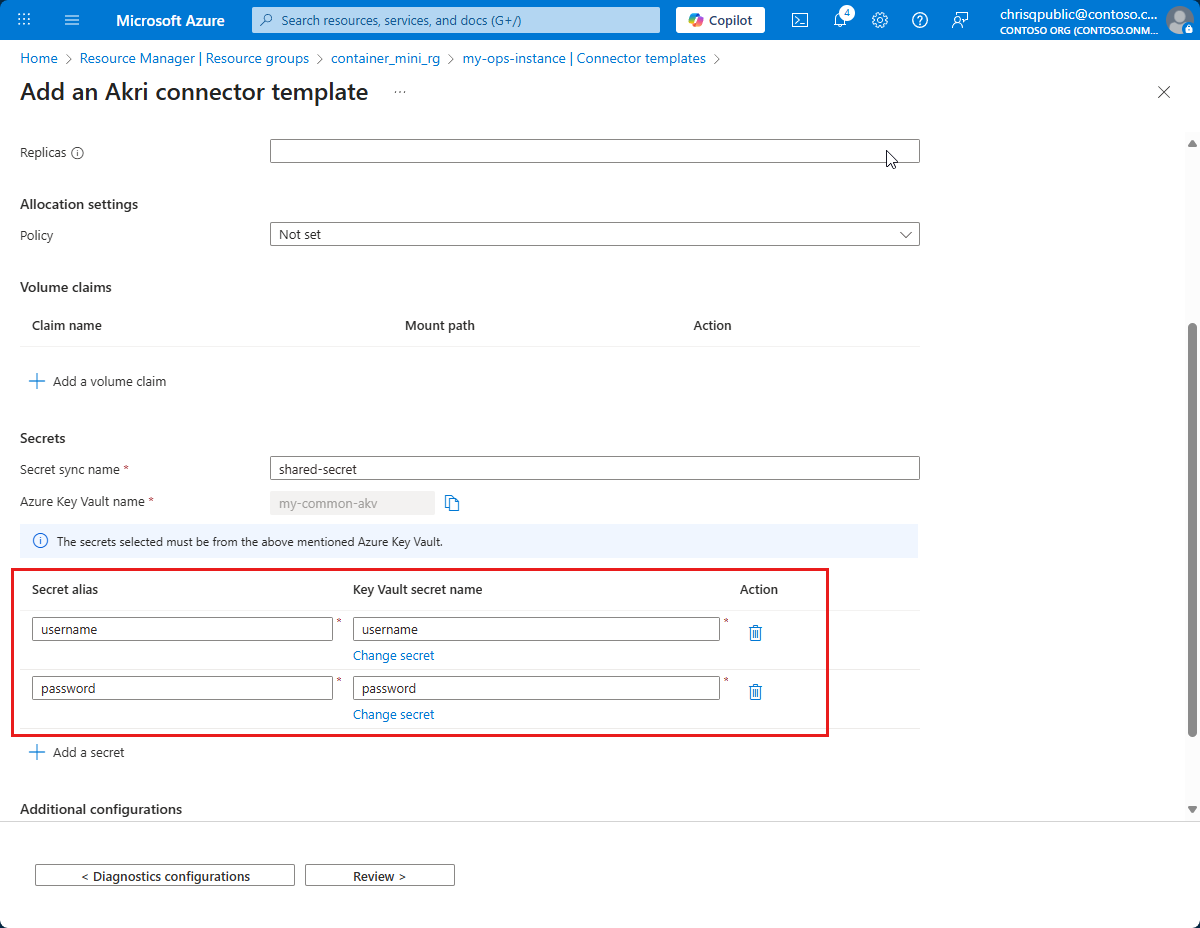
On the Runtime configuration page of the Add an Akri connector template wizard, add the secrets that the connector uses. Each secret requires a Kubernetes secret name, a key inside that secret, and an alias that the connector configuration references:
Reference trust settings
The connector template instance carries the trust bundle that the connector uses to validate TLS certificates that southbound endpoints present. Add a trust bundle to the connector template when a southbound endpoint uses a TLS certificate that's signed by a private or enterprise certificate authority (CA), or a self-signed certificate that the connector doesn't already trust.
The trust bundle is stored as a synced secret on the cluster. The connector template references the synced secret by name. For the full workflow, including portal and CLI steps to add a certificate to Azure Key Vault and sync it to the cluster, see Manage certificates for external communications.
In the operations experience web UI, you can upload a certificate file or pick an existing secret from Azure Key Vault. The operations experience creates the synced secret on the cluster and wires it into the connector template's trust list for you. To learn more, see Manage certificates for external communications.
Customize deployment parameters
When you create or update a connector template instance, you can customize how Azure IoT Operations deploys the connector pods. The following table lists the most common Azure CLI parameters:
| Parameter | Description |
|---|---|
--replicas |
Number of connector pod replicas to deploy. The default is taken from the connector metadata. |
--log-level |
Log level for connector pods. Options: trace, debug, info, warn, error. The default is info. |
--image-pull-policy |
Kubernetes image pull policy. Options: Always, IfNotPresent, Never. |
--image-pull-secrets |
Space-separated list of Kubernetes secret names for pulling container images from a private registry. |
--connector-config |
Space-separated key=value pairs that override connector-specific configuration. |
For example, the following command creates a template with three replicas and debug logging:
az iot ops connector template create \
    --name my-rest-template \
    --resource-group $RESOURCE_GROUP \
    --instance $AIO_INSTANCE_NAME \
--connector-metadata-ref mcr.microsoft.com/azureiotoperations/akri-connectors/rest-metadata:1.0.6 \
--replicas 3 \
--log-level debug
For the full list of parameters, see az iot ops connector template create and az iot ops connector template update.
Manage existing connector template instances
Use the following commands to inspect and update connector template instances in your Azure IoT Operations instance:
List all templates:
az iot ops connector template list \ --resource-group $RESOURCE_GROUP \ --instance $AIO_INSTANCE_NAME \ --output tableShow the full configuration of a template, including image, storage, and security settings:
az iot ops connector template show \
    --name my-rest-template \
    --resource-group $RESOURCE_GROUP \
    --instance $AIO_INSTANCE_NAME
Update a template. You can change deployment parameters such as
--replicas,--log-level,--secrets,--storage-volumes, and--trust-settings-secret-ref. To upgrade a Microsoft connector to a newer patch or minor version, use--connector-metadata-ref:az iot ops connector template update \ --name my-rest-template \ --resource-group $RESOURCE_GROUP \ --instance $AIO_INSTANCE_NAME \ --connector-metadata-ref mcr.microsoft.com/azureiotoperations/akri-connectors/rest-metadata:1.0.7Major version upgrades require a new template.
Delete a template. Azure IoT Operations validates whether the template is in use by deployed connectors and prompts for confirmation:
az iot ops connector template delete \
    --name my-rest-template \
    --resource-group $RESOURCE_GROUP \
    --instance $AIO_INSTANCE_NAME
In the Azure portal, you can list, view, and delete connector template instances on the Connector templates page of your Azure IoT Operations instance.
Related content
- Configure the connector for HTTP/REST
- Configure the media connector
- Configure the MQTT connector
- Configure the connector for ONVIF-compliant cameras
- Configure the connector for SSE endpoints
- Build and deploy custom Akri connectors
- Manage secrets for your Azure IoT Operations deployment
- Manage certificates for external communications