Bilješka
Pristup ovoj stranici zahtijeva provjeru vjerodostojnosti. Možete pokušati da se prijavite ili promijenite direktorije.
Pristup ovoj stranici zahtijeva provjeru vjerodostojnosti. Možete pokušati promijeniti direktorije.
This article includes troubleshooting steps to help you ensure accurate and timely data ingestion and monitoring for your SAP environment with Microsoft Sentinel.
When working with the agentless data connector, most troubleshooting is done directly in the SAP Integration Suite, where the message log displays errors indicating the nature of the issue encountered.
Start by examining the message processing logs. For more information, see the SAP documentation. The error messages there can help you diagnose issues with missing permissions, connectivity errors, and other misconfigurations.
If you don't see a related error to your issue, turn on trace logging for more in-depth troubleshooting. For more information, see the SAP documentation.
Check for prerequisites
The agentless data connector package, deployed while performing the initial connector configuration, includes a tool to help SAP admins diagnose and fix issues related to the SAP environment configuration.
To configure and deploy the tool:
- Open the integration package, navigate to the Artifacts tab, and select the Prerequisite checker iflow > Configure.
- Set the target destination name for the remote function call (RFC) to the SAP system you want to check. For example,
A4H-100-Sentinel-RFC. - Deploy the iflow as you would otherwise for your SAP systems.
- For best results run the checker for 24 hours with 1min frequency to catch any anomalies like rogue overnight batch jobs, or any unknown usage spikes.
To review the check status:
- In SAP Cloud Integration, open Monitor > Integrations and locate the runs of the Prerequisite checker iflow as per your watch period (e.g. 24h). Confirm that the runs completed with status Completed (HTTP 200) and that the response payload doesn't contain warnings or errors. The scheduler may produce messages with state "Discarded" due to internal workings of SAP Cloud Integration. These messages can be ignored and contain text like "Message processing has been discarded because the triggering timer event was already handled by another process."
- Inspect the message processing log (MPL) Attachments and properties for the per-check results. Open the file attached to the MPL entry.
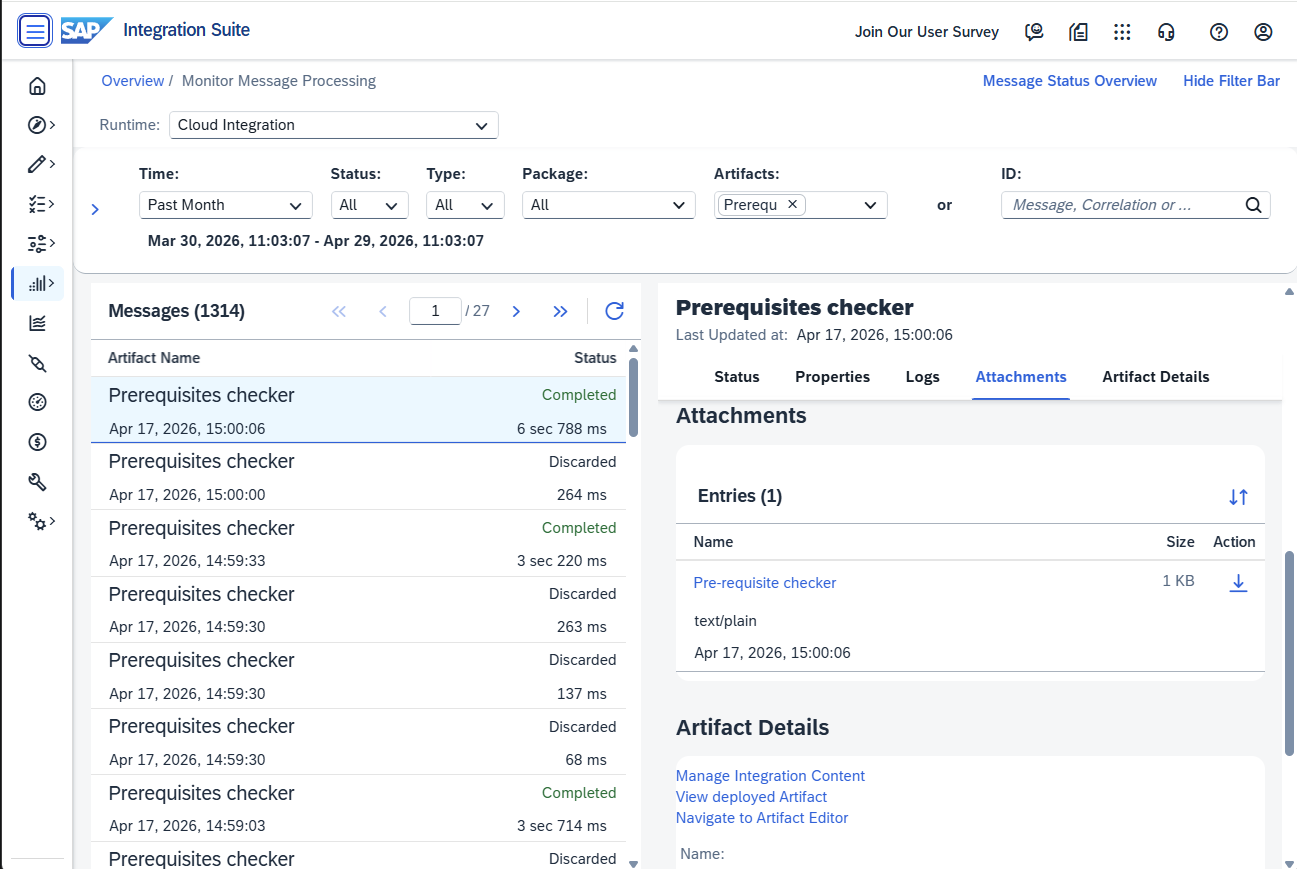
Use the following table to interpret the results:
| Status | What it means | Next step |
|---|---|---|
| Completed, no warnings | All prerequisites are met. | Continue connecting your SAP system to Microsoft Sentinel. |
| Completed, with warnings | Prerequisites are partially met. | Review the response details and remediate before connecting. |
| Failed or non-200 status | The checker couldn't reach the target SAP system or hit a configuration error. | Verify the RFC destination and credentials, then redeploy and rerun the iflow. |
If any findings remain, consult the response details for guidance on remediation steps. Legacy SAP systems often require extra SAP notes. Furthermore, see the troubleshooting section for common issues and resolutions.
After completion:
Undeploy the scheduled Prerequisite checker iflow once SAP system check was completed successfully. Repeat this sequence for every new SAP system that shall be onboarded.
Missing functionality in legacy SAP systems
Some legacy SAP systems may be missing required functionality for the RFC_READ_TABLE function module. Make sure that your SAP admin has reviewed SAP notes 3390051 and 382318, and has patched the system accordingly.
For more information, see Configure SAP Cloud Connector settings.
"Deploy required Azure resources" error when setting up the data connector
When you set up the Microsoft Sentinel for SAP - agentless data connector, under the Initial connector configuration > Step 1: Trigger automatic deployment of required Azure resources / SOC Engineer, after you select Deploy required resources, you might see the "Deploy required Azure resources" error or similar (errors may vary). This error might indicate that you're missing the required permissions for the Entra ID app registration.
If you don't have the Entra ID Application Developer role or higher, you need to work with a colleague that has this permission to finish setting up the Azure resources. For more information, follow the procedure in the agentless data connector connection step.
Missing "Last address routed"
If you see an error in the security audit log that you're missing the last address routed (an IP address), follow the guidance in the SAP note 3566290.
Incomplete SAP user master data
If you see an error that you have incomplete SAP user master data or no data in the ABAPAuthorizationDetails Microsoft Sentinel table, do the following:
- Confirm that the SIAG_ROLE_GET_AUTH SAP function module exists in the SAP source system.
- Follow the guidance in SAP note 3088309 for the relevant solution.
Status code 500 on SAP system connect on Sentinel
If you see an error with status code 500 during the connect process from Sentinel to SAP Cloud Integration, contact your SAP colleague monitoring the integration flow "Data Collector" on SAP Cloud Integration. By nature the error message details are only available on SAP's Message Processing Log.
Long message processing times or message volume anomalies on SAP Cloud Integration
If you see sudden spikes in message volumes and processing times on SAP Cloud Integration, consider filtering responsible sources on the NetWeaver side. There are two options available.
- Use transaction SM19 and SAP's best practices to apply filter settings on Users and message classes causing the spike
- Use the filter capabilities of the Sentinel package on SAP Cloud Integration to apply filtering on log read. The parameter max-rows are pre-populated to protect the integration flow from message flooding by design.
Note that log filters on NetWeaver impact what is written to the audit log on the source while a filter on SAP Cloud Integration only chooses not to read the problematic entries.
Timeouts during connector registration or log polling
The Microsoft Sentinel agentless poller enforces two timeouts when calling the SAP Cloud Integration Data Collector iflow. Exceeding either limit causes incomplete ingestion or repeated retries. Error messages on SAP Cloud Integration may vary based on which part of the data extraction pipeline fails first.
Initial connect (45-second limit) – partial data and failed connector registration
When you connect a new SAP system in Microsoft Sentinel, the initial handshake to the Data Collector iflow must complete within 45 seconds. If the SAP integration takes longer to respond, the connector ingests partial data and the connector registration fails.
To remediate:
- Run the Prerequisite checker iflow and review its runtime measurements to identify the slow downstream call (RFC destination, audit log read, user master read).
- Tune the SAP integration downstream of SAP Cloud Integration to bring the response time below 45 seconds. Common levers include audit log filter settings (SM19/RSAU best practices), data connector parameter overrides such as
max-rowsandoffset-in-seconds(see Customize data connector behavior), and SAP Cloud Connector / RFC sizing. - If the response time still can't be reduced, switch to the SAP CPI–internal scheduler approach by deploying the Data Collector Scheduler iflow from the Microsoft Sentinel for SAP community repository. With the scheduler iflow, Microsoft Sentinel doesn't poll or register the connector; it only receives data pushed by SAP Cloud Integration. This approach trades real-time threat protection for higher tolerance to long-running SAP responses.
For an end-to-end discussion of the tradeoffs, see the blog post Run agentless SAP connector cost-efficiently.
Long-running iflow (180-second limit) – PROCESSING/ABANDONED states and retry snowball
For ongoing log polling, the Data Collector iflow must complete a single message within 180 seconds. When the iflow exceeds this limit, you typically see message processing log states such as PROCESSING or ABANDONED in SAP Cloud Integration. Because the Microsoft Sentinel poller doesn't receive a successful response, it retries the same time slice repeatedly, which can snowball into overlapping long-running iflow runs and further slow down the SAP system.
To recover and prevent recurrence:
- Delete the connector from Microsoft Sentinel and wait for the scheduled Sentinel requests to calm down. This breaks the retry snowball.
- Run the Prerequisite checker iflow to identify the root cause of the slow audit log read response times on SAP (for example, missing indexes, oversized audit log, expensive user master reads on legacy releases).
- Apply the relevant remediation — audit log filter tuning (SM19/RSAU best practices), Data Collector parameter overrides such as
max-rows,offset-in-seconds, andforce-sal-filesystem(see Customize data connector behavior) — before reconnecting the data connector in Microsoft Sentinel. - If response times still can't be reduced below the 180-second limit, deploy the Data Collector Scheduler iflow from the Microsoft Sentinel for SAP community repository. Switching to the SAP CPI–internal scheduler compromises real-time threat protection but avoids the retry pattern enforced by the Microsoft Sentinel poller.
Connection reset error
If the Data Collector iFlow fails with an error such as java.lang.Exception: Connection reset, the connection to the SAP backend was unexpectedly closed before processing completed. This is typically caused by network interruptions in the log extraction chain between SAP Cloud Integration <-> SAP Cloud Connector <-> SAP backend, connectivity issues, timeouts, or SAP backend issues.
Resolution:
- The Sentinel log poller handles small interruptions gracefully through limited retries - no action needed. Longer down times result in abandoned time slices in favor of stable operations.
- Confirm sizing for the SAP Cloud Connector master instance: Sizing for master instance.
- Be aware of SAP Cloud Connector connection limits. Use SAP note 3403815 to tune limits.
- Use SAP's application health monitors to verify connectivity between SAP Cloud Integration, SAP Cloud Connector, and the SAP system in case investigation is needed.
- Enable runtime monitoring: Cloud Connector monitoring.
- Isolate the problematic SID log data flow and consult the other timeout related guidance in this section.
"Memory Exhaustions" reported by SAP Cloud Integration
The System > Memory > Usage tile in SAP Cloud Integration may report memory exhaustions with the Data collector iflow as major contributor across several intervals. A considerable based-load allocation on its own is expected for a log-reading integration flow for multiple SIDs and isn't an error by default. Investigate when memory exhaustions are counted alongside it, when message processing times increase, a new system onboarding attempt, or recent SAP upgrade is happening.
Two patterns typically cause this:
- Growing request backlog for a single SAP system (SID). The SAP system responds more slowly than the requested log time slice, so requests accumulate and each subsequent poll adds load on top of the unfinished one. This is commonly a downstream effect of the retry pattern described in the Timeouts during connector registration or log polling section or too large polling interval configurations. It is recommended to keep the 1 min default setting for heavily used SAP systems.
- Resource saturation on a shared tenant. High parallel loads from other integration flows or SAP systems on the same SAP Cloud Integration tenant reduce the resources available to the Data Collector iflow, extending processing times across all flows.
To recover, first apply the remediation in the timeouts section to break the retry pattern and reduce the volume returned per message. If memory exhaustions continue, use SAP Cloud Integration monitoring to determine whether the pressure originates from one SAP system or from overall tenant load. Sustained saturation may require additional SAP Cloud Integration capacity, or distributing SAP systems across multiple Cloud Integration instances.
Timeouts when SAP security audit logs are filesystem-backed
If Microsoft Sentinel integration requests time out during connector onboarding or ongoing log reads, review how your SAP Security Audit Log is recorded and retrieved, especially when recording is configured as Filesystem and database.
Selecting audit logs from SAP HANA database often provides the best performance. Other databases and filesystem-backed selection might require tuning.
To remediate:
- Confirm with your SAP administrator whether Security Audit Log recording targets include filesystem storage.
- Implement following SAP notes by using SNOTE or by importing the referenced support package (applies to SAP_BASIS 750+):
- 3726943 - RSAU_API_GET_LOG_DATA | Dataselection only from Filesystem details
- 3407647 - RSAU_READ_LOG | Optimization of reading audit log files
- After implementing the correction, use filesystem-only selection with required parameters
ID_FILESYSTEM_SEL_ONLYandID_FILE_SEL_SIMPLEfor faster retrieval. For behavior details and explanation, see SAP note 3500090. - Re-run connector validation.
Applying these SAP notes often improves retrieval performance significantly. If delays continue, they're typically related to SAP-side factors such as log shipping between application servers and network latency.
SAP Cloud Connector sizing, throughput, and isolation guidance
If timeout or throughput issues persist, validate SAP Cloud Connector sizing and runtime health by using Optimize SAP Cloud Connector sizing, throughput, and isolation.
Use the following symptom-to-SAP-note mapping for incident triage:
| Symptom | Reference |
|---|---|
CPI logs IOError on tunnel socket during connect attempt; ingestion stalls under parallel load |
SAP note 3403815 |
| SAP Cloud Connector sessions appear stale or unresponsive | SAP note 2485510 |
| Repeated shared-connector saturation from other integrations | Isolate Microsoft Sentinel traffic on a dedicated SAP Cloud Connector instance |
Related content
Learn more about the Microsoft Sentinel solution for SAP applications:
- Deploy Microsoft Sentinel solution for SAP applications
- Prerequisites for deploying Microsoft Sentinel solution for SAP applications
- Configure your SAP system for the Microsoft Sentinel solution
- Deploy the solution content from the content hub
Reference files:
- Microsoft Sentinel solution for SAP applications solution data reference
- Microsoft Sentinel solution for SAP applications solution: security content reference
For more information, see Microsoft Sentinel solutions.