Bilješka
Pristup ovoj stranici zahtijeva provjeru vjerodostojnosti. Možete pokušati da se prijavite ili promijenite direktorije.
Pristup ovoj stranici zahtijeva provjeru vjerodostojnosti. Možete pokušati promijeniti direktorije.
On-demand billing for Spark provides serverless, pay-as-you-go compute for Spark workloads in Microsoft Fabric. When you enable it, Spark jobs no longer consume shared Fabric capacity.
This article explains how to enable on-demand billing for a Fabric capacity and configure the maximum Capacity Unit (CU) limit.
Requirements
- Capacity: Supported only for Fabric F-SKUs (F2 and above). Not supported on P-SKUs or Fabric trial capacities.
- Role: You must be a Fabric Capacity Administrator.
Important
Enabling, disabling, or reducing the Maximum Capacity Units setting cancels active Spark jobs that are currently running under on-demand billing.
Configure on-demand billing
Open the Fabric Admin portal.
Under Governance and insights, select Admin portal.
Select Capacity settings, then open the Fabric Capacity tab.
Select the capacity you want to configure.
In Capacity settings, scroll to On-demand Billing for Fabric Spark.
Turn on On-demand Billing.
Use the slider to set Maximum Capacity Units (CU) for Spark jobs.
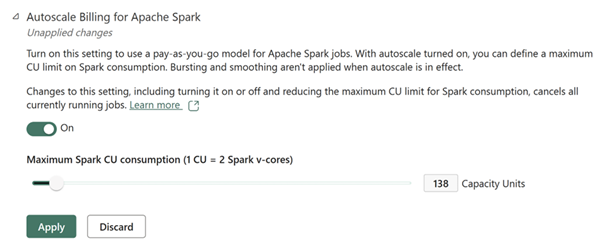
Select Apply.
The maximum CU value available on the slider depends on your approved Azure quota and subscription type.
Note
After you save the setting, Spark pools can use the CU quota defined by on-demand billing.
Resize and reset capacity for cost optimization
After you enable on-demand billing, consider downsizing your Fabric capacity if Spark workloads no longer use reserved capacity.
- Go to the Azure portal.
- Search for and select your Fabric capacity.
- Select Pause.
- Wait about 5 minutes, then select Resume.
- Resize to a lower SKU that fits remaining workloads (for example, Power BI, Data Warehouse, Real-Time Intelligence, and Databases).
Note
Only Azure administrators can resize SKUs, and that change is done in Azure portal.
Monitor billing and usage
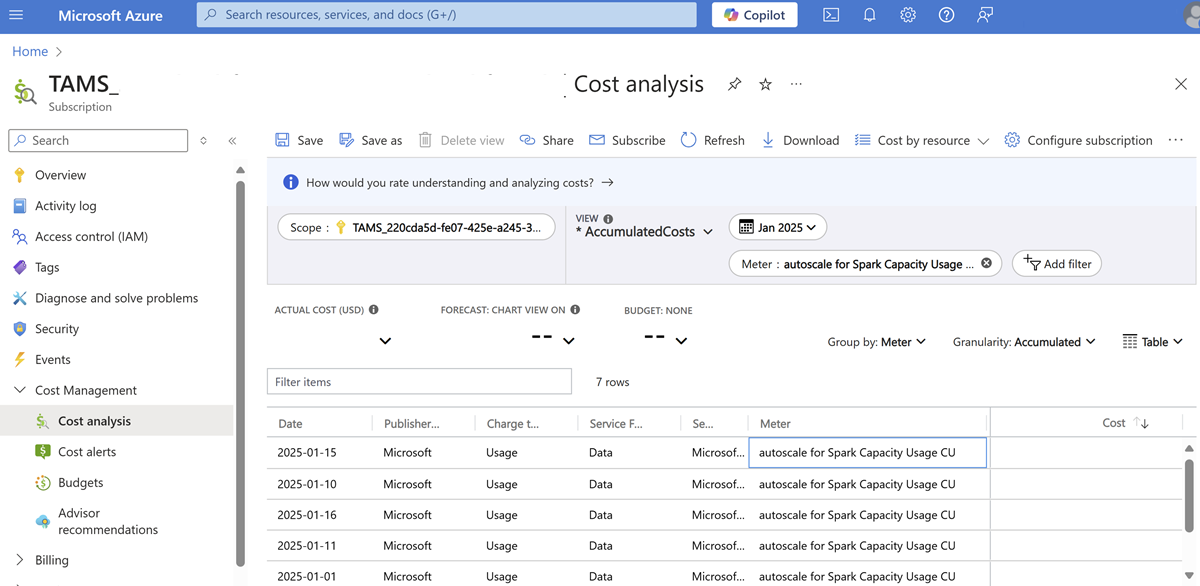
After you enable on-demand billing, monitor your spend in Azure Cost Analysis:
Go to the Azure portal.
Select the Subscription linked to your Fabric capacity.
Open Cost Analysis.
Filter by the Fabric capacity resource.
Select meter
On-demand for Spark Capacity Usage CU.Review Spark compute spend.
Request additional quotas
If your workloads need a higher CU limit, submit a quota increase request:
Go to the Azure portal and sign in.
Search for Azure Quotas.
Select Microsoft Fabric.
Choose the subscription associated with your Fabric capacity.
Enter the new CU limit.
Submit the request.
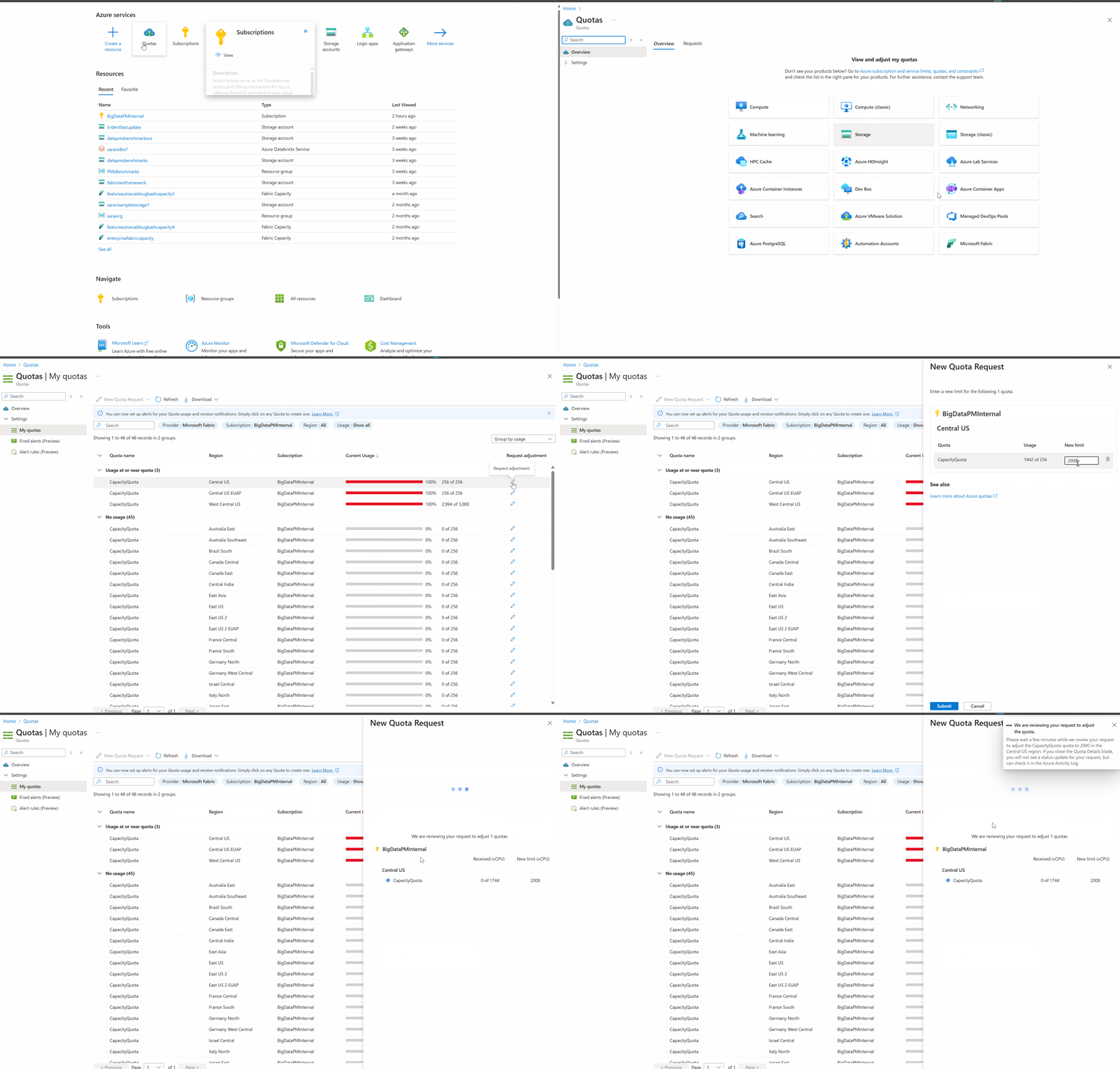
After approval, the updated CU limit is applied to your capacity.