Note
Access to this page requires authorization. You can try signing in or changing directories.
Access to this page requires authorization. You can try changing directories.
Azure DevOps Services | Azure DevOps Server | Azure DevOps Server 2022
In this quickstart, you install the Azure Boards app for GitHub to connect Azure Boards to your GitHub repositories. When you connect Azure Boards projects with GitHub.com repositories, you support linking between GitHub commits and pull requests to work items. You can use GitHub for software development while using Azure Boards to plan and track your work. After you install the Azure Boards app for GitHub on your GitHub account or organization, choose which GitHub repositories you want to connect to from your project.
For an overview of the integration that the Azure Boards app for GitHub supports, see Azure Boards-GitHub integration.
Prerequisites
| Permission category | Requirements |
|---|---|
| Azure DevOps | - Member of the Project Collection Administrators group. If you created the project, you have this permission. - Project member in the Azure Boards project. |
| GitHub | - Administrator or owner of the GitHub organization to install the Azure Boards app - Read permissions for the GitHub repository |
Important
- If your repository is already connected by using another authentication type such as OAuth, you must remove that repository from your existing connection before you reconnect it by using the GitHub App. Follow the steps provided in Add or remove GitHub repositories later in this article before you configure the GitHub App.
- You can connect an Azure DevOps organization to multiple GitHub repositories if you're an administrator for those repositories. You shouldn't connect a GitHub repository to more than one Azure DevOps organization.
Install and configure the Azure Boards app
The following steps show a typical installation sequence. Follow any on-screen prompts to complete the setup.
Go to the Azure Boards app in the GitHub Marketplace.
Under Plans and pricing, under Free, select Install.
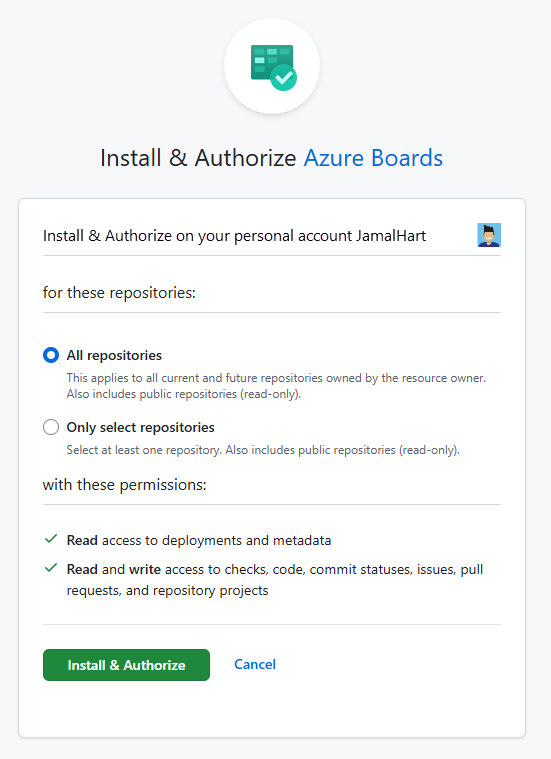
In Install & Authorize Azure Boards, choose the repositories that you want to connect to Azure Boards, and then select Install & Authorize.
This example uses All repositories:
Choose the Azure DevOps organization and Azure Boards project you want to connect to GitHub.com.
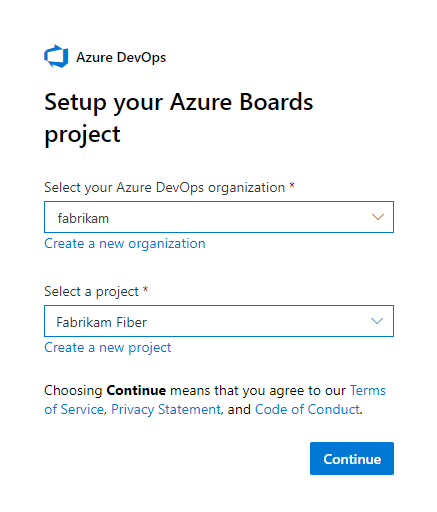
You can only connect one project at a time. If you want to connect other projects, see Configure other projects or repositories.
Grant Azure Boards organization access
To grant GitHub access to your Azure DevOps organization, complete the following steps.
From the GitHub web portal, open Settings from your profile menu.

Select Applications under Integrations.
Select Authorized GitHub Apps > Azure Boards.

Under Organization access, resolve any issues that might appear. Select Grant to grant access to any organizations that show as having an Access request pending.
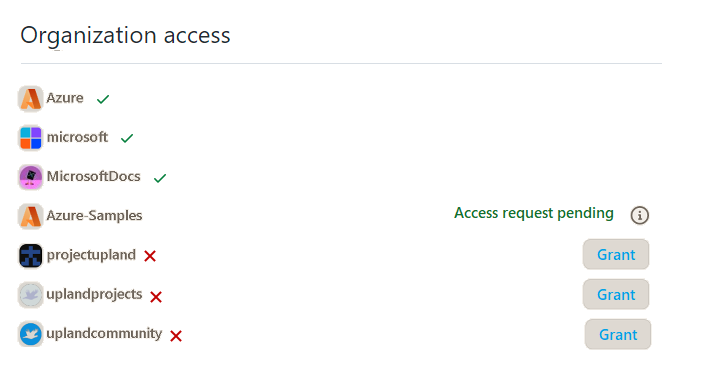
Check your third-party application access policy
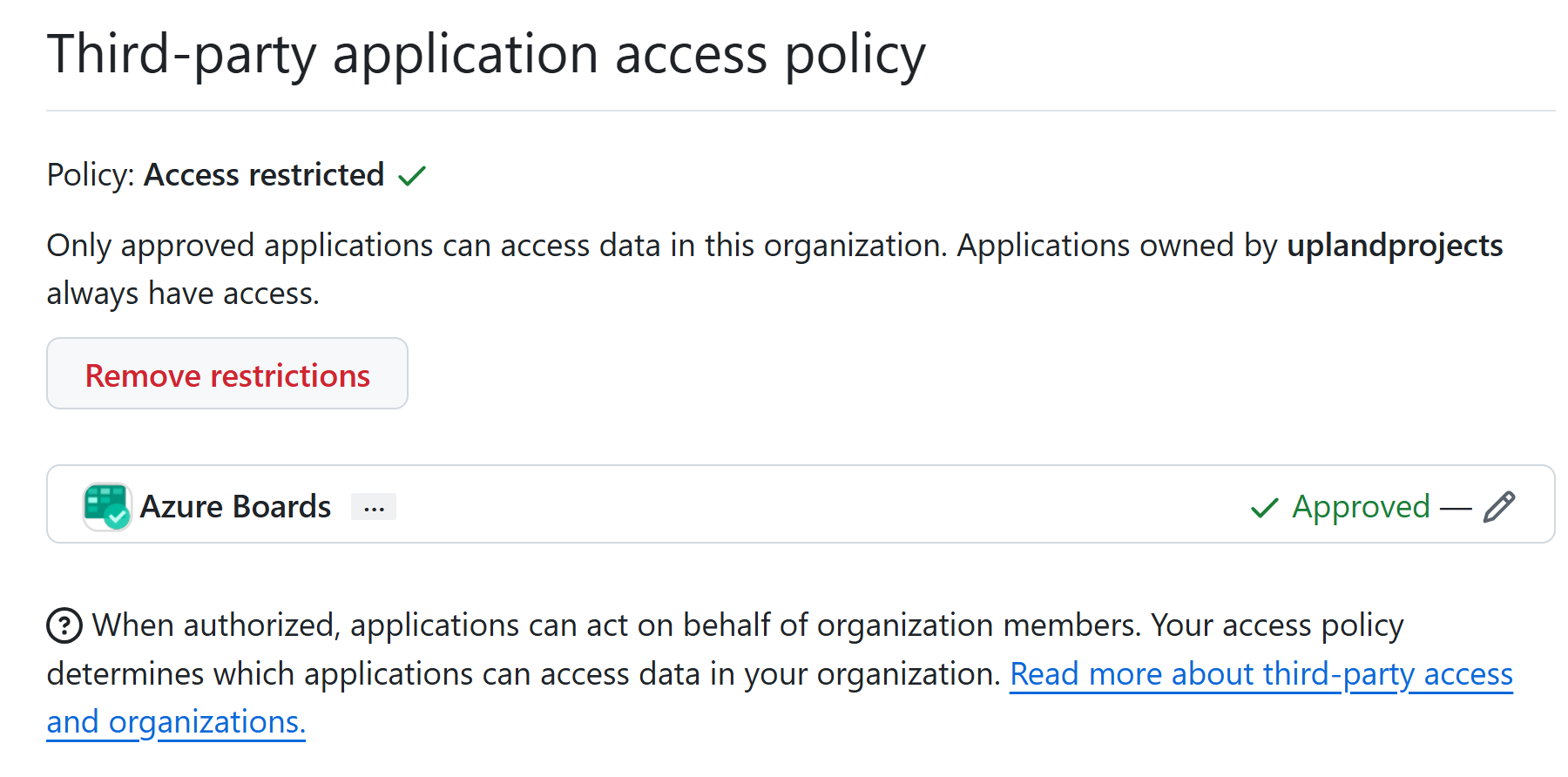
Ensure your GitHub organization permits third‑party application access for the Azure Boards app. If third‑party access is restricted, adding repositories from Azure DevOps can show an empty list or produce an error.
To enable access:
In GitHub, open your organization and go to Settings > OAuth app policy.
Approve the Azure Boards app specifically (recommended), or remove restrictions for all third‑party applications.
Note
You must be an organization owner or administrator to change this setting.
Link work items to GitHub pull requests
After you configure your Azure Boards-GitHub integration, you can link your work items to GitHub pull requests and commits.
The following example demonstrates the integration by creating a work item and linking it to a pull request:
On your board, select New work item to create a work item. For this example, use the title "Add badge to README". The work item type depends on your process: Issue (Basic), User Story (Agile), or Product Backlog Item (Scrum).
The new work item appears on your board.
Open your work item and go to the Development section.
Select Add link and then select GitHub Pull Request from the Link type menu.
Select the repository and enter the pull request ID. You can also add an optional comment.
Select Add link to create the connection.
Azure Boards automatically performs the following actions in the background:
- Adds a badge to the README file of the first repository in the list of connected GitHub repositories
- Creates a GitHub commit for the badge update
- Creates a GitHub pull request to merge the changes to the README file
- Links the GitHub commit and pull request to your work item
In your work item, select the pull request link to open it in GitHub.
Select Merge pull request in GitHub.
In your GitHub repository, open the README file to verify the badge was added. For more information, see Configure status badges to add to GitHub README files.
Configure other projects or repositories
You can configure other Azure Boards/Azure DevOps Projects, GitHub.com repositories, or change the current configuration from the Azure Boards app page. For more information, see Add or remove repositories, or remove a connection from Azure Boards.
Add or remove repositories, or remove a connection from Azure Boards
If you encounter a problem with a connection, remove the connection and start over with a new connection.
From your project in Azure DevOps, select Project settings > GitHub connections.
To add or remove repositories, select the More options ellipses for the connection and choose Add repositories or Remove repositories from the menu.
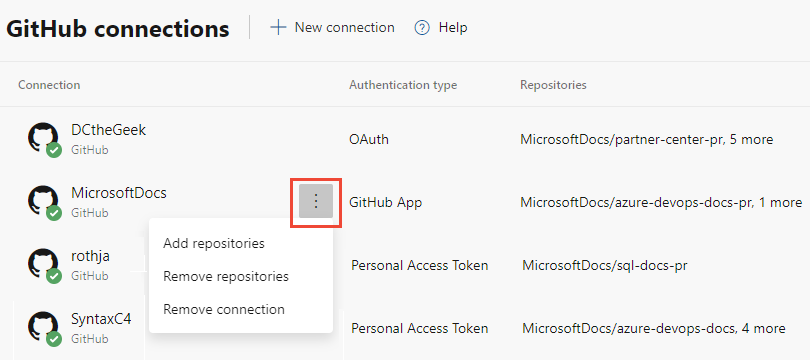
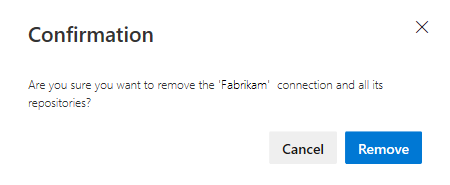
To remove all repositories and the connection, choose the Remove connection option. Then, choose Remove to confirm.
Change repository access
From the GitHub web portal, open Settings from your profile menu.
Select Integrations > Applications. Under Installed GitHub Apps, select Configure.

The Azure Boards configuration page opens.
Scroll down to the Repository access section.
Choose the option you want, All repositories or Only select repositories.
If you choose Only select repositories, select the repositories you want to participate in integration with Azure Boards.

Select Save.
Suspend or uninstall Azure Boards integration
Starting from step 2 in the previous procedure, scroll down to the Danger zone section.

To suspend the integration, select Suspend. From the confirmation window, select OK to confirm the suspension.

To unsuspend the integration, select Unsuspend.
To uninstall the Azure Boards app, select Uninstall, and then select OK from the popup confirmation window.

Update Azure Boards-GitHub connections
If you change the repositories that the Azure Boards app for GitHub supports, you might get redirected to Azure Boards GitHub connections. A good practice is to remove the repositories in Azure Boards that can no longer connect to GitHub. For more information, see Add or remove GitHub repositories.
If you uninstall the Azure Boards app for GitHub, the following message displays in Azure Boards, Project settings > GitHub connections. Select Remove connection to remove all previously made GitHub connections. For more information, see Add or remove GitHub repositories.

Troubleshoot integration issues
Empty repository list when adding repositories
If the repository list appears empty in Azure DevOps:
- Verify your GitHub organization has enabled third-party app access.
- Ensure you granted Azure Boards permission to access your organization in Grant Azure Boards organization access.
- In GitHub, check your organization settings > Installed GitHub Apps > Azure Boards > Organization access. If status shows "Access request pending", select Grant to approve.
"Access request pending" stuck state
If organization access remains pending:
- You must be a GitHub organization owner or administrator to approve the request.
- Select Grant in the Organization access section of your authorized apps settings.
- If the issue persists, uninstall the Azure Boards app and reinstall it following the steps in Install and configure the Azure Boards app.
Badge not appearing after linking pull request
If the badge doesn't appear in your README file after linking a pull request:
- The badge only appears when you link the pull request and the repository is the first one in your connected list.
- Verify the PR you linked is still open (merged PRs don't trigger badge creation).
- Check that Azure Boards has write access to your repository.
Authentication or permissions errors
If you see authentication errors during setup:
- Verify you're an organization owner or administrator in GitHub.
- Ensure your GitHub organization hasn't restricted third-party application access.
- Check that you have Read permissions on the repository you want to connect.
- Try signing out of GitHub and signing back in, then retry the authorization.