Note
Access to this page requires authorization. You can try signing in or changing directories.
Access to this page requires authorization. You can try changing directories.
Community endpoints enable enclaves in a community to establish connections to resources outside of the community boundary to include public websites, public IP addresses, and external private networks through Site-to-Site (S2S) VPN or ExpressRoute connections. Enclave endpoints enable others to connect to your service by defining the means by which inbound traffic is allowed to flow into a given enclave once a connection is made.
In this tutorial, part six of eight, you create community and enclave endpoint resources. You learn how to:
- Create community endpoint resources in communities
- Create enclave endpoint resources in enclaves
- View your endpoints in Azure portal
Before you begin
In the previous tutorials, you created a community and an enclave using the Azure portal.
Create an enclave endpoint
Navigate to an enclave hosting a service you want to make available to other enclaves in the community
While in your enclave's page, select
Enclave Endpointson the left side, and selectCreate.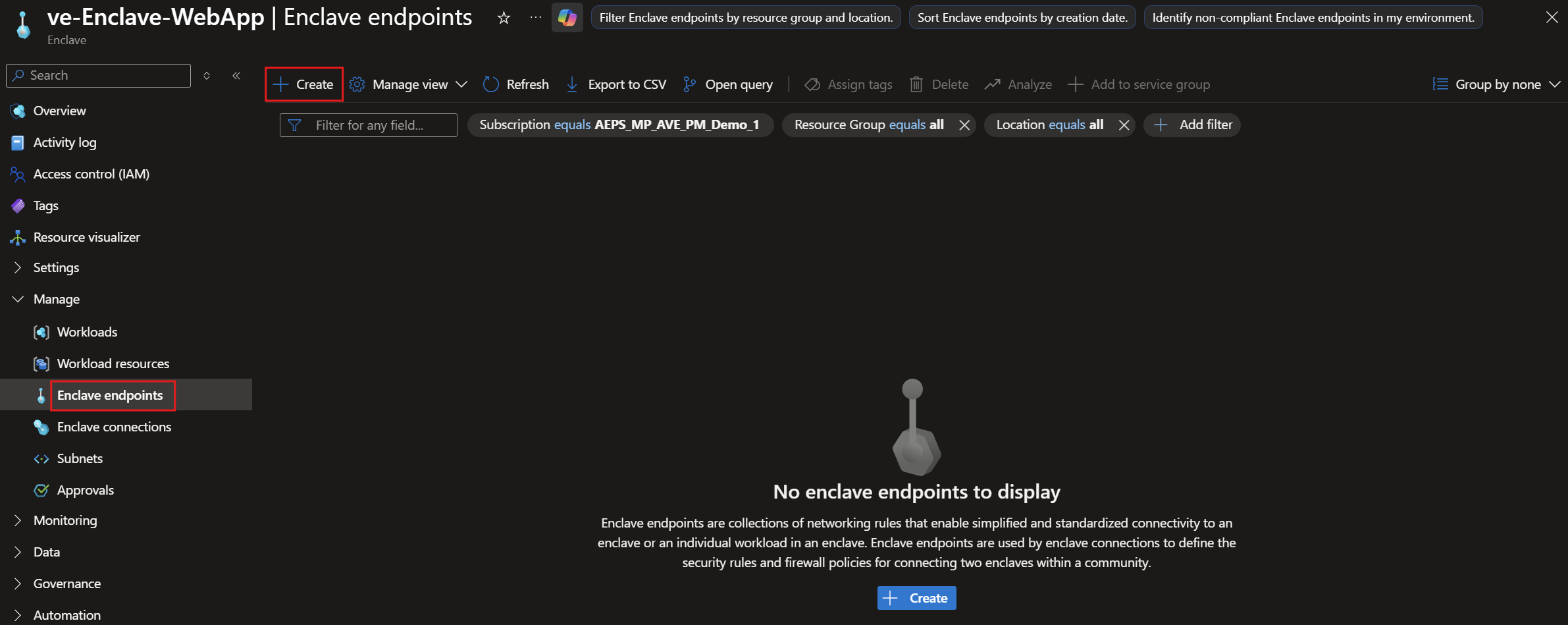
Enter your enclave endpoint name and then select
Next:- Enclave endpoint name: Name of the enclave endpoint
ee-MyService
- Enclave endpoint name: Name of the enclave endpoint
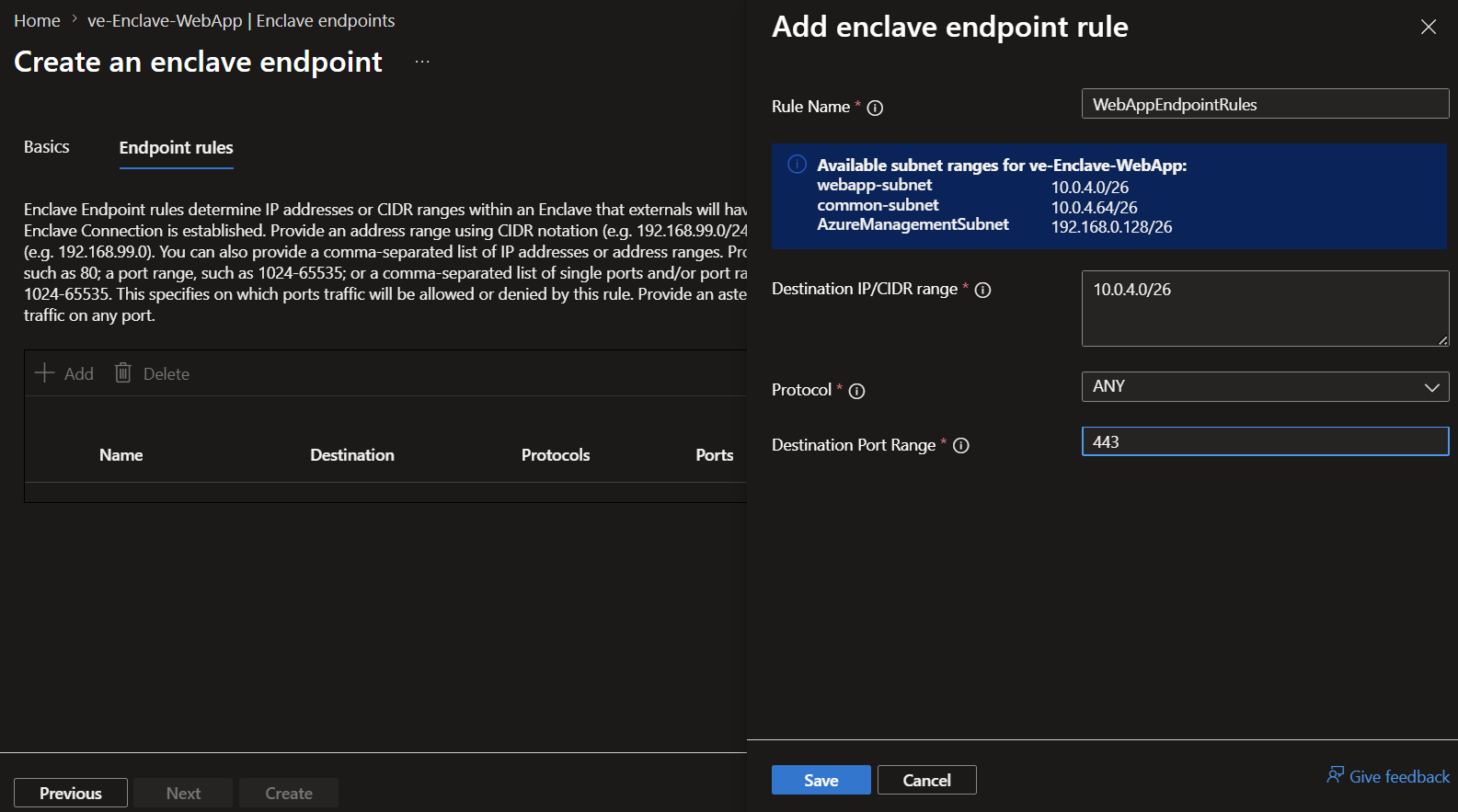
Enter the endpoint rules for your app:
- Select
+ Addto add Endpoint Rules that represent how to access your app- Rule Name:
WebAppEndpointRules - Destination IP/CIDR range:
<See the information box that gives your enclave webapp-subnet range (for example 10.0.2.0/26) and make sure there are no commas at the end> - Protocol:
ANY - Port:
443
- Rule Name:
- Select
Select
Save, selectReview + Create, and selectCreateOnce the endpoint resource is created, you can view them in Azure portal from the Enclave-WebApp
Enclave Endpoints.

Create a community endpoint
Go to the
fabrikamcommunity and selectCommunity Endpoints, and then selectCreate.
Enter the community endpoint name and then select
Next:- Community endpoint name:
ce-fabrikam-website
- Community endpoint name:
Enter the endpoint rules for your app:
- Select
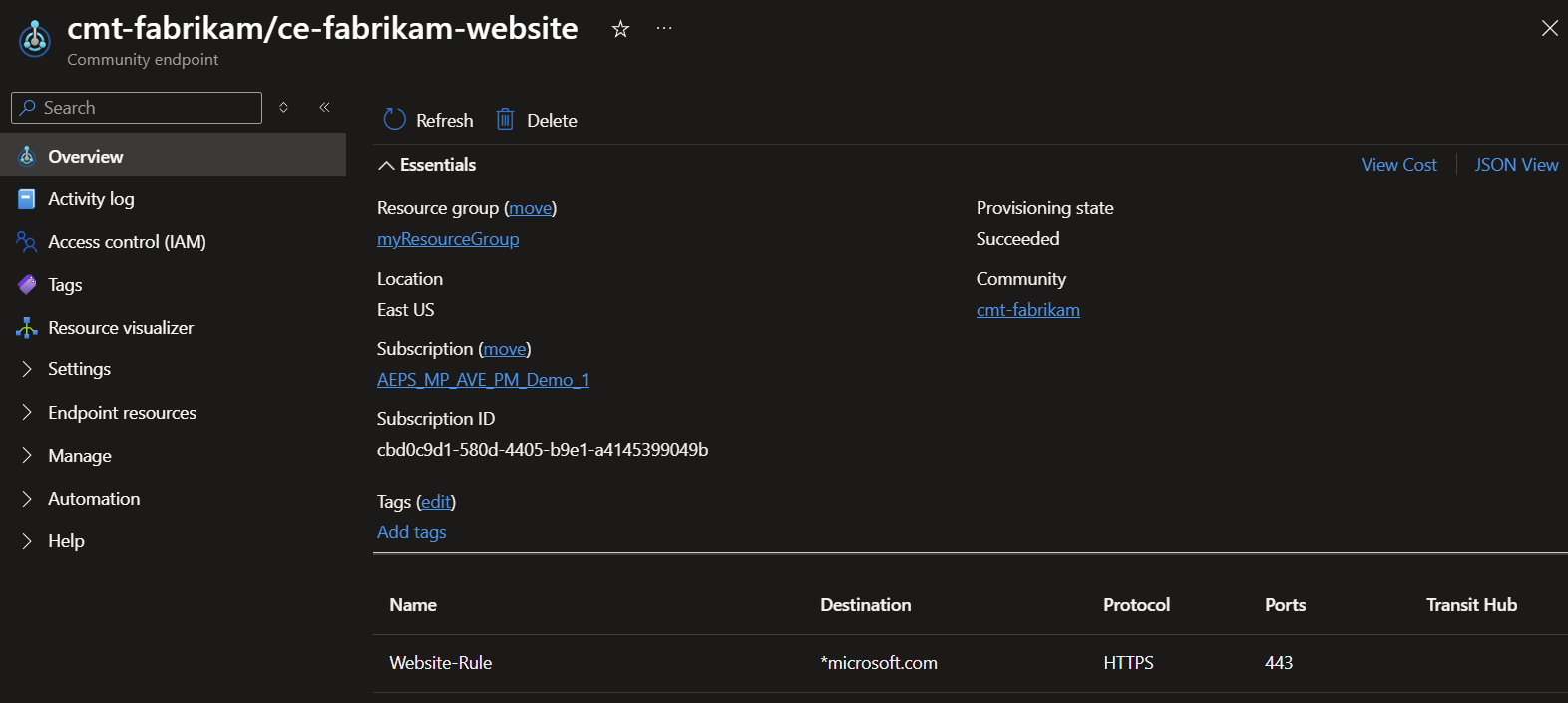
+ Addto add Endpoint Rules that represent how to access your app- Rule Name:
Website-Rule - Destination Type:
FQDN - Destination:
*microsoft.com - Protocol:
HTTPS - Port:
443
- Rule Name:

- Select
Select
Save, selectReview + Create, and selectCreate.Once the endpoint resource is created, you can view them in Azure portal from the Enclave-WebApp enclave endpoint page.


Create an enclave connection
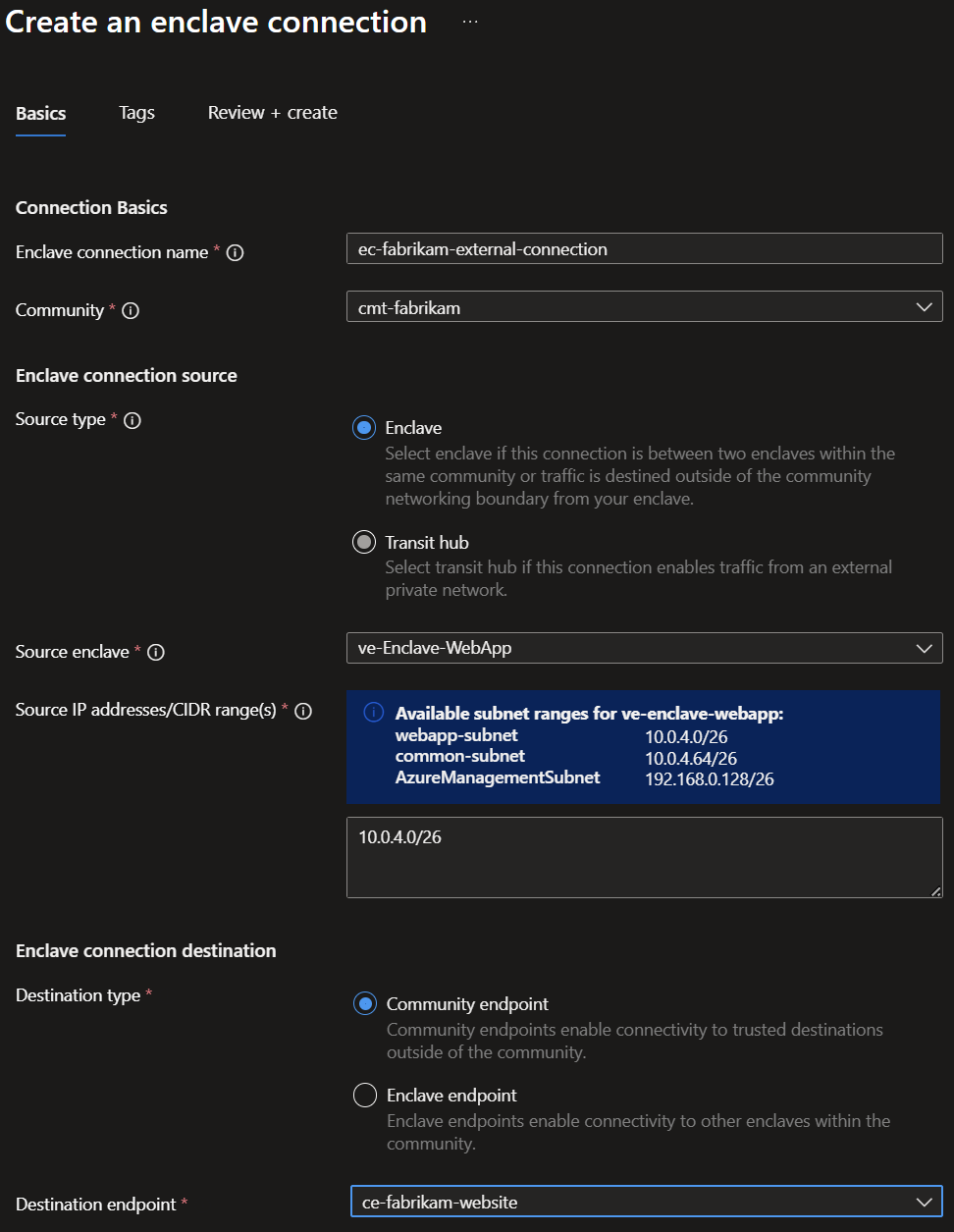
Create an enclave connection from the web app enclave to the community endpoint so the app can reach required site outside the community.
From the
cmt-fabrikamcommunity, selectEnclave Connections, then selectCreate.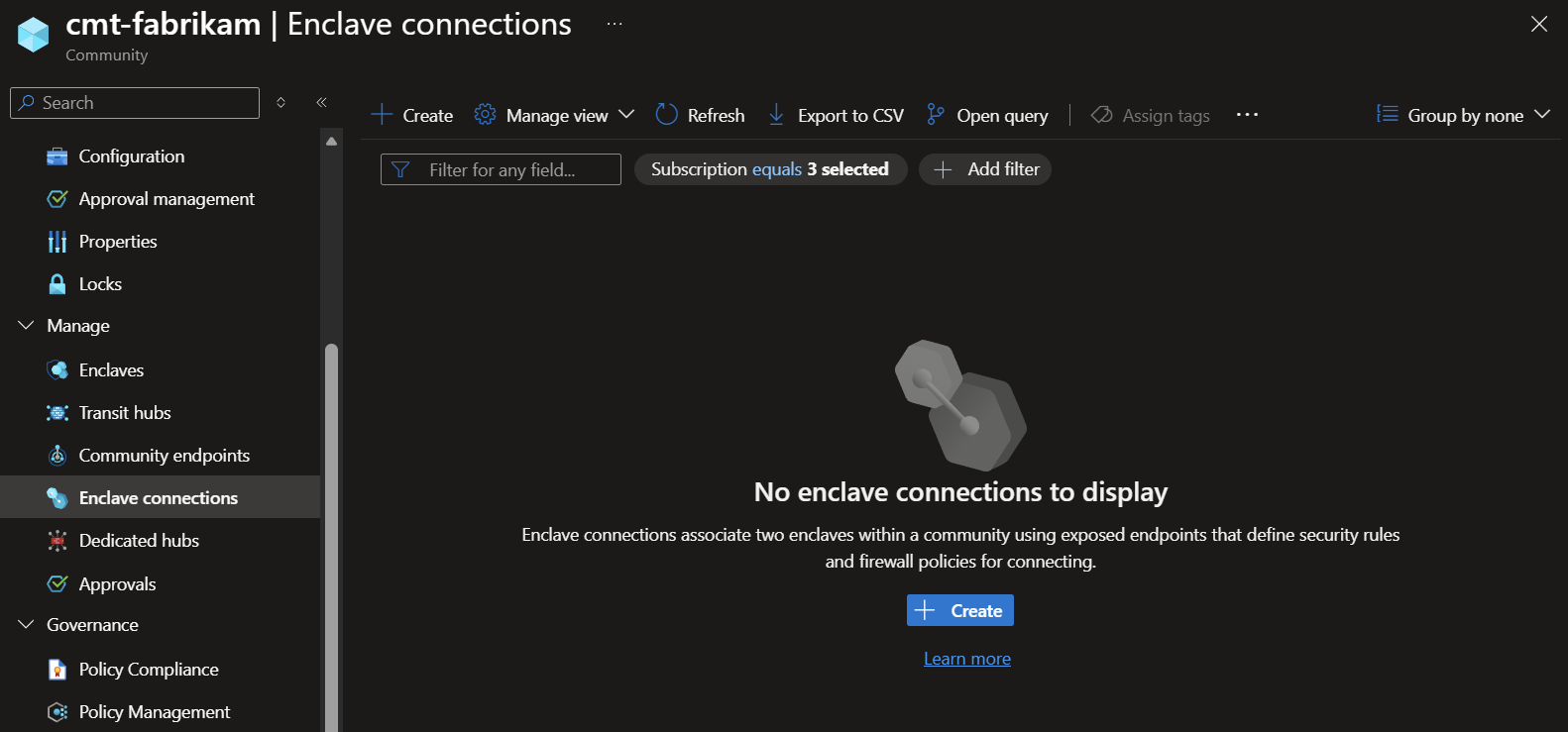
Enter the details for your app/service
- Resource Group:
myResourceGroup - Enclave connection name: Name of the connection
ec-fabrikam-external-connection - Community: Select
cmt-fabrikamfrom the dropdown - Source Type: Select
Enclave - Source enclave: Select
ve-Enclave-WebAppfrom the dropdown - Source IP addresses/CIDR range(s):
<See the information box that gives your enclave subnet range (for example 10.0.2.0/26) and make sure there are no commas at the end> - Destination Endpoint Type: Select
Community Endpoint - Destination endpoint: Select
ce-fabrikam-websitefrom the dropdown
- Resource Group:
Select
Review + Createand thenCreate
Once the endpoint resource is created, you can view them in Azure portal from the
cmt-fabrikamEnclave Connections. However, it's in a disconnected state because the community requires approvals on all new enclave connections and updates to those connections.
Review the pending approvals in
Approvalson the left for the enclave.
Approve the pending approvals and the connection state is automatically updated to the
connectedstate. For more information about reviewing approval requests, see Manage approval requests. For resource-type approval settings, see Configure approval settings.


Next steps
In this tutorial, you deployed community and enclave endpoints using Azure portal. You also learned how to:
In the next tutorial, you'll learn how to create connections using these endpoints.