Note
Access to this page requires authorization. You can try signing in or changing directories.
Access to this page requires authorization. You can try changing directories.
This article describes how to run upgrade validation checks for Azure Database for PostgreSQL flexible server.
Upgrade validation checks help you identify compatibility problems and upgrade blockers before you start a major version upgrade. They validate upgrade readiness independently from the actual upgrade operation.
Note
Upgrade validation checks validate upgrade readiness only. They don't perform the actual major version upgrade.
Prerequisites
Before running upgrade validation checks, review the supported upgrade paths and limitations documented in Major version upgrades in Azure Database for PostgreSQL.
Steps to run upgrade validation checks
Using the Azure portal:
From the resource menu, select Overview.
The server status must be Ready for the Upgrade button to be enabled.

Select Upgrade.

Expand PostgreSQL version to upgrade, and select the major version for which you want to validate the upgrade.

For Action, select Validate and upgrade to run the validation rules and, if they all pass, it immediately upgrades the server to the selected target version. It warns you about the consequences of initiating the upgrade.

Select Start.

The validation process starts and performs upgrade readiness checks against the server.
Wait for the validation operation to complete. Keep the validation status pane open to monitor progress and review validation results.
After validation completes, if no blocking issues are detected, you can download the successful report as a CSV file or you can select the Upgrade button to proceed with the upgrade of the server to the selected target version.

After validation completes, if blocking issues are detected, review the reported errors and fix them before retrying validation.
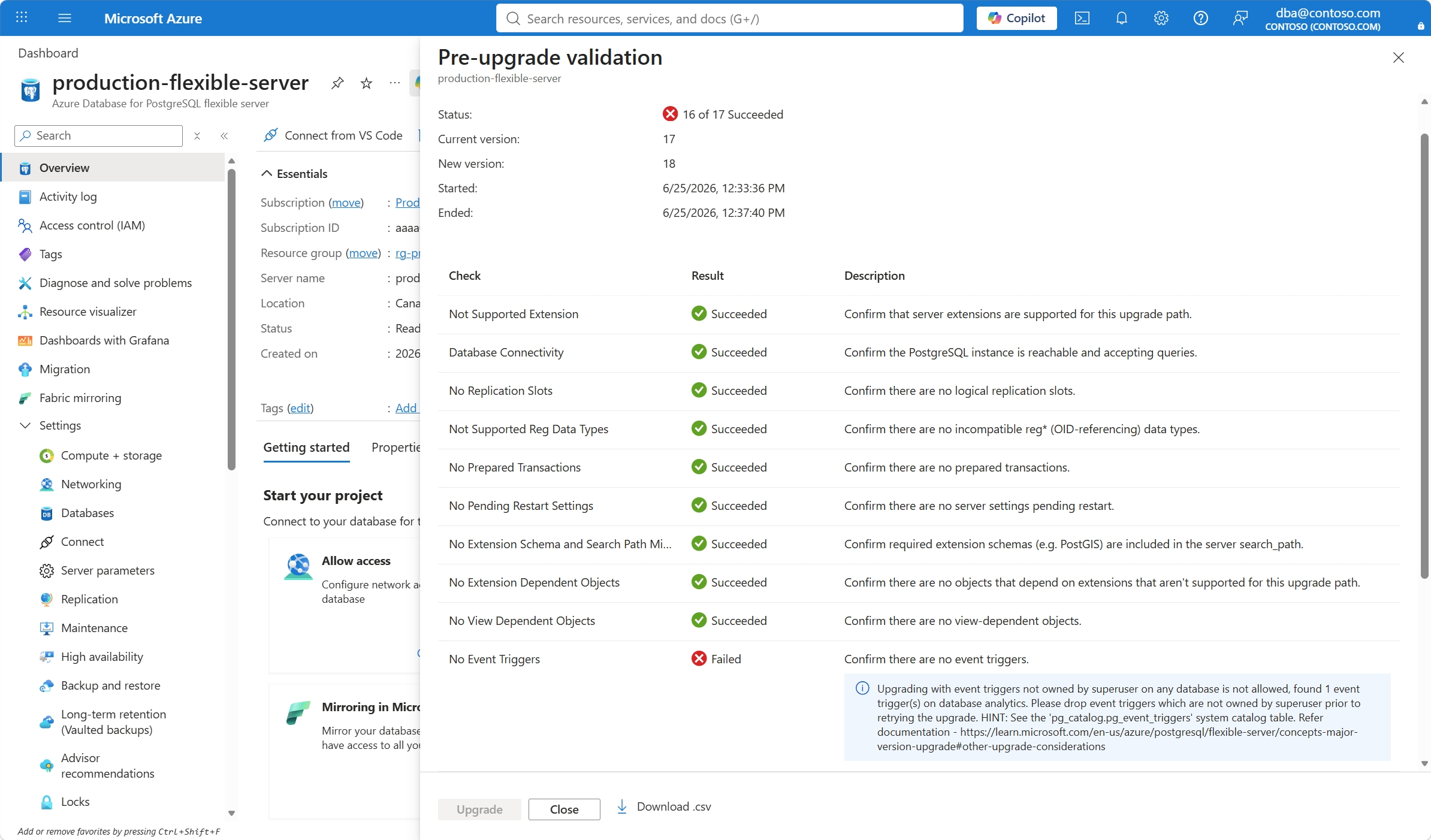


Review validation results
After the upgrade validation checks finish, review the validation findings to identify any upgrade blocking problems.
Review validation findings in the portal
The validation results pane displays:
- Validation checks that succeeded
- Validation checks that failed
- Detailed descriptions and remediation guidance for failed checks
You can also download the validation results as a .csv file for offline review or sharing with your operations team.

The downloaded report includes:
- Validation check name
- Validation result
- Error details
- Remediation recommendations for blocking problems
Review detailed validation logs
Upgrade validation checks also generate upgrade validation logs that you can download from the Server logs page.
Note
To download validation logs, you must enable server logs on the server. For more information, see Download PostgreSQL and upgrade logs.
To access validation logs:
In the Azure portal, go to your Azure Database for PostgreSQL flexible server instance.
Select Server logs under the Monitoring section.
Locate the generated
pg_upgradelog files.Download the log files for detailed validation output and troubleshooting information.