Bilješka
Pristup ovoj stranici zahtijeva provjeru vjerodostojnosti. Možete pokušati da se prijavite ili promijenite direktorije.
Pristup ovoj stranici zahtijeva provjeru vjerodostojnosti. Možete pokušati promijeniti direktorije.
This article extends the Configure automation workflows how-to guide by showing how to create an automation workflow by using a sample customer order processing scenario.
Note
To learn more about the concept of automation and how to set up the different triggers and actions, see Automation and Configure automation workflows.
Sample scenario
For this example, consider the following tables in PowerTable:
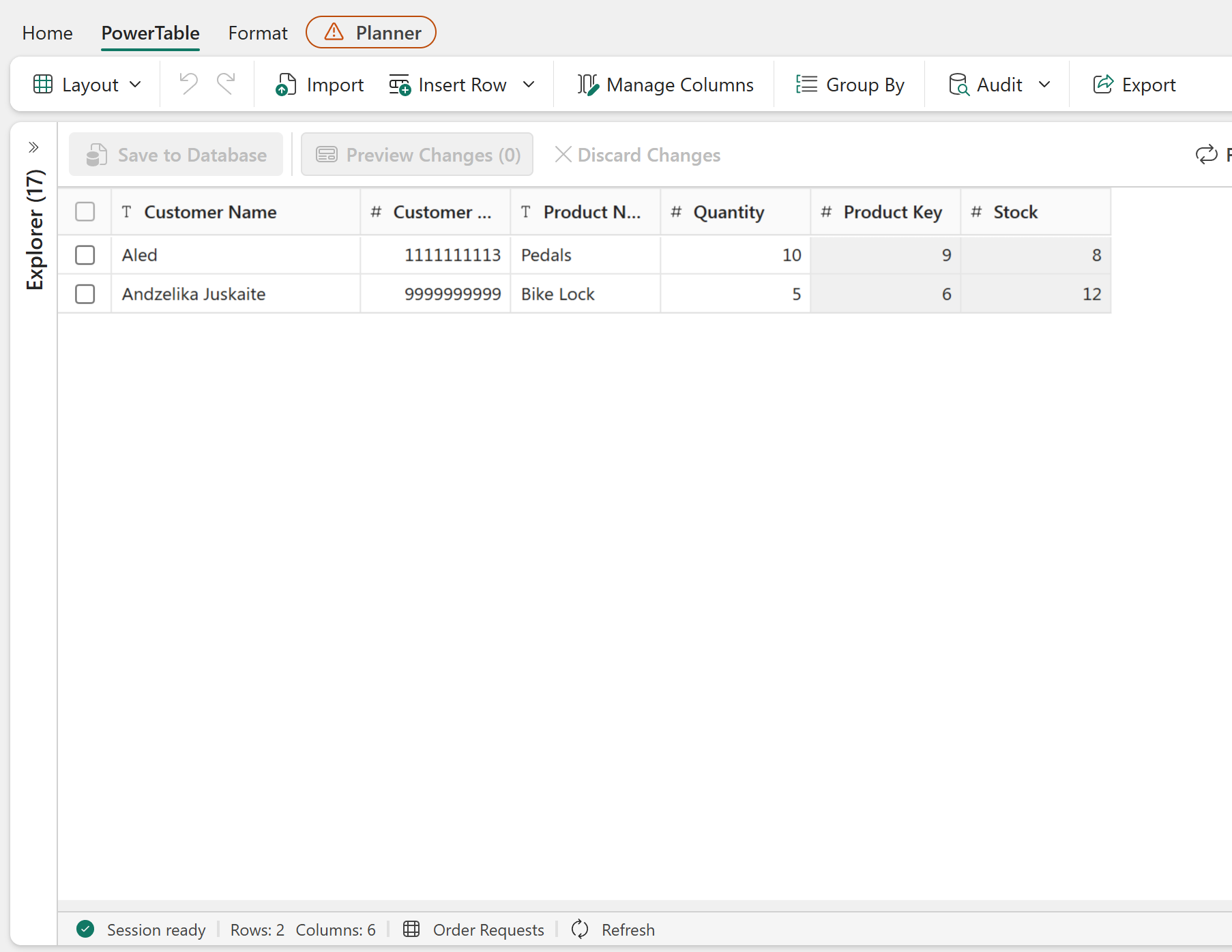
An Order Requests table to store customer order requests submitted through a form.
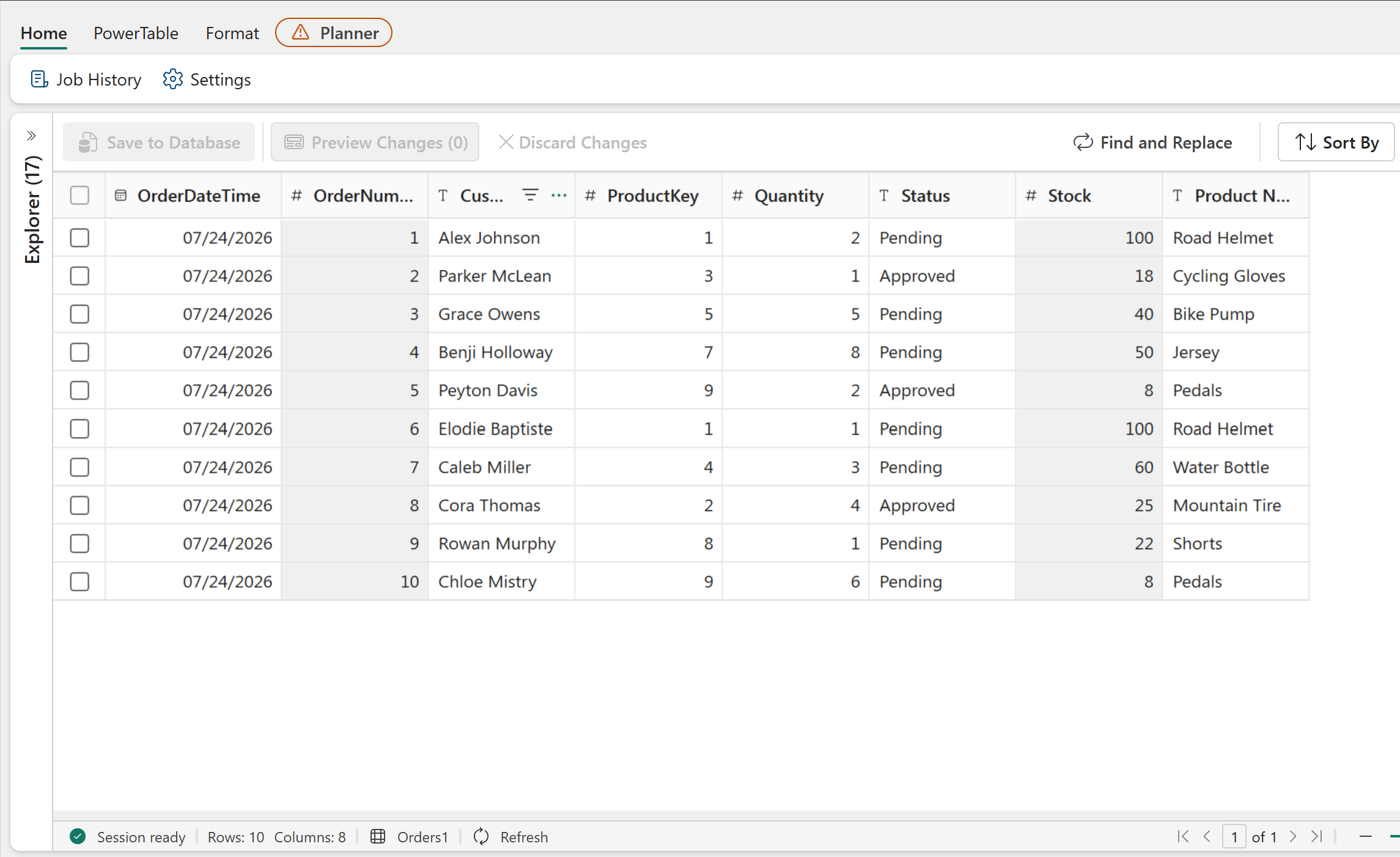
An Orders table to store processed orders.
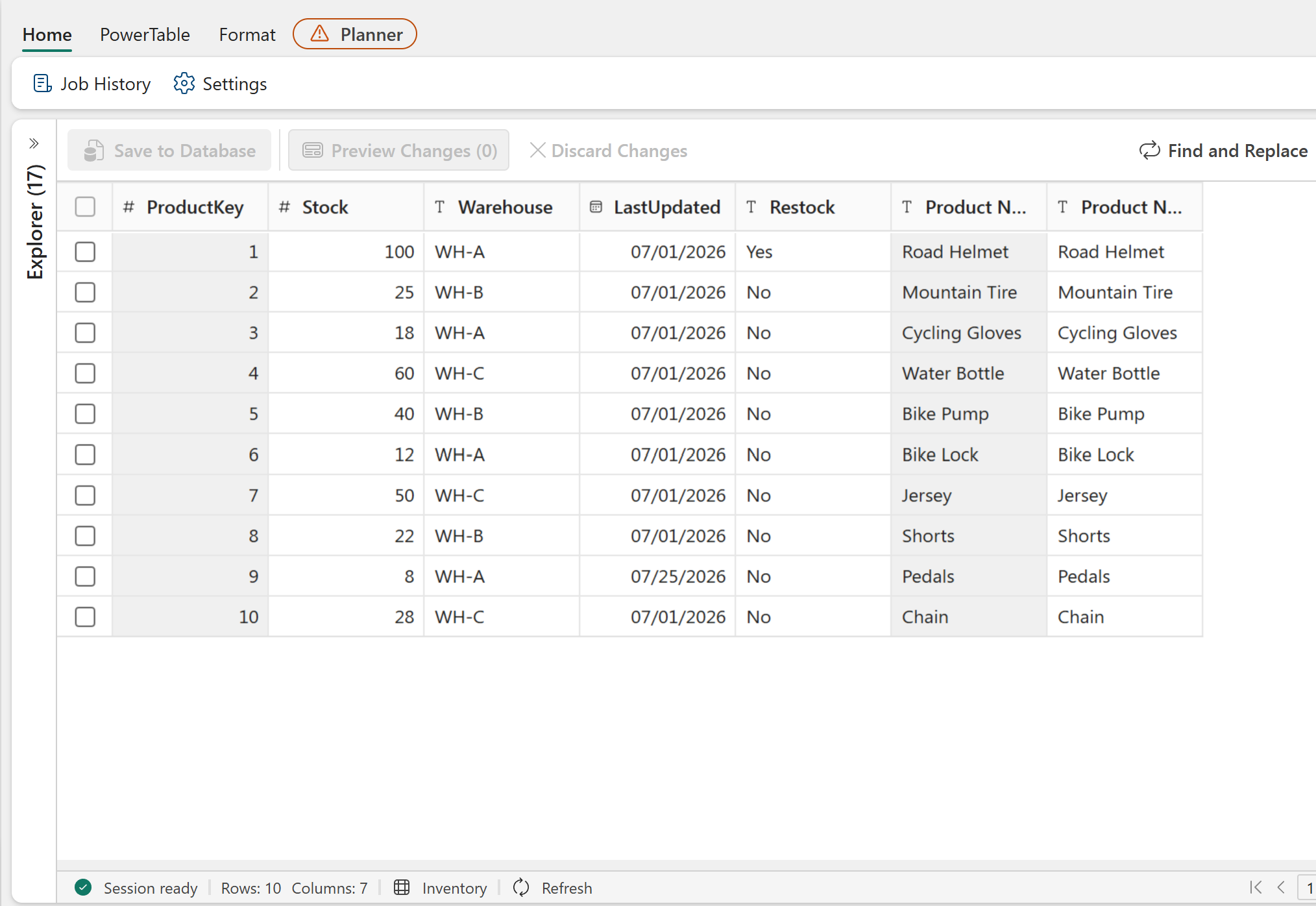
An Inventory table that contains product information and available stock quantities.
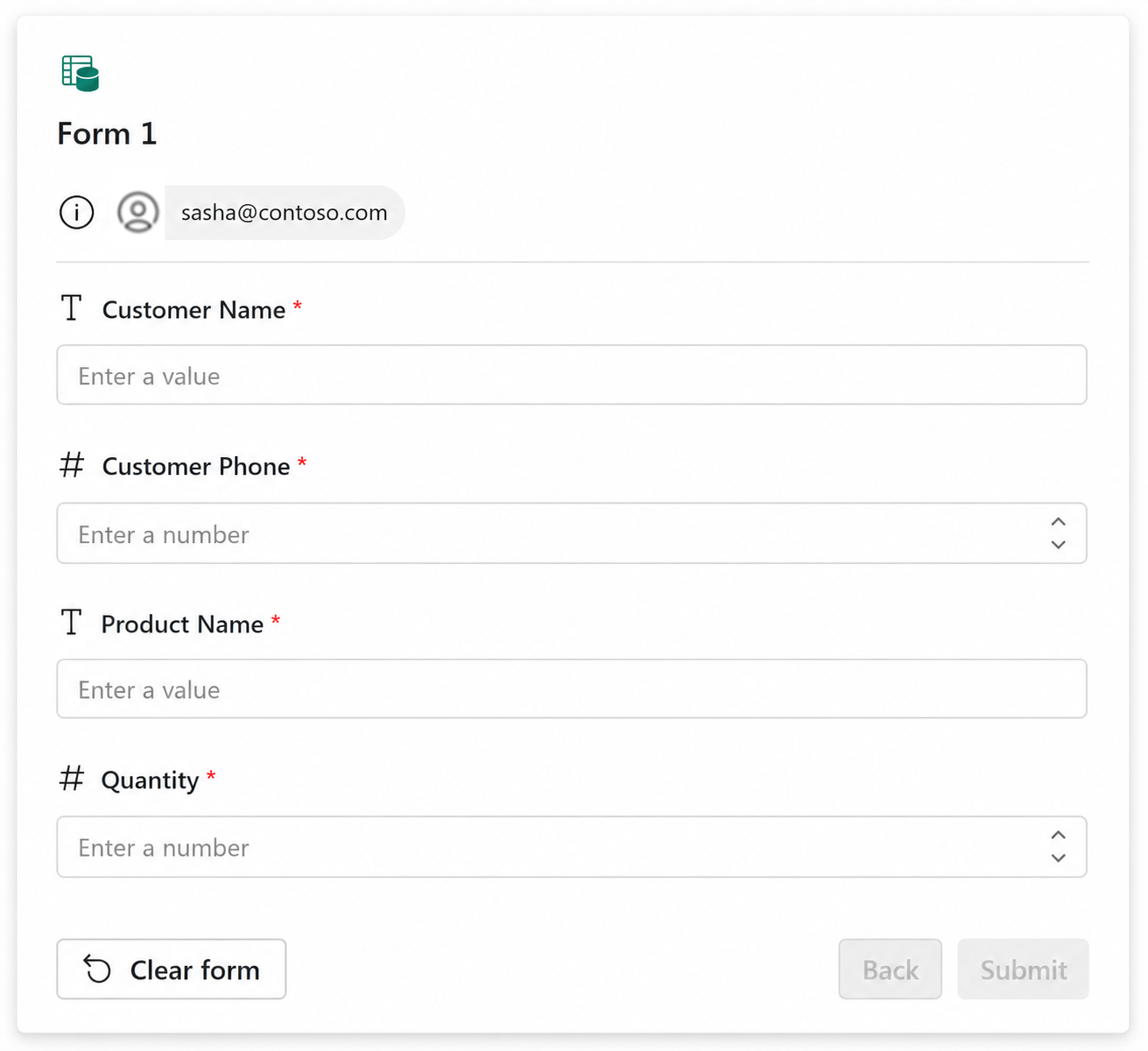
A form that stores customer order requests in the Order Requests table.
Workflow overview
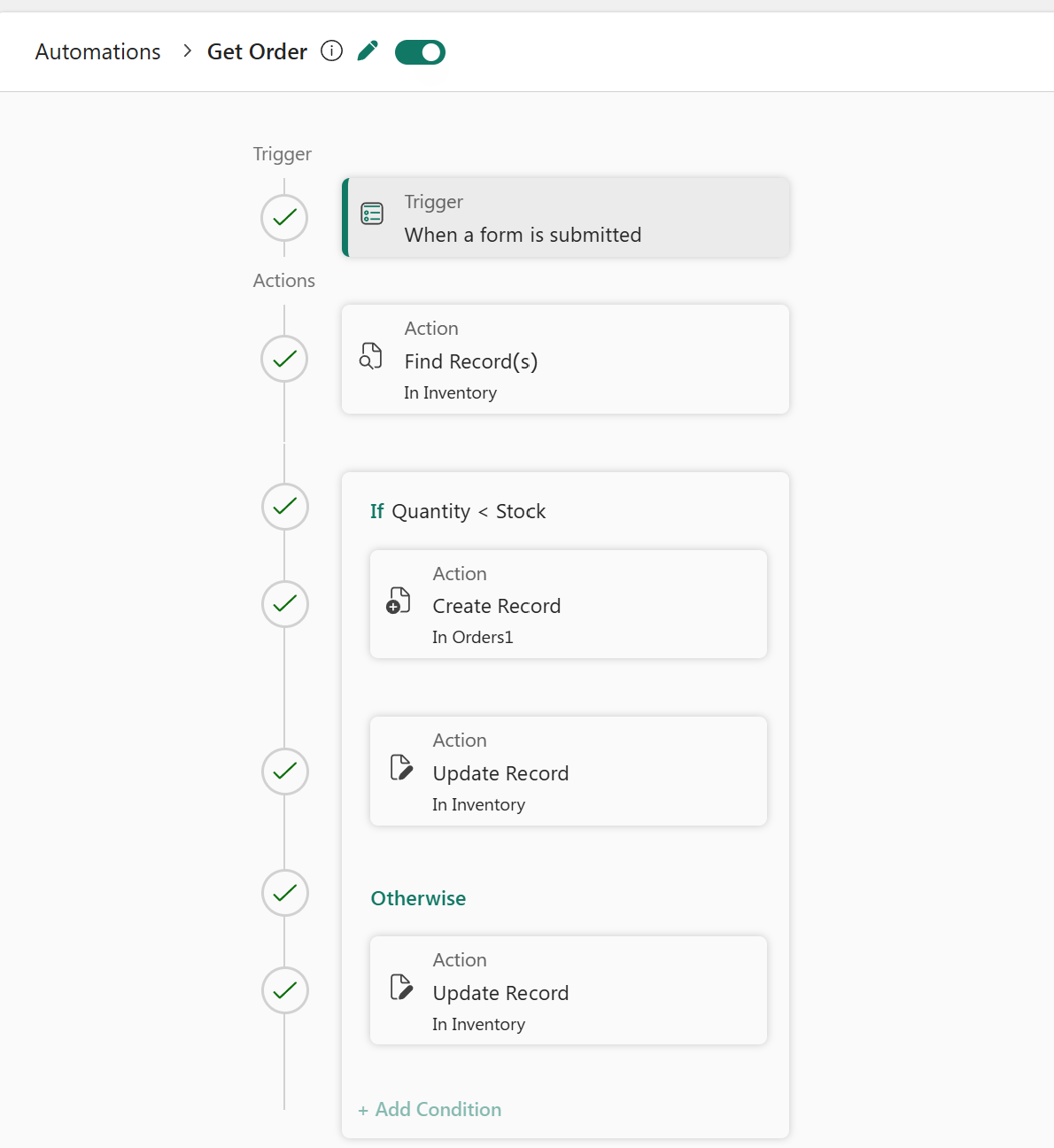
When a customer submits an order request through the form, the workflow verifies inventory for the requested product and then performs the appropriate actions based on stock availability.
The workflow retrieves the product details from the Inventory table, checks whether sufficient stock is available, and either creates an order and updates inventory or marks the product for restocking.
The workflow performs the following tasks:
- A customer submits an order request through the form.
- The When a form is submitted trigger starts the workflow.
- The Find Record(s) action retrieves the requested product details from the Inventory table.
- The workflow compares the requested quantity with the available stock quantity.
- If sufficient stock is available, the workflow:
- Creates an order record in the Orders table.
- Sets the order status to Processing.
- Updates the inventory by subtracting the requested quantity from the available stock.
- Otherwise, the workflow updates the Restock status in the Inventory table to indicate that additional stock is required.
Create the workflow and add trigger
Open the Order Requests table.
Create a new automation workflow by using Setup > Automations. To learn more, see Create an automation flow.
Select When a form is submitted as the trigger.
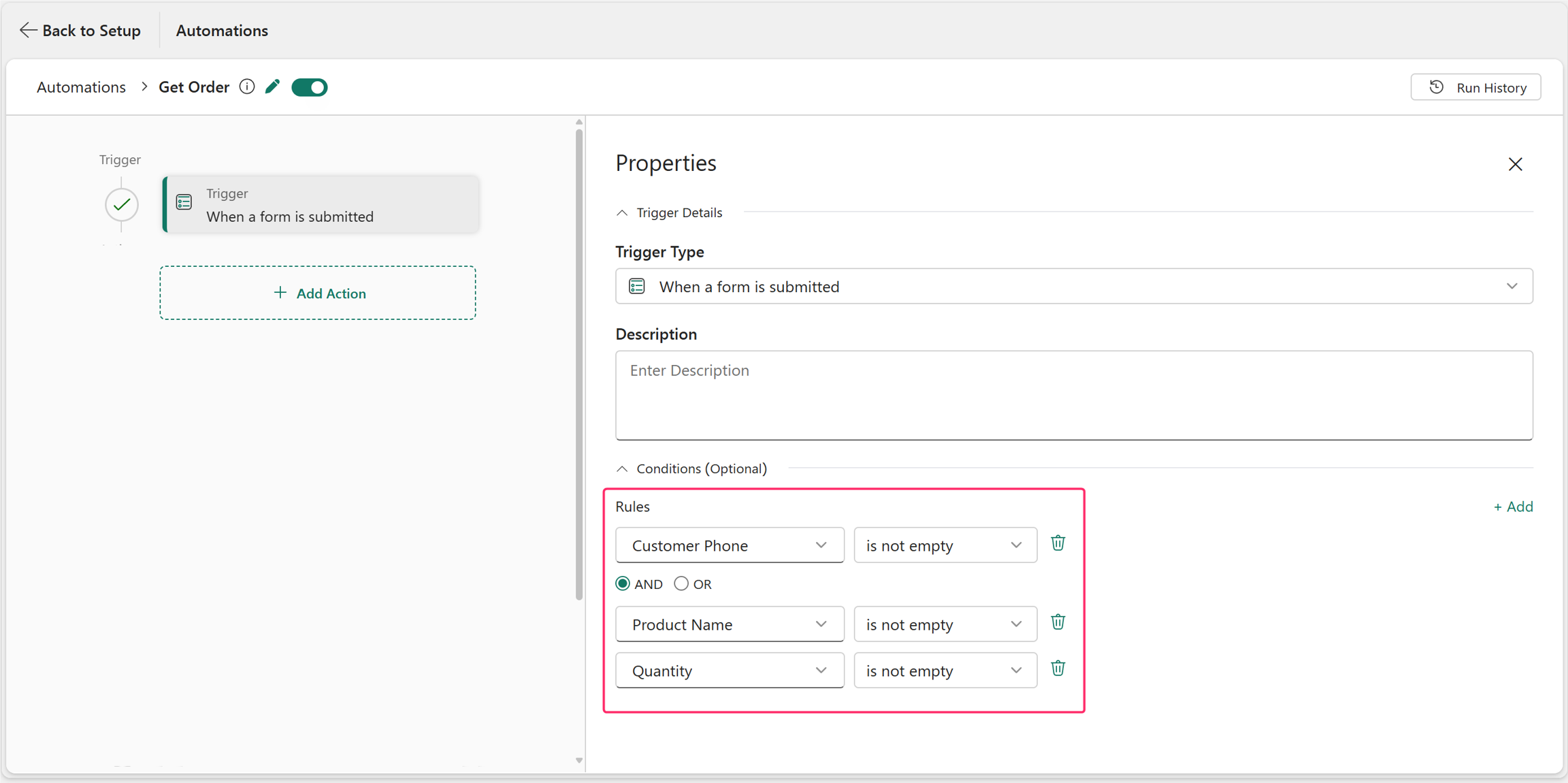
Configure the trigger to run only when the required customer details are present in the Properties pane. The trigger starts only when the Customer Phone, Product Name, and Quantity are not empty.
Retrieve the product details
Select Add Action > Find Record(s).
Select the schema. In Table, select Inventory.
Select Single Record to fetch the single matching product record.
Configure the action to find the product that matches the product requested in the submitted form. Use ProductName to find the matching product since the form has only the product name.
Return the Product Key, Product Name, and Stock Quantity fields by selecting them in Select columns.
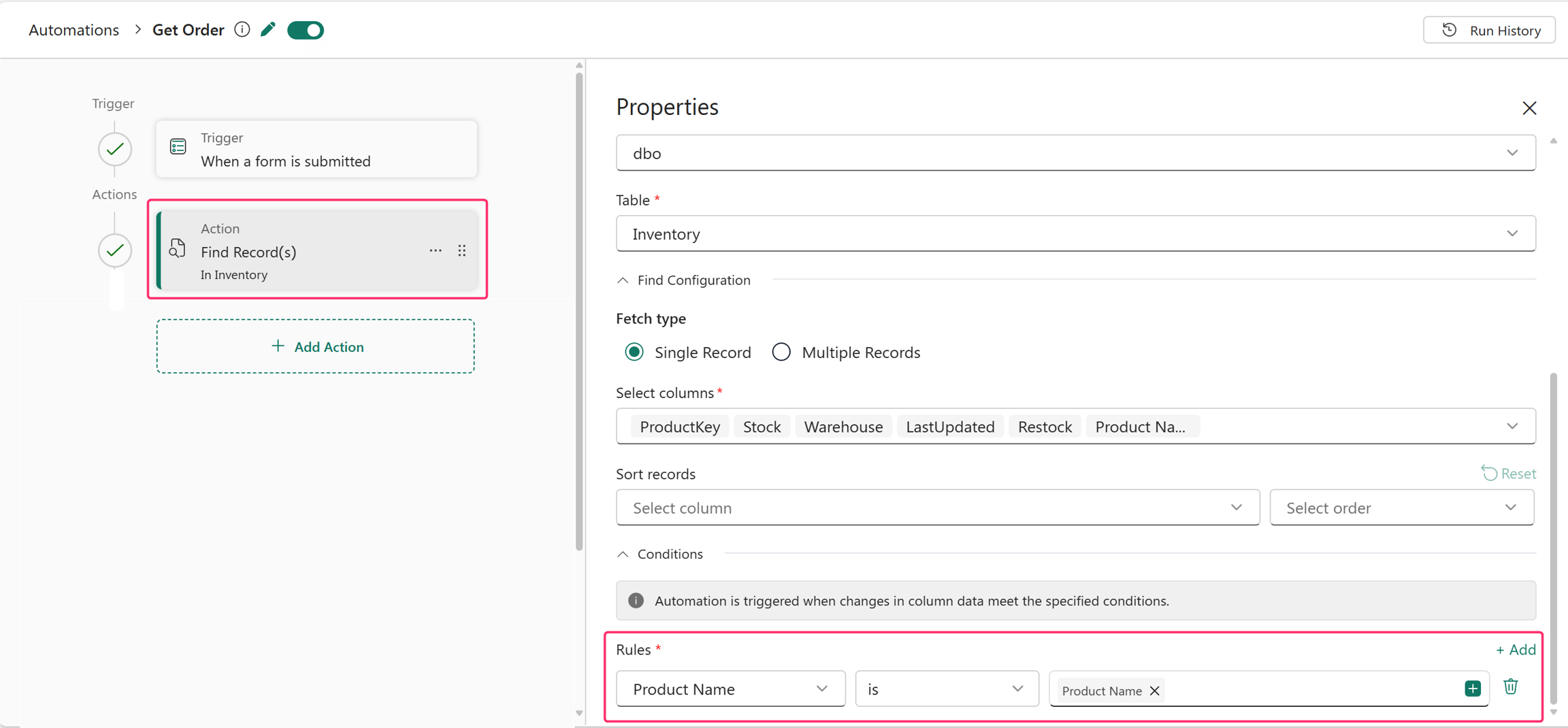
The workflow uses the retrieved product details to validate stock inventory and populate the order record.
Add a condition
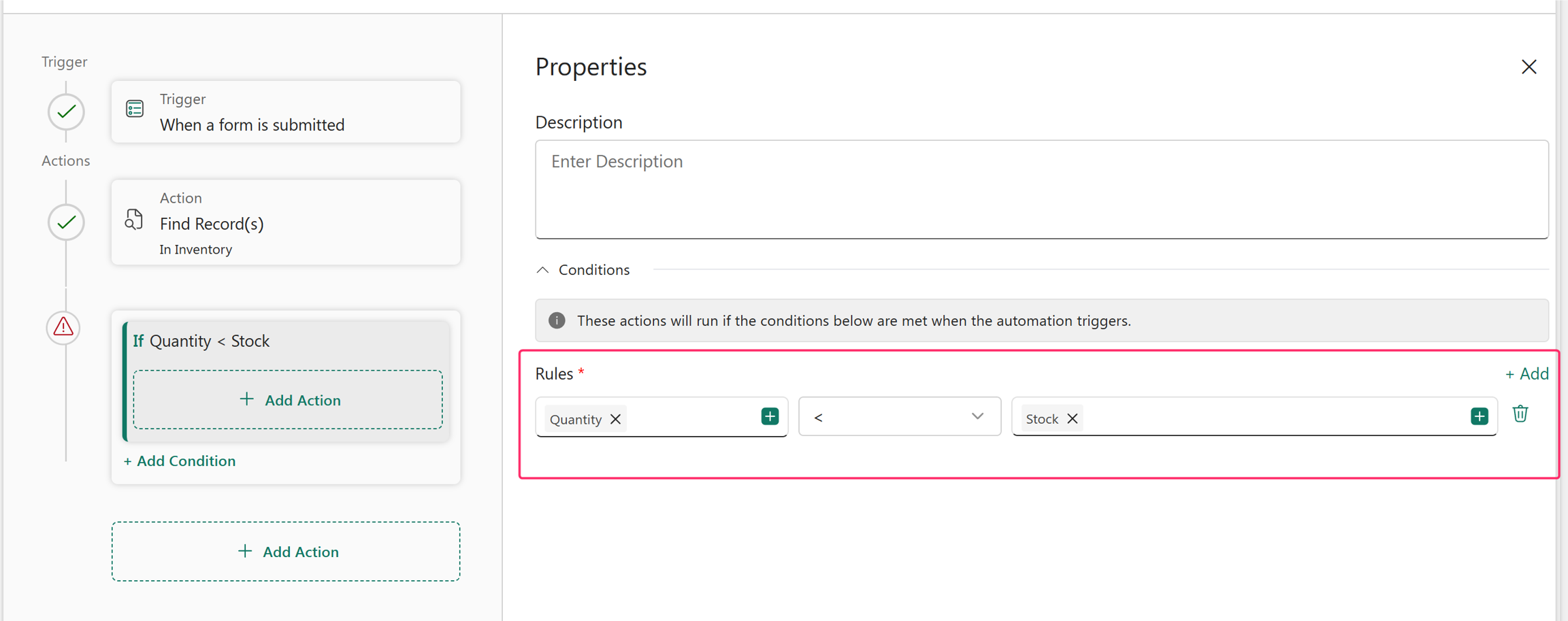
Add a Conditional Group.
Configure the If condition to check if the requested quantity is less than the available stock quantity.
Configure the If branch
If sufficient stock is available, create a record in the orders table.
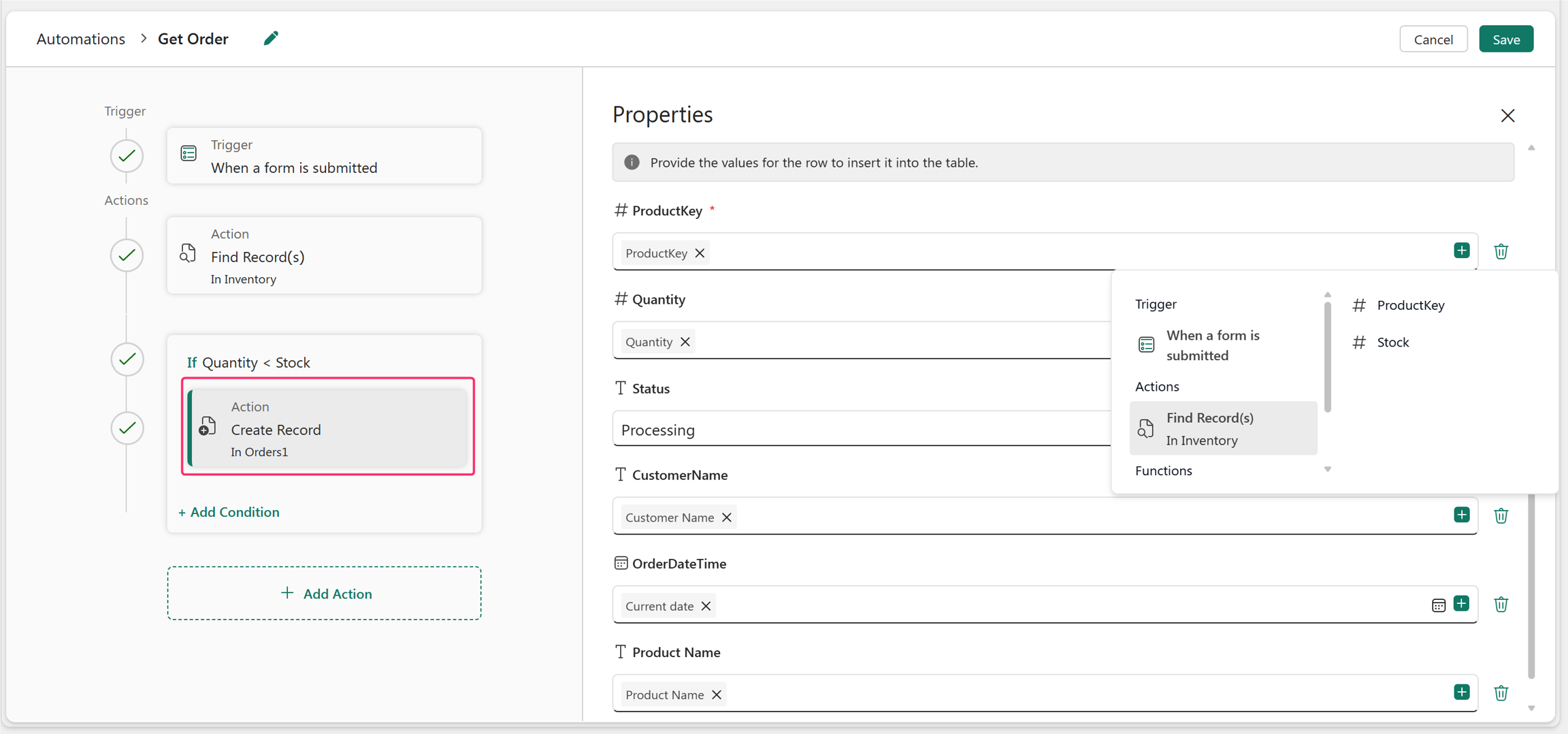
Add a Create Record action.
Select the schema and select Orders1 in Table.
Select Add Field to add the fields for the record.
For field values, select + and map the customer
details from the Order Requests table, sourced from the form.
For product-related fields, map the product details from the Find Record(s) action. For example, retrieve the Product Key from Inventory table fetched by using Find Record(s).
Set the Status field to Processing.
Next, update the stock in inventory.
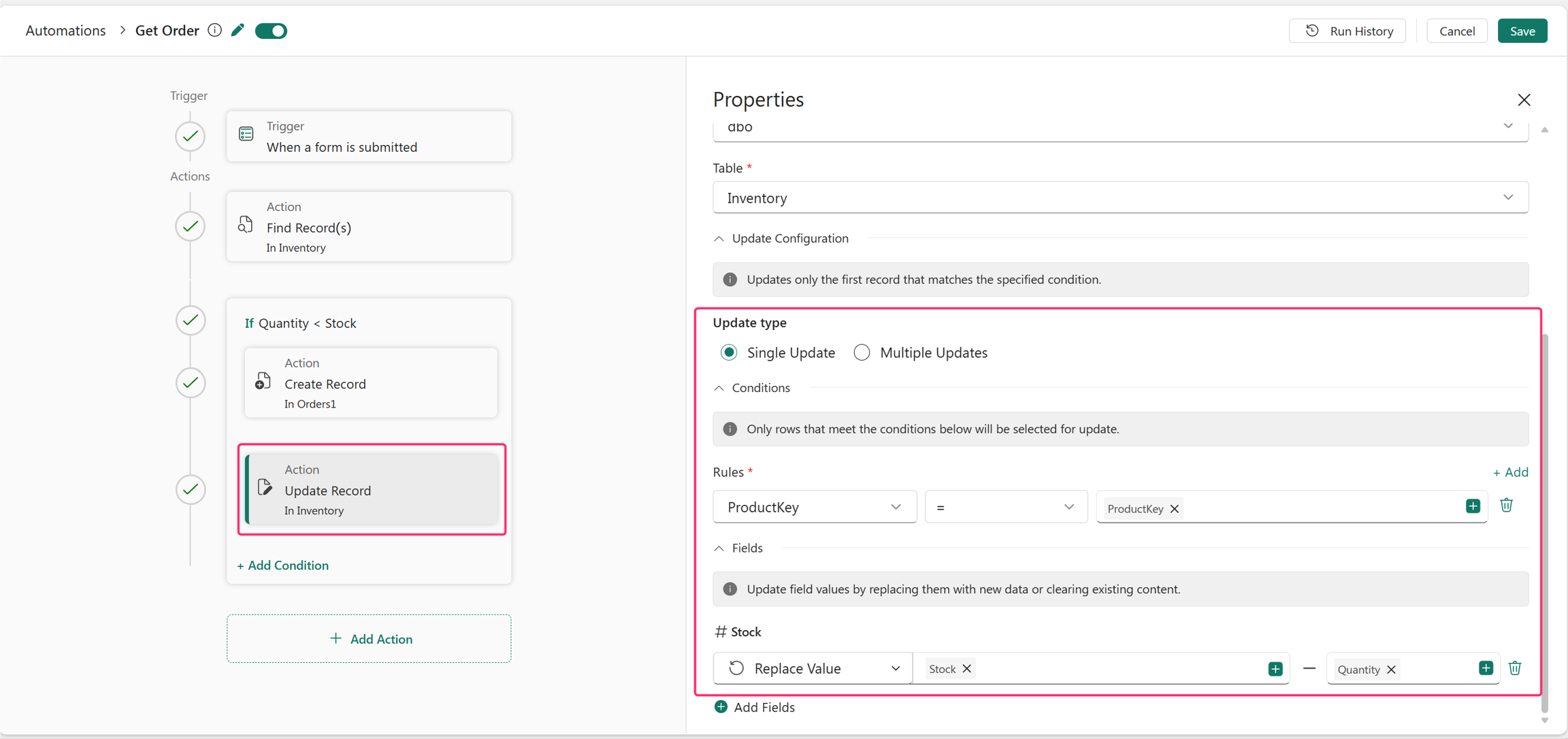
Add an Update Record action.
Select the schema and select Inventory table.
Select Single Update to update a single record.
Use the ProductKey in Rules to identify the corresponding product.
Select Replace Value and Subtract. Then, select the Stock and Quantity fields to update the inventory record by subtracting the requested quantity from the available stock.
Add Otherwise branch
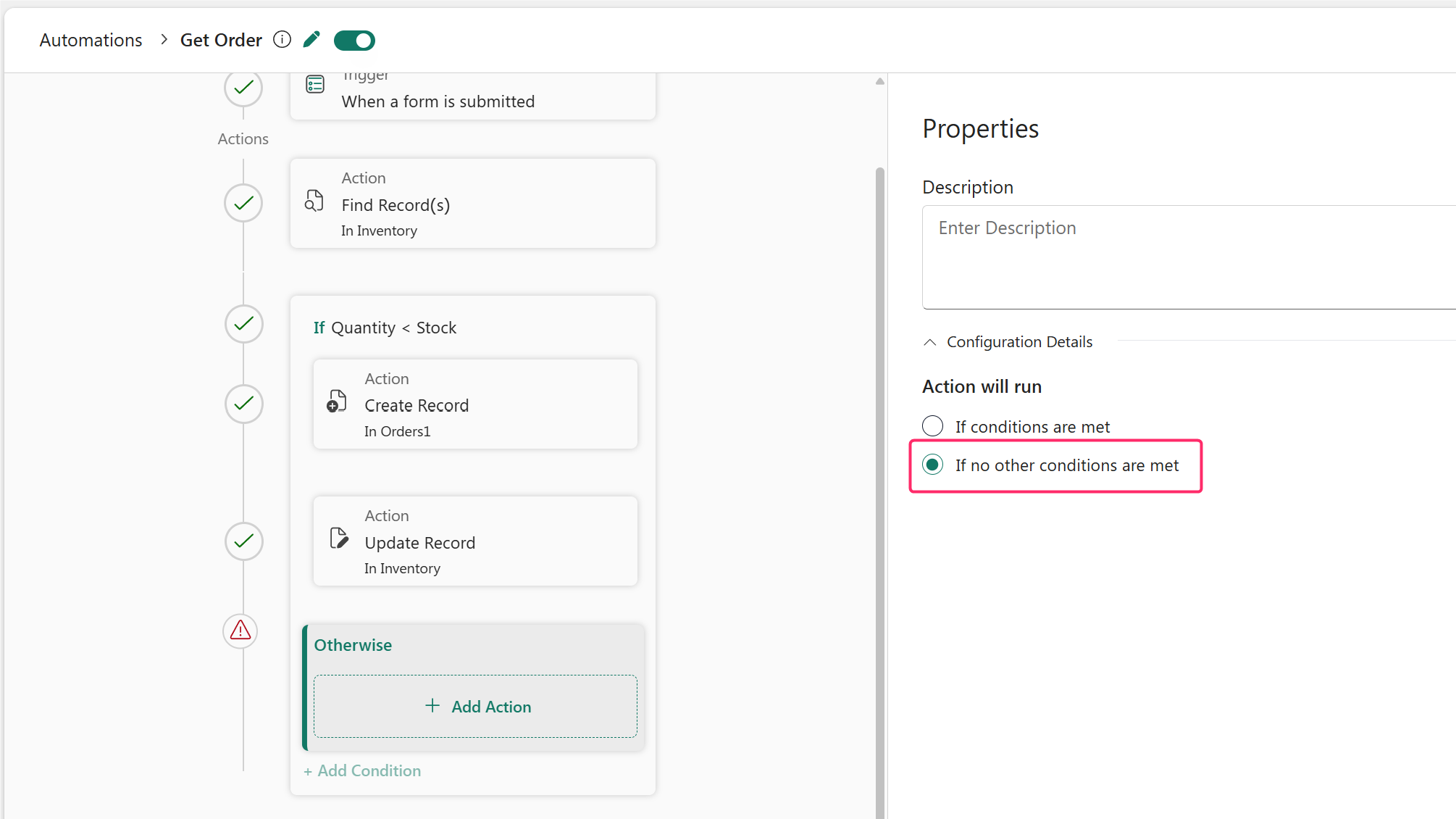
Select Add Condition to add another condition branch.
Select If no other condition are met to make it a final branch.
Configure the Otherwise branch
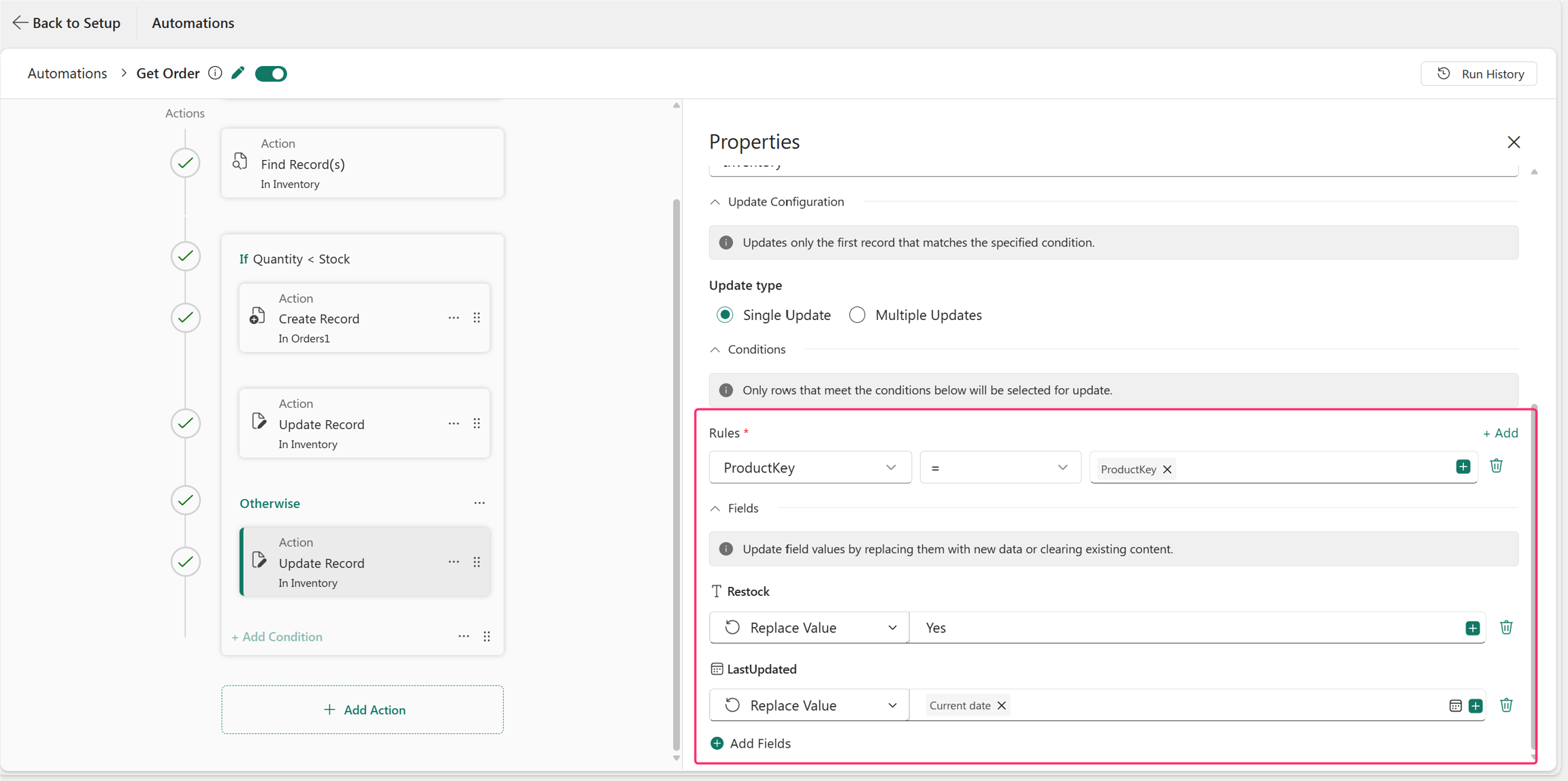
If sufficient stock isn't available, update the restock field in the Inventory table to Yes.
Add an Update Record action.
Select the schema and select Inventory table.
Select Single Update to update a single record.
Use the ProductKey in Rules to identify the corresponding product.
Update the corresponding inventory record.
Set the Restock field to Yes and update the last updated date.
The flow is complete.
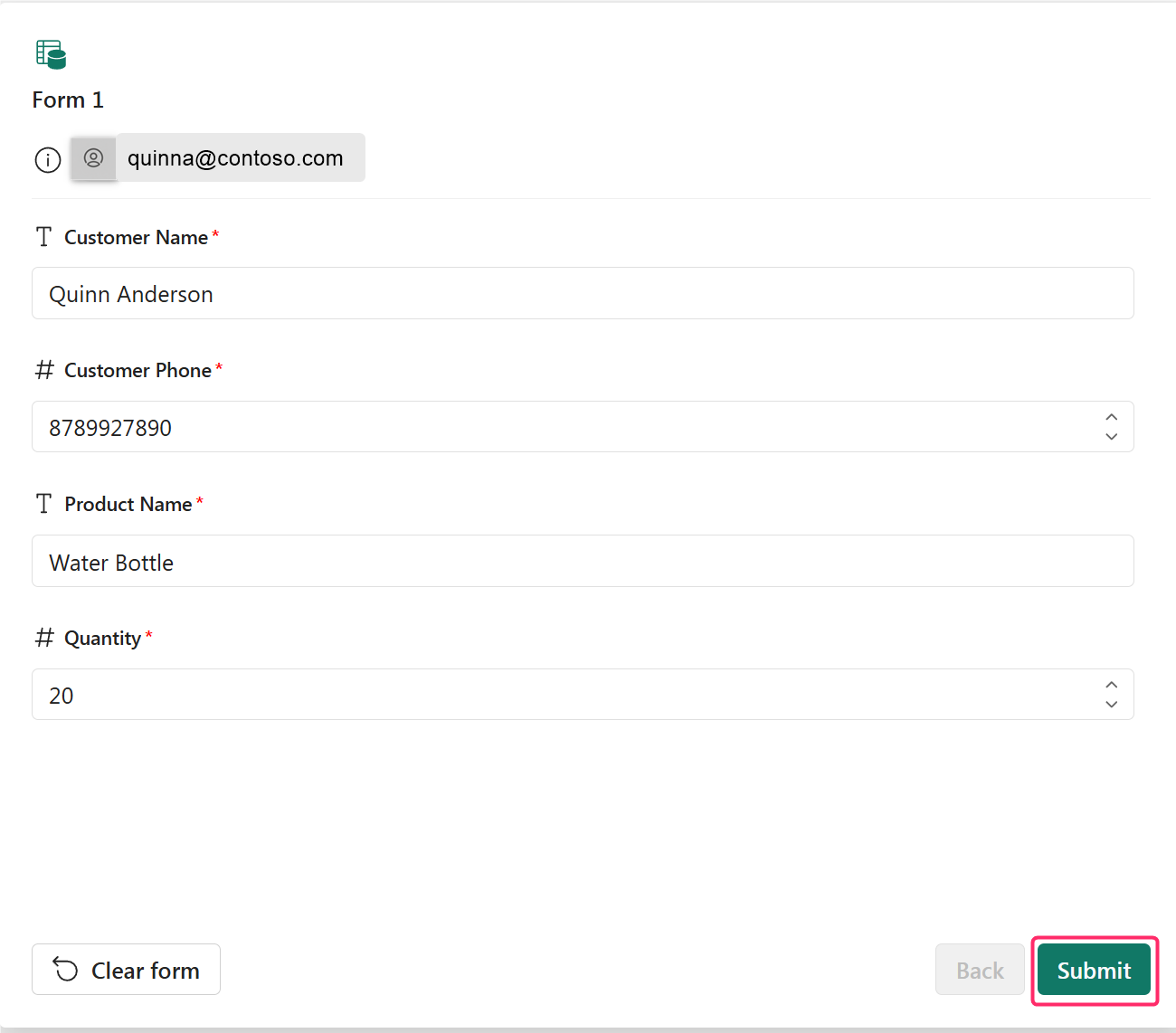
Consider a user submits the form as shown in the following image.
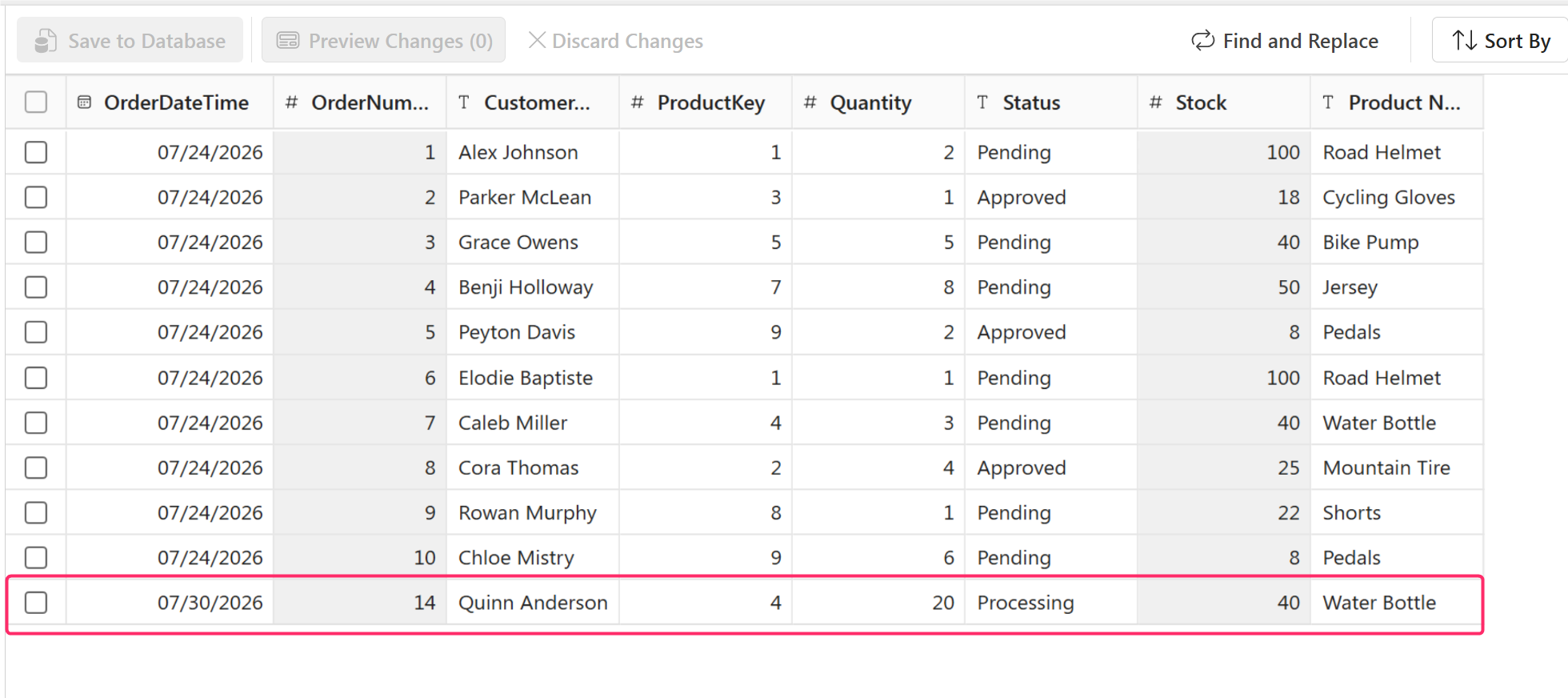
The orders table is updated. The stock inventory is also updated from 60 to 40 as seen in the Stock reference column.