Note
Access to this page requires authorization. You can try signing in or changing directories.
Access to this page requires authorization. You can try changing directories.
The service catalog enables you to deploy Azure services and streaming applications into Azure Enclave quickly while being compliant with Policy Guardrails and enclave isolation requirements.
In this tutorial, part four of eight, you create Azure resources using service catalog in workloads. You learn how to:
- Deploy a service catalog template for an Azure resource into an existing workload from the Portal
Note
The sample deployment is just for demonstration purposes and doesn't represent all the best practices for network, systems, or applications administration.
Before you begin
- This tutorial assumes a basic understanding of networking and Azure Enclave concepts. For more information, see Best practices for Azure Enclave.
- You need an Azure account with an active subscription. If you don't have one, create an account for free.
- You need a community, enclave, workload, and at least one workload resource group and permissions to create resources inside the workload resource group.
- Complete the prerequisites for an App Service Web App. Including subnet delegation for the

Enable enclave maintenance mode
Tip
Skip this step if enclave maintenance mode is still turned on since you completed Tutorial 1-2.
Navigate to the
ve-Enclave-WebAppenclave and selectMaintenance Mode.Enter the information needed to enable maintenance mode:
- Maintenance Mode: Select
General - Principals: Select
Choose Microsoft Entra principaland enter your username - Justification: Select
Networking - Select
Save

- Maintenance Mode: Select
Select
Confirmand allow a few minutes for the enclave to return toSucceededstate.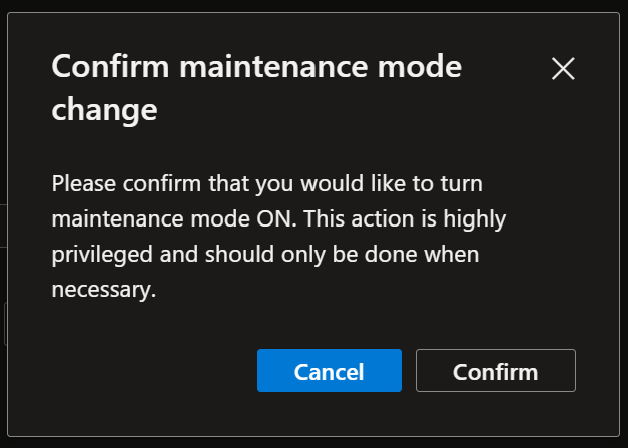

Create App Service required resources
Navigate to the
wl-webapp-frontendworkload to create an Azure App Service for your webapp.Select
Add an Azure servicebutton on the overview page.Select
Private DNS Zonesfrom the service catalog dropdown list and selectNext.
Create the private DNS zone:
- For
Resource groups, selectwl-webapp-frontend. - For
Additional Private DNS Zone Names, enter the private DNS zone name for App Service["privatelink.azurewebsites.net"]. You might need to use a different value depending on the Azure cloud you're using. - Select
Review + CreatethenCreate.
- For

Create Azure web app resources from the service catalog
Navigate to the
wl-webapp-frontendworkload to create an Azure App Service for your webapp.Select
Add an Azure servicebutton on the overview page.Select
App Servicefrom the service catalog dropdown list and selectNext.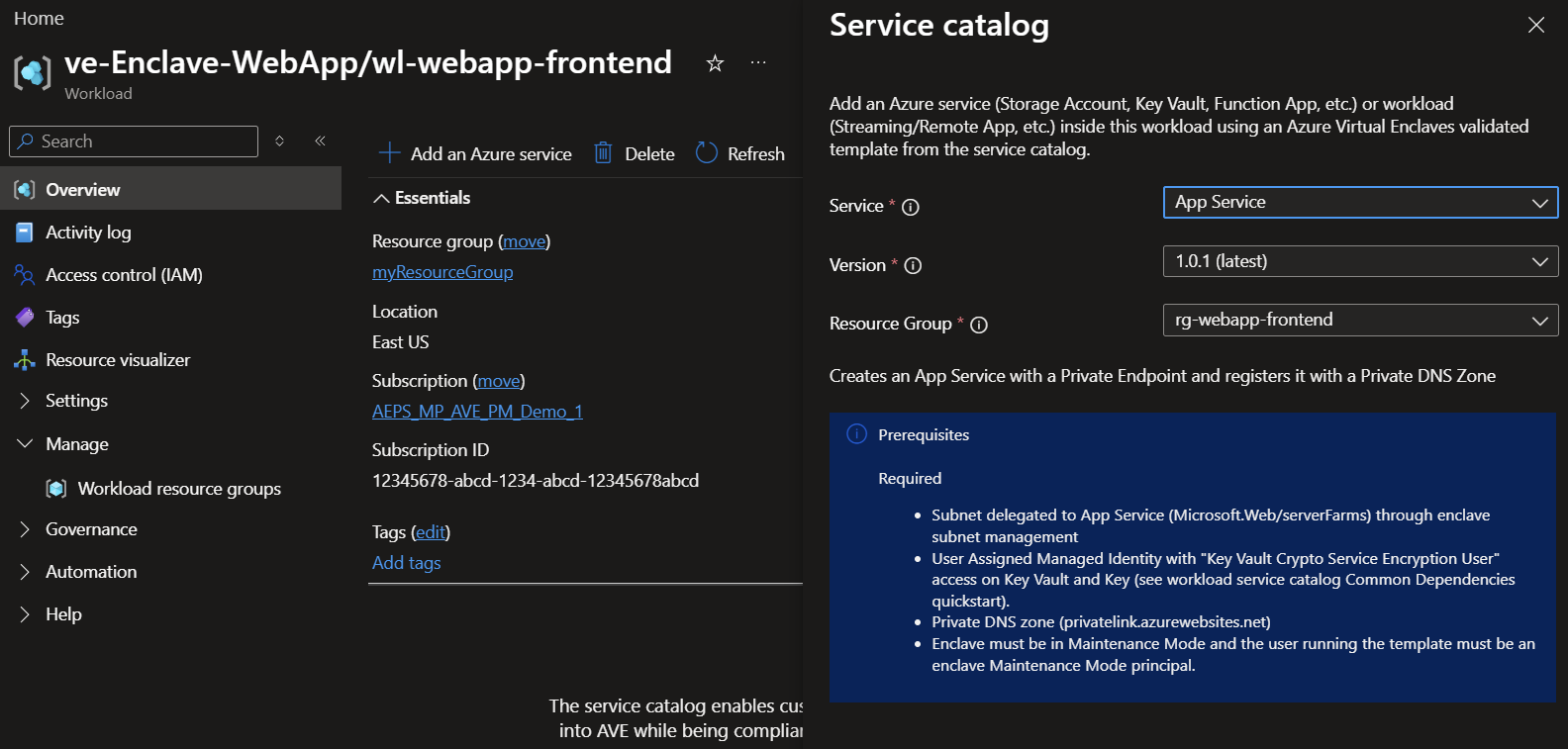
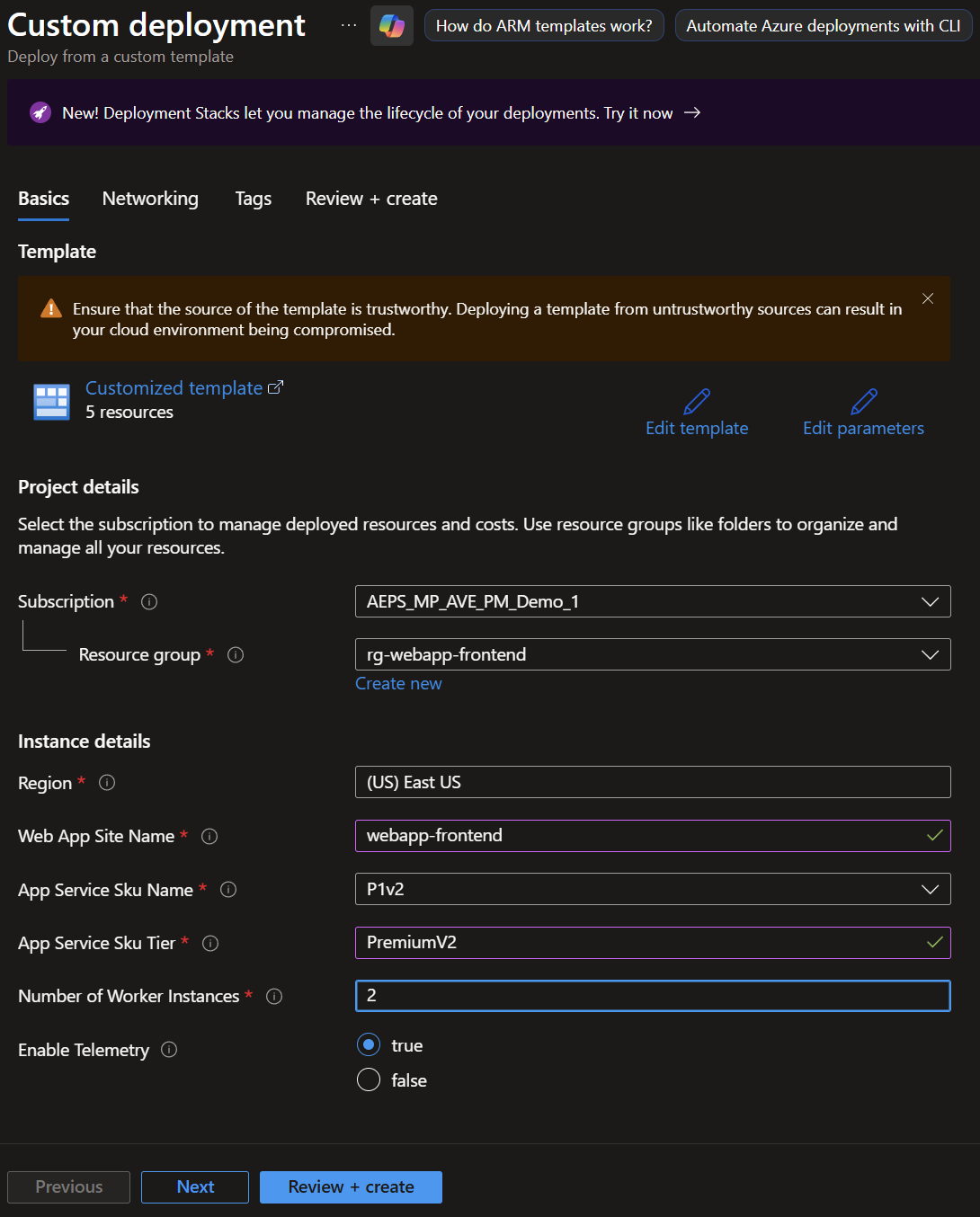
Enter all the required parameters on each tab.
- Web App Site Name: Enter
webapp-frontend-fabrikam - App Service Sku Name: Select an option from the dropdown,
P1v2, or the lowest option for this tutorial. See this table for a full list of options: https://azure.microsoft.com/pricing/details/app-service/linux/#pricing - App Service Sku Tier: Enter
PremiumV2. - Number of Worker Instances: Enter
2.
- Web App Site Name: Enter
Select
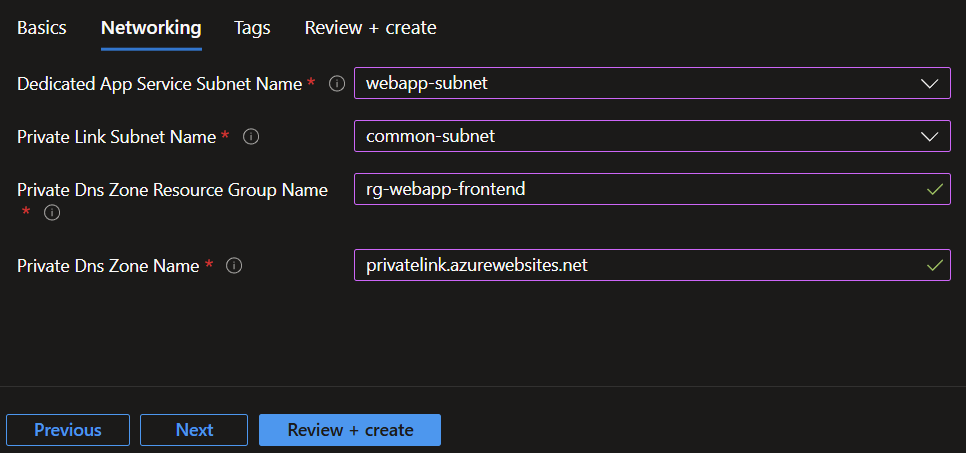
Nextthen enter the networking information. Ensure the App Service subnet has a delegation to 'Microsoft.Web/serverfarms' and the private link subnet doesn't.Dedicated App Service Subnet Name: Enterwebapp-Subnetfor the subnet delegated in the previous step.Private Link Subnet Name: Entercommon-subnetfor the subnet containing the private endpoints.Private Dns Zone Resource Group Name: Enterrg-webapp-frontend.Private Dns Zone Name: Enterprivatelink.azurewebsites.netfor App Service.
Select
Review + Createand thenCreate.Wait for the deployment to complete successfully before you take any actions within your deployed resources.


Validate the deployment
Go to the specified resource group to confirm the intended resources were created.
Deploy Web App Quickstart (Optional)
Azure App Service has quickstarts for many languages such as the python quickstart or deploy from a zip file
Clean up resources
If you don't plan on keeping these resources, clean up unnecessary resources to avoid Azure charges. If no other deployments exist in the resource group, the whole resource group can be deleted or all App Service resources can be selected and deleted.
Recommendations
- Review an architecture example for a basic web application
- Add tags to service catalog deployments to track important information for that resource such as:
- Owner:
main POC - Deployer:
yourName - Purpose:
publish abc app to users - Service Catalog Name:
Virtual Machine - Service Catalog Version:
version you deployed
- Owner:
- Consider adding an Azure Policy to enforce and inherit tags
Next steps
In this tutorial, you created Azure resources with service catalog using Azure portal.
In the next tutorial, you'll learn how to create Azure resources in your enclave.